4TB HDD Not Working in Windows Server 2012: Capacity and Detection Fixes
A 4TB disk that appears as roughly 2TB has a different problem from one that never appears at all. The first may involve partitioning or a storage-controller limit; the second requires connection and device-detection checks. Converting the disk to GPT cannot fix every case.
Also distinguish a data disk from the disk that starts Windows Server. Changing the boot disk requires a coordinated boot and recovery plan.
Read the capacity at each layer
- Check the physical disk model and capacity in the enclosure or controller utility. On RAID, distinguish member-disk size from the virtual disk presented to Windows.
- Open Disk Management and inspect the total capacity on the left-hand disk label, not only the size of its existing volume.
- Inspect Properties > Volumes > Partition style. Record whether the disk is MBR or GPT.
- Compare the result with the controller, USB bridge, and driver specifications. An older bridge or controller may expose the wrong capacity before partitioning is considered.
A decimal 4TB disk appears as approximately 3.64TiB; Windows often displays that binary-derived value using a TB label. This normal unit difference is not the same as losing about half the disk.
With 512-byte logical sectors, MBR's addressing limit is about 2TiB. GPT is the normal choice for a large modern data disk. Sector presentation and controller support still matter.
Back up an existing data disk before repartitioning
For readable files, use a separate backup destination before deleting volumes. On a server, use a Qiling edition compatible with the installed server version and a backup method appropriate to any running applications.
Step 1. Pause scheduled jobs that write to the target data disk. For databases, use the application's supported consistent backup procedure rather than assuming a general file copy is sufficient.
Step 2. Open Qiling Disk Master and select Disk/Partition backup. Select the existing data partitions directly.
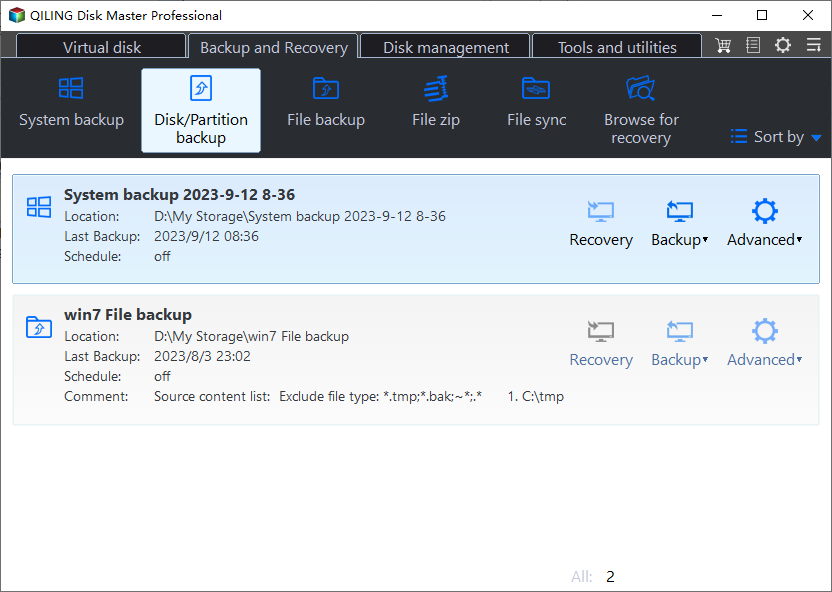
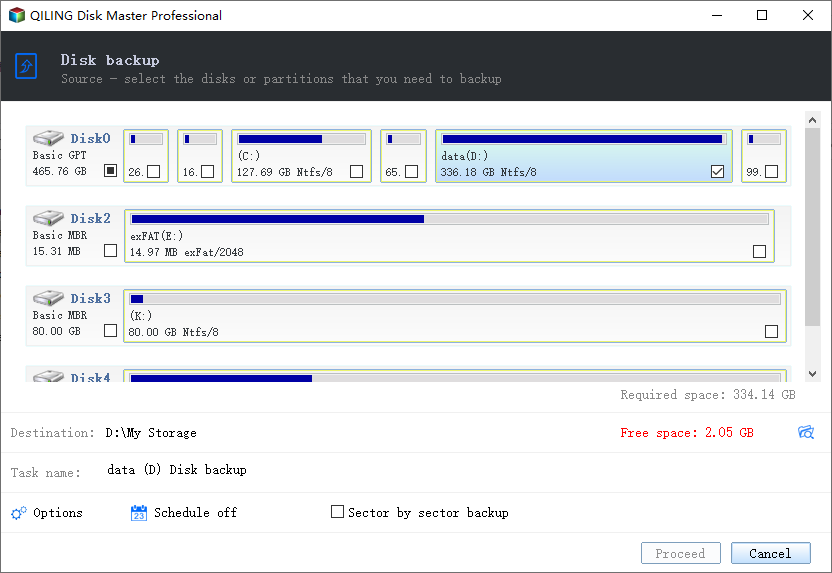
Step 3. Choose storage on another physical disk or a suitable network location. Review the source, available capacity, and destination, then click Proceed.
Step 4. Verify that the backup can be accessed and that required files can be restored. A whole-disk restore can reproduce the original partition layout; plan a file-level restore or migration if the goal is a newly created GPT layout.
Initialize a new disk or convert an expendable data disk
A new empty disk
After confirming the disk is genuinely new and empty, bring it online if required and initialize it as GPT in Disk Management. Right-click its unallocated space, choose New Simple Volume, assign the intended size and letter, and format it as NTFS for ordinary Windows server data use.
An existing MBR data disk
- Confirm the verified backup and approve the downtime. This built-in conversion route deletes the existing volumes.
- In Disk Management, identify the data disk by number and capacity. Do not select the running system disk, a clustered disk, or a RAID member managed outside Windows.
- Delete the volumes on that chosen disk only after their contents are protected.
- Right-click its disk label and select Convert to GPT Disk.
- Create the new volume or volumes, restore the files using the planned restore method, and reapply the required sharing and application configuration.
Do not use this delete-and-convert workflow on the active Windows system disk. A GPT boot installation needs suitable UEFI support and a tested migration plan.
Investigate cases where GPT is not the answer
If the total disk size is wrong even before volumes are created, check controller firmware and the enclosure's large-disk support. If the disk disconnects, test its power and cable. If Disk Management shows a healthy GPT disk with unused space, create or extend an appropriate volume only after reviewing its layout and backup.
Finish by checking total capacity, file access, shares, permissions, and the next scheduled backup. Preserve the original backup until the server workload has been tested on the new layout.
Related Articles
- Convert a Server 2012 Disk to GPT
Plan disk conversion around backup and boot requirements. - Server Extend Volume Is Unavailable
Review unallocated-space placement before extending a volume.
Products
Articles & Tutorials
- Data Recovery
- Data Backup
- File Recovery
- File Backup
- File synchronize
- System Backup and Restore
- Disk and Partition Clone
- Technical articles
- Disk Master Help
- Windows Deleted File and Disk Recovery Tutorials
- Windows File and Data Recovery Tutorials
- More Windows Tutorials for Install, Security, Files, and PC Tips
- Windows Boot, Repair, and Recovery Environment Tutorials
- Windows Backup Tutorials
- Windows Restore Tutorials
- Windows Clone and Migration Tutorials
- Windows Server Backup, Recovery, and Management Tutorials
- Windows Disk, Partition, and Storage Management Tutorials