Extend Primary Partition in Windows Server 2008 R2
When a primary partition such as C: becomes full on Windows Server 2008 R2, updates, applications, and services may fail. You can extend it if suitable unallocated space is available, but the method depends on where that space is located.
What to check first
- Back up the server or create a system image before changing partitions.
- Open Disk Management and check whether unallocated space is directly after the primary partition.
- Do not delete recovery, boot, or data partitions unless you have confirmed their purpose.
- Schedule the operation during a maintenance window if the server is in production.
Method 1. Extend with Disk Management
Step 1. Press Win + R, type diskmgmt.msc, and press Enter.
Step 2. Right-click the primary partition and choose Extend Volume.
Step 3. Select the adjacent unallocated space and enter the amount to add.
Step 4. Finish the wizard and confirm that the partition size has increased.
If Extend Volume is greyed out, the unallocated space is not directly to the right of the partition or the disk layout is not supported by Disk Management.
Method 2. Extend with Qiling Disk Master
 Qiling Disk Master Server
Resize or move server partitions when Disk Management cannot extend the primary partition directly.
Step 1. Create a server backup first. Then open Qiling Disk Master Server and locate the Server 2008 R2 disk by capacity, drive letter, and partition layout.
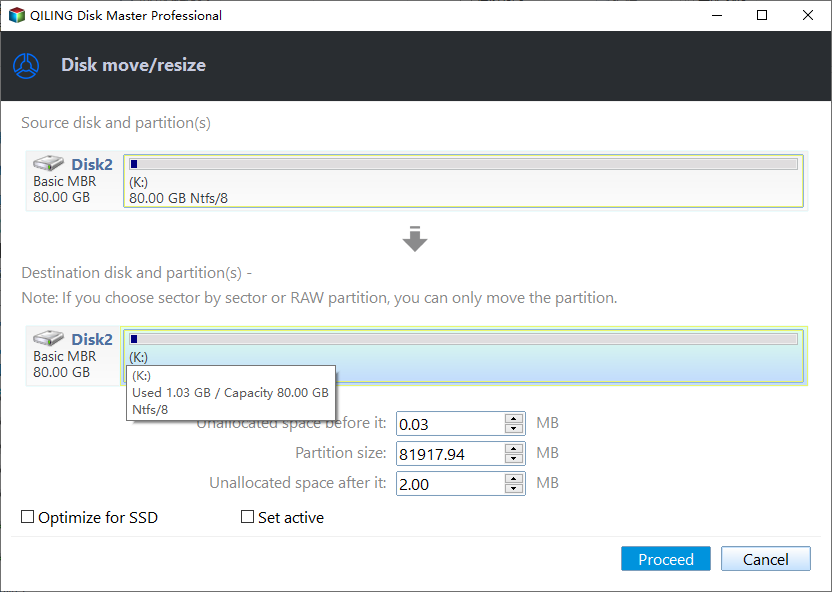
Step 2. Check whether unallocated space already exists next to the primary partition you want to extend. If adjacent unallocated space already exists, review the pending layout and click Proceed to apply the extension.
Step 3. If there is no unallocated space, right-click a data partition with enough free space and choose Resize/Move Partition. This step opens the resize window for the data partition that will provide free space.
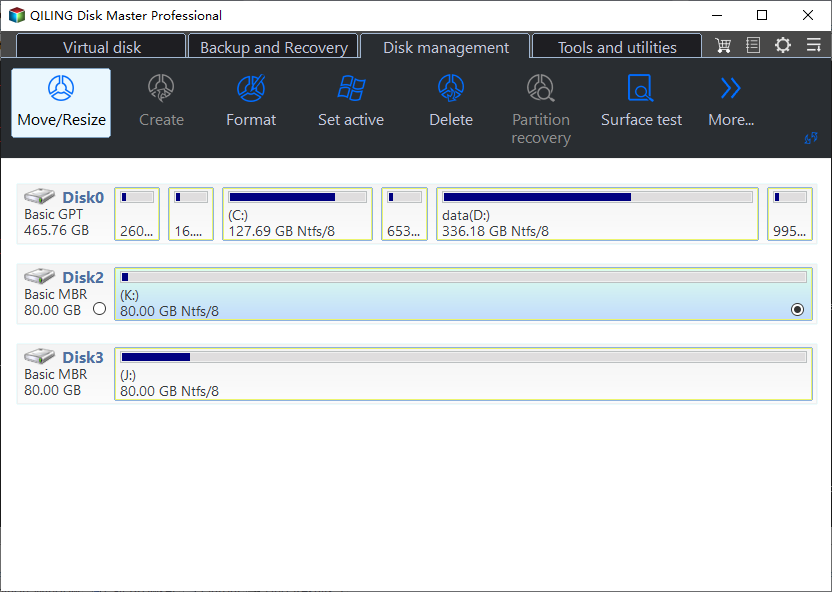
Step 4. Drag the border inward or enter a smaller size to release the amount of space needed. Review the pending operation list, confirm that it only includes the intended shrink or move operation and the primary partition extension, then click Proceed. Keep the server powered on until completion, confirm the new partition size, and restart any paused services.
Conclusion
Disk Management works only when the layout is simple. If the free space is not adjacent, use a preview-based partition tool and confirm the backup before applying changes on a server disk.
Related Articles
-
Extend Volume Greyed Out in Windows Server 2016
Fix unavailable Extend Volume options by checking adjacent space and disk layout. -
Shrink Volume in Windows Server 2016
Shrink a server partition safely before creating or extending another volume.
Products
Articles & Tutorials
- Data Recovery
- Data Backup
- File Recovery
- File Backup
- File synchronize
- System Backup and Restore
- Disk and Partition Clone
- Technical articles
- Disk Master Help
- Windows Deleted File and Disk Recovery Tutorials
- Windows File and Data Recovery Tutorials
- More Windows Tutorials for Install, Security, Files, and PC Tips
- Windows Boot, Repair, and Recovery Environment Tutorials
- Windows Backup Tutorials
- Windows Restore Tutorials
- Windows Clone and Migration Tutorials
- Windows Server Backup, Recovery, and Management Tutorials
- Windows Disk, Partition, and Storage Management Tutorials