Should I Defrag My SSD in Windows 10?
What is defragmentation?
Disk fragmentation occurs when files are stored in scattered locations across the entire disk, rather than being stored continuously in a single cluster. As a result, defragmentation is the process of reassembling these fragments into contiguous blocks, making it easier for the system to access and read data.
The disk is like a warehouse where downloaded files are stored. Just as a warehouse can have many rooms, the disk has many storage spaces. If some files are deleted, the available storage spaces decrease, just like emptying some rooms in the warehouse. If new files are added, they will be stored in the available spaces, but if there are not enough spaces, the new files cannot be stored continuously, just like not being able to store all the new goods in the warehouse.
Repetitive deletions and downloads can lead to disk fragmentation, where files are stored in inconsistent locations on the disk. This inconsistency causes the reading time to increase, making the computer run slower. The ultimate goal of defragmentation is to reorganize scattered files together continuously, improving the computer's performance.
Can I perform SSD defrag in Windows 10?
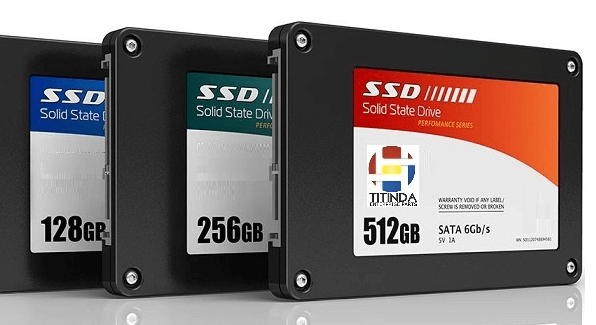
Defragmentation is the process of storing files in a continuous area of the hard drive, reducing seek time and improving performance by minimizing the time it takes to read fragmented files.
Defragmenting an SSD can cause unnecessary wear and tear, reducing its lifespan, as it doesn't have the same data retrieval mechanism as a traditional hard drive.
How to optimize SSD?
While defragmentation is not necessary for solid-state drives (SSDs), there are other ways to improve their performance. One approach is to regularly clean up temporary files and system logs, which can slow down SSDs by consuming storage space and increasing the number of read and write operations. Additionally, disabling unnecessary startup programs and services can also help reduce the load on the SSD.
If you're looking for a solution to optimize your SSD, I recommend Qiling Disk Master Professional. This software is suitable for Windows 10/8/7/XP/Vista and offers two methods for optimizing SSDs: SSD Alignment and SSD Secure Erase.
SSD alignment, specifically 4K alignment, involves optimizing partition placement on the hard disk to improve data processing efficiency. This is distinct from SSD Secure Erase, which completely erases all data on the solid-state drive to restore its performance to factory settings. You can try the demo version for free!
Tip: To defragment your hard drive, you can utilize scheduled defragmentation. This feature enables you to choose the frequency of defragmentation, such as daily, weekly, or monthly, based on your specific requirements. You can also specify the time of day and whether it should run automatically when you log in. This allows you to maintain your hard drive's performance and organization over time.
│ Method 1. SSD secure erase via Qiling Disk Master
Notes:
1. This operation will completely erase all data on the SSD. If you have important data, please back it up in advance.
2. This function is only supported in Windows 7 currently. Please connect the SSD to a computer running Windows 7.
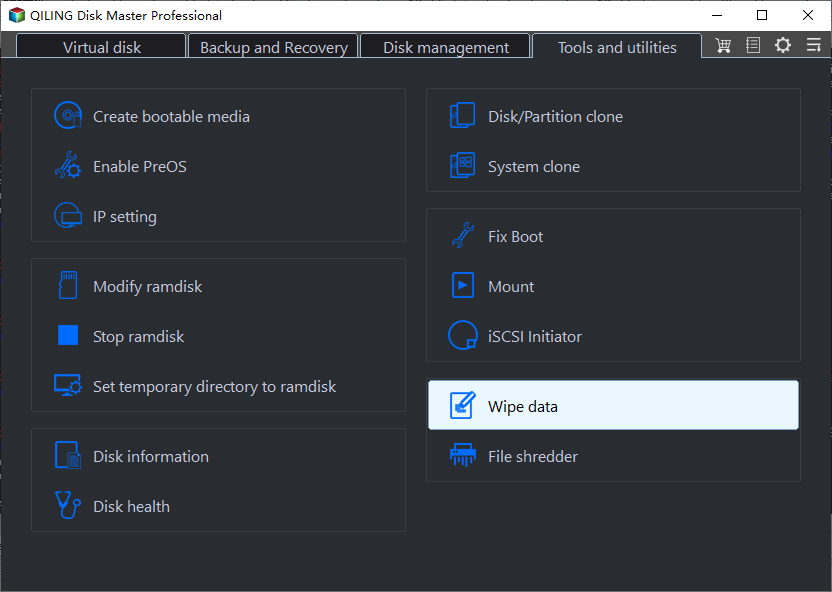
Step 1. To erase data using Qiling Disk Master Professional, install and launch the software, navigate to the "Tools and utilities" tab page, and select the "Wipe Data" option.
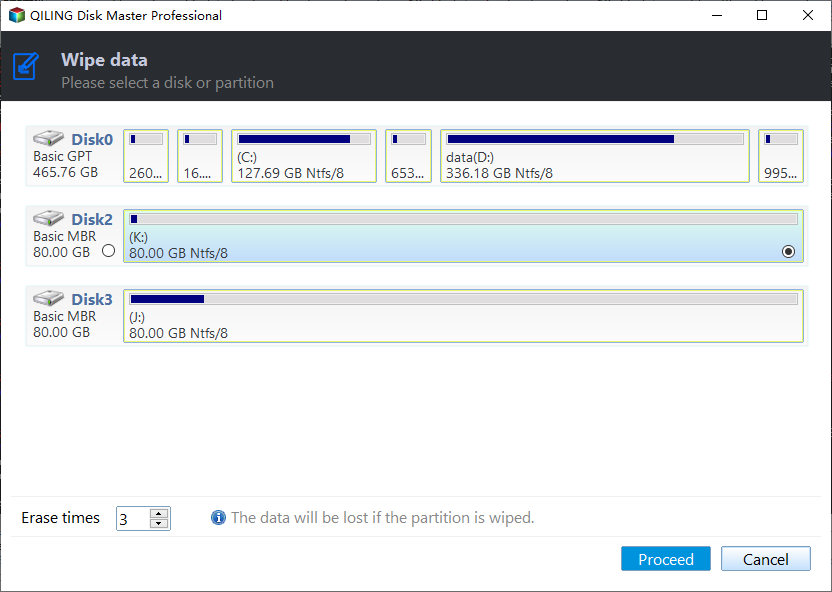
Step 2. Select the SSD that you want to secure erase.
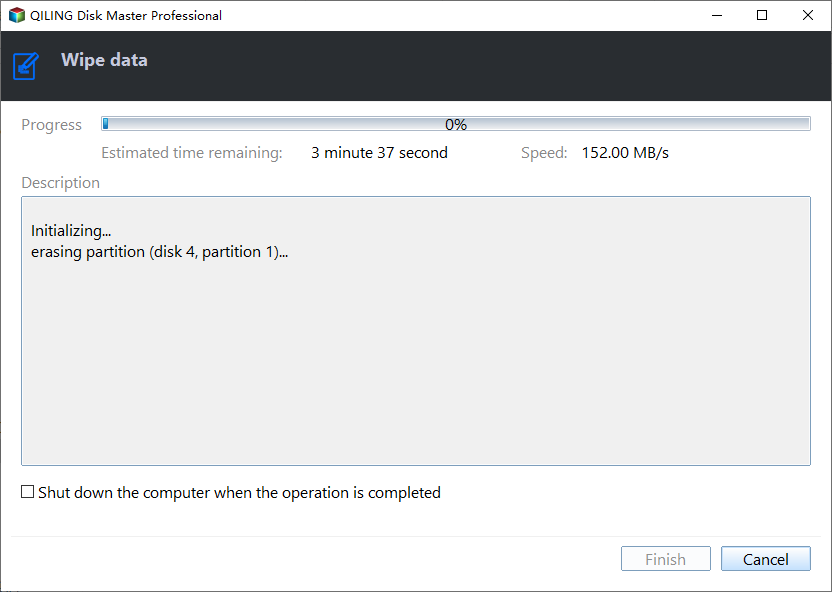
Step 3. Click "Proceed" to start the SSD Secure Erase.
│Method 2. Use Qiling Disk Master to align SSD
4K misalignment can lead to decreased random read and write performance for 4KB files, potentially making them slower than HDDs.
Step 1. Install and launch Qiling Disk Master Professional. Right-click the partition that you want to align and select 'Partition Alignment' in 'Advanced'.
Step 2. In the popup window, set partition alignment to "4096 Sector" or you can also set it to the default one.
Step 3. To start the alignment, click the "Proceed" button located in the upper left corner of the screen. This will initiate the process of aligning the objects or elements on the screen.
Other things you should know about SSD
We don't recommend running SSD defragmentation to improve performance, as it's not only unnecessary but also reduces the SSD's lifespan. Instead, consider the two easy and harmless methods mentioned earlier to optimize your SSD. These methods are a better way to maintain your SSD without causing any harm.
☞ Don't run out of SSD capacity
The SSD should have at least 20% of its remaining space reserved to prevent data writing from being amplified, which can accelerate the loss of its life. If the space is too small, the SSD will need to frequently erase and transfer data, leading to reduced performance.
☞ Don't write constantly
To prolong the lifespan of an SSD, minimize writing time as much as possible.
☞ Don't store files that you don't use frequently
SSDs are smaller and more expensive than HDDs, but their read and write speeds are significantly faster. To maximize their potential, it's recommended to store frequently used files on an SSD.
Related Articles
- SSD Optimization Tips for Windows 10 You May Want to Know
Improve SSD performance in Windows 10 with practical optimization settings and maintenance tips. - SSD Slowing Down? 7 Quick Tricks to Make SSD Run Faster!
Manage sSD Slowing Down 7 Quick Tricks to Make SSD Run Faster with safer disk and partition steps to avoid data loss or boot problems. - The Introduction of SSD: Cons, Pros and How to Choose
This article will show you what SSD (Solid-state Drive) is, the advantage and disadvantage of SSD hard drive, and how to choose right SSD disk for your PC. - Best SSD Wipe Software
Choose SSD wipe software that securely erases data while protecting the drive from unnecessary wear. - How to Clean My PC? 5 Sensitive & Essential Tips You Must Try in 2022
Clean your PC safely with practical tips for removing junk files and protecting important data. - How to Destroy A Hard Drive and Make A Hard Drive Unrecoverable
How to destroy a hard drive and make a hard drive unrecoverable. It would help if you had data destruction software (Support Windows 11, 10, 8, 7, Server 2021-2022) and a physical solution.
Products
Articles & Tutorials
- Data Recovery
- Data Backup
- File Recovery
- File Backup
- File synchronize
- System Backup and Restore
- Disk and Partition Clone
- Technical articles
- Disk Master Help
- Windows Deleted File and Disk Recovery Tutorials
- Windows File and Data Recovery Tutorials
- More Windows Tutorials for Install, Security, Files, and PC Tips
- Windows Boot, Repair, and Recovery Environment Tutorials
- Windows Backup Tutorials
- Windows Restore Tutorials
- Windows Clone and Migration Tutorials
- Windows Server Backup, Recovery, and Management Tutorials
- Windows Disk, Partition, and Storage Management Tutorials