How to Wipe a USB Drive Completely | 3 Secure Methods
The necessity to wipe a USB drive
A study by Comparitech found that many people fail to properly erase data from their USB drives before disposing of them, with some not even making an attempt, posing a risk of sensitive information being compromised.
Leftover files, including business documents, job applications, private photos, ID scans, and receipts, may be accessed by others and expose sensitive information. Even deleted data can often be recovered with recovery tools, so simple deletion is not enough.
When you reuse a USB drive or buy a second-hand device, you may worry about old data, viruses, or monitoring software. To avoid these risks, completely wipe the USB flash drive or hard drive before using it again.
How to wipe a USB drive completely (3 methods)
To permanently wipe a USB drive on Windows 10/8/7, ordinary deletion is not enough. You need a method that removes data more thoroughly. The following three methods can help, and Method 3 is the most secure option for cleaning a flash drive or external hard drive.
- Method 1. Erase a USB drive with Format
- Method 2. Clean a USB drive with DiskPart
- Method 3. Wipe a USB drive with specialist software safely
Method 1. Erase a USB drive with Format
Formatting a USB drive is not the same as wiping it, as the data remains recoverable until the specific sectors are overwritten. If the USB drive contains no sensitive data, formatting might be sufficient, but it's essential to note that formatting is not the same as securely erasing data.
How to erase a thumb drive or hard drive via format:
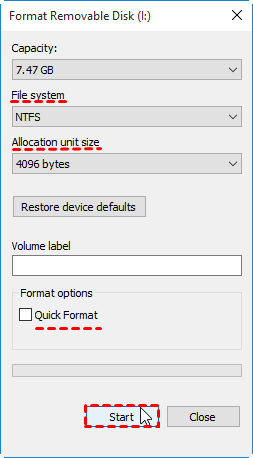
1. Connect the USB drive to your computer and make sure it appears in File Explorer. Then right-click the drive and select "Format".
2. Choose a file system that fits your needs and uncheck "Quick Format". Quick formatting only removes file records and may leave data recoverable.
3. Then click Start to execute formatting and wait for it to complete.
Tips:
- To format a drive in Disk Management, right-click the drive and select "Format" to initiate the formatting process.
- If you're planning to reformat a USB drive, make sure to backup any important files on it first, so you don't lose any data.
Method 2. Clean a USB drive with DiskPart
When using DiskPart to erase data from a drive, the "clean" command removes partition information more thoroughly than ordinary formatting. However, "clean" alone does not overwrite every sector, so data may still be recoverable.
To remove sensitive information more securely, use the "clean all" command. It takes longer because it writes zeros to the entire drive, but it provides a safer wipe.
How to clean a flash drive or hard drive with command:
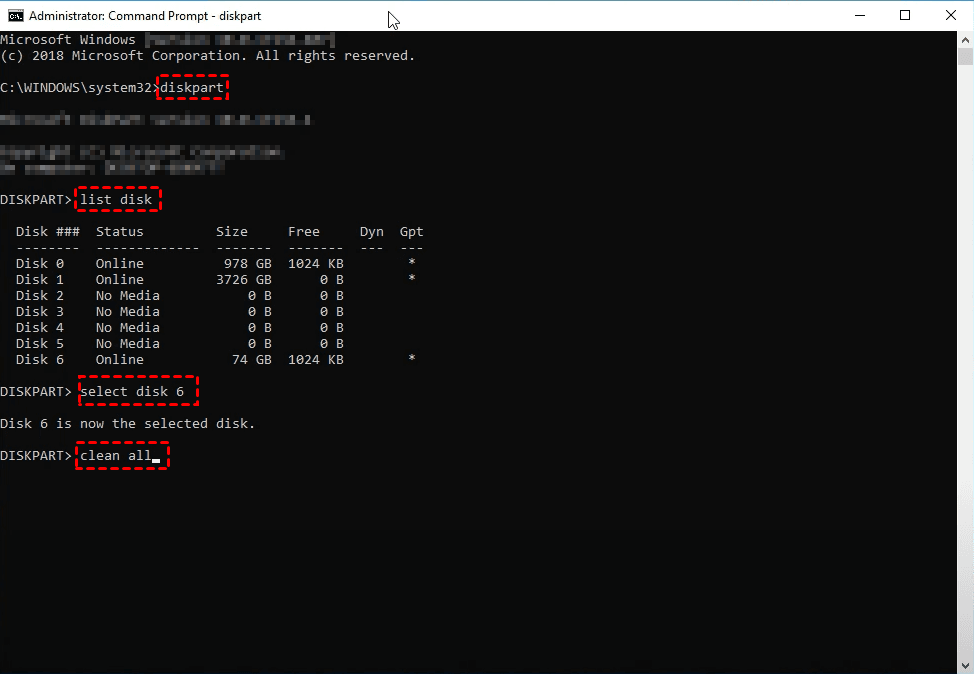
1. To open the Command Prompt as an administrator, search for "CMD" and select "Run as administrator" from the search results.
3. Enter following commands and press Enter after finishing each line.
Diskpart
List disk
Select disk x
Clean all
*x refers to the disk you want to select
After using DiskPart to clean the USB drive, all existing partitions are removed. If you want to reuse the drive for storing files, initialize it and create a new partition in Disk Management.
Method 3. Wipe a USB drive with specialist software safely
The process of disk wiping is relatively straightforward, but the built-in tools in Windows are limited in their options and may not be as secure as specialized data erasing software.
If you're concerned about privacy or have important data on the USB drive, the Wipe Disk feature of Qiling Disk Master might be a better option.
◆ This software allows you to wipe any USB flash drive or external/internal HDD, including the system disk. You'll be given options to erase selected partitions or delete all partitions along with all sectors on a disk.
◆ There are four methods to securely wipe a hard drive, each with varying speed and security levels, including filling sectors with zeros, random data, or Gutmann, which is considered highly secure but also time-consuming.
◆ Disk wiping is just one of its functions. As an all-around data protection tool, it offers professional backup and recovery service to help you avoid data loss, allowing you to backup files on a USB drive before erasing it.
◆ You can use Qiling Disk Master to create a bootable USB from a USB you no longer use regularly, which can serve as a disaster saver in case your computer crashes suddenly.
You can download this software and unlock all wiping methods.
Please note:
This feature doesn't support wiping dynamic disks currently.
The erased data is unrecoverable, please make a backup using file backup or disk backup feature at first.
How to wipe a USB drive safely in Windows 10/8/7:
1. Launch the software, go to Tools and select Disk Wipe.
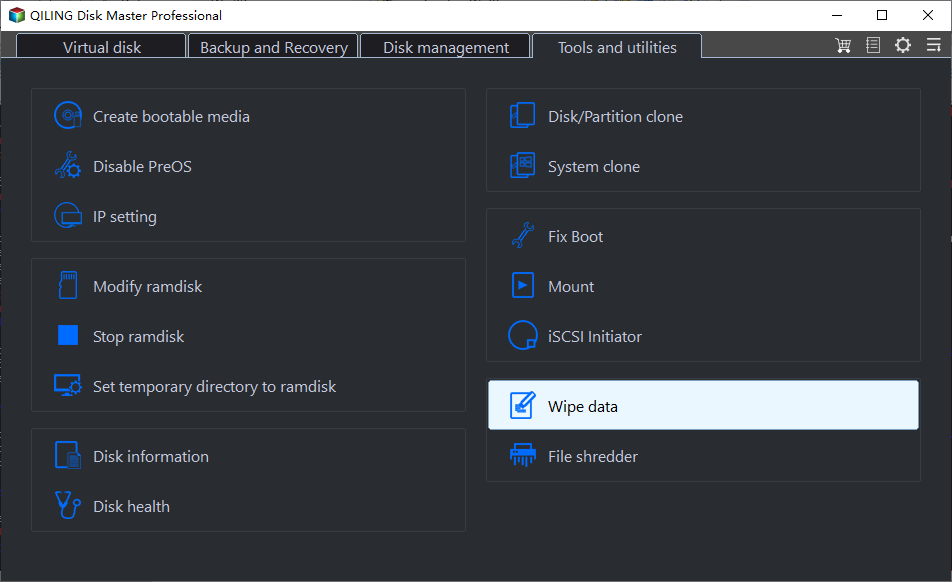
2. Select the disk or partitions you want to erase.
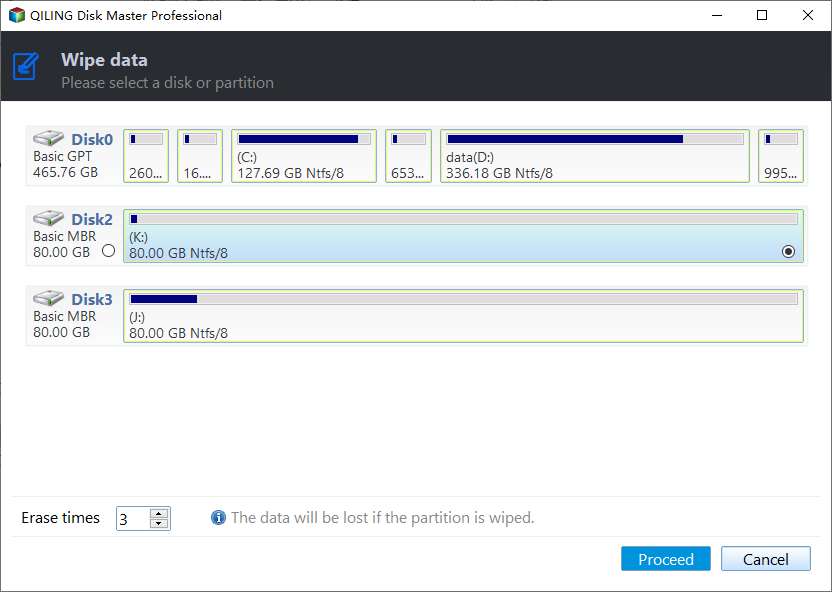
3. Select the desired wiping method based on the desired level of safety and wiping speed, and then initiate the disk wiping process.
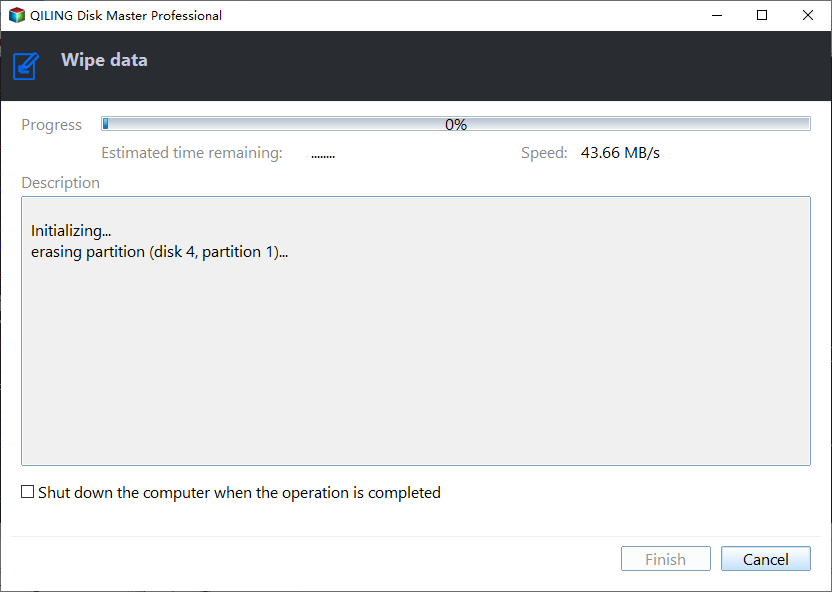
After confirming the wiping method, click Proceed and wait until the process finishes. Do not disconnect the USB drive during the wipe.
Conclusion
Protecting privacy is important, but manually deleted data and even formatted data may still be recoverable. To prevent privacy leaks or safely reuse a second-hand USB drive, use a secure wiping method such as the Disk Wipe feature in Qiling Disk Master.
Qiling Disk Master offers wiping methods with different security levels, including DoD 52220.22-M and Gutmann. It also helps with daily data protection, such as backing up Windows 10 to a USB drive, scheduling file backups to USB, or automatically backing up a USB drive when plugged in.
Related Articles
- How to Format Hard Drive without Losing Data | 2 Effective Ways
Learn how to format a hard drive or external drive safely. This guide explains three formatting methods and two ways to avoid data loss after formatting. - How to Recover Files from External Hard Drive without Formatting?
Learn how to recover files from an external hard drive without formatting it, and choose the recovery method that fits your situation. - Fix a Corrupted Flash Drive without Formatting (2+5 Solutions)
Learn how to fix a corrupted flash drive without formatting or data loss, and why backing up files helps protect data security. - Solved | Can't Backup System to Removable USB Drive in Windows 10/8/7
If you cannot back up a system to a USB drive, this guide explains common causes, possible fixes, and a free alternative. - How to Wipe A Hard Drive for Reuse? Check the Quickest Way to Wipe A Hard Drive
Learn how to wipe a hard drive for reuse with secure software or a manual method, then start over with a clean device. - Use Reset PC or Other Easier Solution? Check How to Wipe A Hard Drive
Learn how to wipe a hard drive with third-party software or the built-in Reset This PC feature, and choose the safer method for your needs.
Products
Articles & Tutorials
- Data Recovery
- Data Backup
- File Recovery
- File Backup
- File synchronize
- System Backup and Restore
- Disk and Partition Clone
- Technical articles
- Disk Master Help
- Windows Deleted File and Disk Recovery Tutorials
- Windows File and Data Recovery Tutorials
- More Windows Tutorials for Install, Security, Files, and PC Tips
- Windows Boot, Repair, and Recovery Environment Tutorials
- Windows Backup Tutorials
- Windows Restore Tutorials
- Windows Clone and Migration Tutorials
- Windows Server Backup, Recovery, and Management Tutorials
- Windows Disk, Partition, and Storage Management Tutorials