How to Format Hard Drive without Losing Data | 2 Effective Ways
- Why do you format a hard drive
- Can you format a hard drive without losing data
- Tutorial: How to format a hard drive
- How to avoid data lost caused by hard drive formatting
- Method 1. Backup hard drive to avoid data loss caused by formatting
- Method 2. Retrieve lost data after formatting a hard drive
- Conclusion
Why do you format a hard drive
Disk formatting is the process of erasing all data on a disk and setting up a file system to enable data reading and writing. This process essentially wipes the disk clean and prepares it for new data to be written onto it.
For a brand new hard drive, you need to partition and format it for initialization.
You can format a used hard drive to change the file system, clean up system files, free up disk space, and remove viruses and malware.
Formatting a hard drive without losing data is possible by backing up all files and data to an external drive or cloud storage before proceeding with the formatting process.
Can you format a hard drive without losing data
You can reformat a hard drive without losing data by creating a backup of your files before formatting, or by using a tool like Qiling Backup to clone the hard drive, allowing you to restore the original data after formatting. This way, you can keep your data safe and still reformat the drive as needed.
If you want to change the file system from FAT32 to NTFS without erasing any data, you can use the command line "convert" instead of "format". This will allow you to make the change without losing any information.
If you want to format your hard drive to potentially solve more problems and improve your computer's performance, you'll need to erase all data on the disk, regardless of whether it's a HDD or SSD, and whether you're formatting FAT32 to NTFS on a local drive or converting NTFS to FAT32 on an external hard drive or USB drive. This will erase all data on the disk.
To avoid data loss caused by formatting, you can either back up your hard drive in advance or retrieve your data afterward. If you still need to format your hard drive, you can follow the guide, combining it with either Method 1 (backing up) or Method 2 (retrieving data) to minimize data loss.
- Tutorial: How to format a hard drive
- Method 1. Backup hard drive to avoid data loss caused by formatting
- Method 2. Retrieve lost data after formatting a hard drive
Tutorial: How to format a hard drive
There are multiple ways to format a hard drive, including using File Explorer, Command Prompt, or Disk Management, each with its own set of steps and considerations.
◉ You can't format a drive larger than 32GB to FAT32. This file system is usually used on the USB drive.
◉ You can't format a system drive, such as the partition where your operating system is installed (like C:), as it contains essential files and folders that are required for the operating system to function.
◉ A "quick format" is faster but may not thoroughly solve disk problems, whereas a full format is slower but safer, and it's recommended to backup the disk before doing a full format.
☛ Format a drive in File Explorer:
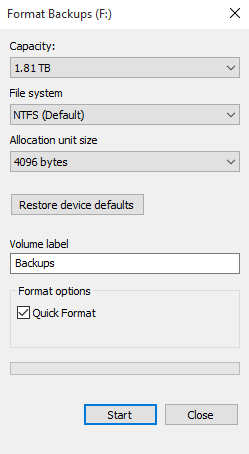
1. To format a volume or external hard drive, open "This PC" and right-click on the volume or external hard drive. From the context menu, select the "Format" option.
2. Choose the file system you want, and decide whether to do a quick format or not, then hit start.
☛ Format a drive in Disk Management:
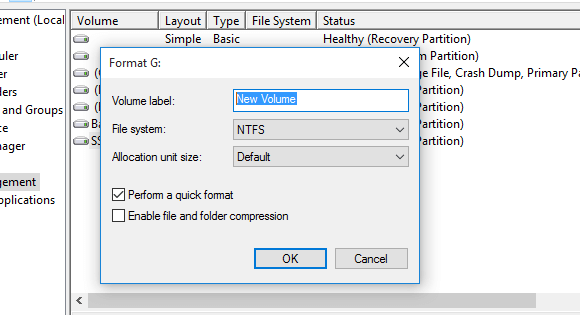
1. Right-click Start button and choose Disk Management to open it.
2. Right-click the volume or external hard drive and choose Format in the menu.
3. Choose a file system and decide whether to perform a quick format, then click OK to execute it.
☛ Format FAT32 to NTFS or vice versa with the command line:
1. To open the Command Prompt as an administrator, search for "CMD" in the Start menu, select Command Prompt, and choose "Run as administrator" from the context menu.
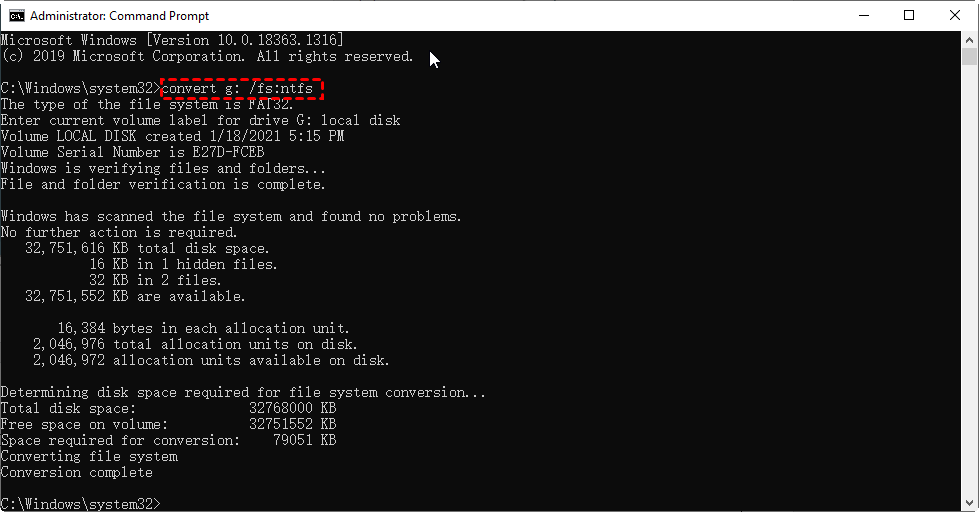
2. If you want to change the file system from FAT32 to NTFS without losing data, you can use the command `convert /fs:ntfs` in the Command Prompt. This will convert the file system to NTFS, preserving all existing data.
convert x: /fs:ntfs
Note: If you're prompted to enter the volume label, just type the drive name, such as "Local Disk" instead. For example, if your drive is labeled "Local Disk (G:)", you can simply enter "Local Disk" as the volume label.
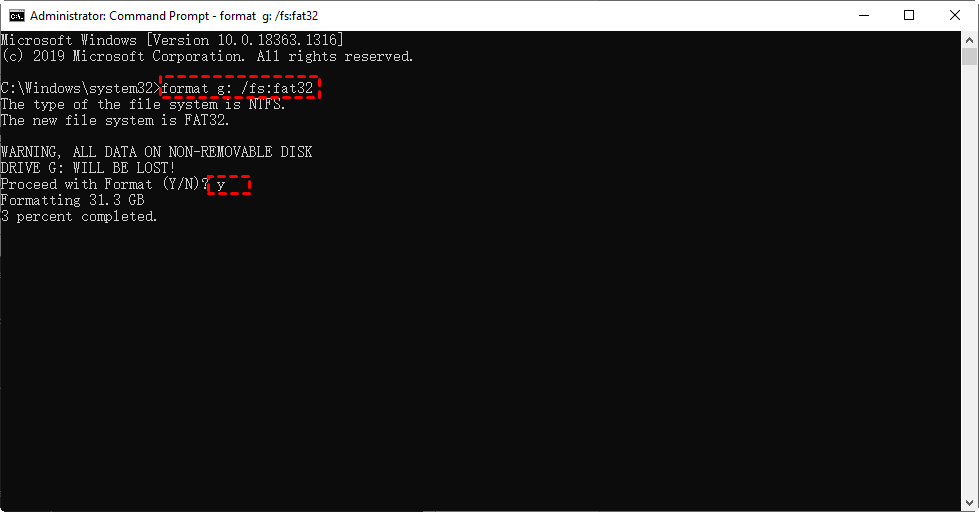
3. If you want to actually format the hard drive to get a fresh start and better performance, you can use the `format` command in Windows. For example, you can use `format x: /fs:ntfs` (replacing "x:" with the actual drive letter of the hard drive you want to format) to perform a full format.
Format hard drive to NTFS: format x: /fs:ntfs
Format hard drive to FAT32: format x: /fs:fat32
Note: There will be a data loss warning, enter "y" to proceed. If you want to do a quick format, add the parameter "/q" to the command, such as "format x: /q /fs:fat32".
How to avoid data lost caused by hard drive formatting
To avoid data loss caused by formatting, you can try two methods: one is to use a data recovery tool to retrieve lost data after formatting, and the other is to create a backup before formatting to prevent data loss. However, please note that backup in advance is always a more secure way to prevent data loss compared to relying on data recovery tools.
Method 1. Backup hard drive to avoid data loss caused by formatting
To backup your data before formatting your Windows 10/8/7 computer, you can use the Backup and Restore feature. This allows you to create a backup of your files and settings before performing a format, which can be accessed through the Control Panel. You can access this feature through the Control Panel under System and Security.
To update and secure Windows, go to Start, then click on Update & Security, followed by Backup. From there, click on Go to Backup and Restore (Windows 7), and finally, select Set up backup.
Then you can follow the wizard to choose what and where to backup, and choose an external drive as target location. However, Backup and Restore is kind of error-prone and not very efficient, so I'll use another free disk backup software instead.
Qiling Disk Master Standard is a powerful and user-friendly program that works seamlessly on all Windows operating systems. Its features offer numerous benefits, including intelligent sector backup, scheduled backups, and incremental backup support.
★ This tool allows you to backup files, folders, partitions, disks, or entire systems to various destinations, including internal or external hard drives, USB drives, NAS devices, or cloud storage.
★ Qiling Disk Master performs intelligent backup by default, which only backs up used sectors and skips unused or bad sectors, reducing image size and backup time, and preventing bad sectors from being restored to the formatted drive.
★ It provides customizable schedule options for automatic backups, allowing users to tailor their data protection plan to their specific needs.
★ Incremental backups are typically used in conjunction with scheduled backups, where only changed files are backed up each time, significantly reducing disk space usage.
After formatting the hard drive, you can use this software for regular backup in case of an emergency. This freeware can also be used for regular backup, and for server users, Qiling Disk Master Server is recommended. Just download this software to have a try now!
How to format hard drive without losing data
- To ensure the safety of your important files, partitions, or even the entire hard drive, install Qiling Disk Master and use it to backup your data. This will provide you with a secure and reliable way to protect your digital assets in case of any unexpected events or system failures.
- Format partitions or external hard drive with above mentioned steps.
- Restore your data to the formatted hard drive.
☛ Backup the hard drive:
1. Go to the Backup tab and select a backup mode, such as Disk Backup, to format an external hard drive without losing data.

2. Select the external hard drive as the source directory, and specify a destination path to store the image file.
You can set up automatic backups using the Schedule Backup options, which record the latest data on a regular basis. Additionally, the Backup Scheme (available in advanced editions) allows you to backup only changed files and intelligently delete older backups, helping to save storage space.

3. Confirm the information and choose Proceed. Wait patiently till it's complete.

☛ Restore data to the hard drive:
1. If you only want to restore individual files instead of the entire disk, it's better to use the "Explore Image" tool in the "Tools" tab. Run it and follow the wizard to choose the backup image you want to mount as a virtual drive, allowing you to access and restore specific files without restoring the entire disk.
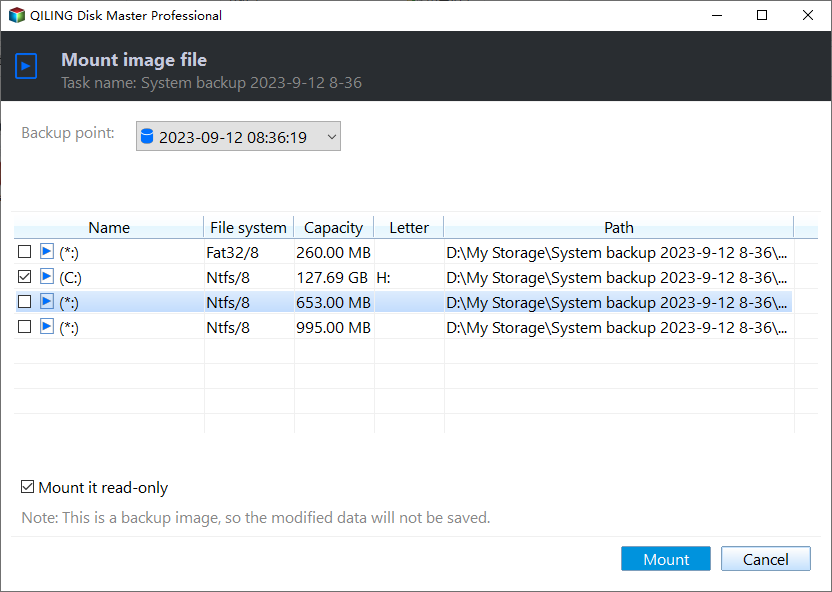
2. To restore data from a backup image, locate the mounted virtual drive in File Explorer, and you can view the data included in the backup image and copy whatever you want to restore to the hard drive.
Tips:
◉ If you've backed up individual files and folders on the hard drive using File Backup, you can go to the Restore tab to restore them directly.
◉ To backup and restore a hard drive without booting Windows, you can create a recovery environment with Qiling Disk Master, which adds a boot menu to the current computer without needing any device.
Method 2. Retrieve lost data after formatting a hard drive
If you're experiencing disk errors and plan to format your hard drive, it's crucial to back up your important files or the entire partition/disk first. This will ensure that you don't lose any valuable data during the formatting process.
If you've formatted a drive without a backup, you can try using a data recovery tool like Recoverit Pro to attempt to retrieve lost files. This is a worthwhile try, despite the risk of overwriting the data.
How to retrieve data after formatting hard drive
- Format the drive with above mentioned steps.
- Be careful not to save new data to the formatted drive, as this could overwrite and make recovery of old data more difficult.
- Install Recoverit to detect and retrieve the lost data.
Retrieve lost data after formatting hard drive:
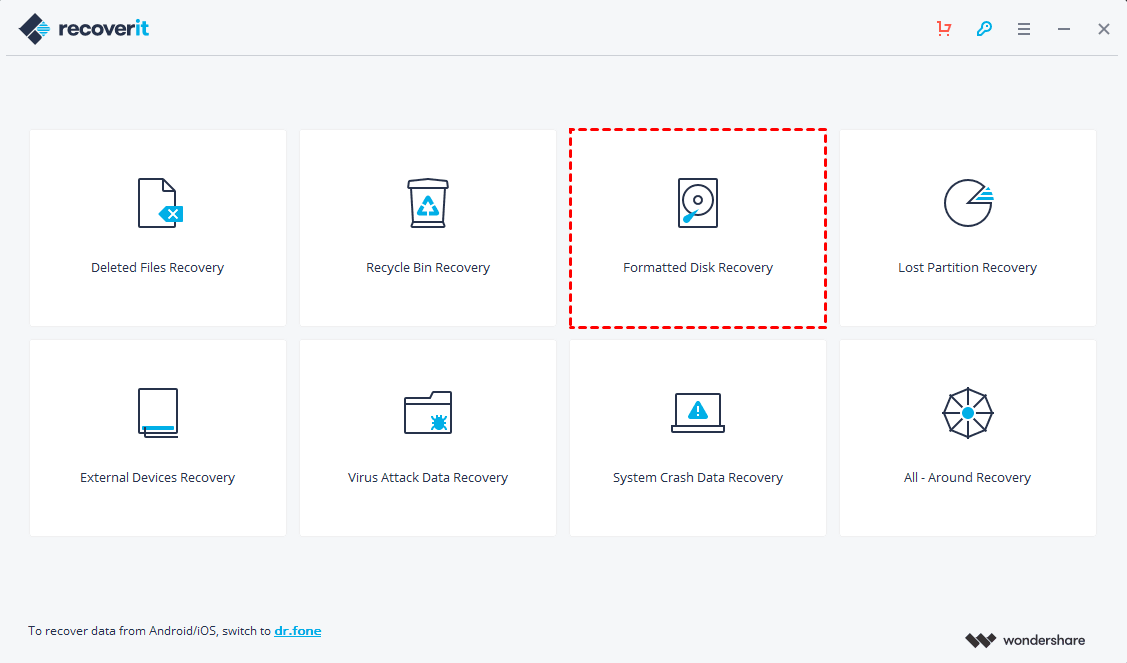
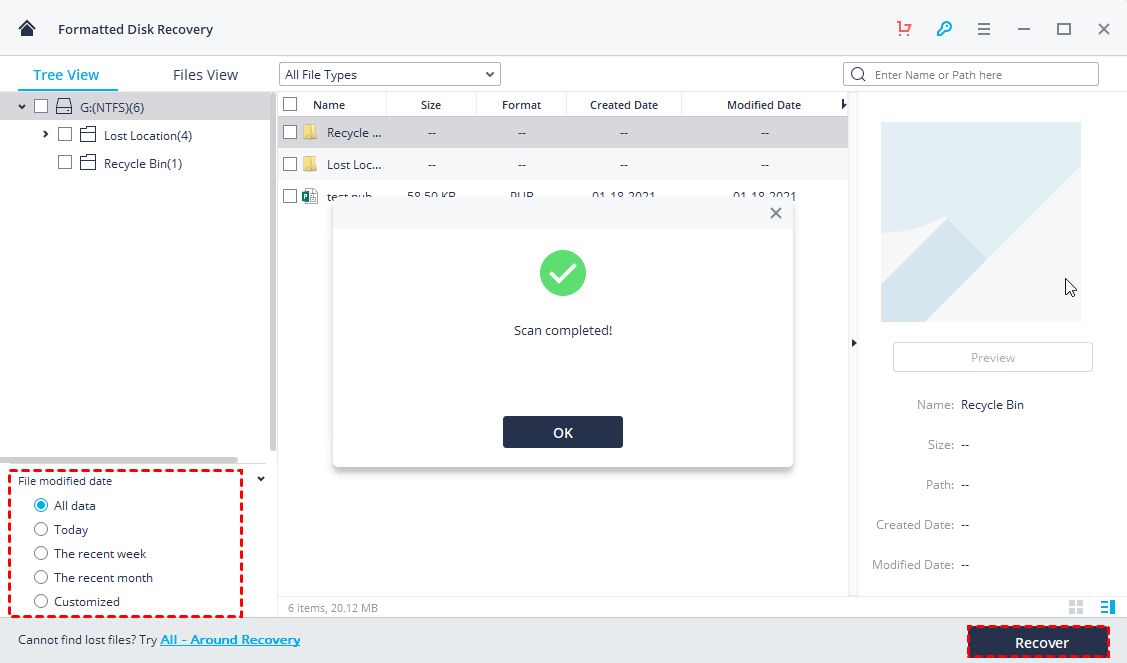
1. Launch the software, select Formatted Disk Recovery.
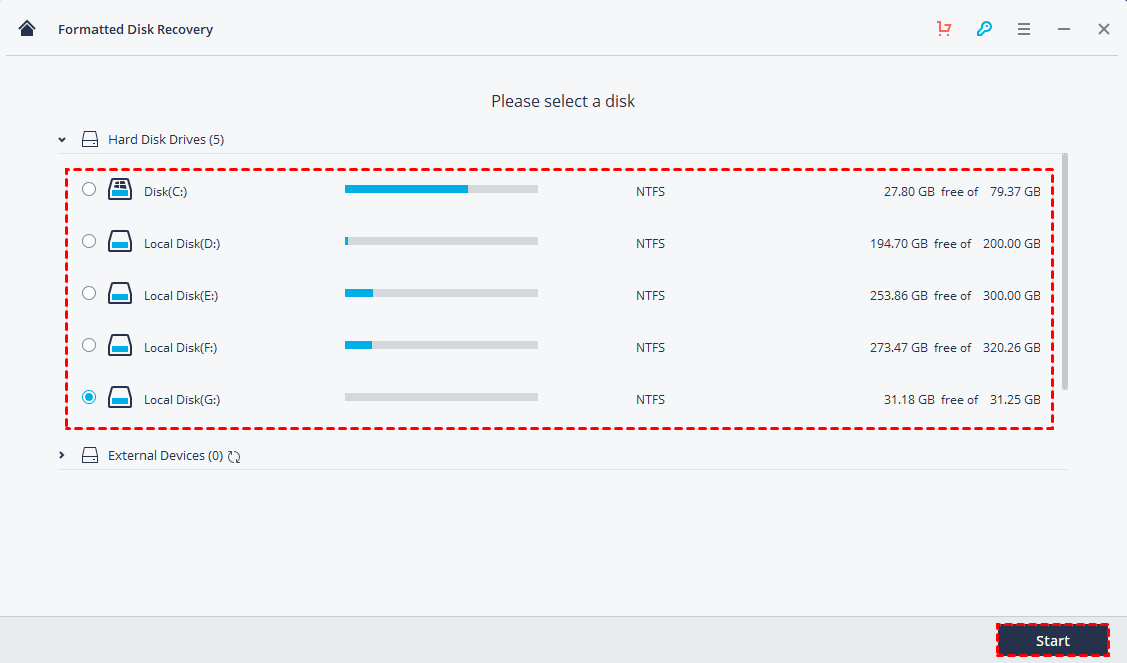
2. Format the drive or external hard drive, select it, and click Start to scan the lost data.
3. Wait until the progress reaches 100%. Select the data you want and click "Recover" to retrieve them back.
You can filter the detected data by modified date conveniently.
Conclusion
Formatting a local drive or external hard drive can be a daunting task, especially when trying to avoid losing data. While recovery software can potentially retrieve lost files, the safest approach is to create a backup of the disk before formatting it, ensuring all important files are preserved.
Qiling Disk Master is a backup tool that offers various options to safeguard different levels of data. It can help recover from system failures, allowing you to reinstall Windows 10 without losing data, and also enables transferring an OS to an SSD without reinstalling.
Related Articles
- How to Fix a Corrupted External Hard Drive without Formatting?
- How to Recover Files from External Hard Drive without Formatting?
- Fix a Corrupted Flash Drive without Formatting (2+5 Solutions)
- Workaround: Initialize Disk MBR or GPT without Losing Data
- (SOLVED)Lenovo Service Partition Has Been Destroyed
Learn the key steps, checks, and practical tips for this related guide. - How to Perform Lenovo System Recovery Easily
If you don't know how or have a problem factory resetting Lenovo, continue to read below and learn how to use Lenovo system recovery. You can also use the Reset this PC feature.
Products
Articles & Tutorials
- Data Recovery
- Data Backup
- File Recovery
- File Backup
- File synchronize
- System Backup and Restore
- Disk and Partition Clone
- Technical articles
- Disk Master Help
- Windows Deleted File and Disk Recovery Tutorials
- Windows File and Data Recovery Tutorials
- More Windows Tutorials for Install, Security, Files, and PC Tips
- Windows Boot, Repair, and Recovery Environment Tutorials
- Windows Backup Tutorials
- Windows Restore Tutorials
- Windows Clone and Migration Tutorials
- Windows Server Backup, Recovery, and Management Tutorials
- Windows Disk, Partition, and Storage Management Tutorials