Format External Drive/USB exFAT in Windows 10 in Simple Steps
exFAT format in Windows 10
When formatting a partition or drive in Windows 10, you'll encounter three file system types: NTFS, FAT32, and exFAT. NTFS, a modern file system, is used by default for system drives due to its advanced features, while FAT32 is more compatible with various operating systems and can be read-and-written in many different systems.
The idea of formatting a drive to FAT32 to resolve issues seems appealing, but it's not a viable solution due to FAT32's inherent limitations, including a maximum file size of 4GB and a maximum partition or volume size of 8TB, which makes it unsuitable for larger storage needs, leading to the development of exFAT as an alternative.
exFAT combines the benefits of FAT32 and NTFS, allowing external drives and USB flash drives to be used across various operating systems without file size or partition size restrictions, while offering stronger security than FAT32. However, it has lower compatibility compared to FAT32, making it suitable for general use.
When format exFAT on Windows 10?
To change the default file system format from NTFS to exFAT, you can follow these steps: You can go to Settings, then Storage, then Removable Drive Options, and select the file system format as exFAT. Alternatively, you can also use the Command Prompt to change the file system format of a removable device by using the command format /x followed by the drive letter of the device. This will format the device to exFAT.
You've created files on a Windows 10 NTFS-formatted flash drive, but they're read-only on a Mac OS X machine, and vice versa, with a Mac OS HFS+ formatted drive being unreadable on Windows 10.
To access a game file larger than 4GB on your external drive with a PS4, you need to format the drive to exFAT or FAT32, as these file systems can handle larger files. Since FAT32 has a 4GB file size limit, you'll need to use exFAT. Windows 10 allows you to format an external drive to exFAT, making it compatible with the PS4. Simply connect the drive to your Windows 10 computer, open File Explorer, right-click on the drive, select "Format", and choose the exFAT file system. Once formatted, you can store your game files on the drive and access them on your PS4.
Free exFAT formatting tool for Windows 10
Qiling Disk Master Standard is a free utility that formats partitions to exFAT, regardless of whether they are on external drives, USB sticks, SD cards, or internal hard drives, except for system drives, and is compatible with Windows 10, 8, 7, and XP.
This software will format large removable devices to FAT32, addressing the limitation of Windows formatting utilities, which can be useful for formatting exFAT to FAT32 in Windows 10.
Qiling Disk Master is a small, bundle-free tool with a user-friendly interface that allows any user to format a disk with ease. It can be downloaded for a closer look.
How to format hard drive exFAT on Windows 10 in three steps?
Before starting, connect the hard drive to your Windows 10 and ensure it's detected. Then, download and install a free formatting tool, keeping in mind that all data on the selected partition or volume will be lost, so back up any important data beforehand.
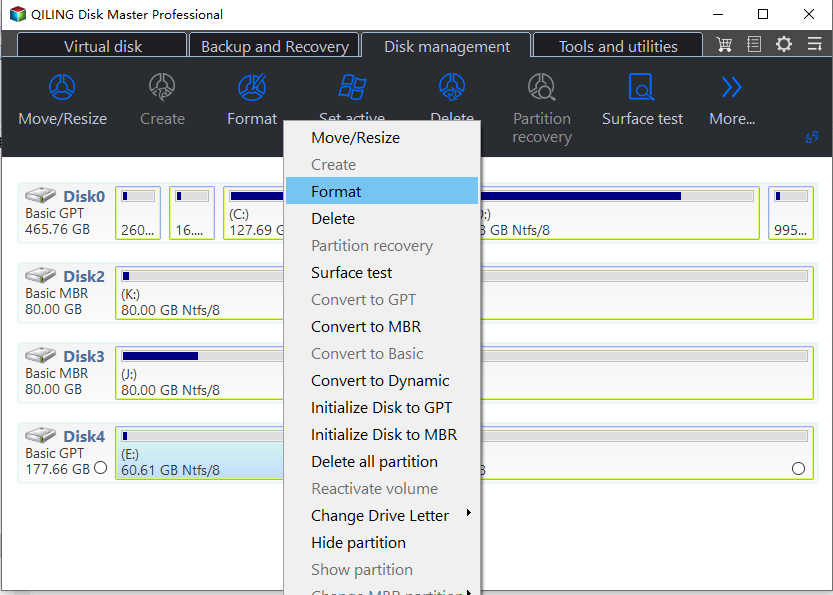
Step 1. Launch Qiling Disk Master Standard, right click the partition you want to format and select Format Partition.
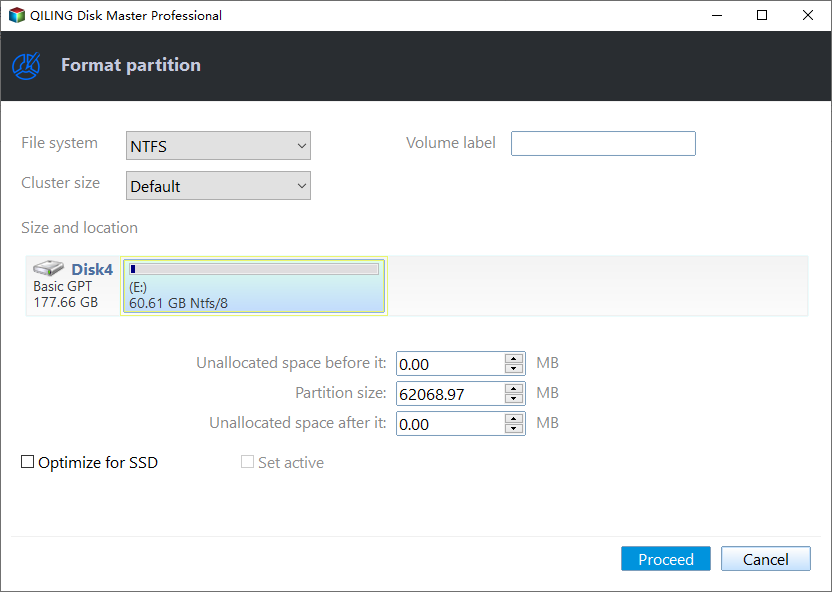
Step 2. Choose the exFAT file system at this page, allowing you to edit the partition label and select the cluster size simultaneously. Click OK.
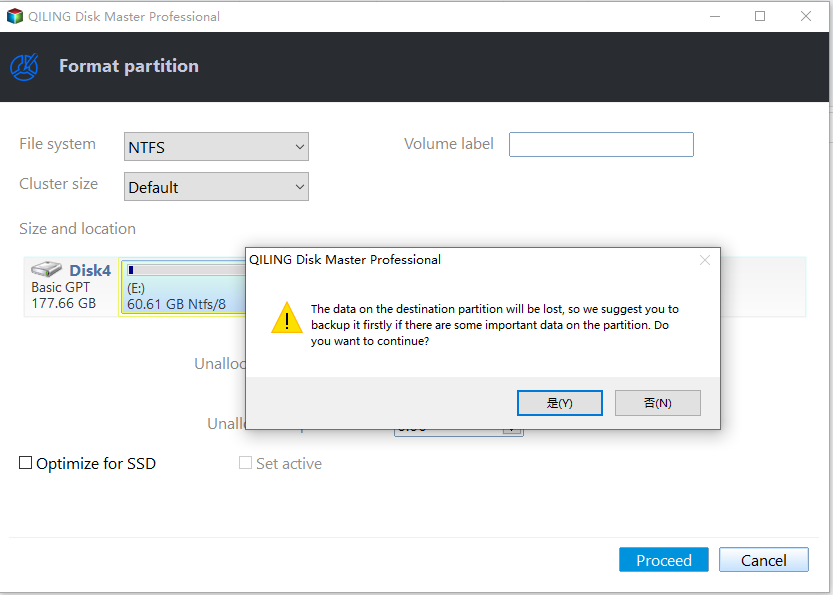
Step 3. Preview the result. Click Proceed after your confirmation. The process will be completed in a short while.
Tips: If there's no partition on the hard drive, right-click the unallocated space and select 'Create Partition' to create a volume with exFAT format in Windows 10.
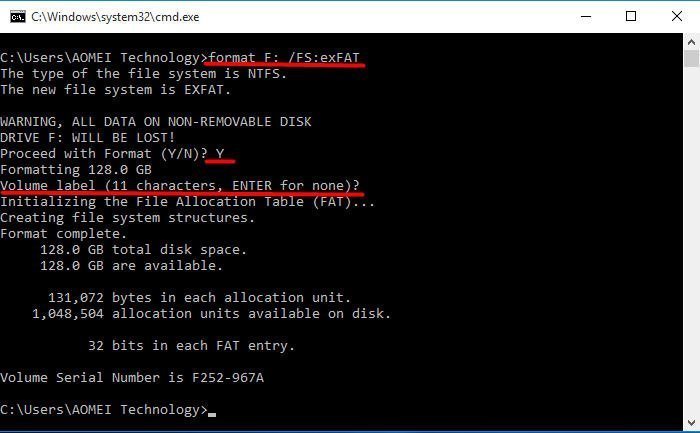
Format drive exFAT in Windows 10 using Command Prompt
Formatting a USB drive from NTFS to exFAT in Windows 10 is a relatively simple process. Windows 10 has built-in formatting tools such as Disk Management and Diskpart, which can be used to format a drive to exFAT. Additionally, users can right-click on a drive in File Explorer and format it to exFAT directly. This article will provide instructions on how to format a USB drive from NTFS to exFAT using the command line interface (CMD) in Windows 10.
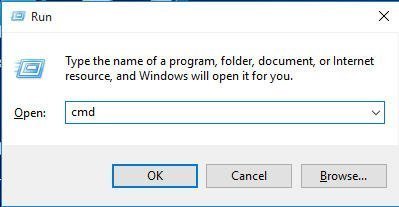
1. To open the Command Prompt as an administrator, press the Windows key and the R key to open the Run dialog box, type "cmd" in the text field, and then press the Enter key. Alternatively, you can also type "cmd" in the search bar, right-click on the Command Prompt result, and select "Run as administrator" from the context menu. This will open the Command Prompt with administrative privileges, allowing you to run commands that require elevated permissions.
2. To format your drive, open Command Prompt as an administrator, type `format F: /FS:exFAT` (replace F: with your drive letter), and press Enter. If prompted, confirm with Y. You can specify a partition label if desired. Once the formatting process is complete, type `exit` to close the Command Prompt.
Conclusion
Windows snap-Formatting tools can be helpful in formatting exFAT on Windows 10, but may sometimes be disappointing, such as not having an exFAT option or not being able to format a hard drive to exFAT. In such cases, Qiling Disk Master can be of great assistance.
Qiling Disk Master Standard not only formats partitions but also securely erases SSDs to restore performance and wipes external hard drives in Windows 10. It also allows for disk copying to transfer data after formatting a drive. Upgrading to the Professional version unlocks additional features, including recovering accidentally deleted partitions and wiping partitions with the DoD wiping method.
Related Articles
- Windows 10 has no exFAT option
Check device selection and formatting choices when exFAT is missing. - How to Remove Write Protection on Micro SD Card Samsung Easily?
This tutorial demonstrates how to remove write protection on micro SD card Samsung easily and analyzes the reasons for Samsung micro SD card write protected. - Quick Fix: How to Fix RAW Hard Drive to NTFS in Windows 7/8/10?
You can learn how to fix RAW hard drive to NTFS in a success from this pose, if you encounter the situation that your external/portable/USB hard drive becomes RAW unexpected. - What to Do When Shrink Volume Greyed Out in Windows 7/8/10?
This guide explains What to Do When Shrink Volume Greyed Out in Windows 7/8/10 with clear steps, key checks, and practical tips. - Sloved: System Partition Is Not Allowed to Be Formatted
This guide explains Sloved: System Partition Is Not Allowed to Be Formatted with clear steps, key checks, and practical tips. - Acer Stuck on Loading Screen - 9 Quick Fixes 🔥
To format Western Digital external hard drive on Windows 10, you can use the built-in Disk Management tool, DiskPart, or a professional tool like Qiling Disk Master for disk management. - How to Align Partition | Easy and Detailed Tutoial
Master the art of partition alignment to ensure optimal performance and storage efficiency. With our step-by-step guide, you'll learn how to easily align partitions, streamlining your storage setup and maximizing your system's potential. - Convert exFAT to NTFS in Windows 10
Convert exFAT to NTFS in Windows 10 by backing up files, choosing NTFS, and formatting safely.
Products
Articles & Tutorials
- Data Recovery
- Data Backup
- File Recovery
- File Backup
- File synchronize
- System Backup and Restore
- Disk and Partition Clone
- Technical articles
- Disk Master Help
- Windows Deleted File and Disk Recovery Tutorials
- Windows File and Data Recovery Tutorials
- More Windows Tutorials for Install, Security, Files, and PC Tips
- Windows Boot, Repair, and Recovery Environment Tutorials
- Windows Backup Tutorials
- Windows Restore Tutorials
- Windows Clone and Migration Tutorials
- Windows Server Backup, Recovery, and Management Tutorials
- Windows Disk, Partition, and Storage Management Tutorials