Ghost Hard Drive to SSD in Windows 10 Easily (2 Ways)
- What Does Ghost Hard Drive Mean?
- How to Ghost hard drive to SSD in Windows 10
- How to remove Ghost or Phantom Hard Drive in Windows 10
- Conclusion
What Does Ghost Hard Drive Mean?
A ghost hard drive can have different meanings, but in essence, it refers to creating a backup or image of the hard drive and saving it to other locations to protect your data. Windows 10 offers two backup software options to easily ghost your hard drive: File History and Windows Backup and Restore.
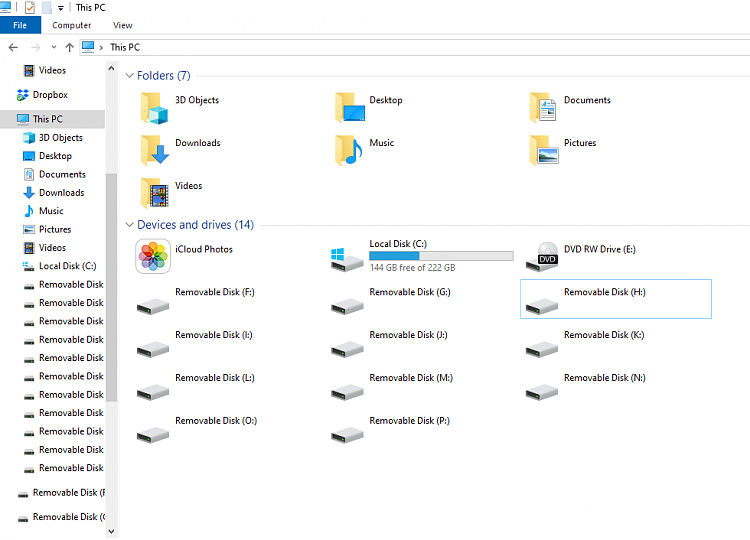
The issue can cause a phantom hard drive to appear in File Explorer, which is a non-existent drive. This can be frustrating and impact user experience, possibly due to browsing external Mac drives with HFS+ partitions, Windows updates, or other reasons.
How to Ghost hard drive to SSD in Windows 10
After understanding the concept of a ghost hard drive, you can proceed to back up your Windows 10 hard drive and store it to a storage device, such as a Solid-State Drive (SSD), for safekeeping.
You can use one of three methods to create a system image: Qiling Disk Master, File History, or Backup and Restore (Windows 7). Since Windows no longer supports Backup and Restore, we'll exclude it. If you want to use it, please refer to our separate guide on creating a system image in Windows 10. The other two options, Qiling Disk Master and File History, can help you create a system image.
Also, you can remove the Ghost or Phantom if it makes a bad effect. And I'll introduce it in the next part.
Way 1: Ghost HDD to SSD in Windows 10 with Qiling Disk Master
Qiling Disk Master Standard is the best free ghost software for Windows 10, capable of ghosting a hard drive to SSD in simple steps, and can even be set to run automatically at daily, weekly, or monthly frequencies.
This software has a default setting to only backup changes, which saves a significant amount of backup time and disk space. Additionally, it utilizes normal compression, intelligent sector backup, and automatic splitting features to further reduce the size of the backup image.
You can now download and install this software on your computer, and it also supports cloning to ghost operating systems, partitions, or individual files, giving you flexibility in how you deploy it.
This free version only works for Windows 11/10/8/7/XP/Vista, but server users should try Qiling Disk Master Server, which is available at 70% off for one server computer.
1. Execute Qiling Disk Master Standard to open the main interface, choose the "Backup" tab and then select "Disk Backup".

2. Choose the hard drive to ghost, which can be one or multiple hard drives at the same time.

3. To ghost a Windows hard drive, choose a destination path to save the ghost file. If you're ghosting to an SSD, connect the SSD to your computer.

4. To ghost a hard drive in Windows 10, select the Proceed button. For automatic execution, go to Schedule Backup, enable it, and choose a frequency (Daily, Weekly, Monthly) for the task.

Additionally, you can utilize the last two premium features: Event triggers or USB plug in, which are available in the Professional or higher editions.
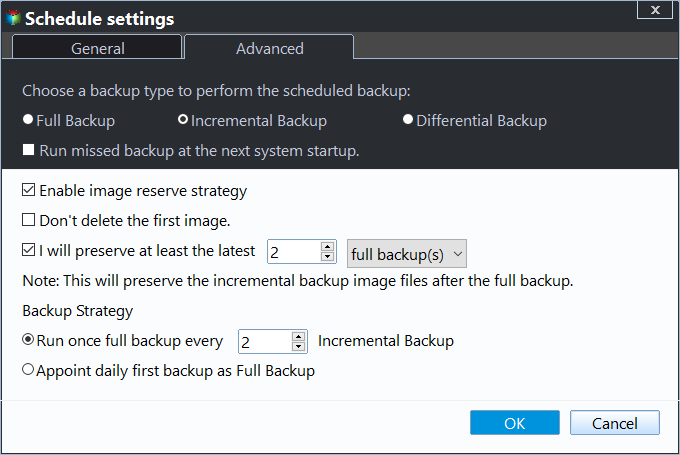
After completing the initial backup, click Proceed and wait until the process is complete. This will create a complete image file of your hard drive and initiate 6 incremental backups, completing a cycle. The process will then repeat, creating multiple backups.
You currently have all files and changes, but this may cause a low disk space issue, preventing you from backing up any data unless you delete some files.
If you delete the backup manually, it may invalidate all subsequent backups if it's in the middle of an incremental backup. It's suggested to create a differential backup on the professional version, which requires one full backup plus any differential backup. For differences, refer to incremental or differential backup.

Besides the backup method, you can also enable a backup scheme that automatically deletes old backup images by quantity, time, daily, weekly, or monthly cleanup methods, solving the problem of manual deletion and freeing up disk space.
7-Zip can also be set to automatically split large archives into smaller files, customize the compression level, and other options in the Options menu.
When your Windows computer won't boot, you might need to create a bootable media (like a USB drive or CD/DVD) beforehand. This allows you to access your computer's data even when Windows itself won't start.
If you made a recovery environment in advance, you can simply restart your computer and select "Enter into Qiling Disk Master" to access the main page of Qiling Disk Master Standard.

In Windows 10, Qiling Disk Master can create an image file of a ghost hard drive with a .fvd suffix. This image file can be restored to its original location or used for a dissimilar hardware restore if needed.
Way 2: Ghost hard drive in Windows 10 using File History
To perform a data ghost (also known as a system image backup) in Windows 10, you can use the built-in File History feature to backup your user files and specific folders. This allows you to create a snapshot of your system at a specific point in time, including all your files, settings, and applications. To do this, go to Settings > Update & Security > Backup, then select the "Add a drive" option and choose the drive where you want to save your backups.
1. To access the Backup feature, go to Start, then Settings, followed by Update & Security, then Backup, and finally Add a drive.
2. Choose an external drive or network location for your backups.
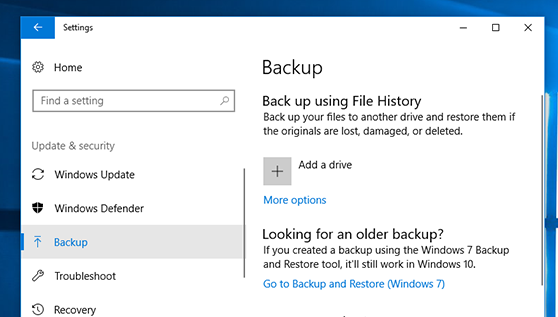
3. To set backup frequency, retention policy, or other settings, click More options. Then, go back to the top and click Back up now.
How to remove Ghost or Phantom Hard Drive in Windows 10
If the ghost or phantom hard drive is causing issues on your Windows 10, you can remove it by following these steps. To do this, you'll need to open the Disk Management tool, which can be accessed by pressing the "Windows key + R", typing "diskmgmt".
1. Run command prompt as administrator.
2. Type the following commands in turn and click Enter after each one: `git add . && git commit -m "Initial commit" && git branch -M main && git push -u origin main`
- diskpart
- list volume (here shows you the list which volume has letter)
- select volume X (X is a volume number when you want to remove)
- remove letter=Z You want to remove the ghost hard drive letter (Z) instead of partition using a command, is that correct?
3. If the issue is resolved, restart the system to confirm whether the problem is fixed.
Conclusion
You can easily ghost a hard drive in Windows 10 using either the free Qiling Disk Master software or the built-in File History feature. Qiling Disk Master is a more flexible option, allowing you to ghost not only hard drives but also systems, partitions, and individual files, giving you more control over what you want to protect.
The software supports automatically ghosting a hard drive to SSD, freeing up space for new backups, eliminating the need for manual intervention and reducing disk space concerns.
To protect your important files and data from losing, consider using a reliable hard drive that can be easily transported between PCs. Qiling Disk Master Technician is a great option that allows you to use your hard drive on unlimited PCs, ensuring your files and data are safe and secure.
Related Articles
- How to Ghost Windows 10 64-bit/32-bit Computer Easily
Learn how to Ghost Windows 10 64-bit/32-bit Computer Easily with clear steps, key checks, and practical tips. - Top Two Easy Ways to Ghost UEFI Windows 10
This guide explains Top Two Easy Ways to Ghost UEFI Windows 10 with clear steps, key checks, and practical tips. - The Simplest Way to Convert MBR Partition Table to GPT
This guide explains The Simplest Way to Convert MBR Partition Table to GPT with clear steps, key checks, and practical tips. - How to Fix MBR2GPT Error in MBR to GPT Conversion in Windows 10?
If you faced "MBR2GPT error" when convert MBR to GPT, try alternative Qiling Disk Master, which can make disk conversion between MBR and GPT easily and safely. - 2 Reliable WD Zero Fill Utilities for Windows 11, 10, 8, 7 | Try It Now!
To ghost a hard drive, you can use Qiling Disk Master to clone your entire disk to a new SSD or HDD. This allows you to transfer your system, files, and settings to a new drive without reinstalling Windows. - Western Digital MBR Repair Tool for Windows 10, 8, 7| Free Download
Corrupted MBR of Western Digital disk can make booting fail or the disk inaccessible. In this article, you can find the steps to repair MBR of WD with a free and great MBR repair tool, or installation CD/DVD.
Products
Articles & Tutorials
- Data Recovery
- Data Backup
- File Recovery
- File Backup
- File synchronize
- System Backup and Restore
- Disk and Partition Clone
- Technical articles
- Disk Master Help
- Windows Deleted File and Disk Recovery Tutorials
- Windows File and Data Recovery Tutorials
- More Windows Tutorials for Install, Security, Files, and PC Tips
- Windows Boot, Repair, and Recovery Environment Tutorials
- Windows Backup Tutorials
- Windows Restore Tutorials
- Windows Clone and Migration Tutorials
- Windows Server Backup, Recovery, and Management Tutorials
- Windows Disk, Partition, and Storage Management Tutorials