Fixed: A Required Drive Partition Is Missing in Windows 10
The Scenarios
» You replaced the HDD in your Dell computer with an SSD, then tried to do a factory reset using the Windows 10 disc, but it failed due to a missing drive partition. This is likely because the SSD doesn't have the same partition layout as the original HDD, which is required for the reset process. You may need to reinstall Windows 10 from scratch or seek further assistance to resolve this issue.
» You bought a Dell 7353 laptop with Windows 10, removed the existing factory partitions, and now want to install a different OS, but it doesn't have drivers for the laptop's hardware. You've tried using the Dell Recovery Image, but get an error about a missing drive partition.
The causes
The "A required drive partition is missing" message on your Windows 10 computer is likely caused by a corrupt MBR or BCD file.
You may have encountered the "Your PC needs to be repaired" error message when starting your Windows 10 computer. If you try to refresh your PC, you'll likely get a "The drive where Windows is installed is locked" message, and if you attempt to reset your PC, you may receive an "Unable to reset your PC. A required drive partition is missing" error.
The issues you're experiencing are likely due to a damaged Master Boot Record (MBR) or Boot Configuration Data (BCD) file, which is usually the culprit behind such problems.
Two solutions for "A required drive partition is missing" in Windows 10
To fix the problem, you can try two methods: using Command Prompt or Qiling Disk Master Stanard.
Solution 1: Fix with Command Prompt
To fix the "Unable to reset your PC. A required drive partition is missing" error in Windows 10, you need to correct the MBR or BCD file, which can be done using a Windows 10 installation DVD or USB flash drive.
Step 1: Insert the Windows 10 installation DVD or USB flash drive into your computer.
Step 2: To access the Command Prompt in Windows 10 system recovery options, you can boot into the recovery environment and select the "Troubleshoot" option, then "Advanced options", and finally "Command Prompt".
Step 3: Then use command prompt to fix a required drive partition is missing in Windows 10 issue. Then enter the following command in turn.
- BOOTREC /SCANOS
- BOOTREC /FIXMBR
- BOOTREC /FIXBOOT
- BOOTREC /REBUILDBCD
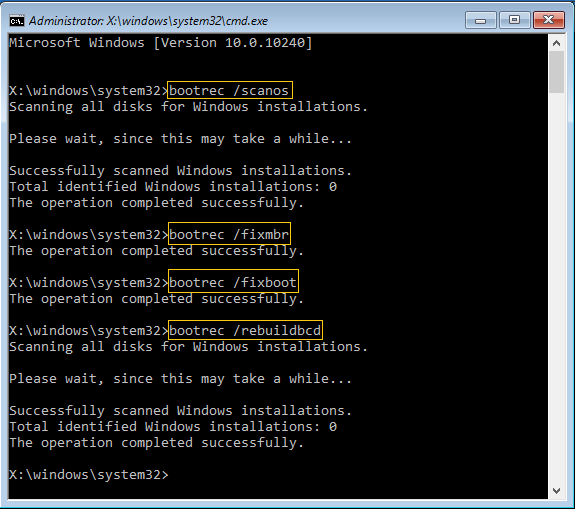
To resolve the issue, type the command "netsh int ip reset" in the Command Prompt, followed by a reboot of your computer. This should resolve the problem.
Solution 2: Rebuild MBR with Qiling Disk Master
To fix the problem, you can use Qiling Disk Master Standard to rebuild the Master Boot Record (MBR). This software is a powerful disk partitioning tool that is compatible with Windows Vista, XP, 7, 8, 8.1, and 10, and can be downloaded for free. By using Qiling Disk Master, you can easily rebuild the MBR and resolve the issue.
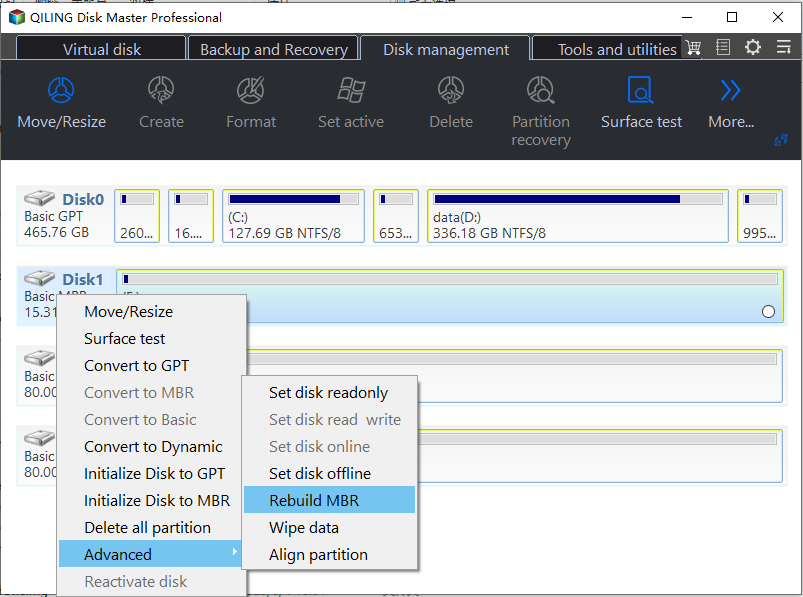
Step 1. To use Qiling Disk Master Standard, install and launch the software. On the main interface, right-click the system hard disk and select "Rebuild MBR" to proceed.Rebuild MBR at the drop-down menu.
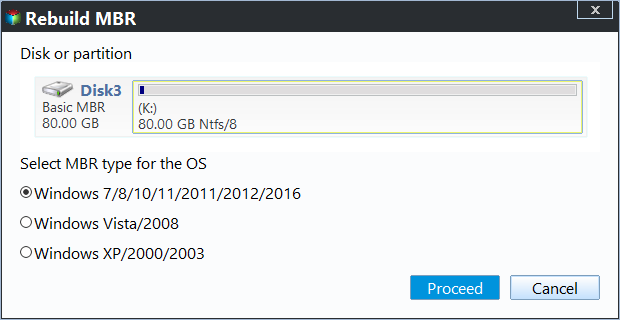
Step 2. Set the type of MBR for your Windows 10.
Step 3. After rebuilding the Master Boot Record (MBR), the result is typically a refreshed or restored boot sector, which can resolve issues such as boot failure, missing operating systems, or incorrect boot order. This process involves rewriting the MBR with a new, valid boot sector, which can help restore the computer's ability to boot properly.
Tip: To resolve similar issues in Windows Server 2019/2016/2012/2008/2003, you can try using Qiling Disk Master Server.
You'll find the problem of a required drive partition being missing in Windows 10 has been repaired. Apart from rebuilding the MBR, Qiling Disk Master Standard allows you to extend the C drive without data loss, clone the Windows 10 hard drive, and more. If you want to enjoy more advanced features, like converting the system disk between MBR and GPT without deleting partition, you can upgrade to the Professional version.
Related Articles
- How to Clone Windows System to SSD in Windows 10/8/7 without Boot Issue?
Cloning Windows system to SSD drive can help speed up Windows computer. This post will show you how to clone Windows system partition or disk to SSD in Windows 11/10/8/7 and how to boot from the destination disk. - Save You from Disk Boot Failure in Windows 10 Right Now
This guide explains Save You from Disk Boot Failure in Windows 10 Right Now with clear steps, key checks, and practical tips. - Windows 10 Disk Management - The Built-in Disk Partition Manager
In this tutorial, you will learn what is Windows 10 Disk Management, how to open it as well as how to use it for disk partition management. Moreover, a better Disk Management tool will be introduced to help manage disk partitions more conveniently in Windows 11, 10, 8, 7. - Solved: Bootrec /fixboot Element Not Found in CMD
Learn how to Solved: Bootrec /fixboot Element Not Found in CMD. This guide explains the causes, steps, and practical tips for bootrec fixboot element not found, bootrec element not found, bootrec fixboot element not found windows. - Fix MBR on SSD to Repair Boot Issue with Free Software
Learn how to fix MBR on SSD to solve boot issues like invalid partition table, missing operating system, and so on.
Products
Articles & Tutorials
- Data Recovery
- Data Backup
- File Recovery
- File Backup
- File synchronize
- System Backup and Restore
- Disk and Partition Clone
- Technical articles
- Disk Master Help
- Windows Deleted File and Disk Recovery Tutorials
- Windows File and Data Recovery Tutorials
- More Windows Tutorials for Install, Security, Files, and PC Tips
- Windows Boot, Repair, and Recovery Environment Tutorials
- Windows Backup Tutorials
- Windows Restore Tutorials
- Windows Clone and Migration Tutorials
- Windows Server Backup, Recovery, and Management Tutorials
- Windows Disk, Partition, and Storage Management Tutorials