How to Restore Windows 10 to Factory Settings
Quick Navigation:
- What do factory settings refer to?
- When to restore Windows 10 to factory settings?
- What will happen if you factory restore Windows 10?
- How to reset computer to factory settings in Windows 10
- What to do after you factory reset Windows 10?
- Conclusion
What do factory settings refer to?
Restoring Windows 10 to factory settings means bringing the system state back to its original state when first purchased, including settings, drivers, and programs. This is also known as a factory reset or factory restore.
People used to factory reset computers with a recovery disc or built-in software, but now Windows 10 offers a recovery option called "Reset this PC" to restore the operating system to factory settings with ease.
When to restore Windows 10 to factory settings?
Here're some situations you need to reset computer to factory setting in Windows 10.
1. Your computer does not run well. After a while, you may experience system crashes or other severe errors with your computer, making it difficult to resolve the issue quickly.
2. You want to sell the computer or give it away. To prepare a computer for sale or gift, it's essential to erase all personal data from the device. The most effective method is to perform a factory reset on Windows 10, which completely removes everything on the PC, ensuring that no sensitive information is left behind. This approach provides a clean slate, allowing the recipient to set up the computer as if it were brand new.
What will happen if you factory restore Windows 10?
During the Windows 10 factory reset process, you'll be prompted to decide whether to keep your files intact or not.
The operation will either remove installed apps and settings, or all personal files, apps, and settings, resulting in a computer with factory settings.
If the operation uninstalls apps you'll use in the future, you'll need to reinstall them again.
How to reset computer to factory settings in Windows 10
If your computer is bootable, you can follow the steps below. If not, you can boot your computer into Startup options via a Windows 10 recovery drive. To access Startup options, you can press the Windows key + X and select the Power icon, then press and hold the Shift key while clicking Restart.
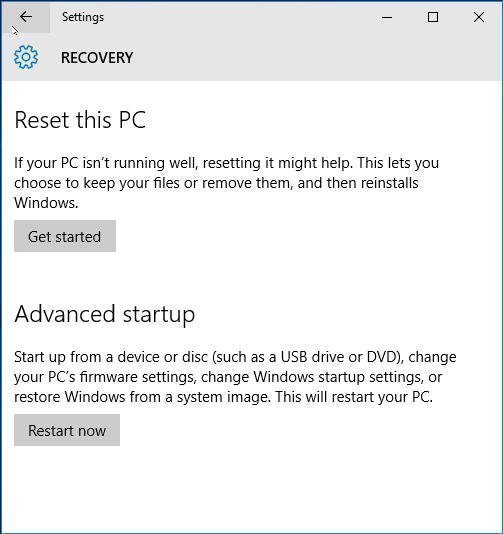
Step 1. To access the Recovery Settings window, click on the Start menu, then select Settings, followed by Update and security, and finally Recovery. This will open the Recovery Settings window.
Step 2. Click Get started under the Reset this PC option.
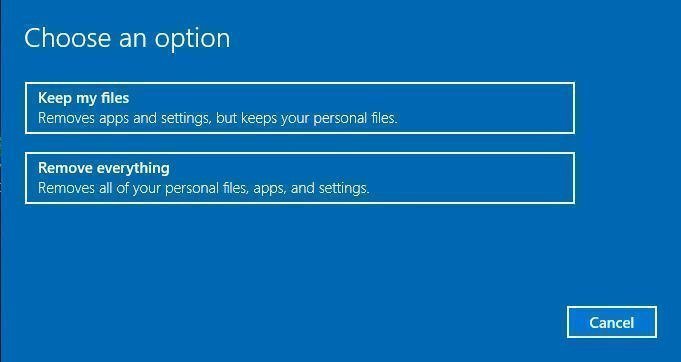
Step 3. Choose between the "Keep my files" or "Remove everything" option, depending on whether you want to preserve your files. Both options will reset your settings to their default and uninstall all apps.
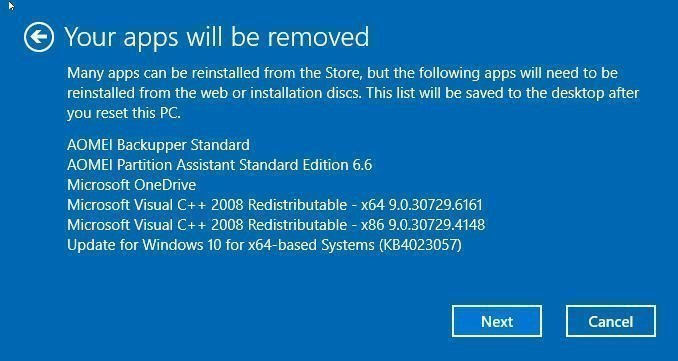
Step 4. Click Next when you receive the following prompt.
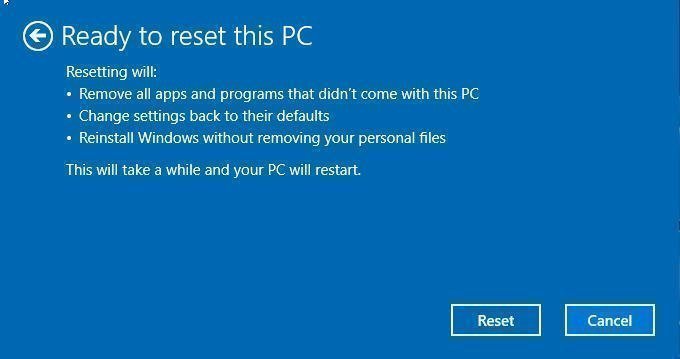
Step 5. Confirm that the pending operation will be reset and then wait for it to complete, which may take up to several hours depending on your computer's performance.
What to do after you factory reset Windows 10?
A prevention measure is needed to ensure your computer runs well all the time.
To protect your computer, you can create a system image backup, which can restore your computer to a previous good state in a short time, without needing to reinstall the operating system and programs.
Here are some things you need:
1. A backup and restore software.To create a full backup, you can use free backup and restore software like Qiling Disk Master Standard, which can satisfy your needs.
2. An external storage device to save your system image backup. A portable USB flash drive can safely store system backups, protecting them from damage due to system crashes or hard drive failures, and can be easily taken with you.
Detailed steps:
Step 1. Download Qiling Disk Master Standard, install and launch it.
Step 2. Click System Backup under the Backup tab.

Step 3. To ensure you can boot your computer after restoring a system image backup, Qiling Disk Master Standard will automatically select all related partitions as the destination path.

It's unnecessary to do a full backup every time, as it will fill up your disk with image backups. Instead, consider doing differential backups, which only store the changed files, and are supported on the Professional version.
Step 4. Click Proceed.
To reset laptop to factory settings in Windows 10, follow these steps: Go to Settings > Update & Security > Recovery, and click on "Get started" under the "Reset this PC" section. Choose whether you want to keep your files or remove them, and then select the type of reset you want to perform.
Conclusion
If your computer is not running well, you can choose to restore Windows 10 to its factory settings, which may resolve the issue and get your computer running smoothly again. However, it's essential to note that restoring to factory settings does not guarantee that your computer will work perfectly forever.
Having a backup image of your computer is still necessary, even with the option to factory reset. A backup image can rescue your computer in the event of a system crash, and it's more efficient than reinstalling everything from scratch. With a backup image, you can quickly restore your computer to its previous state, saving you time and effort in reinstalling apps you'll need in the future.
You can protect unlimited computers within your company using Qiling Disk Master Technician, which also allows you to deploy/restore system image files on multiple client-side computers from a server-side computer over the network.
Related Articles
- How to Fix Windows 10 Reset Failed Properly (6 Ways)
- How to Factory Reset Windows 10 Computers from Boot [3 Methods]
- Reset or Refresh Windows 10 without Losing Program and Data
- How to Refresh or Reset Windows 10 from Command Prompt
- Fix for Low System Reserved Partition on MBR/GPT Disk in Windows 7/8/10
If your computer has a low system reserved partition in Windows 7, 8, or 10, you may need to extend it. This article provides a solution to expand the system reserved partition on both MBR and GPT disks in Windows 10, 8, or 7, allowing you to easily increase the space allocated to this critical - Make a Bootable Partition on an External Hard Drive Windows 10
This answer shows you how to make a bootable partition on an external hard drive on Windows 10. You may read all the information offered here.
Products
Articles & Tutorials
- Data Recovery
- Data Backup
- File Recovery
- File Backup
- File synchronize
- System Backup and Restore
- Disk and Partition Clone
- Technical articles
- Disk Master Help
- Windows Deleted File and Disk Recovery Tutorials
- Windows File and Data Recovery Tutorials
- More Windows Tutorials for Install, Security, Files, and PC Tips
- Windows Boot, Repair, and Recovery Environment Tutorials
- Windows Backup Tutorials
- Windows Restore Tutorials
- Windows Clone and Migration Tutorials
- Windows Server Backup, Recovery, and Management Tutorials
- Windows Disk, Partition, and Storage Management Tutorials