How to Factory Reset Windows 10 Computers from Boot? [3 Methods]
How does Windows 10 Factory Reset Work?
A Windows 10 computer can become prone to errors when used frequently, leading to glitches and system breakdowns if not properly maintained. Repeated updates, installations, and changes can cause the system to become unstable, making it essential to regularly update and optimize the computer to prevent such issues.
To repair a faulty computer that may not boot, a common solution is to factory reset Windows 10 from boot, effectively reinstalling the operating system while preserving manufacturer-installed programs and drivers, restoring the system to its original factory settings. This method addresses major system problems at their core.
Generally, you can implement Windows 10 factory reset from boot using Reset this PC feature. I'll explain what is it and how it works in the following article.
- What's the difference between Reset, Refresh, Repair, and Restore?
- How to run Windows 10 Reset this PC at startup?
- Alternative to factory reset Windows 10 from boot [Easiest]
- Restore Windows 10 to an earlier state without data loss [FREE]
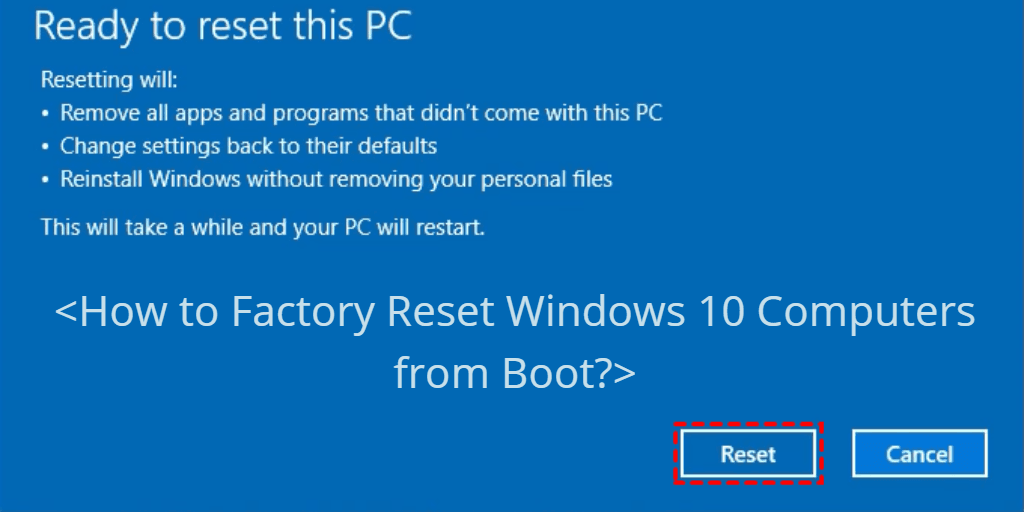
What’s the difference between Reset, Refresh, Repair, and Restore?
In Windows 10, the factory reset from boot is a way to solve system problems, but some people refer to it as Refresh, Repair, or Restore, which are actually different processes.
The features you're referring to are likely the built-in tools in Windows 10 that allow you to reset the operating system to its factory settings. These features are designed to help users recover their system in case of issues or to prepare a device for resale or donation. The two main features are the "Reset this PC" and "Remove everything" options.
Reset In Windows 10, "Reset this PC" allows you to reinstall Windows, giving you the option to either "Keep my files" or "Remove everything". Even if you choose to keep your files, your installed apps and settings will still be deleted.
Refresh In Windows 8, Refresh and Reset are two separate options. Refresh reinstalls Windows while keeping personal files and settings, whereas Reset reinstalls Windows and deletes all personal data. This means Refresh in Windows 8 is equivalent to "Reset this PC and keep personal files" in Windows 10.
Repair With a Windows 10 installation ISO file, you can do a repair install/upgrade that keeps all personal files, settings, and apps, but it may not fully solve system problems like a Reset would.
Restore You can undo recent changes by bringing the computer to an earlier recorded state through System Restore or System Image Recovery. This can be done by creating a system restore point in advance to perform a "System Restore", or creating a system image to implement "System Image Recovery".
If you want to reset Windows 10 to factory settings from boot and solve existing problems, use the "Reset this PC" feature. However, if you want to simplify the process and keep your personal data safe, including installed apps, you may need a more powerful alternative.
How to run Windows 10 Reset this PC at startup?
In Windows 10, you can access the "Reset this PC" feature in several ways, but if you're experiencing a major system breakdown and can't even log on to Windows, you may need to factory reset Windows 10 from boot.
Preparations:
- To enter the Windows Recovery Environment, you'll need to either insert a Windows installation CD or create a recovery drive. This will allow you to access further options for troubleshooting and resolving issues.
- If you're worried about losing important files, you can try backing them up before factory resetting your Windows computer. This way, you can ensure your files are safe and won't be lost during the reset process.
Step 1. To boot a computer using the installation CD or recovery drive, simply insert the CD or drive into the computer, and the boot process will begin automatically. This is typically done when a computer is experiencing issues and needs to be restored to a previous working state, or when a new operating system needs to be installed.
To resolve the issue, press the power button to turn the computer off when the Windows logo appears, then turn it back on. Repeat this process 3 times, and the computer may boot into WinRE.
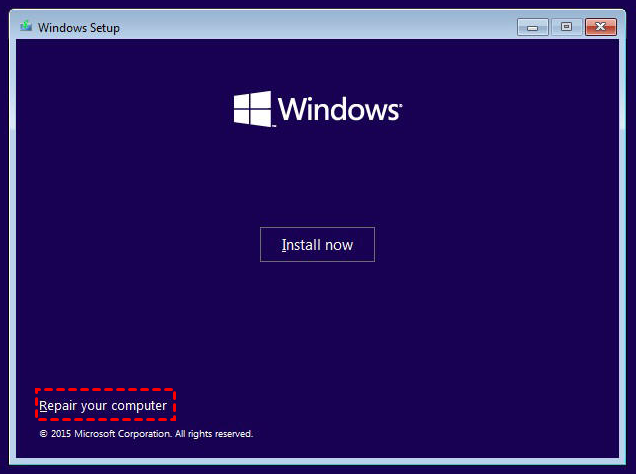
Step 2. To make language and region choices in Windows Setup and click Next > Repair your computer.
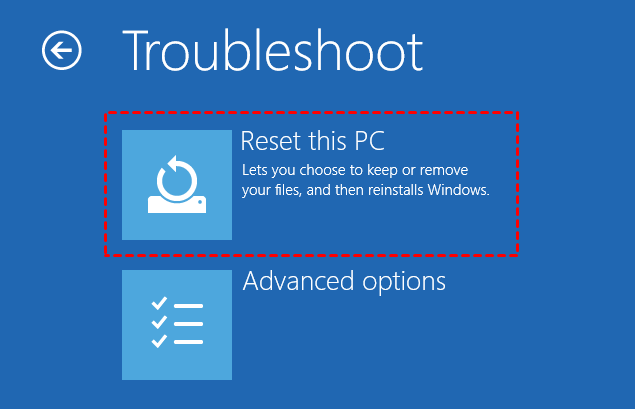
Step 3. Select Troubleshot > Reset this PC to reinstall Windows.
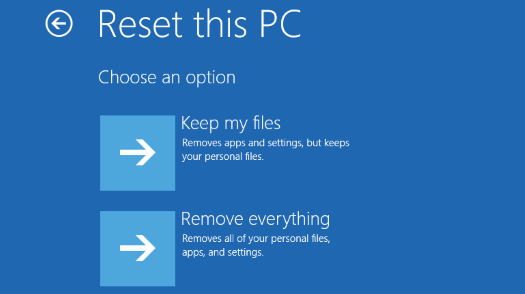
Step 4. You have the option to either keep your files or remove everything, but keep in mind that even with the first option, your installed apps and settings won't be preserved.
Step 5. Follow the wizard, make confirmation, and click Restart to begin the PC reset process.
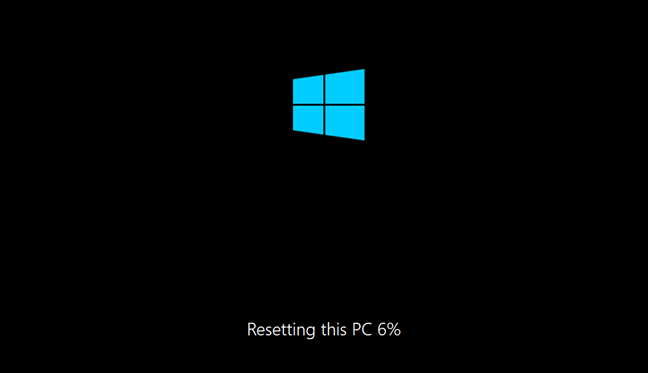
Step 6. When Windows is complete, you'll do the first time setup, then log on to Windows.
Notes:
- The method of factory resetting a PC applies to all manufacturers, including Dell and Lenovo. Regardless of the brand, the process remains the same, allowing users to reset their Windows 10 laptop from boot.
- Some computer brands, like Acer, have specific keys that can be pressed to enter the recovery environment, making the factory reset process easier. You can search for these specific keys for your computer brand before resetting Windows 10.
- When Windows 10 Reset fails, instead of spending time trying to fix it, you can try booting into a Windows 10 installation media and then choosing the "Repair your PC" option, which can help you factory reset Windows 10 from boot. This can be a quicker and easier alternative to trying to fix the issue.
Alternative to factory reset Windows 10 from boot [Easiest]
To access the "Reset this PC" feature from boot, you'll need a Windows 10 installation disc or a Windows 10 recovery tool to enter the Windows Recovery Environment (WinRE), but even then, there's still a risk of failing to reset.
You could try using Qiling Disk Master, a one-key system backup and recovery tool.
★ The OneKey System Backup feature allows for easy system backup and recovery, while the one-key factory reset option simplifies the process of returning Windows 10 to its default state.
★ This software has a wide range of applications and supports various operating systems, including Windows 10/8.1/8/7/XP/Vista and Windows Server 2003/2008/2011/2012/2016. It can also be used to reset laptops from different manufacturers, such as Lenovo, Dell, ThinkPad, HP, Toshiba, and Acer, without any restrictions.
★ Qiling Disk Master allows users to create their own factory recovery partition with all the files, settings, and applications in the system drive, providing a way to reset Windows to an earlier stable state without reverting to manufacturer defaults.
★ You can also backup the system to other locations for easy use, including local disks, external hard disks, solid state drives, USB flash drives, etc.
Overview for Qiling Disk Master:
There are only 2 options in the main interface.
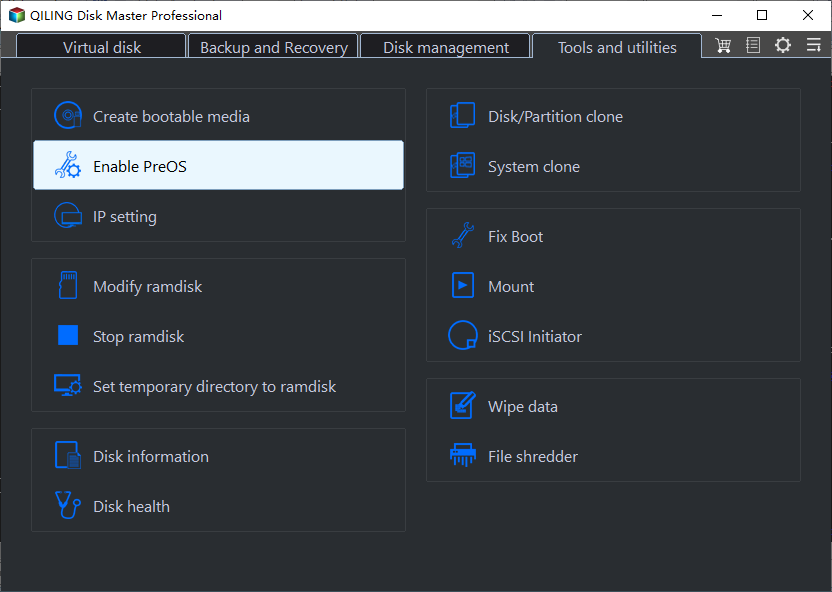
For the first time use, click System Backup to default partition or backup system to other locations, such as a USB drive.

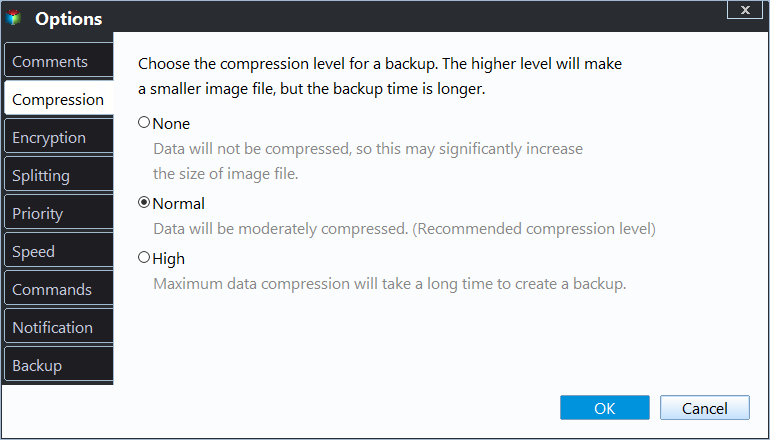
You can set the compression level and encrypt the system backup.
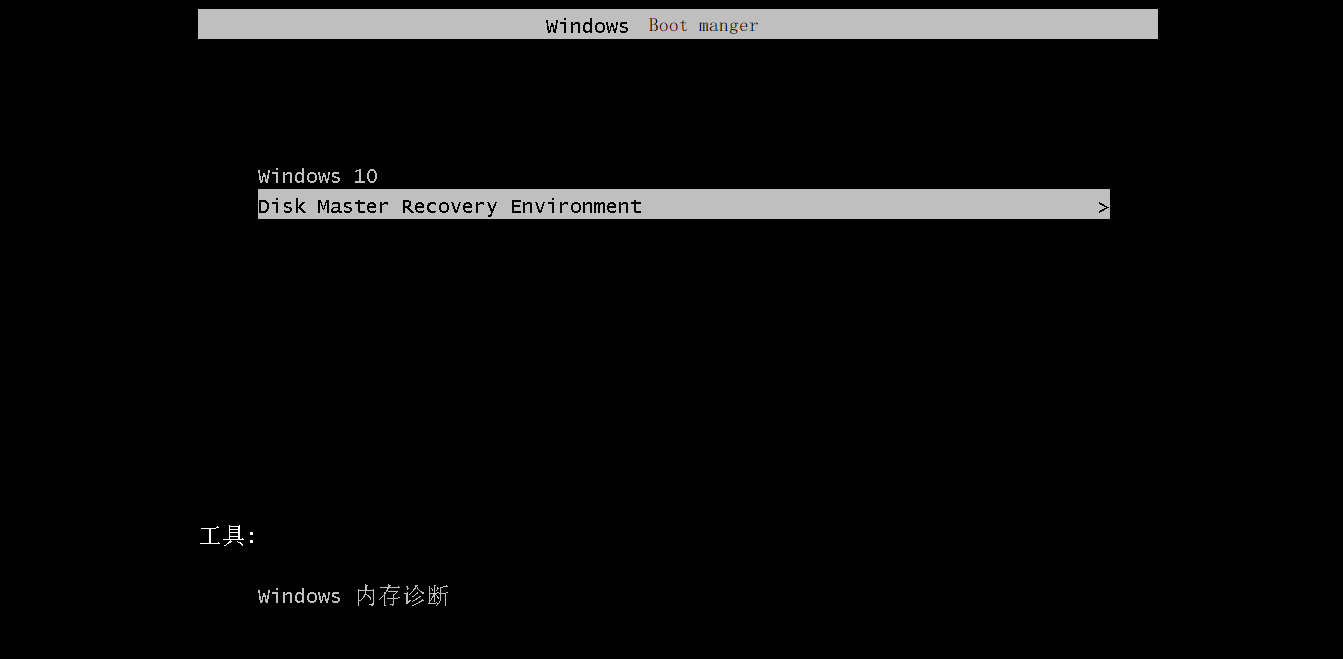
After you've created a Windows 10 installation media, you can boot from it and follow the prompts to reset your Windows 10 system to its factory settings. This process will erase all of your installed applications, settings, and files, so be sure to back up any important data before proceeding.
Restore Windows 10 to an earlier state without data loss [FREE]
If you're looking for a free and flexible way to fix system errors with minimal data loss, you might consider using the freeware Qiling Disk Master Standard. This tool can restore Windows 10 to an earlier state, effectively undoing any changes made after that date, thus resolving your issues while minimizing data loss.
★ The software has no brand restrictions and allows you to backup system on Windows 10/8.1/8/XP/Vista.
★ The system backup can also be used to back up files, partitions, or even entire disks, providing comprehensive data protection for various needs.
★ You could schedule auto backup to execute the task regularly, which ensures you can easily reset Windows to the latest normal state.
How to reset Windows 10 without any data loss:
Step 1. Download this software, go to the Tools tab to create a bootable media following the wizard.

Step 2. Create a system backup on a safe location, such as an external hard drive, to ensure your data and settings are protected in case of a system failure or other issues.

Step 3. If you have a system image created, you can use it to boot the faulty computer into WinPE. Connect any removable devices, such as a USB drive, that contain the system image. This will allow you to access the computer's system and potentially recover or repair it.
Step 4. When Qiling Disk Master pops out, click on Restore on the left pane, locate the system image, and follow the wizard to restore it.

Step 5. Confirm the operation and click Proceed to reset Windows 10.
If the backup is created on a computer with different hardware, you should select Universal Restore (available in the Professional edition) to ensure the computer can boot up after the restore process.

You can reset Windows 10 from boot without losing any data. This method may not be the simplest, but it will restore your computer to its latest normal state.
Conclusion
To factory reset a Windows 10 computer from boot, you can create a recovery partition and use the Windows 10 setup media to reset the computer from startup with only one key, bypassing the need to enter WinRE to run Reset this PC. This alternative method provides a simpler way to perform a factory reset without the hassle of using WinRE.
You can also use Qiling Disk Master to automatically back up your system drive and create a bootable media for system restore, keeping your data complete and up-to-date.
Qiling Disk Master offers additional protection and functionality beyond system resetting, including serving as a continuous backup software with its File Sync feature and a hard drive transfer software with its disk clone feature.
Related Articles
- How to Factory Reset ASUS Laptop with ASUS System Recovery Partition?
- How to Refresh or Reset Windows 10 from Command Prompt?
- Lenovo Desktop Factory Reset with 3 Ways
- Best Free Bootable Backup Software Disc
Learn how to create backup with the best free bootable backup software. You can also create a recovery USB to start a faulty computer and perform system recovery in WinPE. - How to Create Windows 7 Bootable USB Easily and Quickly?
Learn how to Create Windows 7 Bootable USB Easily and Quickly with clear steps, key checks, and practical tips. - How to Repair Windows 7 without Losing Data?
Try 6 solutions provided in this article to repair Windows 7 without losing data, it's easy to troubleshoot Windows 7 problems with the guide.
Products
Articles & Tutorials
- Data Recovery
- Data Backup
- File Recovery
- File Backup
- File synchronize
- System Backup and Restore
- Disk and Partition Clone
- Technical articles
- Disk Master Help
- Windows Deleted File and Disk Recovery Tutorials
- Windows File and Data Recovery Tutorials
- More Windows Tutorials for Install, Security, Files, and PC Tips
- Windows Boot, Repair, and Recovery Environment Tutorials
- Windows Backup Tutorials
- Windows Restore Tutorials
- Windows Clone and Migration Tutorials
- Windows Server Backup, Recovery, and Management Tutorials
- Windows Disk, Partition, and Storage Management Tutorials