How to Run Windows 10 and 11 from SD Card?|Step-by-Step Guide
Can I run Windows 10 or 11 from an SD card?
You're looking to run Windows 10 from an SD card on your Windows 7 laptop at home. Unfortunately, it's not possible to move Windows 10 from your company desktop to an SD card and run it on your Windows 7 laptop. Windows 10 requires a licensed copy of Windows 10 to be installed on the device, and running it from an SD card would not be a legitimate installation. Additionally, Windows 10 is not designed to run from an SD card, and it would likely not function properly even if you tried to install it.
For USB-based portable Windows setups, this WinToUSB alternative guide provides another practical route.
If you're always on the go but don't want to lug around a heavy laptop, consider making a portable Windows 10/11 SD card or USB flash drive. This way, you can have all your necessary apps and programs with you without the weight, and even use it on computers that don't have the software you need for work. Additionally, this approach can also help you make an SD card bootable and install Windows on another PC.
To successfully run Windows 10 from an SD card, choose a card with at least 64GB of space and high read-write speed, such as a Class 10 or UHS-I/UHS-II card from a reputable brand like SanDisk, Samsung, or Kingston.
Run SD card bootable software to boot Windows from SD card
Qiling Disk Master is a tool that allows you to load and run Windows 10 or 11 from an SD card, ensuring successful booting. It enables you to move Windows 10 or 11 onto an SD card, making it bootable, and then run it on other computers, including brand-new ones.
This software stands out from other Windows SD card bootable software by providing two methods to create a portable Windows 10/11 SD card, catering to various user needs.
1. Create a bootable SD card with system disc/ISOIf you have a system installation disc or downloaded the Windows 10/11 ISO files, this method is ideal.
2. Create a bootable SD card with current systemYou can move the OS partition (usually the C drive) to the SD card without the system disc or Windows 10/11 ISO file by using a different method that allows for direct transfer.
You can now download Windows 10 from the link provided and follow the steps to run it from an SD card.
Part 1. Move Windows 10 or 11 on SD card/make SD card bootable
First, use Qiling Disk Master Professional to create a Windows 10 bootable SD card.
What you will need to do this:
◆To prepare a 32GB or 64GB SD card, simply insert it into the proper card slot, which is usually located on the PC's console or via an SD card adapter attached to a USB port.
◆If there are crucial files on the card, please backup the SD card beforehand because the process will delete everything.
◆To create a Windows 10/11 installation disk, you'll need a Windows 10/11 installation disk or an ISO file equivalent. If you don't have the disk, you can create one by downloading the Windows 10/11 ISO file from Microsoft's website. Once you have the disk or ISO file, you'll be able to create a Windows to go with ISO.
◆To ensure a smooth installation of Windows 10/11, verify that your motherboard supports booting from an SD card or removable storage drive. This can usually be found in the motherboard manual or online documentation.
If the Windows 10/11 ISO file is not available, you can use the second method to create a Windows bootable SD card with your current system.
Part 2. Boot Windows 10 or 11 from SD card
Once you've moved the Windows 10/11 operating system onto an SD card, you can load Windows 10 from the bootable SD card. To do this, follow these steps:
Step 1. Connect the bootable SD card to the computer from which you want to boot Windows 10/11, then restart the PC and enter BIOS by pressing a specific key (usually F1/F2/F10/Delete/Esc) when the manufacturer's logo is displayed.
Step 2. To access the BIOS interface, use your arrow keys to navigate through all menus and find the Boot Order/Boot Priority tab, which may be hidden under submenus.
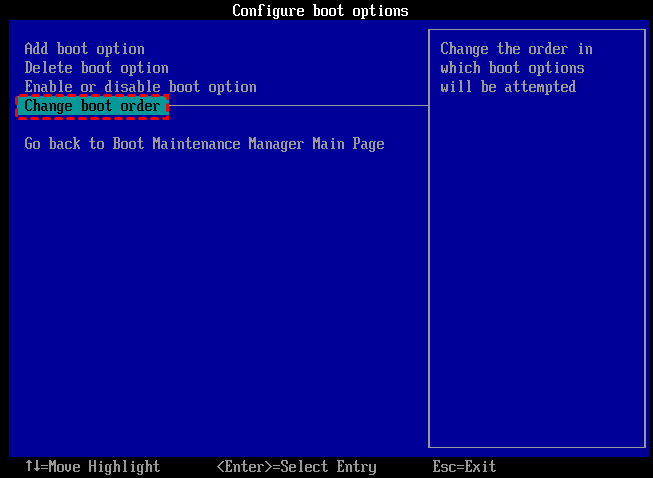
Step 3. Once you've accessed the boot order menu, you can see the current boot order structure, which dictates the order in which your computer will attempt to boot from each device. To set the bootable SD card as your first boot device, simply use the arrow keys to move it to the top of the list.
Step 4. Press "F10" to save and exit BIOS.
To make a Windows 10/11 bootable SD card, it's recommended to use a faster storage option, such as a 3.0 USB drive or an SSD drive, due to the SD card's slow data writing and reading speed.
Summary
Under the help of Qiling Disk Master Professional, you can easily create a bootable Windows SD card and run Windows from SD card on any computer, including Windows 10/11, Windows 7, and Windows 8/8.1. The software also supports migrating the OS drive to an SSD/HDD, cloning a bootable SD card, extending the system drive without reboot, and creating a Windows Server bootable drive with Qiling Disk Master Server.
Related Articles
- How to Install Windows 10 Step by Step with Pictures
Review How to Install Windows 10 Step by Step with Pictures with setup requirements, preparation steps, and tips to avoid installation or boot problems. - How to Install Windows 10 Without a Microsoft Account
Here is a step-by-step guide on how to install Windows 10 without a Microsoft account in 4 different ways. The article will also introduce a tool called Qiling Disk Master to help you set up Windows 10 without a Microsoft account. - How to Install Windows 11 Without Secure Boot and TPM
This is a tutorial on how to install Windows 11 without Secure Boot and TPM. In this article, you can learn how to bypass Secure Boot and TPM to install Windows 11 on your computer with the help of Qiling Disk Master. - Windows 11 Black Screen No Cursor
When Windows 11 displays a black screen with no cursor, it can be a frustrating experience. Fortunately, there are 5 effective guides with detailed steps and screenshots that can help resolve this issue, regardless of its cause. - Step-by-Step Guide: How to Run Windows 10 from USB Drive
This guide explains Step-by-Step Guide: How to Run Windows 10 from USB Drive with clear steps, key checks, and practical tips. - How to Transfer Windows 10 to a USB Flash Drive?
Follow this guide to Transfer Windows 10 to a USB Flash Drive?, with backup options, storage tips, and recovery precautions.
Products
Articles & Tutorials
- Data Recovery
- Data Backup
- File Recovery
- File Backup
- File synchronize
- System Backup and Restore
- Disk and Partition Clone
- Technical articles
- Disk Master Help
- Windows Deleted File and Disk Recovery Tutorials
- Windows File and Data Recovery Tutorials
- More Windows Tutorials for Install, Security, Files, and PC Tips
- Windows Boot, Repair, and Recovery Environment Tutorials
- Windows Backup Tutorials
- Windows Restore Tutorials
- Windows Clone and Migration Tutorials
- Windows Server Backup, Recovery, and Management Tutorials
- Windows Disk, Partition, and Storage Management Tutorials