Unable to Extend C Drive in Windows 11/10/8/7 [3 Solutions]
- Navigation
- Cannot extend C drive Windows 10
- Solution 1 - Create a qualified unallocated space in Windows 10
- Solution 2 – Merge unallocated space to C drive in Windows 10 or 11
- Solution 3 – Allocate free space from D drive to C drive in Windows 10 or 11
- Wrap things up
Cannot extend C drive Windows 10
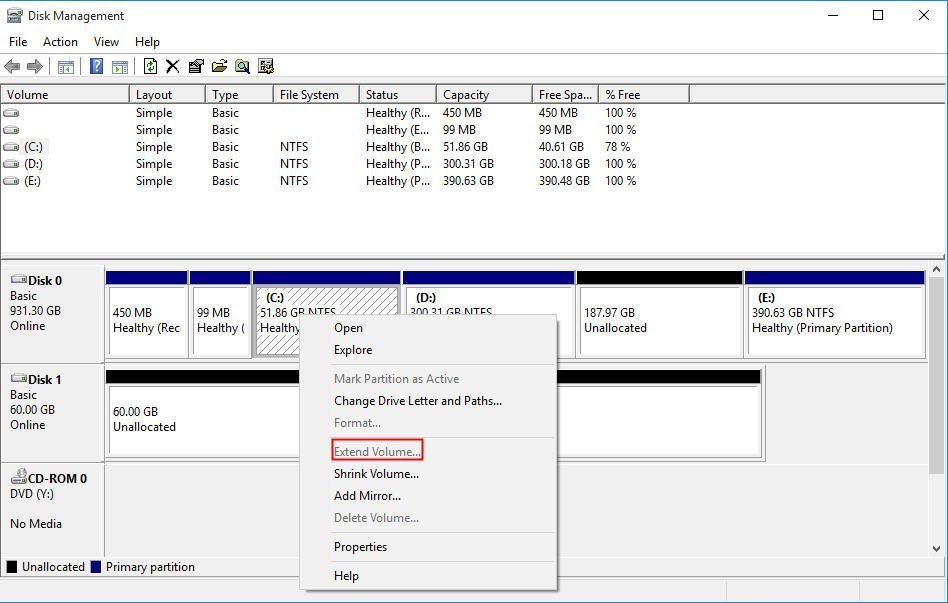
When your C drive is almost full after a Windows update or has many applications installed, you may want to extend it to fix the issue. However, when trying to increase the size of your C drive, the "Extend Volume" option may be greyed out, preventing you from extending the C drive in Windows 10, even if there is unallocated space available.
Solution 1 - Create a qualified unallocated space in Windows 10
In Windows 10, if the unallocated space is not adjacent to the C drive, you won't be able to extend the C drive directly. To make the "Extend Volume" option work, you need to create an unallocated space that is contiguous to your C drive. This involves following specific steps to ensure the unallocated space is adjacent to your C drive, allowing you to successfully extend it.
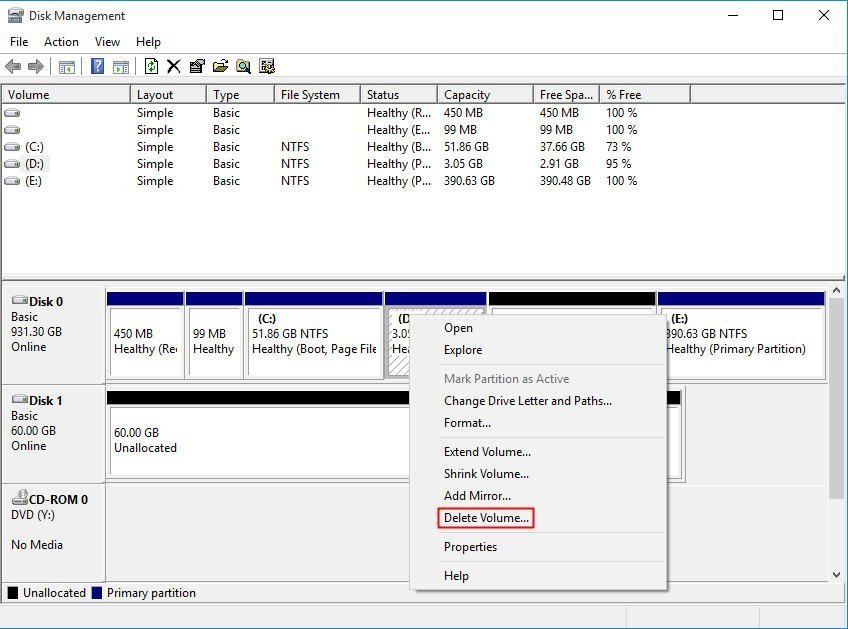
Step 1. Right-click the D drive, which is located between the C drive and the unallocated space, and select Delete Volume from the context menu.
* If you don't want to lose the data stored on the D drive, make a backup before deleting it.
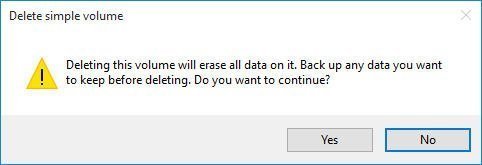
Step 2. Confirm the deletion by clicking "Yes" in the prompt that appears, acknowledging that all data on the volume will be erased.
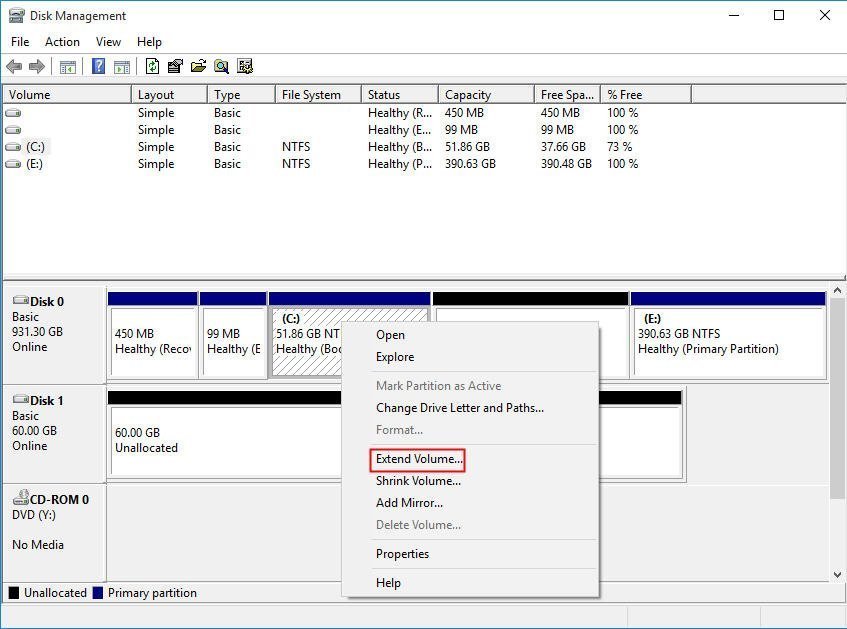
Step 3. To extend the volume, right-click the C drive, choose "Extend Volume...", and follow the prompts to complete the operation. This will allocate the unallocated space next to the C drive.
Solution 2 – Merge non-adjacent unallocated space to C drive in Windows 10 or 11
If you're unable to extend the C drive in Windows 10 Disk Management without deleting a partition, you can try using Qiling Disk Master Professional, which works on Windows 11/10/8/7, XP, and Vista. This tool has a "Merge Partitions" feature that lets you add non-contiguous unallocated space to the C drive without deleting any partitions, and you can also resize BitLocker partitions if needed.
The step-by-step guide on how to extend C drive with non-contiguous unallocated space.
Step 1. Install the software and run it. In the main interface, right-click on the C drive and select "Advanced" and then "Merge Partitions".
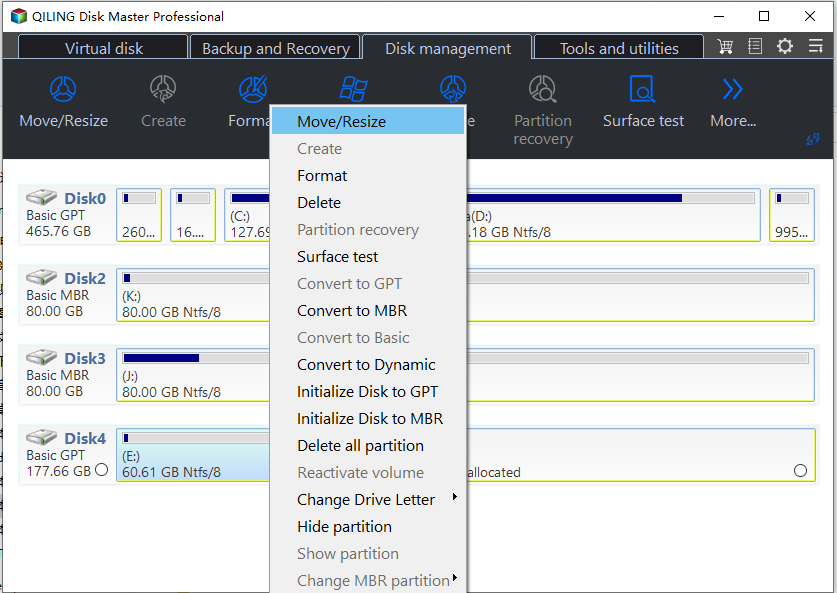
Step 2. In the Merge Partitions interface, drag to Unallocated and C:.
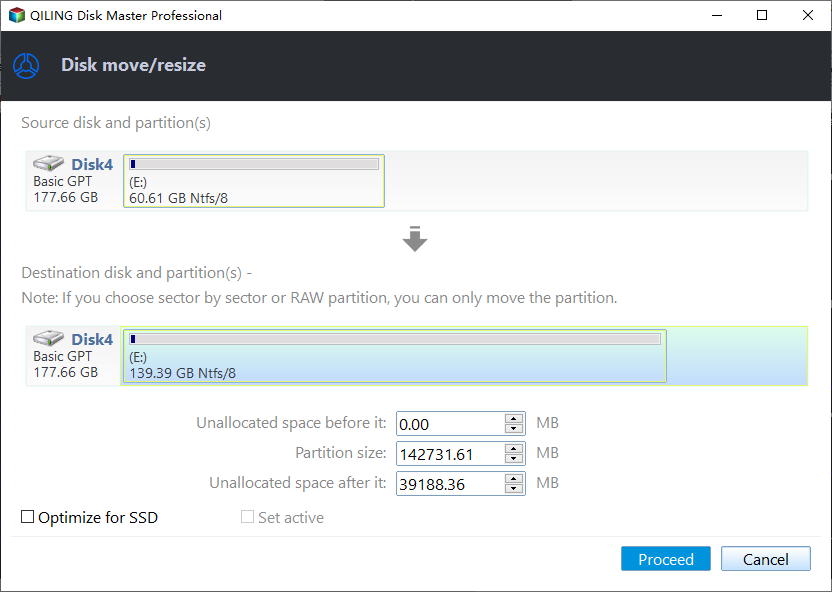
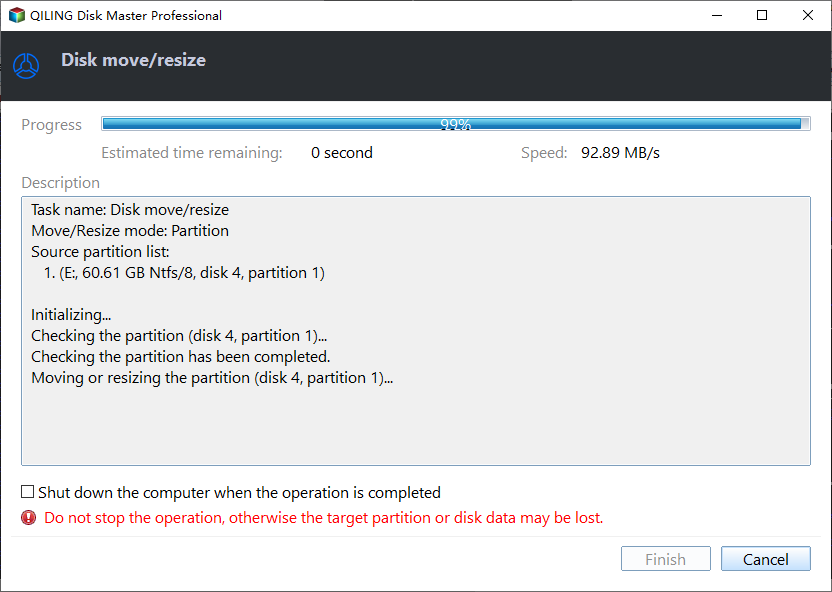
Step 3. Here you can preview the operation. Click Proceed after confirming it.
Note: Qiling Disk Master can also help you to reduce the size of C drive when you are unable to shrink C drive within Disk Management.
Solution 3 – Allocate free space from D drive to C drive in Windows 10 or 11
If the C drive is full and there is no unallocated space on the disk, but the D drive has enough free space, you can use Qiling Disk Master Professional to allocate free space from the D drive to the C drive, effectively extending the C drive.
Step 1. Install Qiling Disk Master Professional, run it, and right-click on the D drive to select "Allocate Free Space".
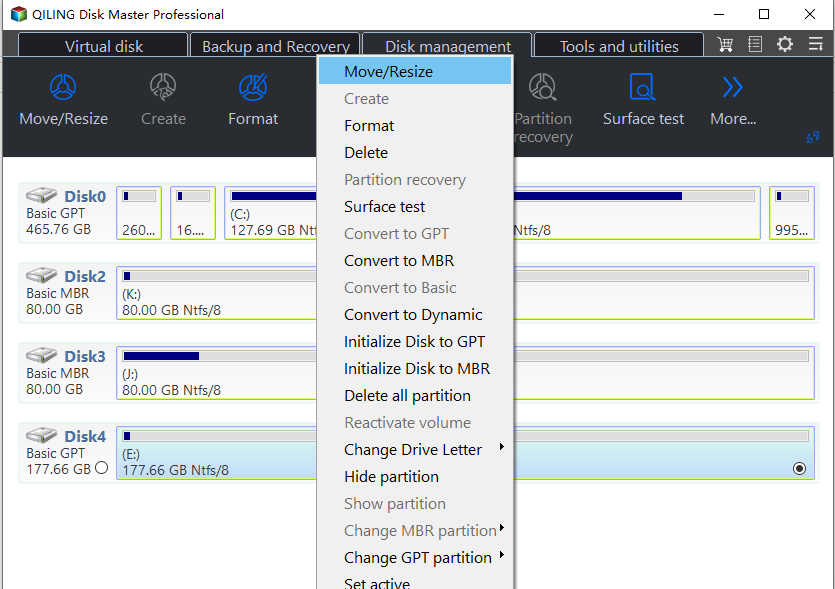
Step 2. Set the amount of free space to allocate from D drive and choose C drive as the target drive in this window.
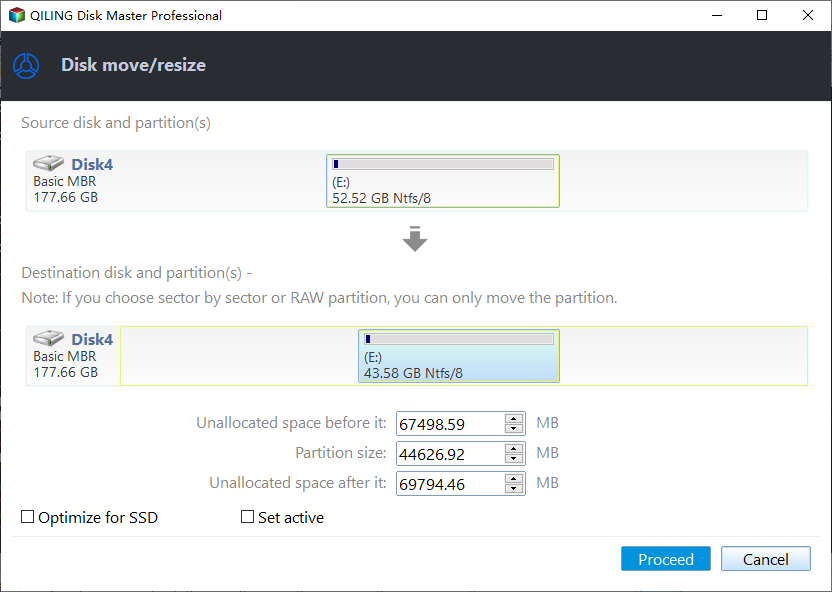
Step 3. You can preview the result after allocating free space to C drive. After confirming, click Proceed to carry out the operation.
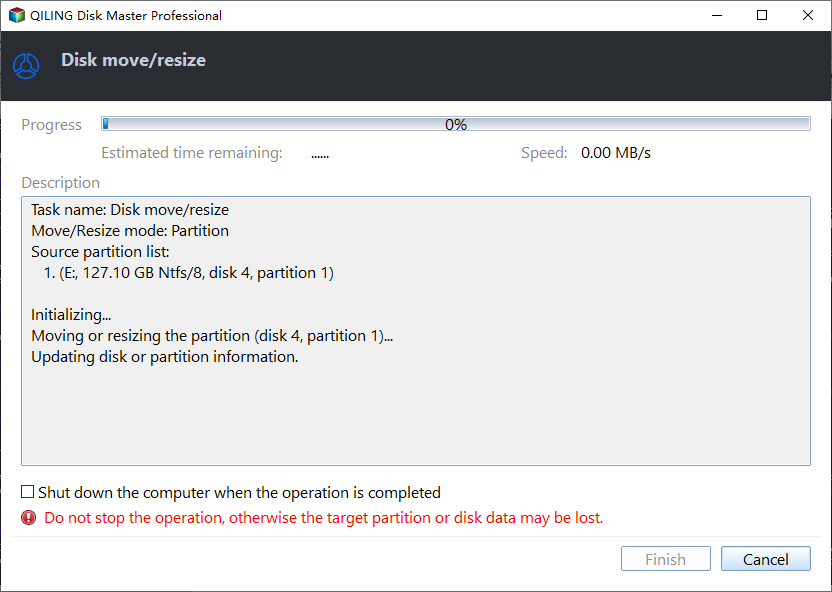
Notes:
▪ This operation may change the original location for your data but will not delete them.
▪ To extend C drive without losing data in Windows Server, you can use Qiling Disk Master Server to extend the C drive without losing data.
Wrap things up
In Windows 10/11 Disk Management, you can't extend C drive when there's no contiguous unallocated space. However, you can get a proper unallocated space by deleting a partition, but this process can be time-consuming. Instead, consider using a third-party tool to extend the C drive or use the built-in Disk Management feature to shrink another drive and then extend the C drive. If there is unallocated or free space, you can use solution 2, and if there is no such space, you can use solution 3.
If your system disk is too small, you can copy the entire disk to a larger one using Qiling Disk Master, allowing you to upgrade without reinstalling Windows and apps. Alternatively, you can transfer installed apps from the C drive to another drive to free up space.
Related Articles
- How to Resize C drive in Windows Server 2019/2016/2012/2008/2003 Effortlessly?
When you can't extend or shrink C drive in Windows Server 2019, refer to the article and you can realize detailed steps about how to resize C drive in Windows Server 2022/2019/2016/2012/2008/2003. - How to Clone OS Drive to SSD/HDD in Windows 7/8/10?
Learn how to Clone OS Drive to SSD/HDD in Windows 7/8/10 with clear steps, key checks, and practical tips. - No Free Memory-How to Increase Memory of C Drive?
This guide explains No Free Memory-How to Increase Memory of C Drive with clear steps, key checks, and practical tips. - How to Upgrade Windows 7, 8 or 8.1 to Windows 10?
Upgrading Windows 7 to Windows 10 is a straightforward process, but it's essential to prepare beforehand to avoid any issues. Before upgrading, back up your data, including files, documents, and photos, to an external hard drive or cloud storage. Ensure your computer meets the minimum system - How to Create an ISO Image from Your Operating System
You can learn how to create Windows ISO here. It helps you get a custom ISO image with Windows installation and all your personal data included. - Is There Any Way to Create Windows 10 Bootable USB from the Current System?
This guide explains Is There Any Way to Create Windows 10 Bootable USB from the Current System with clear steps, key checks, and practical tips.
Products
Articles & Tutorials
- Data Recovery
- Data Backup
- File Recovery
- File Backup
- File synchronize
- System Backup and Restore
- Disk and Partition Clone
- Technical articles
- Disk Master Help
- Windows Deleted File and Disk Recovery Tutorials
- Windows File and Data Recovery Tutorials
- More Windows Tutorials for Install, Security, Files, and PC Tips
- Windows Boot, Repair, and Recovery Environment Tutorials
- Windows Backup Tutorials
- Windows Restore Tutorials
- Windows Clone and Migration Tutorials
- Windows Server Backup, Recovery, and Management Tutorials
- Windows Disk, Partition, and Storage Management Tutorials