How to Easily Factory Reset Windows 11 PC (2 Ways)
Why Factory Reset Windows 11 PC?
Users want to reset their Windows 11 to factory settings for various reasons, including fixing problems caused by software or hardware issues, removing malware, or simply starting fresh with a clean installation of the operating system.
- You've made so many changes to settings or registry values that you've lost track of how to revert them to their original default state.
- Some installed software messed up your system.
- Windows error messages often appear due to various reasons such as outdated drivers, corrupted system files, or hardware issues. To troubleshoot, you can try updating your drivers, running a System File Checker (SFC) scan, or checking your Event Viewer for specific error logs.
- To protect your privacy, you can remove or delete any sensitive files, applications, or accounts associated with your identity, and then sell or give away your computer. This way, the new owner won't have access to your personal information.
Backup Your Important Files in Windows 11 before Resetting
Before factory resetting your Windows 11 PC, it's recommended to backup your important files to prevent loss. You can use the free and safe file backup software Qiling Disk Master Standard to do so. This software's File Backup feature allows you to backup documents, music, pictures, and videos, and you can even add comments, set up email notifications, and choose compression levels and splitting options.
Now, you can follow the graphic tutorial to backup your important files before Windows 11 resetting.
Step 1. Download Qiling Disk Master Standard, install and launch it. Then click Backup > File Backup.

Step 2. Click Files or Folders, then select the files or folders you want to backup.

Step 3. Choose the destination for your backup.

Step 4. Confirm all your operations and then click Proceed.

How to Factory Reset Windows 11 PC
To factory reset a Windows 11 PC, you can follow either of two methods once you've backed up your important files. You can choose the method that suits your needs best.
Method 1. Factory Reset Windows 11 PC with Reset Option
To factory reset a Windows 11 PC, you can select the reset option through Windows Settings or Windows Recovery Environment, which offers two different paths for this method.
- Windows Settings: To initiate a reset of your Windows PC, press the Windows key and the "I" key simultaneously, which will open the Windows settings. From there, navigate to the "System" tab, followed by "Recovery," and then select "Reset PC".
- Windows Recovery Environment: Restart your computer to enter the Windows Recovery Environment. Then click Troubleshoot > Reset this PC.
- ★Tips:
- If your computer is unable to boot Windows 11, you can try pressing the F11 key to open the Windows recovery environment, which can help you troubleshoot and potentially fix the issue.
- If the issue persists, you can try pressing and holding the power button for about 10 seconds to force the Windows recovery environment to start. This will allow you to troubleshoot and potentially resolve the issue.
After selecting the reset option, please follow the graphic tutorial below.
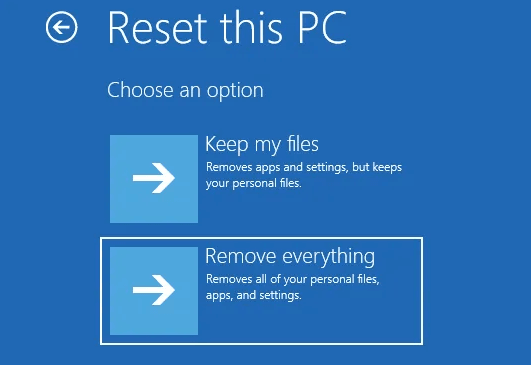
Step 1. If you want to keep your personal files, you can choose the "Keep my files" option, or if you want to erase all files, you can choose the "Remove everything" option.
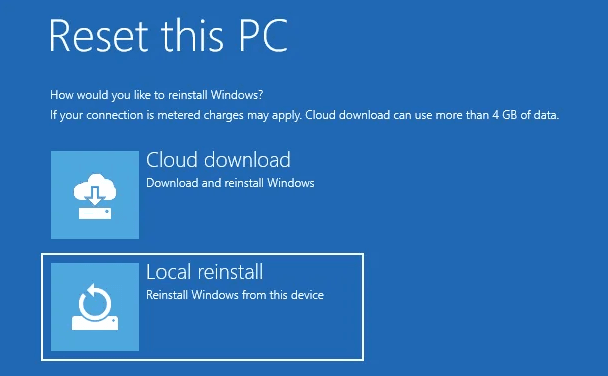
Step 2. Choose a way to reinstall your Windows 11 after resetting.
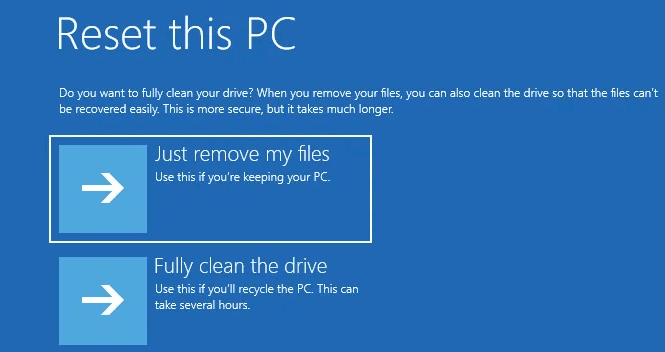
Step 3. You should only remove your files from the Windows installer drive or fully clean the drive.
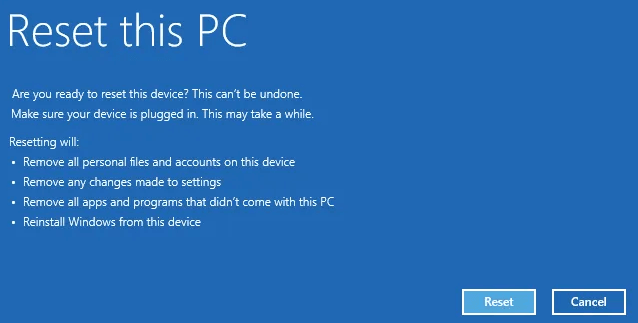
Step 4. When everything is prepared, you'll see the screen below. Windows will list the impacts of resetting PC according to your preferred settings, read carefully and then click on Reset to start the process of factory resetting Windows 11 PC.
Method 2. Factory Reset Windows 11 PC with Command Prompt
To factory reset a Windows 11 PC via the command prompt, there are two situations. If the PC is not booting, you can create a Windows installation media and boot from it, then use the command prompt to perform a clean installation. If the PC is booting but you want to reset it, you can use the built-in Windows Recovery Environment (WinRE) to access the command prompt and run the necessary commands to reset the PC.
- Your computer can boot normally: To open Command Prompt as administrator, type "cmd" in the Windows Search bar, click on the Command Prompt app from the search results, and select "Run as administrator".
- Your computer doesn't load the program properly: To fix the issue, restart your computer by holding the power button for 5-10 seconds, repeat this twice, and on the third boot, you will enter the Windows recovery environment, where you can select Advanced Options, then Troubleshoot, and finally Command Prompt.
To factory reset your Windows 11 PC using Command Prompt, follow these steps: Open Command Prompt as an administrator, type "shutdown /r /o /f /t 0" and press Enter, then select the option to boot into the recovery environment, and finally, select the option to reset this PC. Alternatively, you can use the built-in Windows 11 feature called "Reset this PC" to factory reset your PC, which can be accessed by going to Settings > System > Recovery.
Step 1. In the Command Prompt window, type systemreset - factoryreset and hit Enter.
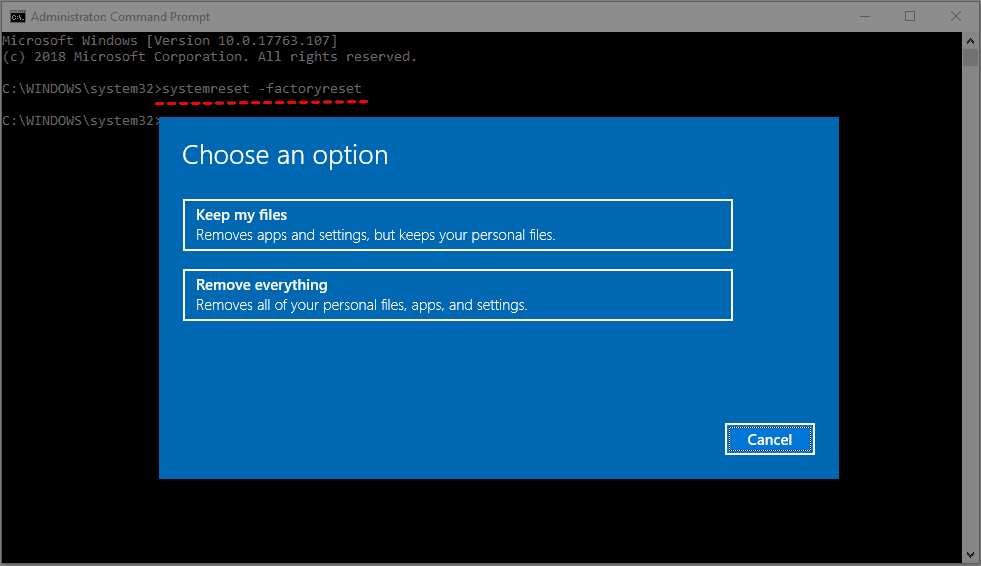
Step 2. After clicking the "Start" button, you will see a window prompting you to choose an option. You can either select to remove apps and settings while keeping your files, or remove everything.
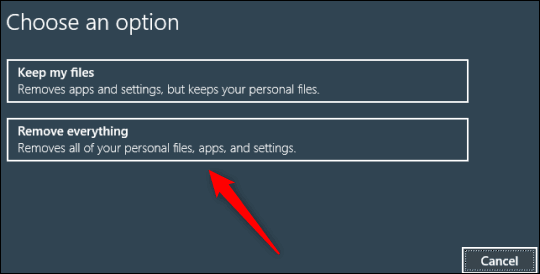
Step 3. You have the option to either clean the drive or not, which would make it harder for others to recover any files that were previously deleted.
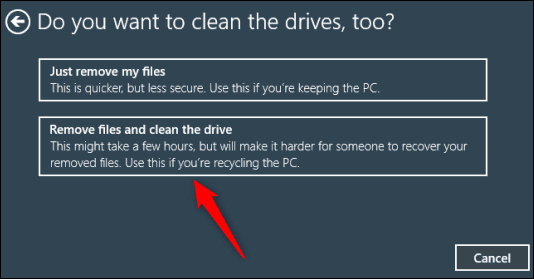
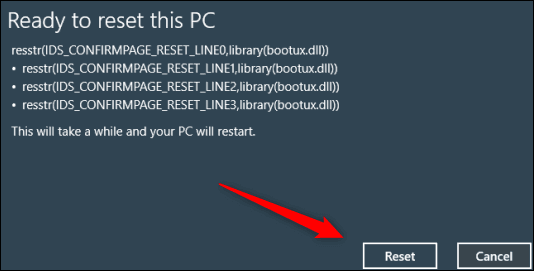
Step 4. In the Ready to reset this PC window, confirm the items you want to remove and click Reset to start the Windows 11 factory reset process.
Summary
You can factory reset a Windows 11 PC using one of two methods. Either select the reset option, which will delete almost all your files and data, or use the command prompt to achieve the same result. Before doing so, it's recommended that you back up your important files with a free and safe backup software, such as Qiling Disk Master Standard, to avoid losing any valuable data.
This software allows you to schedule backups with fixed intervals, such as daily, weekly, or monthly, and also supports event triggers and USB plug-ins. It also offers incremental or differential backup methods to save disk space. You can download the software to explore more features.
Related Articles
- Seagate NAS Backup Software for Windows 10/8/7
This guide explains Seagate NAS Backup Software for Windows 10/8/7 with clear steps, key checks, and practical tips. - How to Sync External Hard Drive Files and Folders to Cloud Storage?
Best sync tool Qiling Disk Master can help you easily sync external hard drive files and folders to cloud drive like OneDrive, Google Drive, Dropbox. Get the steps below and try yourself. - Do You Know Any SyncToy Portable Alternative in Windows 7/8/10?
I need help to sync files or folders with the SyncToy portable alternative in Windows 7/8/10. - Top 3 Methods for Synology NAS Incremental Backup
This article tells you how to do Synology incremental backup with add-on tools like Hyper Backup or Glacier Backup or Qiling Disk Master for richer backup features. - How to Backup Synology to Windows Server
This article will describe why and how to backup Synology to Windows Server and recommend a useful software to backup Synology. - Sync Files in Windows Server with Best File Sync Software
This guide explains Sync Files in Windows Server with Best File Sync Software with clear steps, key checks, and practical tips.
Products
Articles & Tutorials
- Data Recovery
- Data Backup
- File Recovery
- File Backup
- File synchronize
- System Backup and Restore
- Disk and Partition Clone
- Technical articles
- Disk Master Help
- Windows Deleted File and Disk Recovery Tutorials
- Windows File and Data Recovery Tutorials
- More Windows Tutorials for Install, Security, Files, and PC Tips
- Windows Boot, Repair, and Recovery Environment Tutorials
- Windows Backup Tutorials
- Windows Restore Tutorials
- Windows Clone and Migration Tutorials
- Windows Server Backup, Recovery, and Management Tutorials
- Windows Disk, Partition, and Storage Management Tutorials