Securely Erase Your SSD on Windows 11 – Step-by-Step Guide
- User case scenario
- Differences between delete, format, erase
- Preparations before performing SSD erasing
- How to wipe an SSD on Windows 11 Securely
- Method 1: Wipe SSD with the best disk wipe tool
- Method 2: Reset the PC to Wipe the SSD
- Method 3: Erase an SSD using BIOS
- Reasons for secure erase SSD on Windows 11
- FAQs about how to Wipe an SSD on Windows 11
- Verdict
User case scenario
How do I wipe my SSD on Windows 11?
To securely erase all data from the SSD, you can use a tool like DBAN (Darling Worm) or a Linux live USB to run a secure erase command. Alternatively, you can use a Windows tool like HDShredder or KillDisk to securely erase the SSD. These tools will overwrite the entire SSD with random data, making it impossible to recover any information. It's also recommended to physically destroy the SSD after erasing, but since you're returning it, you can skip that step. Make sure to follow the instructions carefully to avoid any data loss or damage to the SSD.
- Question from ElevenForum

Differences between delete, format, erase
Before wiping an SSD on Windows 11, it's essential to understand the difference between delete, format, and erase. Deleting files removes the reference to them, but the data remains on the drive.
Delete: Deleting a file on an SSD only removes the file index, leaving the data itself intact, allowing for potential recovery with specialized techniques.
Format: Formatted SSDs only contain the address of the directory where the data is stored, not the file itself, making data recovery possible with professional data recovery software.
Erase: The method of rewriting data to cover the original information, making it unrecoverable with multiple iterations.
To completely wipe a solid-state drive (SSD) on Windows 11, a simple format or partition deletion is insufficient. A more thorough method, such as using a third-party disk wiper, is required to ensure a complete wipe of the SSD. This is necessary for maintaining data security and privacy.
Preparations before performing SSD erasing
Before erasing an SSD on Windows 11, it's essential to pay attention to certain important points to ensure a successful SSD wipe.
✔️Detectable SSD: Connect your prepared SSD to your computer and ensure it is detected by the system.
✔️Stop Applications: Before performing a secure erase of the SSD, close all other applications to prevent the process from failing due to the program running.
✔️Back up Data: To ensure the data on an SSD is not lost, it's recommended to back up any important files before completely wiping the drive, as the data will be permanently overwritten and unrecoverable after the wiping process.
✔️Proper Wiping: The frequency of erasing the SSD should be controlled to avoid shortening its lifespan and reducing its usage rate.
How to wipe an SSD on Windows 11 Securely
Here are some effective SSD wiping methods for you to consider. Each method has its own advantages, so review them carefully and select the one that fits your needs. Once you've chosen the method, follow the detailed steps to erase your SSD promptly, ensuring your data is securely removed and your SSD is ready for reuse.
📌To wipe an SSD, use a reliable disk wipe tool like DBAN, KillDisk, or Active@ KillDisk. These tools will completely erase all data on the SSD, making it unrecoverable.
📌Method 2: Reset the PC to Wipe the SSD
📌Method 3: Erase an SSD using BIOS
Method 1: Wipe SSD with the best disk wipe tool
The best disk wipe tool is undoubtedly Qiling Disk Master Professional. It stands out from other similar products with its reliable and efficient features, simple interface, and ease of use, making it accessible even to novices. With Qiling Disk Master Professional, you can easily erase your SSD and permanently prevent data recovery on it in just a few steps.
This software is designed for Windows 11/10/8.1/8/7/Vista/XP systems and can wipe various types of SSDs, including SATA, NVMe, PCIe, M.2, and U.2, as well as SSDs from brands like Crucial, Intel, Samsung, Western Digital, and Integral. It also supports wiping external hard drives, USB drives, and SD cards, and can even wipe free space on Windows 11.
To wipe an SSD on Windows 11, download and install a best SSD secure erase tool, then launch it to have a try.
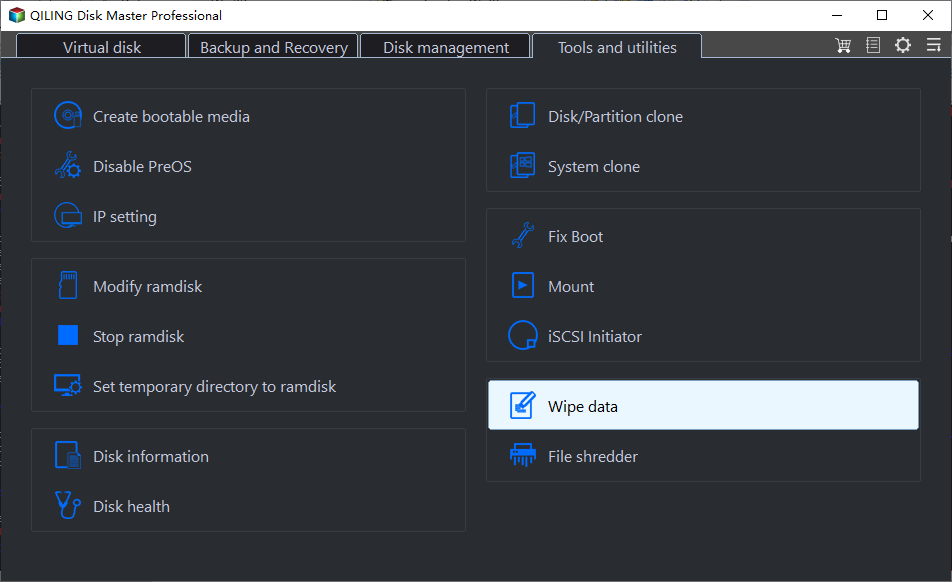
Step 1. To wipe a disk, click on the "Tools" option in the left-hand menu, then select the "Disk Wipe" tool.
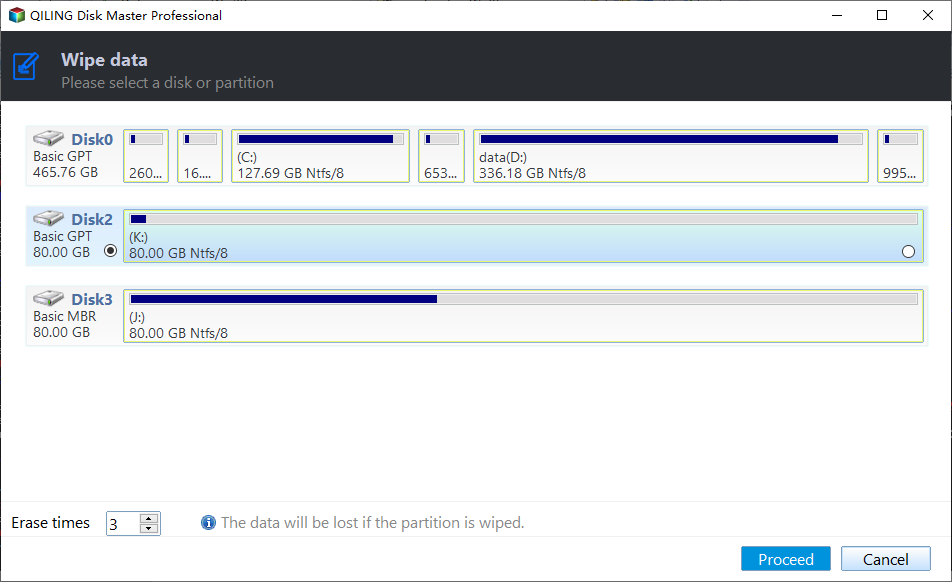
Step 2. Select the target SSD that you want to erase.
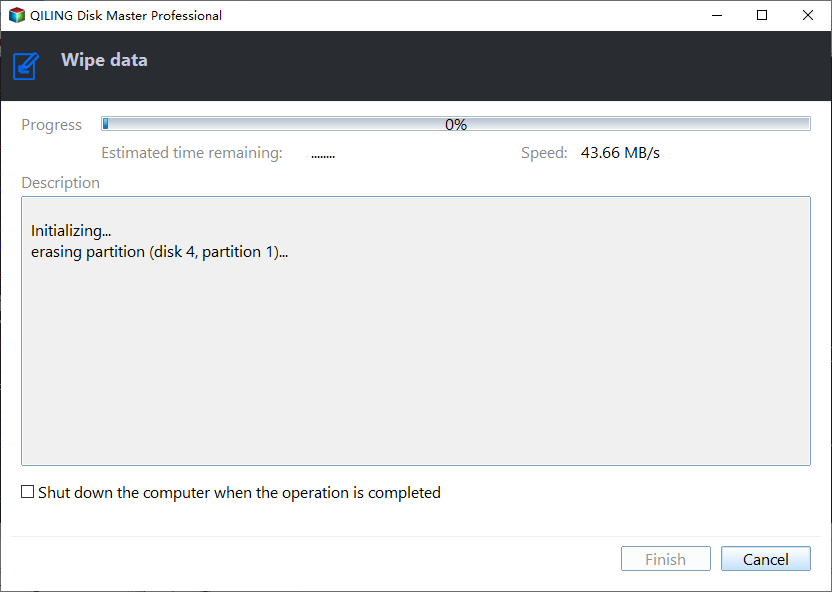
Step 3. Under the page Wiping Method, choose to Fill Sectors with Zero (Safe, Quick) and tap Proceed to wipe the SSD.
Notes:
» To thoroughly erase a hard drive, you can use one of three alternative methods: Fill sectors with random data, DoD 5220.22-M, or Gutmann.
» The tool currently does not support wiping dynamic disks.
Method 2: Reset the PC to Wipe the SSD
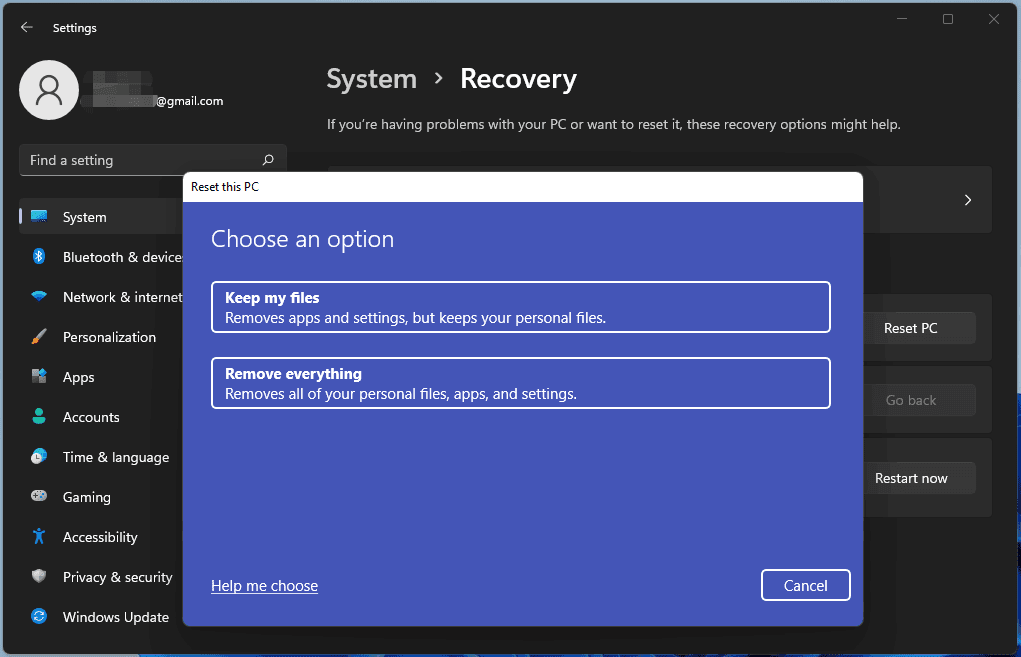
To wipe an SSD on Windows 11 using the "Reset this PC" feature, follow these steps: Start by going to Settings > System > Recovery. Click on "Reset PC" and select "Remove everything" to erase the SSD partitions. You can also choose to keep the operating system intact by selecting "Keep personal files and apps." This method is efficient and free, making it a good option for experienced Windows users who want to erase their SSD partitions.
Step 1: To reset your Windows 10 PC, open the Start menu and navigate to Settings. Look for the "Update & Security" option, or type "reset" in the search bar to find the "Reset this PC" option.
Step 2: To reset your Windows 10 PC, click on the "Reset this PC" option. This will give you three choices: Reset this PC, Go back to an earlier version of Windows 10, and Advanced Startup.
Step 3: Under the "Reset this PC" option, click on "Get Started."
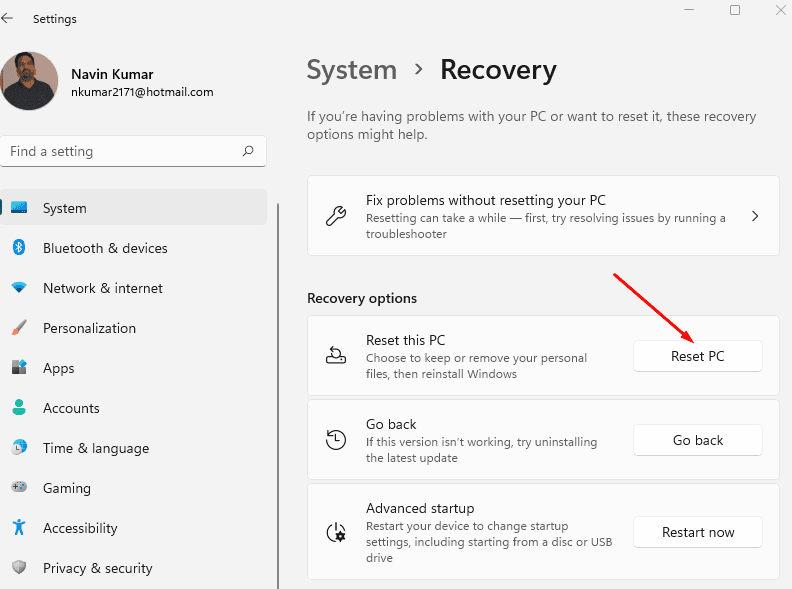
Step 4: You can choose to either keep your files on the device or remove all of them, depending on your preference.
Step 5: Click "Next" when Windows informs you that you won't be able to revert to a previous version of the OS.
Step 6: Finally, click "Reset" when prompted, and the process will begin.
Method 3: Erase an SSD using BIOS
If Windows 11 won't boot or your SSD fails to start, you can manually erase your SSD by accessing the BIOS settings, which allows you to reset the drive to its factory settings.
1. Unplug your computer, wait 30 seconds, and plug it back in. Make sure you have a recent backup before proceeding. If you're still having issues, consider seeking professional assistance.
2. To enter your computer's BIOS, press the indicated key during startup, usually "Del" or "F8".
3. To access the Security tab, navigate to it, then select either "Hard Drive Utilities" or "Hard Drive Tools".
4. To securely erase the SSD, click on "Secure Erase" and select the SSD you want to erase. Then, click "Continue" to confirm the operation.
Reasons for secure erase SSD on Windows 11
People may want to erase SSDs for various reasons, including to remove sensitive information, to prepare the drive for reuse or resale, to recover space on the drive, to prevent data breaches, to comply with data protection regulations, to remove malware or viruses, to erase personal data, to protect their identity, to clean up the drive after a divorce or separation, to remove data from a company's old computer, to erase data from a device after it's been stolen, and to remove data from a device that's been loaned out and returned.
✎ Reselling SSD. To prepare your SSD for resale, you'll need to erase all data on it to protect your sensitive files and prevent data leakage. This will give you a clean slate for resale.
✎ For reuse. To clean up an SSD, start by backing up any important data on the drive. Then, delete any unnecessary files, empty the recycle bin, and run a disk cleanup tool to remove temporary files and system logs.
✎ Eliminate viruses or malware from your SSD. If your solid-state drive (SSD) is infected with a virus or malware, you may want to restore it to a safe state by securely wiping the device.
✎ Free up storage space. Be aware that deletions only keep files from being retrieved, but they still take up memory, while a complete erase is required to truly free up storage space.
FAQs about how to Wipe an SSD on Windows 11
1. Can I wipe only the free space on an SSD?
You can use professional disk wiping software to wipe just the free space on an SSD, such as Qiling Disk Master, which allows you to clean the free space on your SSD safely.
2. Does a factory reset clear an SSD?
If your SSD is the OS disk, using Windows factory reset can impact your data, but if it's a secondary data disk, it won't affect the data on that disk.
3. Does formatting an SSD erase everything?
Formatting an SSD will erase the data for practical purposes, but data can still be recovered using advanced methods. Always ensure you have backed up all important files before reformatting the drive.
Verdict
To securely erase an SSD on Windows 11, Qiling Disk Master Professional is a top-notch tool that can help. With its professional assistance, once you use it to wipe an SSD, the sensitive data on it can never be recovered, making it the best SSD secure erase software available.
Qiling Disk Master is the best data backup and restore solution for both Windows and Windows Servers, offering a reliable rescue measure in case of data corruption or loss due to system failure, even after Windows Server 2012 reaches its end of life. With its remarkable features, you can backup your Server 2019 and ensure a safe and secure data protection solution.
Related Articles
- (Top 3 ways) How to Wipe an External Hard Drive on Windows 11
You will learn how to wipe an external hard drive on Windows 11 via built-in tools or with a reliable disk wipe tool. Hope one of either way can satisfy your own needs. - How to Erase M.2 SSD on Windows 10/11 – Securely and Completely
This article will tell you how to erase M.2 SSD in the safest way possible. The erasure software can provide you with data protection and prevent any data leakage incidents from occurring. - Wipe Hard Drive for Clean Install Windows 11 Safely and Easily (3 Ways)
You will learn 3 easy ways to wipe hard drive for clean install windows 11. You can choose to use the built-in tool, installation media or free third-party tool based on your own needs. - Secure & Easy: Wipe Free Space on Windows 11 in Top 3 Ways
This article is here with top 3 solutions to help you wipe free space on Windows 11 securely in a few simple steps. You can check the details as follows by yourself. - How to Secure Wipe Hard Drive for Free? 2022 Newest Guide Is Here
Learn how to secure Wipe Hard Drive for Free safely, including what to check before formatting, wiping, or deleting data. - 2024 Guide: How Do I Shred Word Document, Excel, PPT
Instead of emptying the recycle bin, shredding data can help you big time. You've come to the right platform for learning about how you can shred Word Documents, Excel Sheets, PPTS, and other files.
Products
Articles & Tutorials
- Data Recovery
- Data Backup
- File Recovery
- File Backup
- File synchronize
- System Backup and Restore
- Disk and Partition Clone
- Technical articles
- Disk Master Help
- Windows Deleted File and Disk Recovery Tutorials
- Windows File and Data Recovery Tutorials
- More Windows Tutorials for Install, Security, Files, and PC Tips
- Windows Boot, Repair, and Recovery Environment Tutorials
- Windows Backup Tutorials
- Windows Restore Tutorials
- Windows Clone and Migration Tutorials
- Windows Server Backup, Recovery, and Management Tutorials
- Windows Disk, Partition, and Storage Management Tutorials