Free Up Your Disk Space on Windows 7 – 7 Useful Tips
Problems when your disk is full
"What's going on with my computer? Why is it so slow?" You'll feel frustrated, especially when trying to download important apps for work or study, or dealing with urgent tasks on your computer. Your hard drive is full, and it's working too slowly, causing annoyance. However, you're unsure of the exact reasons behind this situation.

If your computer is running out of disk space, several issues may arise, including system crashes, slow performance, and difficulty installing or updating software. This can lead to frustration and wasted time as you try to troubleshoot and resolve the problem.
☞Performance degradation: When there's not enough disk space, your computer may become slow and take longer to start software and files.
☞Software crashes: If there's not enough disk space, some of your applications may stop working or even crash.
☞File loss or failure: Running out of disk space can cause file system errors, potentially leading to lost or corrupted files.
☞Unable to install updates or new software: If you don't have enough disk space, you won't be able to install or upgrade software.
☞Privacy issues: Insufficient disk space can lead to temporary files and other sensitive data being unable to erase, leaving behind traces on your computer.
Therefore, noticing the above-To avoid the mentioned problems, ensure you have sufficient disk space on your computer and perform regular maintenance as needed.
7 tips to free up or increase your disk space
To clean up disk space on your Windows 7 computer, start by deleting any unnecessary files and folders, including temporary files, system logs, and other data you no longer need. Use the Disk Cleanup tool to automatically delete unnecessary files and free up space.
- Tip 1. Uninstall unnecessary or unused applications and programs
- Tip 2. Use Disk Cleanup
- Tip 3. Clear out your browser's cache
- Tip 4. Add more storage
- Tip 5. Move large files
- Tip 6. Disable hibernation
- Bonus tip: wipe Windows 7 hard drive for reuse
Tip 1. Uninstall unnecessary or unused applications and programs
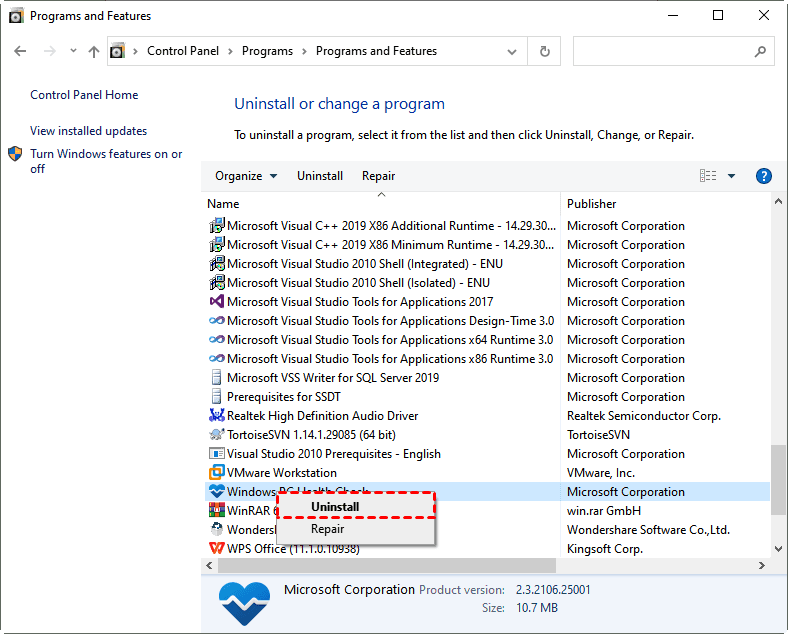
Go to the Control Panel, select "Programs and Features", and uninstall any unnecessary programs.
Tip 2. Use Disk Cleanup
Disk Cleanup is a built-in Windows utility that helps remove temporary files, system logs, and other items you don't need, freeing up space on your computer. It can be accessed by searching for "Disk Cleanup" in the Start menu or by right-clicking on the drive you want to clean up and selecting "Properties" and then clicking on the "Disk Cleanup" tab.
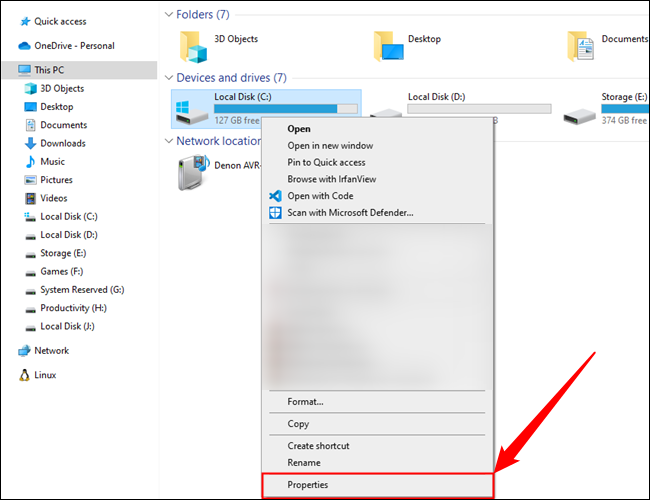
You can start The PC and right-click the Local Disk, then select Properties.
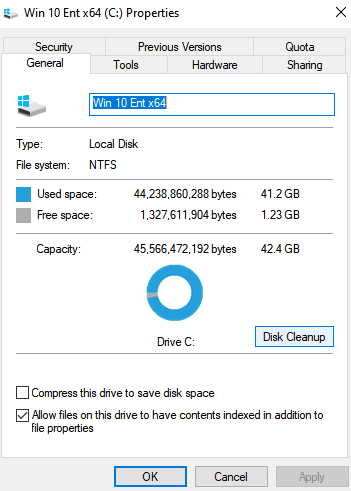
Click the Disk Cleanup button in the disk properties windows.
Select the types of files you want to delete and click OK, which includes temporary files, log files, files in your recycle Bin, and other unimportant files.
Tip 3. Clear out your browser's cache
Clearing your web browser's cache and history can help free up a significant amount of hard drive space. To do this, go to the Settings or Options menu, find the section for clearing cache, cookies, and history, and follow the prompts to delete them. This will help declutter your device and potentially improve its performance.
Tip 4. Add more storage
A longer-To expand your PC's storage capacity, you can consider adding removable storage options such as SD cards, USB flash drives, DVDs or CDs. Alternatively, you can also utilize cloud storage services or network drives to store and access your files.
Tip 5. Move large files
Check if there are large-To free up space on your device, consider moving large scale files, such as videos or music files, to external hard drives or cloud storage services. This will help declutter your device and make more space available for other files.
Tip 6. Disable hibernation
To free up hard drive space by disabling hibernation, open the Command Prompt as an administrator, type the command "powercfg /h off" and press Enter. This will disable hibernation and release the space it was occupying on your hard drive.
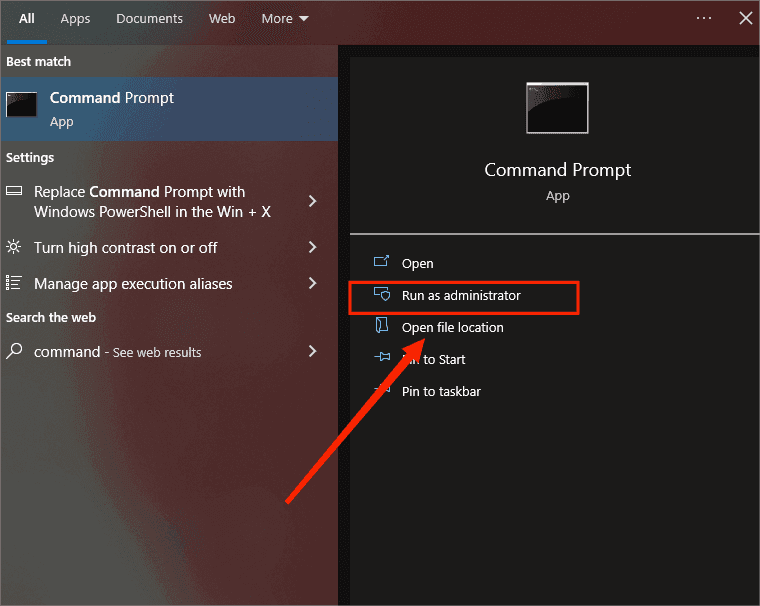
And then type "powercfg.exe /hibernate off".
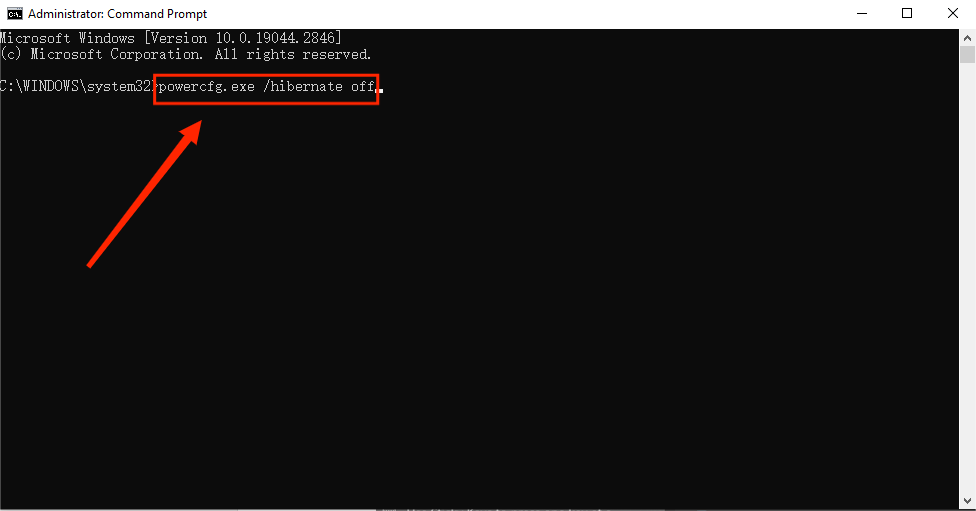
To free up space on Windows 7, consider the following tips: remove unnecessary system files, delete temporary files, uninstall unused programs, empty the Recycle Bin, delete unnecessary documents and files, and use the Disk Cleanup tool. By following these steps, you can manually free up disk space on Windows 7, but be cautious to avoid data loss.
Bonus tip: wipe Windows 7 hard drive for reuse
In addition to the previous 6 tips for cleaning up disk space, you can also use a third-party tool to save time and energy. The Disk Wipe function in Qiling Disk Master Professional is a useful tool that helps you wipe the disk to permanently remove data and viruses. With this tool, you can easily erase data on a partition, unallocated space, and disk.
Let's download Qiling Disk Master Professional and have a try.
Here are the detailed steps on how to free up disk space on Windows 7 with Qiling Disk Master Disk Wipe tool.
Step 1. Click Tools tab page, and then select the Disk Wipe tool.
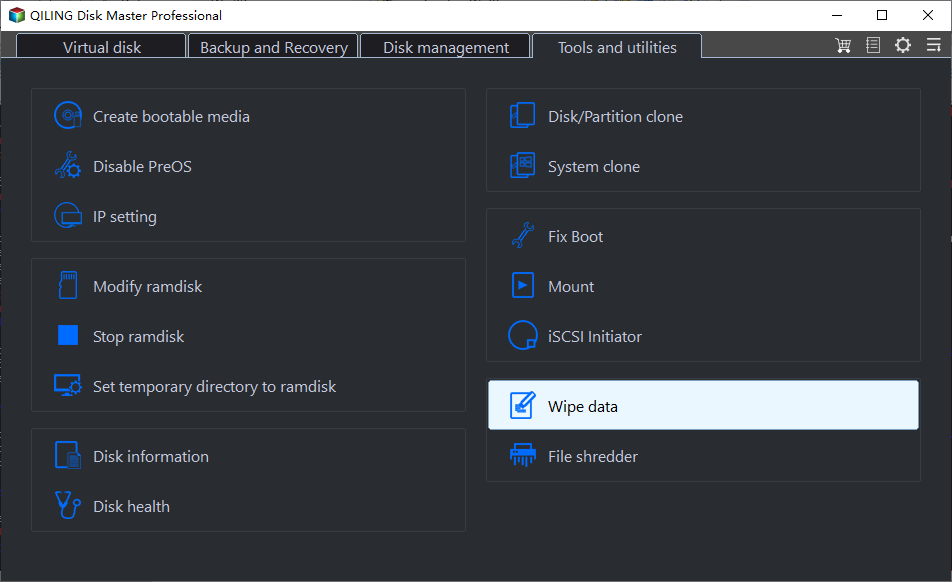
Step 2. Once you select the desired wiping type, you will enter the page of Select the disk to wipe, where you can choose to wipe any disk and also select multiple ones at the same time.
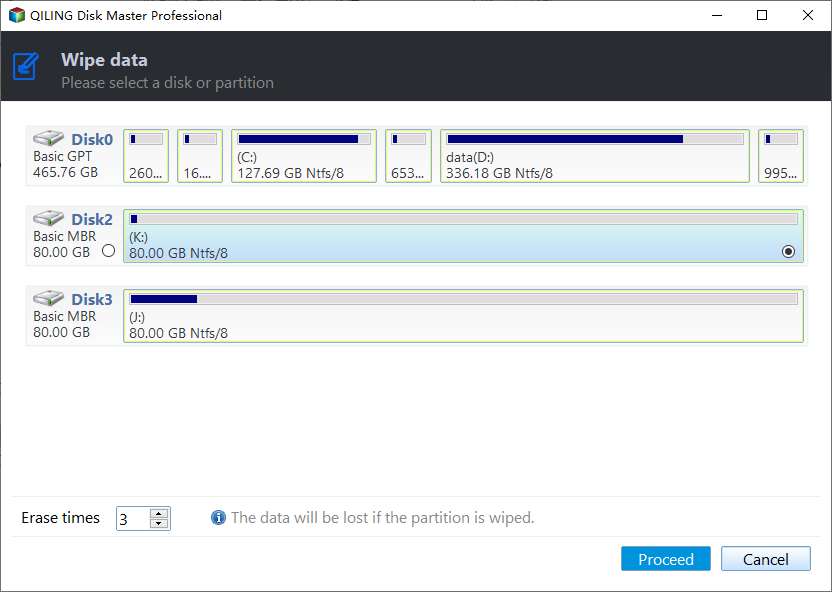
Step 3. Then, you will select Wiping Method.
To securely wipe the selected data, you can choose from four methods that vary in thoroughness, each with a different level of overwriting. The more thorough the wipe, the more difficult it will be to recover the data, making it more secure.
- Erase times one: Fill sectors with Zero (Safe, Quick)
- Erase times three: DoD 52220.22-M (Very safe, Slow)
- Erase times 35: Gutmann (35 passes, Very Safe, Very Slow)
After selecting the wiping method, click Proceed at the bottom right corner of the page to enter the wiping process page.
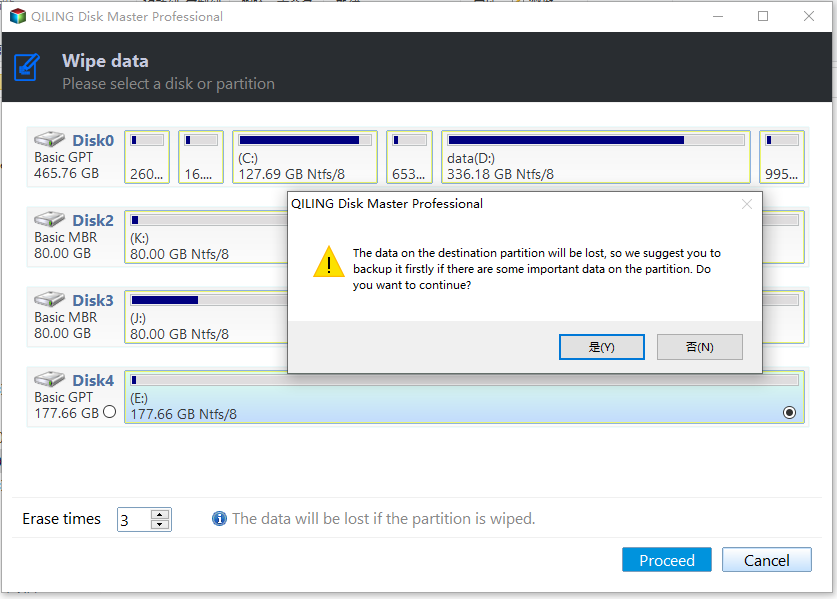
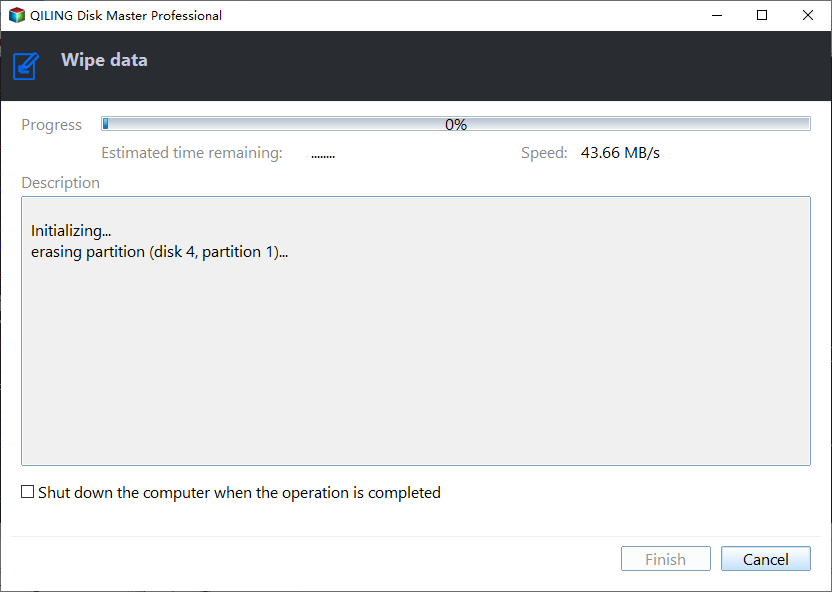
Step 5. After the wipe process is started, you will enter the page Wiping Process.
This page will display the progress of the wiping process, providing specific information about what is happening during the wiping operation.
Summary
To keep Windows 7 running smoothly, it's essential to free up disk space, as overloading can cause a series of problems. To do this manually, you can try the following 6 tips. Additionally, consider using third-party software like Qiling Disk Master Professional, which features a Disk Wipe Tool that allows you to wipe the whole disk and release disk space, and also provides the option to backup your C drive in case of any misoperation.
Related Articles
- Windows 7 Backup Disk Full - Manage Space Correctly
You will get the reasons and solutions to Windows 7 backup disks full issue. In fact, the best way is to preset rules for deleting backups at the beginning. - Fix Windows Folder Size Too Large | 4 Methods
Here are 4 methods to fix Windows folder size too large, pick one or more of them and delete files you don't want. Hurry up and learn more below. - Windows 7 Maximum Disk Size Problem | Fix It Right Now!
You will learn more about Windows 7 maximum disk size and fix it step by step. Sroll down to get the details. - Secure Methods to Erase SSD Disk on Windows and Mac
This article examine how to securely erase an SSD disk in Windows and Mac. - 2022 Best Solutions for SSD Secure Erase in Windows 10/11
This guide explains 2022 Best Solutions for SSD Secure Erase in Windows 10/11 and provides practical steps, tips, or recovery options to help you complete the task safely. - What Is and How to Use Drive Eraser Software in Windows 11/10 [2022 New]
If you're looking for ways to wipe or erase files on your Windows 10/11 permanently, you've come to the right place. Here you will find detailed steps to erase your drives easily.
Products
Articles & Tutorials
- Data Recovery
- Data Backup
- File Recovery
- File Backup
- File synchronize
- System Backup and Restore
- Disk and Partition Clone
- Technical articles
- Disk Master Help
- Windows Deleted File and Disk Recovery Tutorials
- Windows File and Data Recovery Tutorials
- More Windows Tutorials for Install, Security, Files, and PC Tips
- Windows Boot, Repair, and Recovery Environment Tutorials
- Windows Backup Tutorials
- Windows Restore Tutorials
- Windows Clone and Migration Tutorials
- Windows Server Backup, Recovery, and Management Tutorials
- Windows Disk, Partition, and Storage Management Tutorials