System Restore Could Not Start in Windows 7
The problem
When System Restore itself fails, you can try the following alternatives to recover your system: Use a System Restore point from a different drive, use a previous System Restore point from the same drive, use a System Image Backup to restore your system, or use a third-party backup software to restore your system. These alternatives can help you recover your system when System Restore itself fails.
Some users experience issues with System Restore in Windows 7, with some getting stuck at the beginning and receiving a "System restore could not start" message, while others face difficulties with the process not completing successfully. This can be due to various reasons, including corrupted system files, registry issues, or conflicts with other system components. To resolve these issues, users can try running the System File Checker (SFC) tool, checking the Event Viewer for errors, and disabling any recently installed software or drivers that may be interfering with System Restore. Additionally, users can also try running the Windows 7 installation media in safe mode and using the System Restore feature from there.
Quick fixes to System Restore not starting in Windows 7
If you're experiencing issues with System Restore not starting in Windows 7, there are several potential fixes to consider depending on your specific situation. One approach is to run the System File Checker (SFC) tool to scan and replace any corrupted system files that may be preventing System Restore from functioning properly.
- Fix #1: Disable antivirus software
- Fix #2: Run System Restore from Safe Mode
- Fix #3: Configure Disk Space Usage
- Easier way to perform system restore in Windows 7, 8, 10, 11
Fix #1: Disable antivirus software
In Windows 7, System Restore may not work due to an antivirus program, so disabling the antivirus software temporarily can resolve the issue.
Fix #2: Run System Restore from Safe Mode
If System Restore is not working due to other programs running on your computer, you can try to perform System Restore from Safe Mode, which can help resolve the issue.
1. To access the Advanced Boot Options menu, simply restart your computer and immediately tap the F8 key on your keyboard. This will allow you to choose from various startup options, such as Safe Mode, Enable Boot Logging, and Enable Low-Resolution Video.
2. To boot Windows in Safe Mode, press the Windows key + X and select Power > Restart while holding the Shift key. This will allow you to access the system in a minimal environment, with only the most essential drivers and services running.
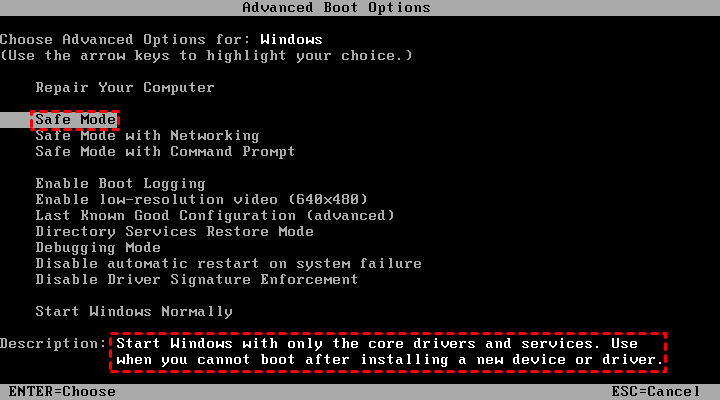
3. When Windows finishes loading, open System Restore and follow the wizard to complete the process.
Fix #3: Configure Disk Space Usage
In Windows 7, low disk space may cause System Restore to fail. To resolve this, configure Disk Space Usage for system protection by following these steps:
1. Right-click on "Computer" on the desktop and select the "Properties" option from the context menu.
2. To configure System Protection, select "System protection" from the left-hand column and then click "Configure" in the pop-up window.
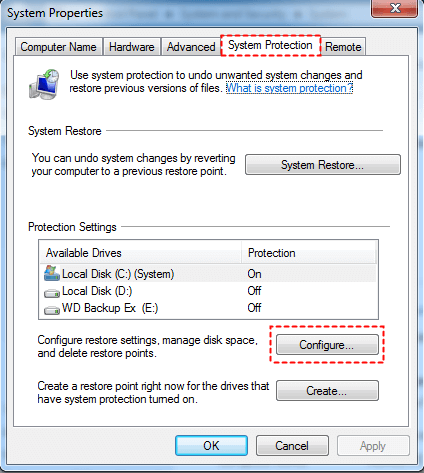
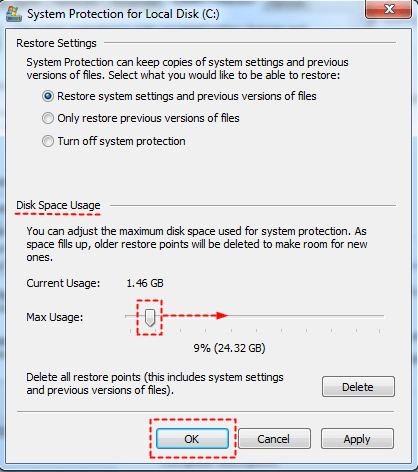
3. To adjust the maximum disk space used for system protection, drag the slider in the next window to increase it from the default 3 percent to over 5 percent, allowing for more space for restore points, then click "OK" to save the change.
Easier way to perform system restore in Windows 7, 8, 10, 11
If System Restore in Windows 7 is not working for you, you might be looking for a better backup and recovery solution. Fortunately, there is a superior alternative to the built-in tool: Qiling Disk Master Standard, a free backup software that offers better performance and more flexible options.
- It allows you to create image backups for the system, disk, partition, or even select specific files, providing a comprehensive backup solution.
- Incremental and differential backups are two methods that can be used to improve the efficiency of backups. Incremental backups involve creating a backup of only the data that has changed since the last full backup, while differential backups involve creating a backup of all the data that has changed since the last full backup, as well as the data that has been modified since the last incremental or differential backup.
- With Qiling Disk Master, you can create bootable media that allows you to restore your system under Windows PE, ensuring continuity in case of boot failure.
Download this wonderful freeware to have a try.
In Windows 7, to perform system restore using Qiling Disk Master, you must first run System Backup, as the tool can only restore image files it created. Follow the instructions below to proceed with system restore.
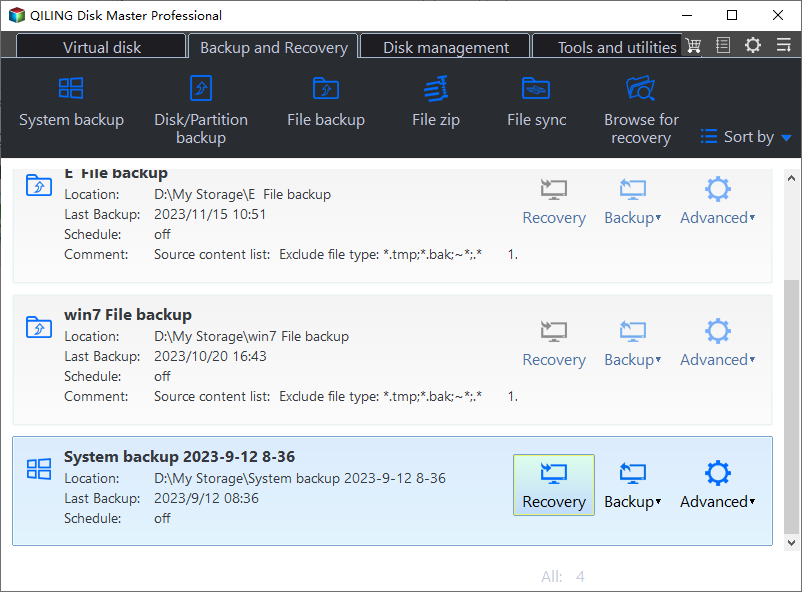
Step 1. Launch Qiling Disk Master, click "Home" on the left pane, find the system backup task, and select "Restore" from the expanded menu to restore the system.
Step 2. Select "Restore this system backup" and click "Next".

Step 3. Confirm operations on the "Operation Summary" page and click on the "Proceed" button.

Tips:
- The program automatically selects the original system partition(s) as the destination drive(s), but you can change the default destination drive(s) by checking a specific option in Step 2.
- To restore system image files to different computers, tick "Universal Restore" in Step 3 to ensure the system is bootable after recovery, but this feature is only available in Qiling Disk Master Professional.
Verdict
The frustration of System Restore not starting in Windows 7 can be alleviated by using Qiling Disk Master as an alternative for system backup and restore. This tool can also be helpful when System Restore fails to start in Windows 10, as it supports all Windows operating systems.
Qiling Disk Master is the best Carbon Copy Cloner Windows alternative, allowing you to clone hard drives or just the operating system. Try it now.
Related Articles
- How to Easily Move Boot Partition in Windows 7/8/10?
You will get the 3 ways to move boot partition in Windows 7, and the best way to avoid boot partition and system partition on different drives. - How to Refresh Windows 7 without Losing Data?
Learn how to Refresh Windows 7 without Losing Data with clear steps, key checks, and practical tips. - Easiest Way to Restore Windows 11, 10, 8, 7 from Recovery Partition
When Windows system fails to boot, you can restore Windows from recovery partition. Here is a guide to walk you through every step of the way. - Windows 7 Starts in Safe Mode But Not Normal (Tested Fixes)
Learn how to fix the common problem that Windows 7 starts in safe mode, but not in normal mode from this page. Five solutions are mentioned. - Learn How to Backup Windows 7 before Reinstalling
This tutorial will show you how to backup Windows 7 computer before reinstalling Windows with free backup software Qiling Disk Master Standard. - How to Backup Windows 7 for Windows 10 Upgrade? [2 Ways]
Learn how to Backup Windows 7 for Windows 10 Upgrade with clear steps, key checks, and practical tips.
Products
Articles & Tutorials
- Data Recovery
- Data Backup
- File Recovery
- File Backup
- File synchronize
- System Backup and Restore
- Disk and Partition Clone
- Technical articles
- Disk Master Help
- Windows Deleted File and Disk Recovery Tutorials
- Windows File and Data Recovery Tutorials
- More Windows Tutorials for Install, Security, Files, and PC Tips
- Windows Boot, Repair, and Recovery Environment Tutorials
- Windows Backup Tutorials
- Windows Restore Tutorials
- Windows Clone and Migration Tutorials
- Windows Server Backup, Recovery, and Management Tutorials
- Windows Disk, Partition, and Storage Management Tutorials