How to Fix Windows 7 Blue Screen after SSD Install
The problem: Windows 7 blue screen after SSD install
Some users experience a blue screen after installing or cloning Windows on a new SSD, despite its advanced reading and writing performance and low latency property. This issue occurs due to compatibility problems between the SSD and the operating system. The blue screen, also known as a Blue Screen of Death (BSOD), is a result of a critical system failure, often caused by a hardware or software incompatibility. In this case, the SSD may not be properly configured or may be experiencing issues with its firmware, leading to the BSOD.
Possible causes for Windows 7 blue screen after SSD install
The Windows 7 SSD blue screen may be caused by either bad sectors on the SSD or disabled AHCI mode. To determine the exact reason, you can review the blue screen error log, which can be accessed by looking over the details of the error.
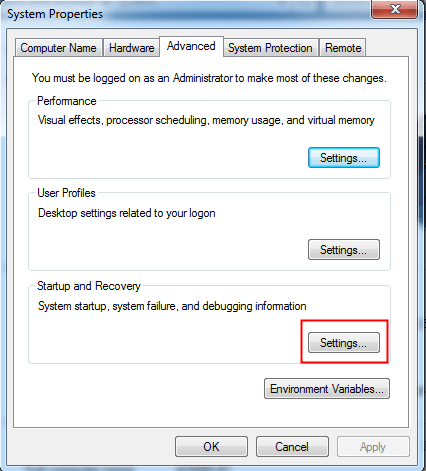
1. Right click the "Computer" icon on the desktop and select "Properties".
2. In the pop-up window, select "Advanced system settings".
3. In the next window, click "Settings" in the Startup and Recovery column.
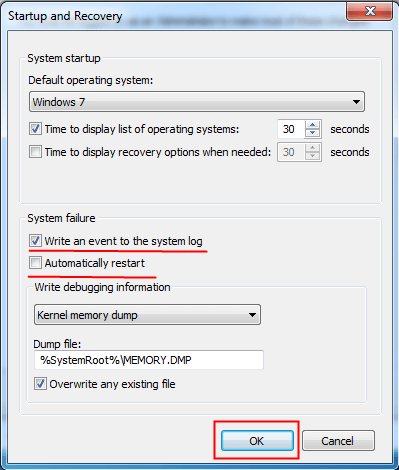
4. Check "Write an event to the system log" and uncheck "Automatically restart". Click "OK" to save the changes.
5. Navigate to C:\Windows\Minidump and view dump files in Minidump folder.
After identifying the exact cause of the SSD blue screen error in Windows 7, you can proceed to fix it. This typically involves troubleshooting and resolving any underlying issues such as driver conflicts, overheating, or faulty hardware.
How to fix Windows 7 blue screen after SSD install efficiently
To fix SSD blue screen in Windows 7, you can try two quick fixes. First, if the blue screen is caused by bad sectors on your SSD, you can try running a disk check to identify and potentially fix the issue.
▶ Check and recover bad sectors
To check bad sectors on an SSD, I recommend using Qiling Disk Master Professional. Its user-friendly interface makes it easy to operate, and it can not only check for bad sectors but also rebuild the MBR to resolve issues like "system missing" or "operating system not found".
If you're unable to boot your computer from an SSD, start by creating bootable media using Qiling Disk Master. This will help you troubleshoot the issue. Follow the instructions below to proceed.
1. To create a bootable USB drive using Qiling Disk Master, connect a USB drive to a computer with a stable system. Open Qiling Disk Master, go to the "Tools" menu, select "Make Bootable Media", and follow the on-screen instructions to complete the process.

2. To fix a computer with a boot problem, insert a bootable USB drive into a computer that's experiencing issues. Then, enter the computer's BIOS settings, which can usually be accessed by pressing a key such as F2, F12, or Del, and change the boot order to prioritize the USB drive. This will allow the computer to boot from the USB drive instead of its internal storage, potentially resolving the boot issue.
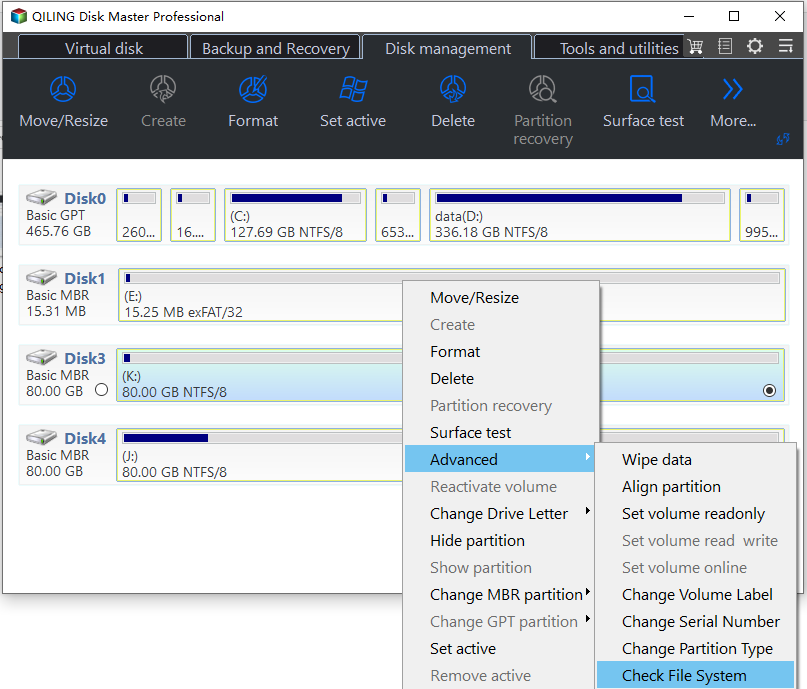
3. Once logged in, you'll see the Qiling Disk Master interface. Right-click the system partition, go to "Advanced" and then select "Check Partition".
4. Select the way of checking errors to perform.
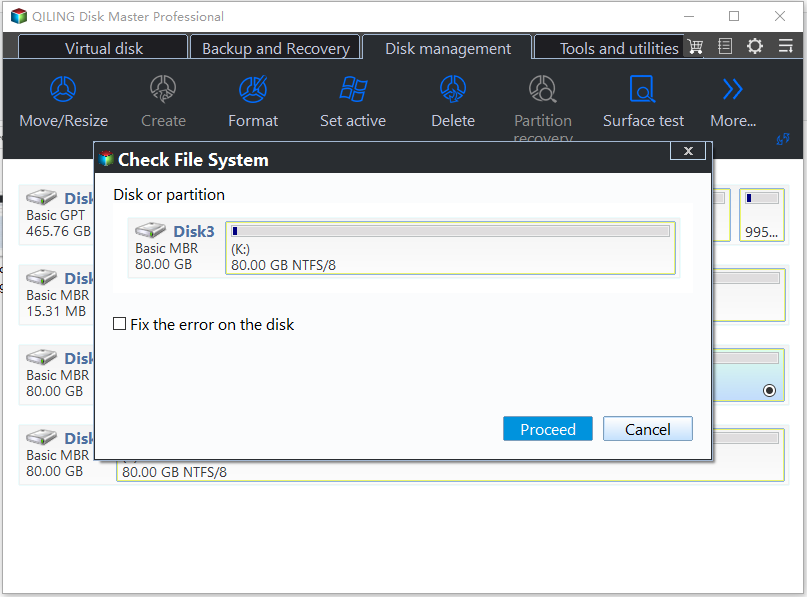
5. Click "Proceed" to perform checking.
✐ Notes:
● If Windows 7 detects bad sectors on a disk, it's essential to back up the system partition first to prevent data loss. If there's important data on the bad sectors, it's best to send the disk to a professional data recovery center to ensure safe recovery. Avoid using recovery tools yourself, as they can cause more harm than good and potentially destroy the data.
● Not all bad sectors can be recovered, so it's necessary for you to build schedule backups.
● If you buy a new SSD and find bad sectors that can't be recovered, contact the manufacturer's customer support for a replacement or repair.
▶ Enable AHCI mode
To enable AHCI mode in Windows 7 without reinstalling, you can create a registry tweak that allows you to switch from IDE to AHCI without causing a BSOD error or boot issues, allowing you to take advantage of AHCI mode's performance benefits without the hassle of reinstalling Windows.
1. Restart computer and tap Del to enter BIOS interface.
2. In the BIOS Utility dialog, select Integrated Peripherals > SATA RAID/AHCI Mode > IDE, then press F10 to save changes and restart the computer.
3. To open the Registry Editor, press the Windows Key + R to open the Run dialogue, then type "regedit" and press Enter or click "OK".
4. In the left pane, expand the registry entries and navigate to the following path:
HKEY_LOCAL_MACHINE\SYSTEM\CurrentControlSet\services\msahci
5. Double-click the Start DWORD and change its value from 3 to 0, then click OK to apply the change.
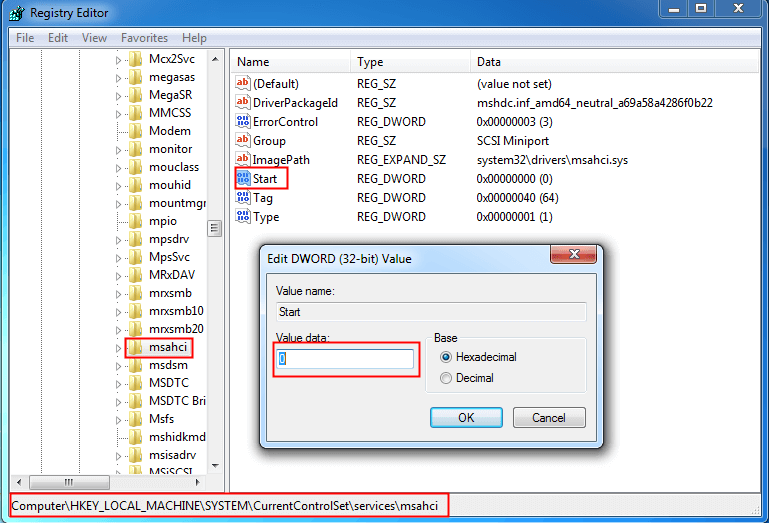
6. To enable AHCI mode on your computer, simply reboot your computer and go into your BIOS settings. From there, change the SATA mode to AHCI and press F10 to save your changes and restart your computer. This will enable AHCI mode.
Conclusion
To fix the Windows 7 blue screen after an SSD install, identify the cause of the issue and choose a corresponding solution from the above options. These solutions also apply to fixing Windows 10 blue screen after installing an SSD. If you need help with daily disk partition problems, consider using Qiling Disk Master Professional, which has sufficient features to assist you.
Related Articles
- C Drive Is RAW-How to Fix It Efficiently?
Fix a RAW C drive by protecting data first, checking file system errors, and choosing a safe recovery method. - How to Fix Inaccessible Boot Device on Windows 10 SSD?
Since many computer users get stuck in inaccessible boot device on Windows 10 SSD, we'll discuss the problem thoroughly in this page. - Complete Fix: Lenovo Stuck in Boot Loop Error in Windows 7/8/10
Fix a Lenovo boot loop in Windows 7/8/10 with startup repair, boot settings, and recovery options. - How to Make Partition Bootable in Windows 7 Effortlessly
To start a system normally, you should first make the relevant partition bootable. This article provides three methods to make partition bootable in Windows 7. - Best Ways of HP Recovery Media Creation in Windows 10
Create HP recovery media in Windows 10 for system repair, factory recovery, or backup-based restore. - How to Make a Bootable USB for System Repair or Restore
Make a bootable USB for system repair or restore so Windows can be recovered when it cannot start.
Products
Articles & Tutorials
- Data Recovery
- Data Backup
- File Recovery
- File Backup
- File synchronize
- System Backup and Restore
- Disk and Partition Clone
- Technical articles
- Disk Master Help
- Windows Deleted File and Disk Recovery Tutorials
- Windows File and Data Recovery Tutorials
- More Windows Tutorials for Install, Security, Files, and PC Tips
- Windows Boot, Repair, and Recovery Environment Tutorials
- Windows Backup Tutorials
- Windows Restore Tutorials
- Windows Clone and Migration Tutorials
- Windows Server Backup, Recovery, and Management Tutorials
- Windows Disk, Partition, and Storage Management Tutorials