Windows Server 2016 Clone Disk: 2 Feasible Ways
- Why should you clone hard drive on Windows Server 2016?
- 2 solutions to clone hard drive on Windows Server 2016
- Method 1. Backup hard drive on Server 2016 and restore to a new HDD/SSD
- Method 2. Clone Windows Server 2016 to HDD/SSD with Qiling Disk Master
- Frequently asked questions about cloning disk in Windows Server
- Conclusion
Why should you clone hard drive on Windows Server 2016?
Cloning a disk in Windows Server is an effective means to keep data safe, as it allows for the creation of an exact copy of the system or hard drive, providing a failsafe in case of system or hard drive failures. This process can be performed on Windows Server 2016, 2012, or 2008, and is a crucial task for maintaining data integrity and preventing serious data loss.
Replacing old hardware to improve server performance can be a challenge, especially when it comes to preserving data. With technology constantly evolving, upgrading hardware is a necessary step, but it requires careful planning to avoid data loss. If you're looking to replace an old hard drive with a new one, such as upgrading to an SSD or larger hard drive, you may need to clone your Windows Server 2016 to the new device to ensure a seamless transition.
2 solutions to clone hard drive on Windows Server 2016
You can clone Windows Server 2016 in various ways, including creating a backup of the hard drive and restoring it to another disk, or using powerful server cloning software to directly clone the server's hard drive.
If you're looking for a more straightforward and effective approach, consider using the best Windows Server cloning software, which offers a higher success rate and easier operation.
Method 1. Backup hard drive on Server 2016 and restore to a new HDD/SSD
Microsoft provides a server backup solution called Windows Server Backup (WSB), which allows you to create an image backup of Windows Server and restore it to another disk.
▶ Backup Windows Server 2016 hard drive
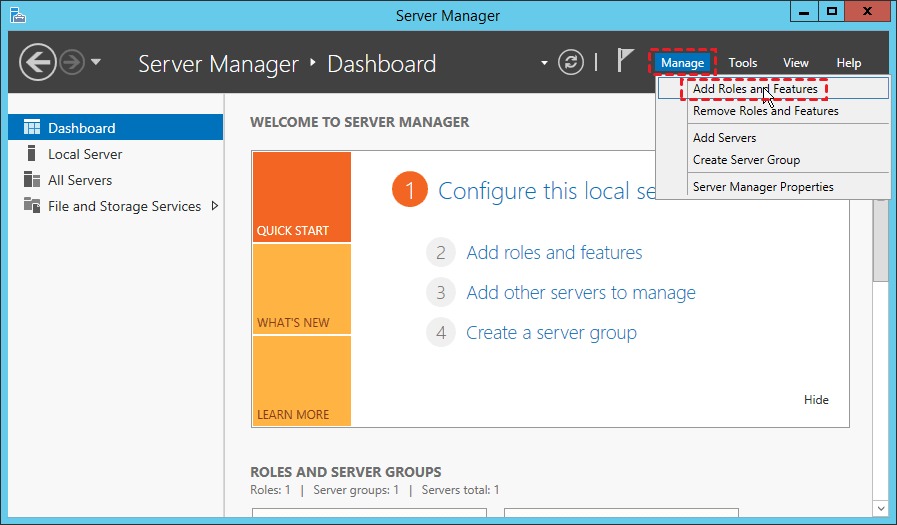
Step 1. To add Windows Server Backup to your server, go to Server Manager, then click on Dashboard, followed by Manage, and finally Add Roles and Features.
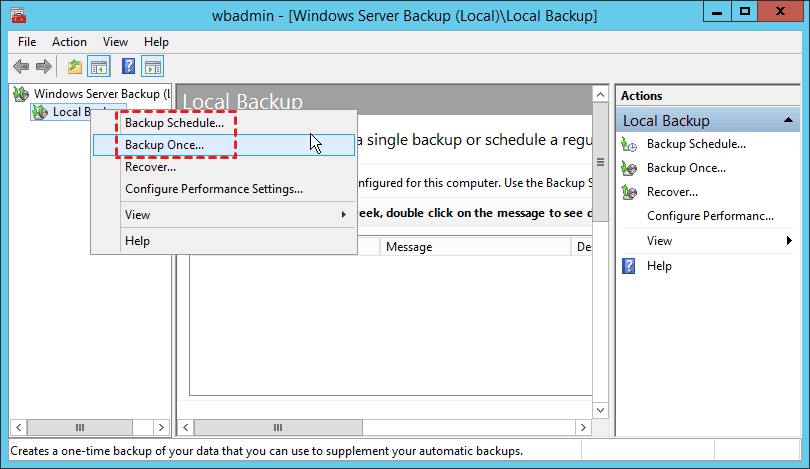
Step 2. To configure Windows Server Backup, go to Server Manager, then click on Tools, followed by Windows Server Backup, and select Local Backup. This will provide you with the options to create a Backup Schedule or perform a Backup Once, allowing you to choose the best approach based on your needs.
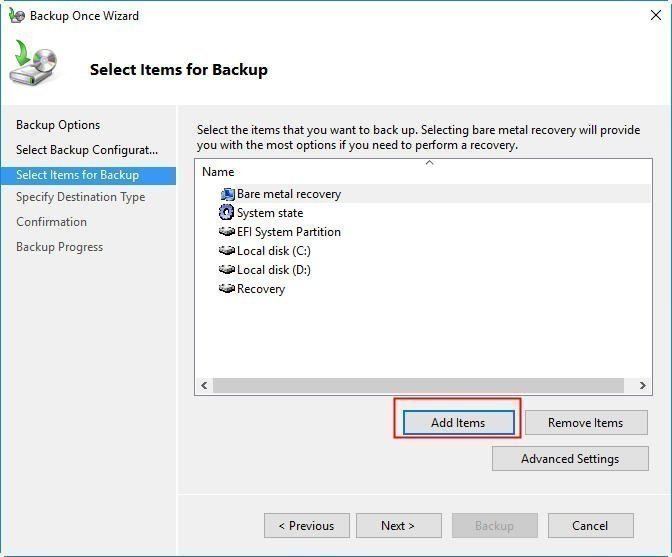
Step 3. Follow the wizard to set up the backup configurations, items for backup, destinations, and click Backup. For detailed steps with screenshots, refer to creating image backup for Windows Server.
▶ Restore backup image to another drive
Step 1. Connect the target drive to your server properly. Go to Windows Server Backup > Local Backup, and select Recover on the right panel.
Step 2. On the Getting Started screen, select "This server" to utilize a local backup for recovery purposes.
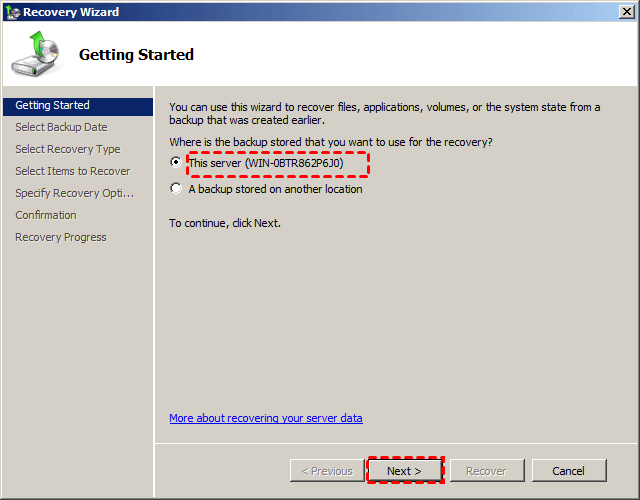
Step 3. Follow the wizard to select a backup date, recovery type, items to recover, and specify recovery options, then click "Recover" to initiate the recovery process.
Using Windows Server Backup to clone a hard drive to an SSD or another HDD has limitations, such as failing when cloning a server hard drive to a drive with a different motherboard or processor. Therefore, an alternative to clone Windows Server 2016 is recommended, specifically Qiling Disk Master Server, a Windows Server disk cloning software that can overcome these limitations.
Method 2. Clone Windows Server 2016 to HDD/SSD with Qiling Disk Master
Qiling Disk Master Server is a top-notch hard drive cloning software that excels in cloning Windows Server systems, including Server 2016 and others like Server 2022, 2019, 2012, 2008, and 2003, offering a range of backup and cloning options with rich features.
★ Qiling Disk Master Server Edition allows you to clone Windows Server 2016 without reinstalling Windows, offering three cloning modes: Disk Clone, System Clone, and Partition Clone, to choose from based on the specific needs.
★ The software supports two cloning methods: sector by sector clone and intelligent clone, with the latter being the default option. The intelligent clone method is more efficient, as it only copies used sectors, allowing for the cloning of larger drives to smaller ones.
★ The software supports command line operations, enabling users to execute unattended tasks, such as cloning a hard drive, directly from the Command Prompt.
★ Cloning Windows Server 2016 to an SSD can improve performance by aligning partitions, a process that also benefits migrating Windows 10 to an M.2 SSD and other Windows systems.
★ It has a simple and user-friendly interface that is a big help for users with less computer experience. This type of interface makes it easy for them to navigate and use the system without feeling frustrated or confused.
Step-by-step guide to Windows Server 2016 clone disk:
Preparations: Download and install this software. If you want to clone a server hard drive to an external hard drive, plug in the external hard drive and ensure it can be detected by the computer.
Step 1. To clone Windows Server, select Clone on the left pane, which will display 3 modes to clone, and choose Disk Clone to clone the entire hard drive.

Step 2. Select the server hard drive you want to clone/backup as the source, then click Next.

Step 3. Select the destination disk where you want to store the data and click the "Next" button.

Step 4. Confirm the information in the Operation Summary page to ensure accuracy, then click Proceed to perform the Windows Server clone if no issues are found.

Here are three options to satisfy other requirements:
- Edit Partitions: You can adjust the partition size on the destination disk as needed.
- Sector By Sector Clone: If you want to clone the exact same bytes as the source disk, you can select the option for sector by sector clone, but you'll need a hard drive that's at least as large as the source disk.
- SSD Alignment: Cloning a hard drive to an SSD in Windows Server can improve read/write speed, and checking a box during the process can enhance performance after cloning.
Notes:
- You can clone content from a GPT disk to an MBR disk without worrying about the number of primary partitions, as this software will automatically convert any extra primary partitions to logical partitions.
- Besides cloning Windows Server 2016, this software can also be used to clone Windows Server 2012, Windows Server 2019, and Windows 10 to an NVMe SSD.
- The clone feature can only be demonstrated in the trial version, and you'll be asked to upgrade to the full version of Qiling Disk Master Server to launch the cloning process.
🌟 Video Guide: How to Clone Disk in Windows Server 2016
Frequently asked questions about cloning disk in Windows Server
1. Is it better to clone or image a hard drive?
2. Can I clone Windows Server 2012 to new hardware?
3. Does cloning a drive delete everything?
Conclusion
The Qiling Disk Master Server makes it easy to clone Windows Server 2016, offering a more user-friendly and flexible alternative to Windows Server Backup. In addition to cloning, the software provides other useful utilities, such as migrating an OS to different hardware or restoring a hard drive when needed.
To protect unlimited PCs and servers within your company, you can consider Qiling Disk Master Technician Plus, which offers unlimited billable technical services and allows for portable version creation.
Related Articles
- How to Clone Hard Disk Drive in Windows Server 2012, 2008, 2003?
Pick the most reliable and professional Windows Server clone software to clone hard drive to new drive or SSD in Server 2003, 2008, 2012, 2016 and 2019 with simple clicks. - How to Backup Windows Server 2016 to An External Hard Drive?
Learn how to Backup Windows Server 2016 to An External Hard Drive with clear steps, key checks, and practical tips. - Migrate Windows Server 2016 to SSD without Reinstalling
You will learn the best Windows Server migration software - Qiling Disk Master Server and how to migrate Windows Server 2016 to SSD by cloning. No need to reinstall system, programs and settings. - The Best Disk Imaging Software for Windows Server 2016
This guide explains The Best Disk Imaging Software for Windows Server 2016 with clear steps, key checks, and practical tips. - How to Convert SSD to GPT via Command Prompt in Windows 11/10/8/7?
To convert an SSD to GPT using command prompt in Windows 11/10/8/7, you can follow the steps on this page and learn how to do it. - Create a Schedule to Backup User Files in Windows 10/8/7
This article will show you how to create a schedule to backup User files in Windows 7/8/10/11 and provides you with 2 helpful ways.
Products
Articles & Tutorials
- Data Recovery
- Data Backup
- File Recovery
- File Backup
- File synchronize
- System Backup and Restore
- Disk and Partition Clone
- Technical articles
- Disk Master Help
- Windows Deleted File and Disk Recovery Tutorials
- Windows File and Data Recovery Tutorials
- More Windows Tutorials for Install, Security, Files, and PC Tips
- Windows Boot, Repair, and Recovery Environment Tutorials
- Windows Backup Tutorials
- Windows Restore Tutorials
- Windows Clone and Migration Tutorials
- Windows Server Backup, Recovery, and Management Tutorials
- Windows Disk, Partition, and Storage Management Tutorials