Methods of Backup and Recovery for Windows
Why Backup and Recovery Are Important?
Backing up a Windows system is a way to avoid the hassle and time-consuming process of reinstalling the operating system while keeping data intact and the system safe. Computer users often encounter problems such as viruses, disk failures, natural disasters, accidental deletion of files, programs, or partitions, and reinstalling Windows on the wrong drive due to human error.
If you don't back up your data before a problem occurs, you'll face significant losses. However, if you've prepared a backup, recovering your data will be much simpler: you can use the backup to restore everything to its original state, and all your important information will be recovered.
For Windows users, backup and recovery are crucial to prevent data loss in case of system failures or other disasters. To achieve this, we recommend two methods: using the Windows built-in backup tool and using third-party backup software. By understanding these options, users can make an informed decision and choose the best approach for their needs.
Backup and Restore with Windows Built-in Tool
As more people start to use Windows 7, its advanced features become more apparent, showcasing the system's capabilities.
Back up volume F
- To back up the F volume, double click Computer, right click on F volume, and select Properties. Then, in the pop-up window, choose Tools and select "Back up now".
- In the new window, enter the link of "Set up backup", choose a destination to save the image, selecting volume G as recommended by the computer, and then click "Next".
- Select the recommended backup option "Let Windows choose" and click "Next" in the "What do you want to back up" window.
- Review the backup settings to ensure they are correct, then click "Save settings and run backup" to initiate the automatic backup process.
Restore G volume
- Enter the "Back up or restore your files" window, click "Restore my files" in the first step above, then perform the same operations.
- Browse or search the recent backup for a file or folder, and restore them back to the initial location or choose another destination to save them.
- Click "Restore" to accomplish the operation.
Backup and Recovery Software
The process of formatting a hard drive can be overwhelming, especially for newbies, and requires a lot of steps that can leave users feeling dizzy. In fact, it's often too complicated for individuals to accomplish on their own without expert guidance, and many users only know how to use their devices without understanding how to maintain and repair them. What's more, the process is often too long and anxiety-provoking. Considering these drawbacks, it's highly recommended to use a tool like Qiling Disk Master to help with the task.
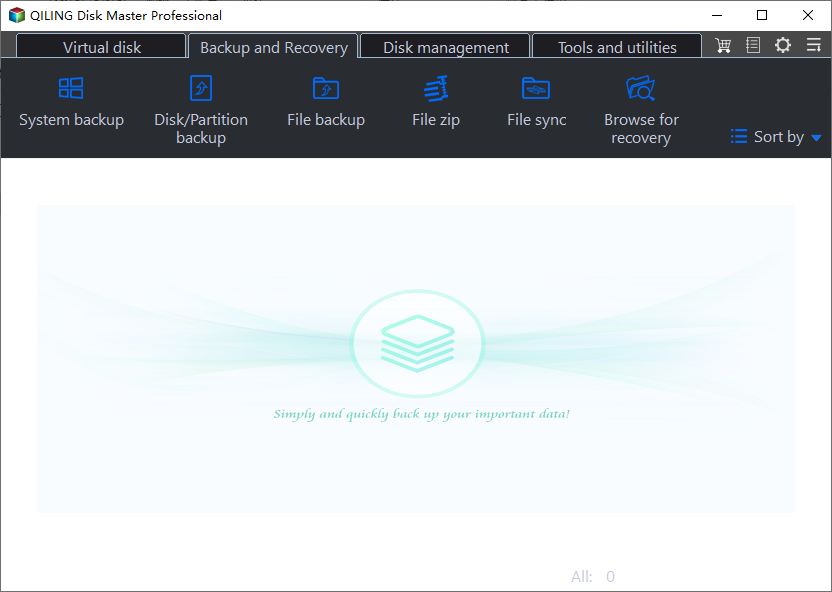
Qiling Disk Master is a reliable and professional backup and recovery software that offers advanced features to satisfy most users' needs. It allows for full backup of system partitions or disks, incremental/differential backup of changed files based on full images, disk cloning to upgrade older smaller ones, and restoring image files to their original state.
The process is easy and quick, and the website is user-friendly with detailed guides, making it a hassle-free experience that requires no effort or cost.
To give you a better impression, I've included a picture of the main interface of this tool, which you can compare with the snap-in tool. I'm sure you'll like it very much. You can also download this tool by clicking on the link provided.
Related Articles
- Trustworthy and Free Windows Server Backup Software
Read this article to get to know 6 popular Windows Server backup software for all the server systems. It is pretty important for business or IT experts. Find the most suitable solution from these 6 backup software to back up a server computer. - Solved: "File History Service Is Not Accessible" Error
The 'File History Service is not accessible' error can be frustrating, but it's easily fixable. To resolve this issue, you can try restarting the File History service, checking the event logs for errors, or running the System. - Your Best SuperDuper Equivalent for Windows 10/7
This guide explains Your Best SuperDuper Equivalent for Windows 10/7 with clear steps, key checks, and practical tips. - Copy vs Xcopy vs Robocopy: Which is Better for File Backup
You can figure out the difference between Copy, Xcopy, and Robocopy from this article, and learn about their features and how to use them. - Unable to Extend C Drive in Windows 10/8/7 [Solved]
Fix unable to extend C drive in Windows 11/10/8/7 when Disk Management cannot use unallocated space, with practical partition resizing solutions. - Upgrade Hard Drive in Windows 10 - No Reinstallation
This tutorial highlights the importance of upgrading to a solid-state drive (SSD) in Windows 10 and provides a step-by-step guide on how to upgrade a hard drive to an SSD using the best cloning software.
Products
Articles & Tutorials
- Data Recovery
- Data Backup
- File Recovery
- File Backup
- File synchronize
- System Backup and Restore
- Disk and Partition Clone
- Technical articles
- Disk Master Help
- Windows Deleted File and Disk Recovery Tutorials
- Windows File and Data Recovery Tutorials
- More Windows Tutorials for Install, Security, Files, and PC Tips
- Windows Boot, Repair, and Recovery Environment Tutorials
- Windows Backup Tutorials
- Windows Restore Tutorials
- Windows Clone and Migration Tutorials
- Windows Server Backup, Recovery, and Management Tutorials
- Windows Disk, Partition, and Storage Management Tutorials