Upgrade Hard Drive in Windows 10 - No Reinstallation
The case
How do I move Windows 10 to a new hard drive?
You can transfer the Windows 10 OS to a new drive without purchasing a new copy. Since the original OS was an upgrade from Windows 7, you can use the existing installation to transfer the OS to the new drive. You can use the built-in Windows feature called "Clone" or a third-party cloning software to transfer the OS and all your files to the new drive. This way, you can keep the same OS and installation without having to purchase a new copy of Windows 10.
- Question from Microsoft.com
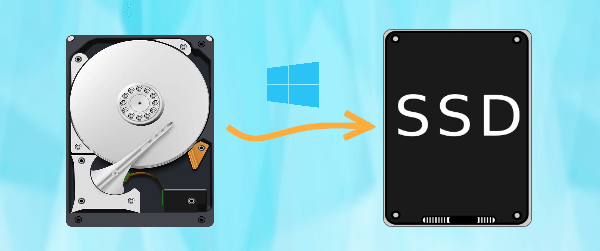
You may want to upgrade your hard drive in Windows 10 if your current drive is failing, or if you need more storage space, or if you want to improve your computer's performance by switching to a faster drive, or if you want to switch to a newer technology drive such as an SSD.
◈ You want to upgrade to a larger hard drive to gain more storage space.
◈ Replacing a traditional hard drive with a Solid-State Drive (SSD) can significantly boost your computer's performance. An SSD stores data on interconnected flash memory chips, allowing for faster access and processing times compared to traditional hard drives.
Replacing a hard drive can be a hassle, especially when it comes to transferring the operating system. Some users opt to reinstall Windows, but this process is time-consuming and results in the loss of all data and applications, requiring a tedious reinstall of everything.
You're looking for a simpler way to replace a hard drive in Windows 10. The answer is to use a disk clone, which is a process of creating an exact copy of your existing hard drive onto the new one. This way, you can simply swap the old drive with the new one and Windows 10 will automatically boot up from the cloned drive, without requiring you to reinstall the operating system or any software.
Best disk cloning software - Qiling Disk Master
Qiling Disk Master Professional, the best disk cloning software for Windows, can help you upgrade your hard drive in Windows 10.
- Disk Clone: It can clone the entire disk, transferring all data, including the operating system, applications, and user files, to the destination disk.
- System Clone: it helps to transfer only OS to another drive.
- Partition Clone: The script will clone a specific partition, such as D: or E:, by copying its entire contents, including files, folders, and system data, to a new location. This allows for a complete and accurate duplicate of the original partition to be created, which can be useful for backup and recovery purposes.
- SSD Alignment: If you're replacing a hard drive with an SSD in Windows 10, you can use the "Optimize Drives" option to optimize the SSD's performance.
- Supported OS: All Windows PC operating systems like Windows 11/10/8.1/8/7/Vista/XP are supported.
Download Qiling Disk Master and learn how to upgrade the current hard drive to an SSD step by step from the next part.
How to upgrade hard drive to SSD in Windows 10 step by step
▶ Preparations
1. Connect the target SSD to your computer and ensure it is detected.
- If your computer has a drive bay for an SSD, you can install your solid-state drive directly into it. This is a convenient and straightforward way to upgrade your storage capacity.
- If there's no SSD drive bay available, you can connect an SSD externally using a SATA-to-USB adapter.
2. Backup files on the destination SSD, because the drive will be completely overwritten during the cloning process.
▶ Detailed steps of cloning hard drive to SSD
Step 1. Run Qiling Disk Master, click Clone on the left pane, and select Disk Clone.

✐ Note: To clone an operating system (OS) only to a destination Solid State Drive (SSD), you can utilize the System Clone feature. This feature allows you to create an exact replica of your OS on the destination SSD, preserving all settings, applications, and data.
Step 2. Select the current hard drive as the source disk and click "Next" to proceed with the process.

Step 3. Connect the destination SSD to your PC and select it in the Disk Management tool. Click "Next" to proceed with the cloning process.

Step 4. To enhance the reading and writing speed of the target SSD, enable the "SSD Alignment" option, confirm the operation, and then click "Proceed".

>> Edit Partitions allows you to resize partitions or change the partition style of the destination disk.
>> The sector-by-sector clone method involves cloning every sector on the source disk, regardless of whether it's used or not, which can be time-consuming. This process requires the destination disk to be equal to or larger than the source disk in size.
▶ Tips on replacing hard drive
1. Boot from the cloned SSD.
- If you've installed the target SSD in the SSD drive bay, you can change the boot order in the BIOS to boot from it.
- If you've connected the target SSD externally, you can now remove the old hard drive and replace it with the new drive, possibly requiring a mounting bracket to fit the size of the HDD drive bay.
- If the source and destination disks are in different partition types (one MBR, one GPT), you should change the boot mode in the BIOS to boot from the cloned drive.
2. If the cloned SSD works perfectly, you can wipe data on the old hard drive to release storage space.
About Windows 10 license after upgrading hard drive
You may be wondering if a Windows 10 license can be transferred to a new hard drive. There are four different scenarios to consider: if the license was pre-installed on the original hard drive, it's likely not transferable; if the license was purchased separately, it may be transferable if the original hard drive is still functioning; if the license was transferred from an older version of Windows, it may be possible to transfer it to a new hard drive; and if the license was obtained through a university or other organization, it may have specific rules for transferring it to a new hard drive. Ultimately, it's best to check with the original license provider for specific guidance.
1. If you upgraded from a retail version of Windows 7, 8, or 8.1, you can transfer your license only once.
2. You can transfer a full retail copy of Windows 10 as many times as you want, as long as you have a legitimate copy of the operating system.
3. Upgrading from an OEM Windows 7, 8, or 8.1 license or using an OEM Windows 10 license means the license cannot be transferred.
4. If you upgraded to Windows 10 Pro Pack from Windows 10 using the Easy Upgrade, you can transfer the license using Digital Licensing.
To sum up
Upgrading your hard drive to an SSD in Windows 10 has never been easier with Qiling Disk Master. This tool not only offers a seamless clone feature but also serves as a professional backup and restore tool, allowing you to backup your Windows 10 to a NAS or upgrade your motherboard and CPU without reinstalling Windows. Give it a try!
Related Articles
- Upgrade to Larger Hard drive in Windows 10/8/7
- Top Two Ways to Install Windows 10 to SSD
- 2 Ways to Restore Windows 10 System Image to New Hard Drive
- How to Merge Partitions without Data Loss
In this article, we will show you how to merge partitions without losing data in Windows 11, 10, 8, 7 via two free methods. - [Detail Guide] Create Windows 10 Bootable USB from ISO
To create a Windows 10 bootable USB from an ISO file for installation or a portable Windows environment, you can use either the Diskpart tool or the Windows To Go feature, both of which enable you to boot Windows 10 from a USB drive. - Custom Refresh Image in Windows 10 for Reset This PC
This article will show you how to custom refresh image in Windows 10 as the image to reset your Windows 10 PC without losing installed programs.
Products
Articles & Tutorials
- Data Recovery
- Data Backup
- File Recovery
- File Backup
- File synchronize
- System Backup and Restore
- Disk and Partition Clone
- Technical articles
- Disk Master Help
- Windows Deleted File and Disk Recovery Tutorials
- Windows File and Data Recovery Tutorials
- More Windows Tutorials for Install, Security, Files, and PC Tips
- Windows Boot, Repair, and Recovery Environment Tutorials
- Windows Backup Tutorials
- Windows Restore Tutorials
- Windows Clone and Migration Tutorials
- Windows Server Backup, Recovery, and Management Tutorials
- Windows Disk, Partition, and Storage Management Tutorials