How to Run Basic Sync with Qiling Disk Master
Basic Sync is a feature that allows you to synchronize folders to other locations, such as an external hard drive, NAS, or removable USB flash drive. It works similarly to Windows' "copy" feature, but without creating an image file after the sync process is complete, allowing you to view your contents at any time.
Here are some common scenarios where Basic Sync can be useful:
- File Backup: Copying a file from one location to another is a common backup strategy that protects data from accidental deletion, damage, or loss by creating a duplicate that can be recovered in case the original file becomes compromised or lost.
- File Migration: File copying is the process of transferring a file from one storage device, server, or system to another, often used to move files from a local computer to a shared drive or between cloud storage services.
- File Sharing: When sharing a file, a copy is often made and placed in a shared location, such as a network drive or cloud storage, so others can access it without affecting the original.
- Multiple Uses: In some cases, the same file needs to be used in multiple applications or environments, but each may require different modifications or configurations. To accommodate this, it's common to copy the file to different locations and make the necessary adjustments to meet the needs of each use.
- File Sharing Permissions: Sharing files may require applying different access permissions based on individual users or user groups. This can be achieved by copying the file to separate directories for each user or group and setting specific permission settings accordingly, allowing for fine-grained access control.
How to run Basic Sync with Qiling Disk Master in Windows 10 step by step
Prerequisites for basic sync
Download Qiling Disk Master Standard, a free file sync software, and install it on your computer.
And you need to create a file to sync.
Detailed steps about how to do a basic sync
1. To access file sync, click on the "Backup and recovery" tab on the left side of the screen, followed by selecting the "File Sync" option.
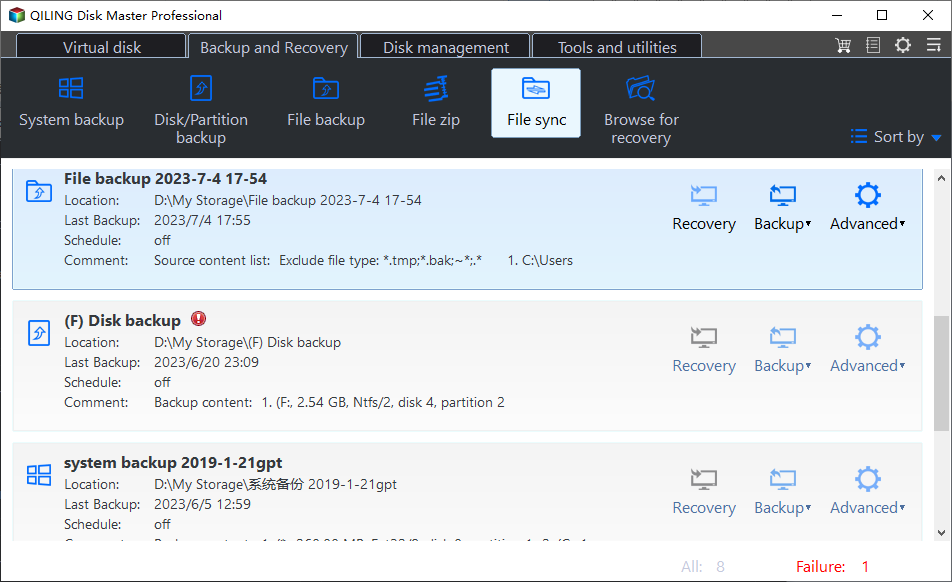
2. You can create a backup using the Basic Sync Task, naming it to distinguish it from other sync tasks. To do this, click on the "Folder" option to select the folder you want to synchronize, and then click the "+" icon to add more folders to sync.
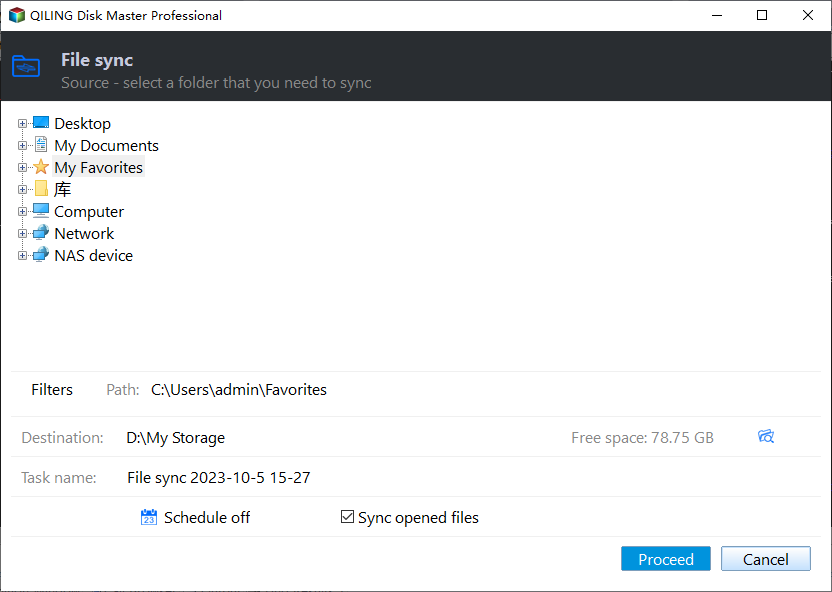
Tips: When adding folders, you can click the "Filter" button to open the "Filter Settings" for filtering files after adding the folders.
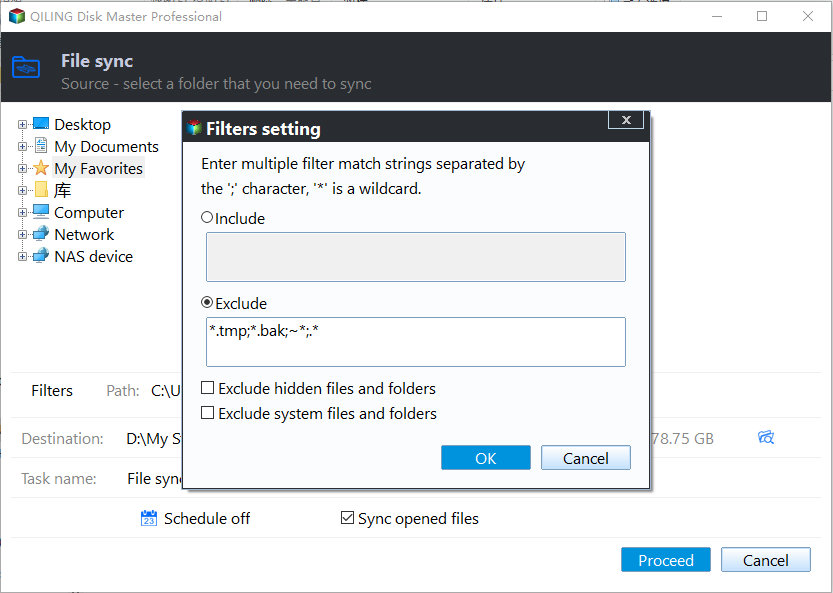
- The feature "Filter Settings" can be set after adding source folders, and it's only available in paid versions.
1) The File Inclusion Mask can specify files to sync, supporting wildcards and allowing multiple masks separated by semi-colons.
You can configure the mask to include sync files based on their extensions, like .doc, .xls, .ppt, and more, so only files with the same extensions are synced to the target path.
To sync only .doc files in the selected source folders, configure the mask with "*.doc" and separate multiple extensions with semi-colons if needed.
2) The File Exclusion Mask specifies the files to exclude, allowing for wildcards and multiple masks separated by semi-colons, such as *.temp;*.tmp;*.bak;*~*.
With this mask, you can configure to exclude files with specific extensions, such as .temp, .tmp, .bak, and others, thereby preventing their sync to the destination location.
To exclude only .temp files in the selected source folders, configure the mask with "*.temp" and separate additional formats with semi-colons if needed.
3) The Folder Exclusion Mask allows you to specify folders to exclude, supporting wildcards and separating multiple masks with a semi-colon.
This mask allows you to exclude folders with the same name, preventing them from being synced to the destination location.
To exclude a specific folder from the source folders, simply add its name to the mask, separated by semi-colons if there are multiple folders to exclude. For instance, if you want to exclude folder "A", you can just configure "A" in the mask. If you need to include more folder names, separate them with semi-colons.
You can also tick the bottom three boxes as you need. After setting the "Filter settings", please click "OK".
Please check the 3 filter example settings below:
3. Select a destination location to store the folder, then click "Proceed" to complete the operation.
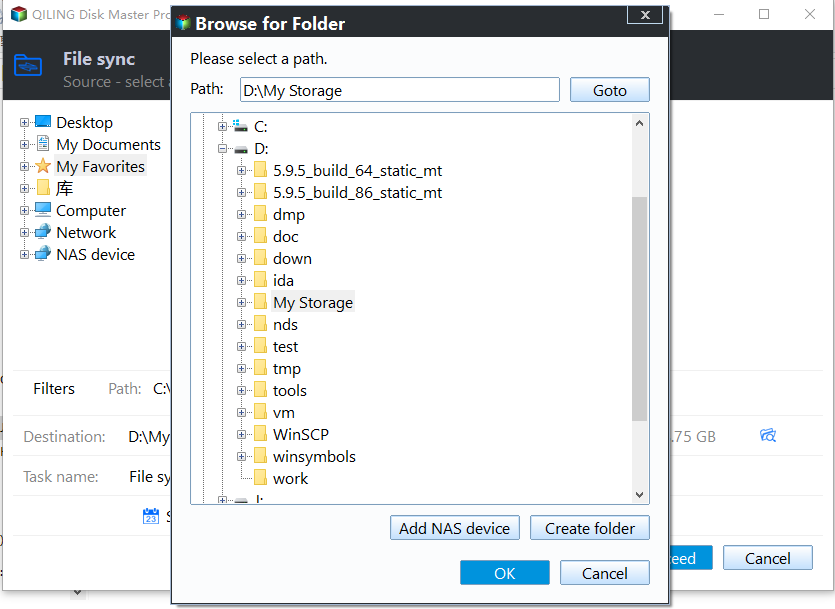
Tips: While sync is running, you can click an icon in the lower-left corner to set your PC to shut down, restart, hibernate, or sleep once the sync is complete.
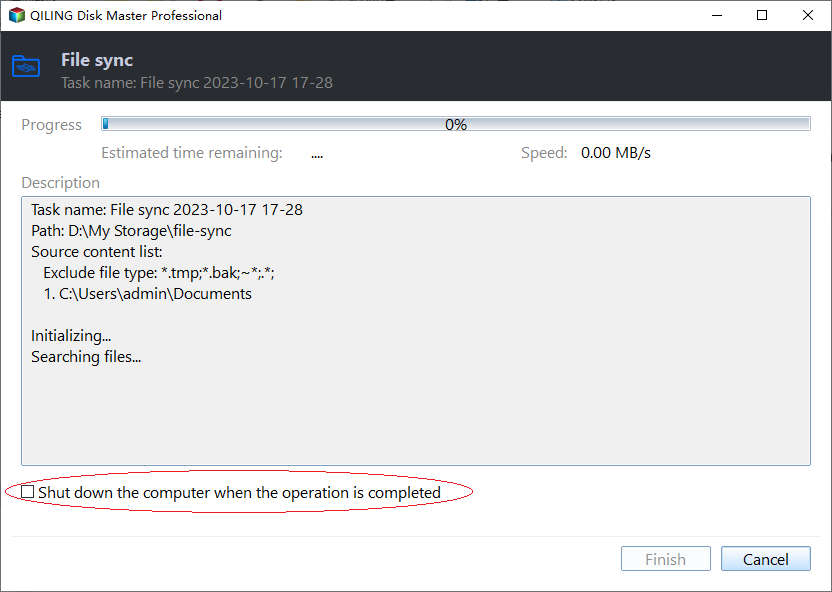
- When syncing, you can also click on the underlined sentence to see the sync process in detail. Wait for the sync to finish, then click "Finish".
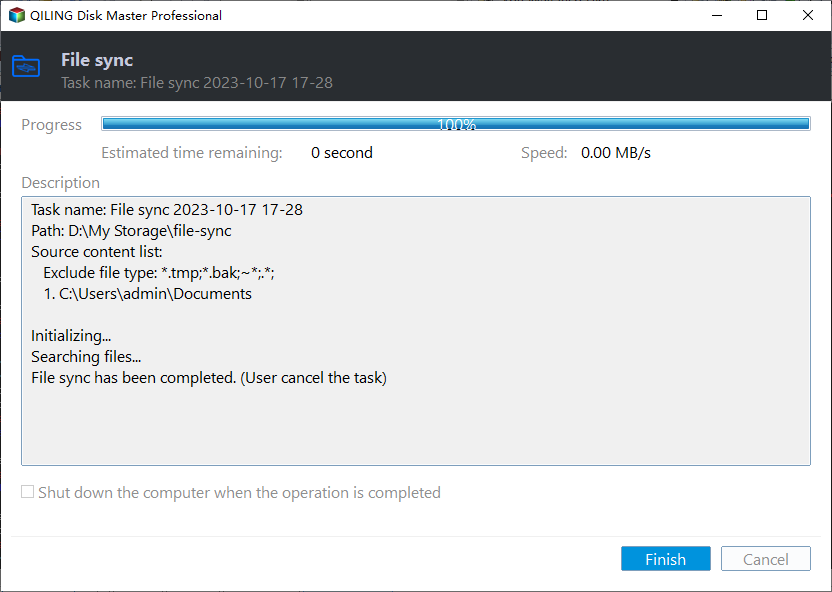
4. The data is now accessible directly on the destination location, allowing for straightforward viewing.
Tips: When you run the Basic Sync task again, the added and changed data from the source directory will sync to the destination. If you need the files to be deleted from the destination location when they are deleted from the source folder, please tick the "Sync the deletions in the source directory to destination" option under Options->General.
Sync Settings
When creating a new Basic Sync task, you will find a "Options" button in the lower-left corner of the interface.
Click the button and you will see a dropdown menu with options for "General", "Command", and "Advanced".
General
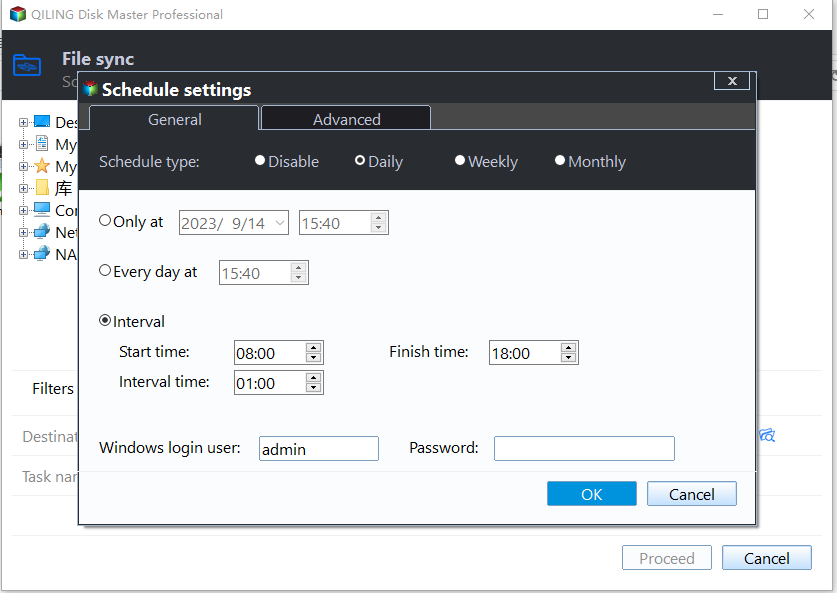
- Comments: Add a note or description to help you identify the purpose of this sync task, making it easier to manage multiple sync tasks.
- Email notification: In unattended operations, a notification can be sent via email containing the result of each backup, providing users with a summary of the backup process without requiring direct interaction.
- Sync the deletions in the source directory to the destination: When files are removed from the source directory, the corresponding files in the destination directory will also be deleted.
- Verify the integrity of files in the destination directory during synchronization: If a file in the source directory doesn't exist in the destination directory, it will be synced to the destination directory, ensuring file integrity, even if files in the destination were deleted manually. This option increases sync time.
Command
In this option, you can set the pre-command and post-command.
Advanced
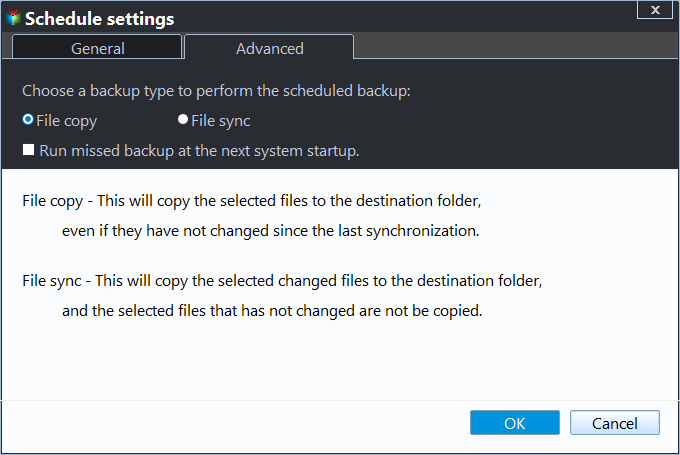
- Operation Priority: Set the task execution priority to High, Medium, or Low. A higher priority allocates more system resources to the sync task, resulting in faster execution.
- Others: To create a Basic Sync task, you need to tick the box "Automatically create a folder with the same name as the task in the target location" before initiating the task, as this option is unticked by default.
Schedule Sync
To schedule a sync task, select the "Schedule" option, which will prompt a dialog box. From here, choose the desired sync frequency, such as daily, weekly, or monthly, and select the sync method, including event triggers and USB plug-in.
Notes:
- The Basic Sync feature will copy the whole source folders by default, including subfolders and files, to the destination directory, unless specific files and folders are included or excluded through the "Filter Settings".
- Don't change the name of the source folder(s) after setting up basic sync, or the sync process won't work properly.
- For a new basic sync process, if the source file name matches a previously synced destination, the destination copy will be overwritten, with no option to retain a different version of the file using the same name.
- Due to Windows API restrictions, the maximum file path for basic sync is limited to 256 characters. To avoid issues, please verify and shorten folder names if necessary, and avoid using folders with special characters in their names. This ensures successful synchronization with Qiling Disk Master.
- Qiling Disk Master can only sync contents of unchanged folders during Basic Sync operation, requiring task modification if source folders are renamed or moved.
- The Basic Sync is a one-way sync process. By default, it only copies new and modified files from the source to the destination. If you want deletions in the source to also be reflected in the destination, you need to enable the "Sync the deletions in the source directory to destination" option under Options > General.
- Synchronizing the C drive to another disk with Qiling Disk Master will not allow you to boot from the synced disk, as it only copies data and not the system's boot configuration.
- Basic Sync supports VSS, enabling synchronization of files in use by other programs, but requires the "Volume Shadow Copy" service to be enabled, and files exclusively used by other programs are not synchronized.
- If there are special system files or folders with security attributes in the source folders, they won't be synchronized and you'll be prompted to skip them.
- Basic Sync's main function is to synchronize working files and user data files, but it excludes special system files or files with special security attributes from synchronization.
- If the target path is on a FAT or FAT 32 partition, files larger than 4 GB won't be synced there because FAT/FAT 32 can't store files over 4 GB.
- After synchronizing folders, any changes made directly by the user to the files or folders stored under the destination location will cause inconsistencies between source and destination data, leading to potential errors or data loss.
Conclusion
File syncing can consume storage space and take time, especially with large files or many files, and it's crucial to ensure accuracy and integrity to avoid data loss.
FAQs:
Q: Why is a source folder created in the destination location?
A: Qiling Disk Master creates a folder with the same name as the source folder in the destination path to store synchronized files. This design prevents confusion with other files already existing in the target location and keeps your synced data organized.
Q: Why are changed or new files not synced to the destination?
A: If your changes are not being synced, first verify that the sync task has been run after the files were modified. The sync will only copy new or updated files when the task executes. Also, check that the files are not being excluded by your Filter Settings. If you need real-time updates, consider using the Real-Time Sync feature instead.
Q: Why are deleted files not removed from the destination when I delete them from the source?
A: By default, Basic Sync does not delete files from the destination when they are removed from the source — it only copies new and changed files. To enable this behavior, check the "Sync the deletions in the source directory to destination" option under Options > General when setting up your sync task. Alternatively, you can use Real-Time Sync and enable the "target files will be deleted when deleting the source files" option in the real-time sync settings.
Related Articles
- Download the Best USMT Alternative to Migrate User Profiles and Settings
If you are looking for an easy User State Migration Tool (USMT) alternative to migrate user profile, keep reading this article and I'll introduce you to such software. - WD Smartware Files Pending Backup-Why Files Not Backed up
This guide explains WD Smartware Files Pending Backup-Why Files Not Backed up with clear steps, key checks, and practical tips. - Easiest | Automatic Backup Software for External Hard Drive
You will learn the easiest automatic backup software for external hard drive - Qiling Disk Master and how to backup file to external hard drive in simple steps. - Perform Auto Backup with Batch File in Windows 10 (2 Ways)
This article introduces how to create backup batch file in Windows 10 and how to automate the task. If you have further backup needs, here's also a reliable program with GUI - 4 Ways to Unsync OneDrive from PC - Temporarily or Permanently
OneDrive is the Microsoft cloud service that helps you sync files to the Cloud. But some people may want to unsync OneDrive from PC. You can learn 4 ways to unsync OneDrive from PC in this article. In case of data loss, remember to make a backup of your files first. - Get the Best Allway Sync Alternative for Free
This guide explains Get the Best Allway Sync Alternative for Free with clear steps, key checks, and practical tips.
Products
Articles & Tutorials
- Data Recovery
- Data Backup
- File Recovery
- File Backup
- File synchronize
- System Backup and Restore
- Disk and Partition Clone
- Technical articles
- Disk Master Help
- Windows Deleted File and Disk Recovery Tutorials
- Windows File and Data Recovery Tutorials
- More Windows Tutorials for Install, Security, Files, and PC Tips
- Windows Boot, Repair, and Recovery Environment Tutorials
- Windows Backup Tutorials
- Windows Restore Tutorials
- Windows Clone and Migration Tutorials
- Windows Server Backup, Recovery, and Management Tutorials
- Windows Disk, Partition, and Storage Management Tutorials