Best Automatic Backup Software for External Hard Drive
Quick navigation:
- Why Need Automatic Backup Software for External Hard Drive?
- Best Automatic Backup Software for External Hard Drive
- Stepwise Guide: Automatic Backup Files to External Hard Drive in Windows 10
- FAQs
Why Need Automatic Backup Software for External Hard Drive?
With the painful experience of data loss, people are now realizing the importance of backup, especially for important working documents or precious family memories. To ensure this, it's recommended to find a reliable automatic external hard drive backup software and regularly backup files to an external hard drive, even considering seeking professional assistance if needed.
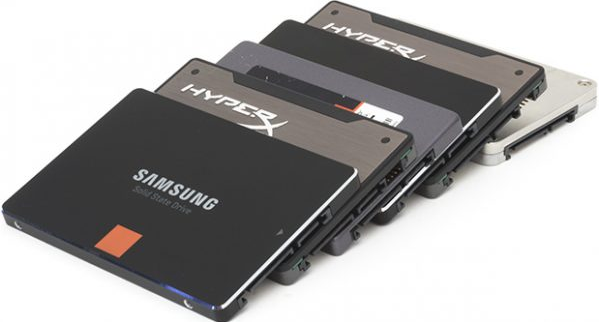
First, the backup drive is universal and flexible. You can buy any external storage device, whether it's large or small, or a combination of both, and take it with you wherever you need to use it.
Second, it helps you avoid data loss. External hard drives, such as USB flash drives, HDDs, and SSDs, provide a safe haven for data by being separate from the computer, protecting against system crashes, hard disk failures, fires, and viruses. They also offer an added layer of protection by automatically creating backup images, preventing data loss when changes are made and forgotten to be backed up.
Best Automatic Backup Software for External Hard Drive
Whether you want to backup files to external hard drive or backup external hard drive, this article helps you. I'll introduce you to 3 backup software, you can use the easiest automatic backup software to backup your data and keep it safe.
| Backup and Restore (Windows 7) | File History | Qiling Disk Master Professional | |
| Supported OS | Windows 7, 8, 8.1, 10, 11 | Windows 8, 8.1, 10, 11 | Windows 7, 8, 8.1, 10, 11 |
| Backup to external disk | Yes | Yes | Yes |
| Backup from external disk | No | No | Yes |
| Schedule backup | Daily, Weekly, Monthly | from every 10 minutes to every 12 hours or every day | Daily, Weekly, Monthly, Event trigger, USB Plug in |
| Backup destination | internal or external drive, USB or network drive | internal or external drive, USB or network drive | You can store your files on various types of drives, including internal or external hard drives, USB drives, network drives, or cloud drives. These options offer flexibility and convenience, allowing you to access your files from different locations and devices. |
| Other features | system backup | No | system, partition, disk, cloud, email backup, and more |
Windows built-in backup software, "Backup and Restore(Windows 7)" and "File History", only support backing up data on the local disk and saving them on an external disk.
Qiling Disk Master Professional offers more backup features than its counterparts, including external disk backup, event triggers, USB plug-in, system backup, and disk backup. It is also user-friendly and easy to use, making it a great option for both experienced and novice users.
Stepwise Guide: Automatic Backup Files to External Hard Drive in Windows 10
If you're looking for the best automatic backup software for an external hard drive, Qiling Disk Master Professional is a great choice. It allows you to backup files, system, disk, partition, and offers many useful features throughout the process.
- Run backup task automatically The device can be scheduled to backup data daily, weekly, or monthly, or it can be triggered by specific events, such as when an external hard drive or USB plug is inserted. This allows for automatic backup of files to the device even during off-peak hours, making it convenient to keep data safe and secure.
- Backup only changed files with incremental or differential backup, thereby saving disk space.
- Password encrypt backup image to add an extra layer of data security.
- Delete old backup image regularly To completely free up disk space, you can use the "Compact" method in the automatic backup cleanup process. This method will remove all unnecessary data, including backup files, system logs, and temporary files, to reclaim space on your disk. By running the "Compact" process, you can remove any redundant or unnecessary data, effectively freeing up disk space and optimizing your system's performance.
- Restore files from backup or other backup images corresponding. Selective file restore and universal restore are supported.
The software has excellent compatibility with storage devices and Windows systems. It allows users to back up to various storage options, including external drives, USB flash drives, network drives, and NAS devices, on Windows 11, 10, 8, 7, XP, and Vista. Additionally, it offers a server version, Qiling Disk Master Server, for server users.
To get started, please download this software to backup external hard drive or files to it, and prepare an external hard disk in advance.
Step 1. Launch Qiling Disk Master Professional after installing. Then, click "Backup" -> "File Backup" in order.

Note: To backup everything on an external hard drive, you can use the "Disk Backup" feature under the Backup tab.
Step 2. Click "Files" or "Folders" to select files or folders you want to backup.

Step 3. Click where the arrow point and select the external drive or USB drive as backup location.

Step 4. Set "USB Plug in" schedule backup if the target drive is an USB drive. This allows for easy backup to or from USB, with automatic incremental backup of only changed files, without needing the drive to be constantly connected.

Note: Consider using differential backups instead of incremental backups, as they are linked to each other and can't be restored if corrupted. This will ensure a more reliable backup method.
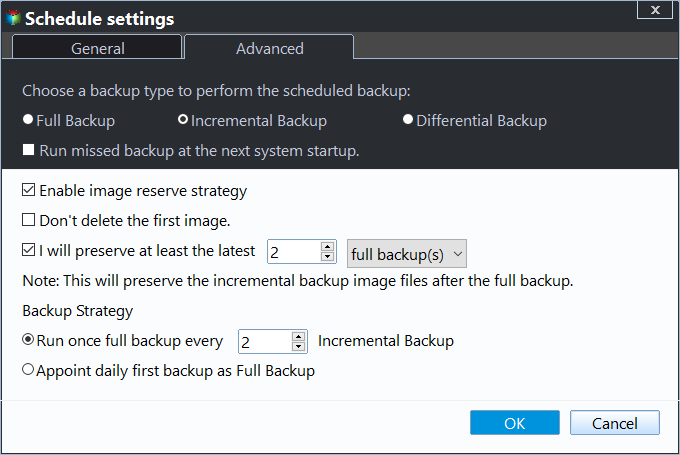
Step 5. To avoid the backup disk full issue, enable the "Backup Scheme" feature to delete image files, which will occur unless you do so, and then click "Proceed" to run the automatic backup software for your external hard drive.
- By quantity: You can set the number of backup sets and then delete old backups automatically after exceeding the specified value, with a default setting of one backup set being 1 full backup and 6 incremental or differential backups.
- By time: You can set the number of backups to be kept, based on daily, weekly, or monthly intervals, and when that number is exceeded, all previous backups will be deleted.
- By daily/weekly/monthly: You can store multiple types of backups, including daily, weekly, and monthly backups, and after a certain number of months, only the most recent full monthly backup will be kept, with older full backups being deleted.
FAQs
The backup software you use determines the schedule. For Backup and Restore (Windows 7), it's set to 7:00 PM every week. For File History, it's every 1 hour. For third-party software, you need to find a similar schedule feature.
If you're using an external hard drive as a backup solution, it's recommended to also create an offsite backup, which can be a cloud drive, a shared network drive, or a drive located far away from your computer, such as Google Drive, Dropbox, or OneDrive.
Windows 10 backup is sufficient for file backup, but third-party software like Qiling Disk Master Professional offers more flexibility and features for a more comprehensive backup solution.
If the data is crucial and frequently updated, consider backing it up daily, ideally with automatic scheduling.
While both external hard drives and cloud storage can help save local disk space, external hard drives are more vulnerable to data loss due to their physical nature. Therefore, it's generally recommended to backup files to cloud storage for added security and peace of mind.
Summary
Qiling Disk Master Professional is a software that allows users to easily back up files to or from external hard drives using a USB plug-in feature, making it a convenient option for those with USB external hard drives.
With this, you don't have to constantly plug in a USB drive to avoid missing any changes in a scheduled task. Instead, it will automatically backup all changes as soon as you plug it in at the next scheduled time.
The device is capable of automatic backup with its "Disk Backup" feature, providing "System Backup" and "Partition Backup" solutions, and allowing for scheduled backup settings.
Related Articles
- Free Software to Backup Files to External Drive Automatically
Learn more about Backup and Restore, File History, Qiling Disk Master and pick one among them to automatically backup files to external hard drive. - Set Up Automatic Backup Windows 10 to External Hard Drive
This article explains how to auto backup your computer to external hard drive in Windows 10. The importance of backup needs no elaboration, and an automatic schedule can certainly save you a lot of trouble. - Free Backup Software to Backup External Hard Drive
Learn how to automatically backup Seagate, Samsung, Western Digital etc. external/portable hard drive using best free backup utility Qiling Disk Master in Windows 7/8/10/11. - How to Use Rsync in Windows 10 | Tutorial and Alternative
It's not easy to use Rsync in Windows 10. You must install WSL, set up Linux distribution and then install GIT. To make things easier, you could use an Rsync alternative for file backup and sync. - Get the Best Allway Sync Alternative for Free
This guide explains Get the Best Allway Sync Alternative for Free with clear steps, key checks, and practical tips. - Fix Amazon Cloud Drive Not Syncing Problem (3 Solutions)
You will fix Amazon Cloud Drive not syncing issue with 3 possible solutions, or try the best Amazon cloud drive sync tool to sync files automatically.
Products
Articles & Tutorials
- Data Recovery
- Data Backup
- File Recovery
- File Backup
- File synchronize
- System Backup and Restore
- Disk and Partition Clone
- Technical articles
- Disk Master Help
- Windows Deleted File and Disk Recovery Tutorials
- Windows File and Data Recovery Tutorials
- More Windows Tutorials for Install, Security, Files, and PC Tips
- Windows Boot, Repair, and Recovery Environment Tutorials
- Windows Backup Tutorials
- Windows Restore Tutorials
- Windows Clone and Migration Tutorials
- Windows Server Backup, Recovery, and Management Tutorials
- Windows Disk, Partition, and Storage Management Tutorials