Fix Amazon Cloud Drive Not Syncing Problem (3 Solutions)
- Overview of Amazon Cloud Drive
- Enable Amazon Cloud Drive Sync Tool to Sync Files
- Amazon Cloud Drive Not Syncing Issue in Windows 10
- Way 1: Restart Amazon Cloud Drive Application
- Way 2: Install the Latest Amazon Cloud Drive
- Way 3: Disable Windows Firewall and Anti-virus software
- Synchronize Files to Amazon Cloud Drive Automatically Step by Step
- Conclusion
Overview of Amazon Cloud Drive
Amazon Cloud Drive allows you to store files, documents, music, and more securely in the cloud, and access them across various devices, including web browsers, desktop applications, mobiles, and tablets.
Amazon Prime offers unlimited image storage for its members, and non-members can upgrade to Prime for $11.99 per year to enjoy the same benefit, in addition to 5GB of free storage for non-Prime users.
To backup or sync files, download the latest Amazon Photos app, which supports sync feature on Windows, IOS, or Android devices.
Enable Amazon Cloud Drive Sync Tool to Sync Files
To enable sync feature in Amazon Photos application in Windows 10, go to the Amazon Photos app, click on the three horizontal lines in the top left corner, then click on "Settings" from the dropdown menu. In the settings window, click on "Sync" and then toggle the switch to the right to enable sync.
1. To access Amazon Photos settings, open the Amazon Photos interface and click on the "Settings" icon located in the top right corner, which will take you to the "Preferences" page.
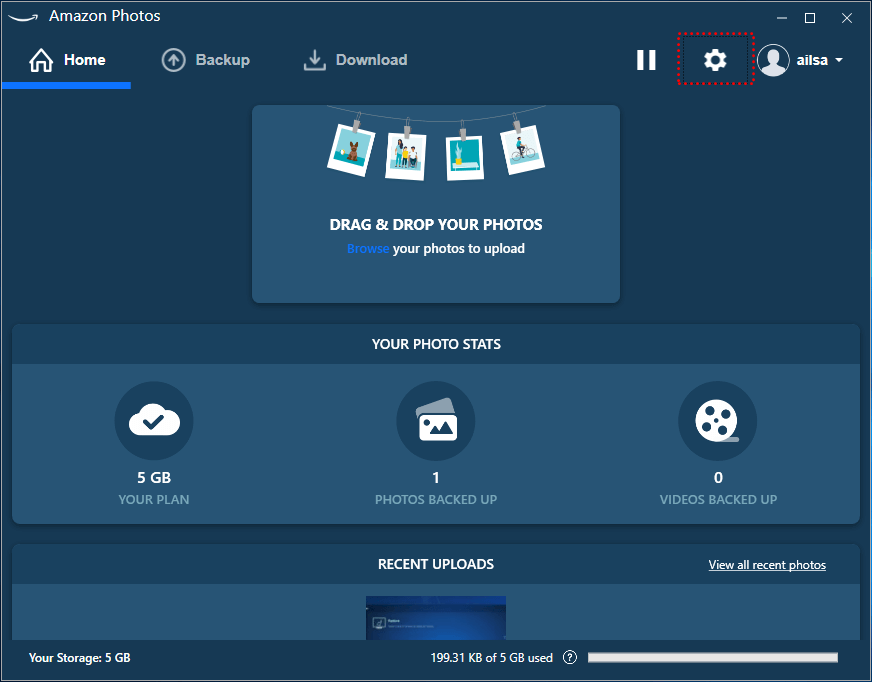
2. Select Sync tab, and choose Enable Sync.
3. Amazon Photos will restart and your desktop will get an Amazon Drive shortcut. Amazon Photos will prompt you to choose an Amazon Drive Folder to save sync files, and select a Local Sync Folder (defaulting to C:/Users/Your username/Amazon Drive unless changed), then press Proceed.
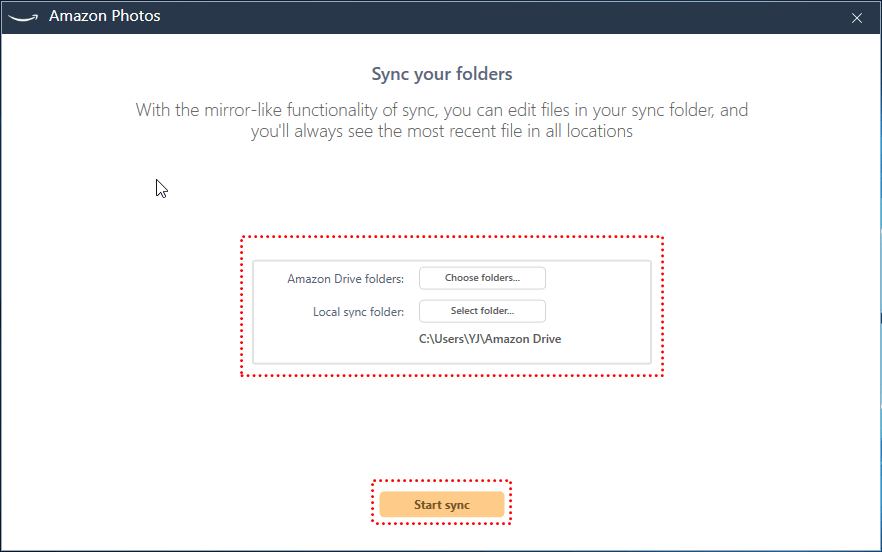
4. To sync files to Amazon Photos, go to the Sync tab on the main window, select the files you want to sync, choose the location, and click Select. This will initiate the syncing process.
Amazon Cloud Drive Not Syncing Issue in Windows 10
Many users experience frustration with the syncing feature, as they struggle to locate synced files in Amazon Drive after the process is complete, or encounter difficulties syncing specific files, or find themselves stuck in a syncing loop.
Amazon Photos may become unresponsive due to issues like poor internet connection, insufficient space, or anti-virus software conflicts, leading to syncing problems with Amazon cloud drive. To resolve these issues, try troubleshooting by addressing these potential causes one by one.
Before starting, please checking the following contents:
- Confirm you have a good internet connection.
- Ensure the storage space is sufficient for file syncing, as the free account only offers 5GB of cloud storage.
- Please note that the files you upload from the website should be 2GB or less in size.
If you still have amazon drive sync stuck or amazon photos not syncing issue, try the following issues:
Way 1: Restart Amazon Cloud Drive Application
If Amazon Cloud Drive freezes or gets stuck, you can try restarting it by exiting the program from the taskbar, then logging back in with your Amazon account to see if it's working again.
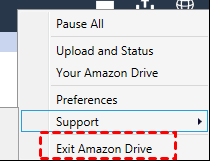
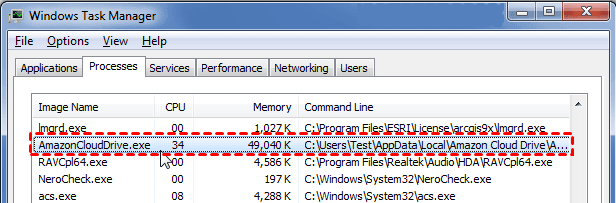
If the Task Manager icon is missing, type "task manager" in the search box, find it, and end the app if it's running. Then, open it again on your computer.
Way 2: Install the Latest Amazon Cloud Drive
If you're experiencing syncing issues with Amazon Cloud Drive, it's likely due to an outdated version or a bug in the current one. In this case, updating to the latest version of Amazon Cloud Drive is recommended.
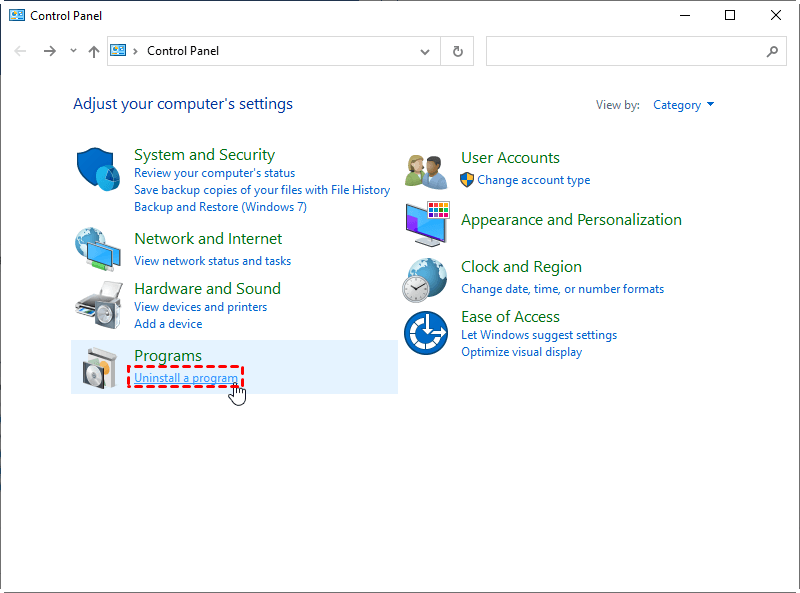
To uninstall Amazon Drive, open the Control Panel from the start menu, go to Programs and then Uninstall a program. In the next window, find and right-click Amazon Drive, then click Uninstall. Once completed, download the latest version of Amazon Cloud Drive from the official website.
Way 3: Disable Windows Firewall and Anti-virus software
Windows Firewall and anti-virus software like Windows Defender may flag Amazon Cloud Drive as a threat, preventing it from running, especially when syncing files with Amazon Cloud Sync. In this case, you'll need to temporarily disable it to avoid conflicts.
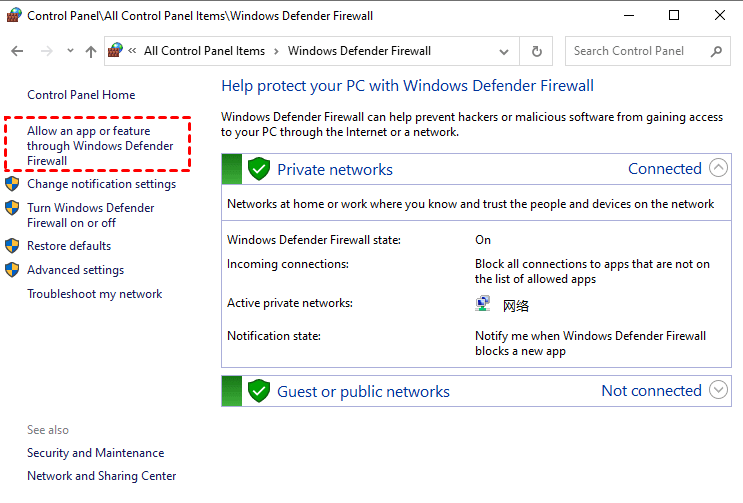
To allow Amazon Cloud Drive through Windows Defender Firewall, type "windows defender" in the search bar and select the top result. Then, select "Allow an app or feature through Windows Defender Firewall," check the box next to "Private and Public" for Amazon Cloud Drive, and click "OK" to confirm.
Synchronize Files to Amazon Cloud Drive Automatically Step by Step
If you're experiencing issues with Amazon Photos not syncing, it's possible that the problem lies with the sync task schedule. However, if you're still encountering issues, you may want to consider using Qiling Disk Master Professional, a professional Amazon Cloud Drive sync tool compatible with various operating systems, including Windows XP, Vista, 7, 8, 8.1, 10, and 11 (both 32-bit and 64-bit).
With this solution, you can enjoy several advantages during the process, including [list the benefits].
- Multiple sync methods: The service provides users with 4 sync methods, including File Sync, File Sync, File Sync, and Two-Way Sync, with the first three being variations of one-way file sync with different focuses.
- Flexible sync options: The software is able to run automatic syncs with various triggers, including daily, weekly, and monthly schedules, as well as event triggers. Additionally, it can sync files in real-time. Furthermore, it can also sync files when a USB device is plugged in.
- Various sync destinations: The service allows users to sync files to various external storage devices, including external hard drives, NAS devices, network shares, CDs/DVDs, and cloud storage, but Amazon Drive does not support external hard drive syncing.
You can download the best Amazon Cloud Drive sync tool and follow me to synchronize files to Amazon Cloud Drive automatically. For server users, try Qiling Disk Master Server.
1. Launch Qiling Disk Master Professional, select Backup and recovery, then choose File Sync.

Other sync solutions for automatic sync:
- File Sync: You can use a tool like SyncToy to synchronize files from one location to another with all the scheduled sync settings. SyncToy is a free utility from Microsoft that allows you to define multiple folders and their corresponding sync settings, and then run them with a single click.
- File Sync synchronizes files from a source directory to a destination, ensuring that the files in the destination are identical to those in the source.
- Two-Way Sync: A method of file synchronization where changes made on one side are synced to the other side in real-time, as soon as they occur.
2. Input a proper name into the Task Name box, then click Folder to select the specific files or folders to sync.

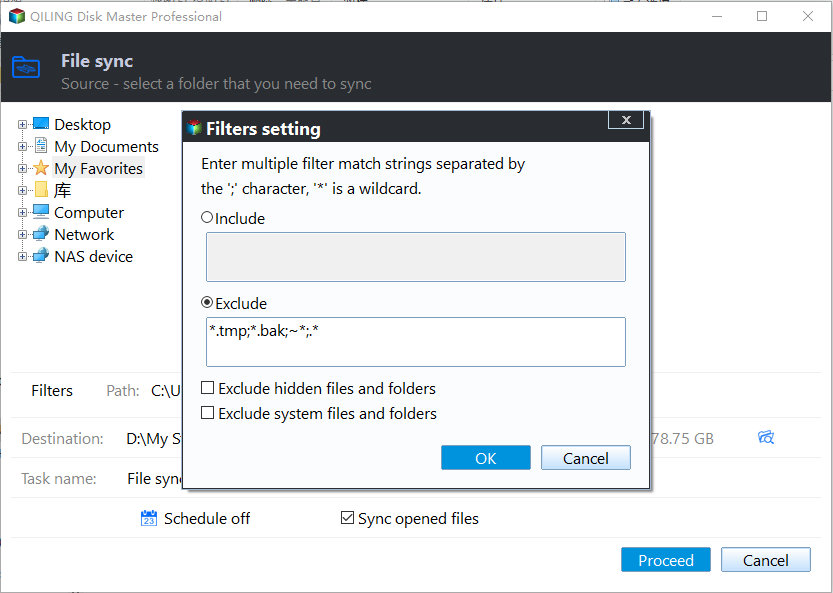
3. You can customize the files you want to sync by using Filter settings, which lets you exclude or include files or folders by typing the file extension.
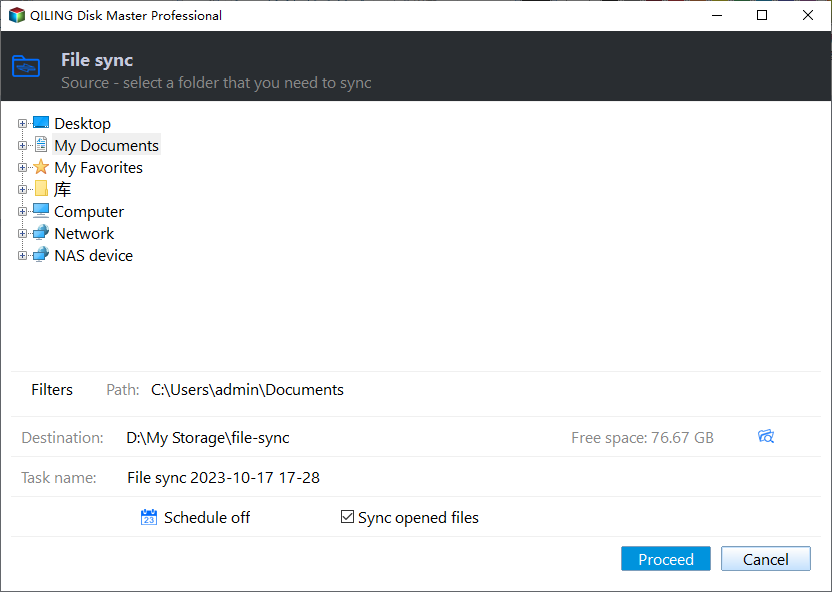
4. Select Amazon Cloud Drive as the target to save the files or folders.

4. Press Proceed to sync files to Amazon Cloud Drive automatically.
Qiling Backup supports syncing multiple files and folders to cloud drives at once, and also supports syncing to various cloud services including Google Drive, Dropbox, OneDrive, Box, Sugarsync, Hubic, and Cloudme.
When you create an Qiling account, you'll gain access to the newly-added feature of Cloud Backup, which enables you to backup files or folders to Qiling Cloud, with 1TB of free storage available for 15 days after signing up.
Conclusion
Don't worry about Amazon cloud drive not syncing problem, as it can be fixed easily by following the above solution. Additionally, you can sync files to Amazon Drive automatically with the help of Qiling Disk Master Professional.
You have 6 options for syncing files: daily, weekly, monthly, event triggers, USB plug in, or real-time. Real-time file sync is the best way to minimize data loss in a disaster.
This software allows you to clone an operating system, partition, or entire hard drive to the cloud, merge backup images, restore a system to a computer with different hardware, and perform command line backups, among other features.
Related Articles
- How to Sync Desktop to OneDrive Automatically (2 Ways Included)
Syncing desktop to OneDrive is one of the best ways to protect data safely, not only the current files but also changes made later. - Easy Steps to Sync QNAP NAS and Google Drive Cloud
Learn how to perform QNAP NAS and Google Drive cloud sync in two ways. The second way can sync multiple folders to backup precious data on the NAS and save local disk space meantime. - Perform Two Synology NAS Server Synchronization Effortlessly
You will learn how to perform 2 NAS server synchronization with the best free NAS synchronization software - Qiling Disk Master. Just follow the steps to sync NAS to NAS safely. - Backup Data Offsite on Windows 10 to Protect Data | 3 Ways
This article tells you how to backup data offsite in Windows 10 with the best offsite storage and 3 practical ways. - How to Backup Files to External Hard Drive in Windows 10
This article tells you how to backup files to an external hard drive in Windows 10 easily and shows you the detailed steps to do so.
Products
Articles & Tutorials
- Data Recovery
- Data Backup
- File Recovery
- File Backup
- File synchronize
- System Backup and Restore
- Disk and Partition Clone
- Technical articles
- Disk Master Help
- Windows Deleted File and Disk Recovery Tutorials
- Windows File and Data Recovery Tutorials
- More Windows Tutorials for Install, Security, Files, and PC Tips
- Windows Boot, Repair, and Recovery Environment Tutorials
- Windows Backup Tutorials
- Windows Restore Tutorials
- Windows Clone and Migration Tutorials
- Windows Server Backup, Recovery, and Management Tutorials
- Windows Disk, Partition, and Storage Management Tutorials