Clone a BitLocker-Encrypted Drive in Windows 11
A BitLocker-encrypted system disk can be cloned, but not the same way an ordinary disk is cloned. The data on the volume is ciphertext, the startup key is bound to the TPM of the current machine, and any change to the boot environment can trigger a recovery prompt. This guide explains what actually gets copied, why the recovery key must be saved before you start, and how to re-enable protection on the new drive after the first successful boot.
How BitLocker changes a disk clone
BitLocker encrypts the whole volume, not individual files. When a cloning tool copies the disk sector by sector, it copies the encrypted data and the BitLocker metadata exactly as they sit on the platters or NAND. Nothing is decrypted during the copy, and the tool never sees your files in readable form.
That works because the encryption key is not stored on the disk itself. It is sealed to the TPM chip of the computer and released during startup. Move a cloned disk to the same computer and the same TPM can unlock it. Move it to a different computer and the TPM cannot release the key, so Windows asks for the 48-digit recovery key instead.
Two consequences follow from this. First, a sector-level clone is the only method that produces a bootable encrypted copy. Second, a file-level copy of the mounted drive produces ordinary unencrypted files, which is useful for backups but not for replacing the system disk.
Save the recovery key and suspend protection
Step 1. Open Manage BitLocker from Windows Search or Control Panel, and confirm that the operating-system drive shows as encrypted.

Step 2. Choose Back up your recovery key and save it somewhere that is not the disk you are about to clone: a Microsoft account, a printed copy, or a file on a USB stick. If the clone fails and the source disk is damaged, this key is the only way back into the data.
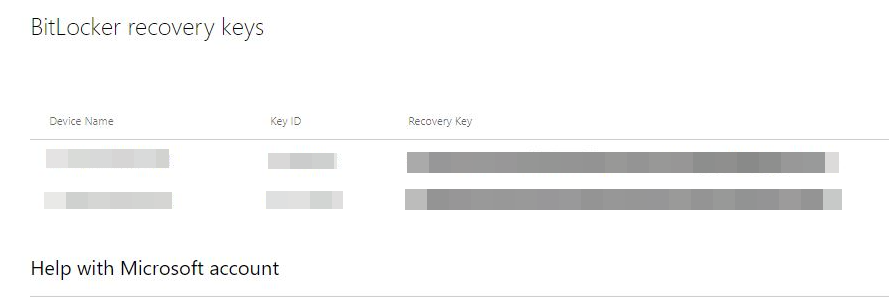
Step 3. Select Suspend protection and confirm. Suspension stops BitLocker from demanding the recovery key when the boot configuration changes. The volume stays encrypted the entire time, so there is no window in which the data sits in plain form.
For a detailed walkthrough of this step, see Suspend BitLocker before an SSD upgrade.
Clone the encrypted disk with Qiling Disk Master
Qiling Disk Master Professional performs a sector-level Disk Clone, copying the encrypted volume, the EFI system partition, the recovery partition, and the boot configuration together.
Step 1. Install and open the program, go to Clone, and select Disk Clone.
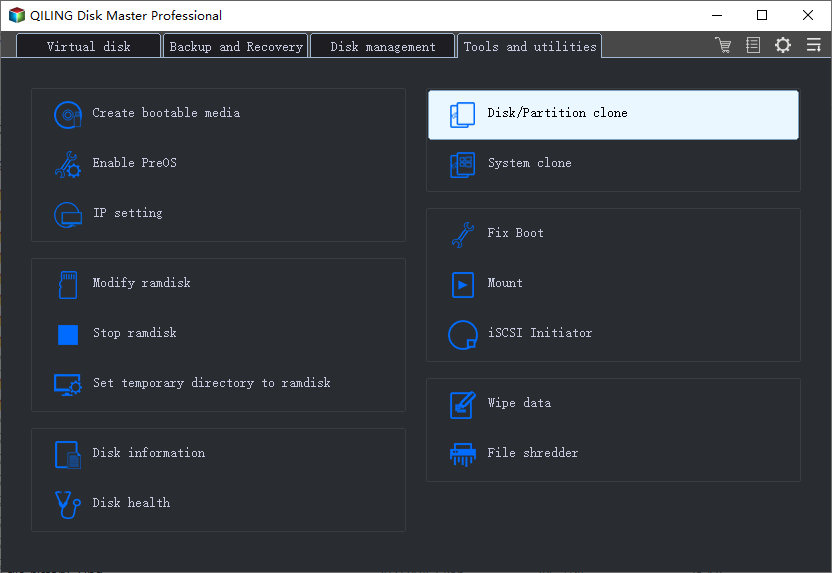
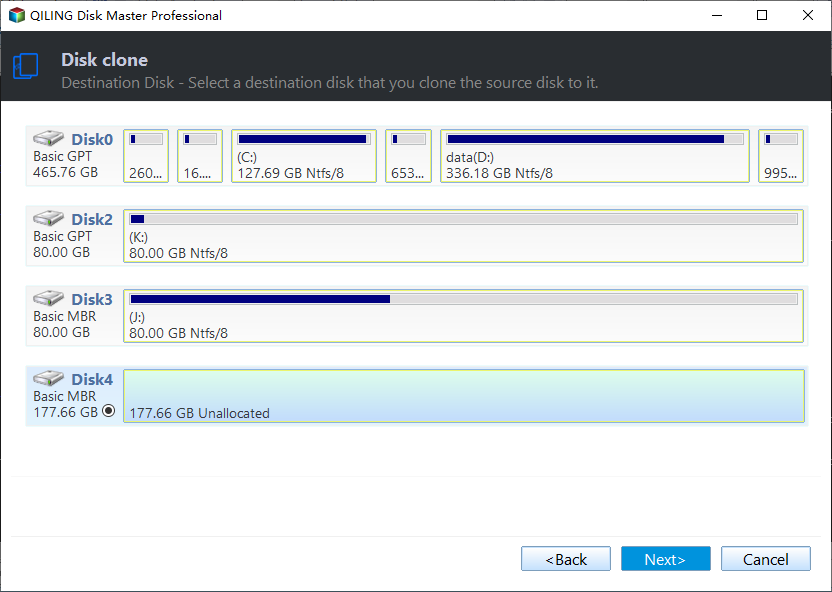
Step 2. Select the encrypted system disk as the source. Then select the replacement disk as the destination. Check both capacity and model before you continue, because the destination is overwritten completely.
Step 3. Enable SSD Alignment if the destination is an SSD, review the operation summary, and click Proceed. Do not interrupt power during the copy.
Boot from the new drive and resume protection
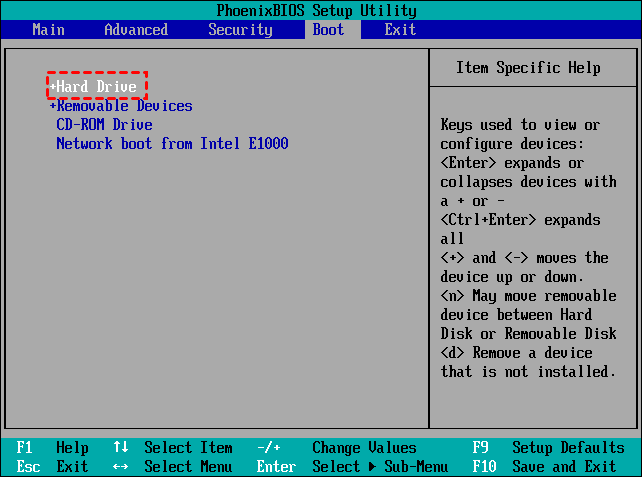
Step 1. Shut down, disconnect the original disk or change the boot order in firmware settings, and start from the new drive. On a machine with the original TPM, Windows normally unlocks the cloned volume without a prompt.
Step 2. Open Manage BitLocker, select Resume protection, and restart once so that the new disk is recorded as the protected startup disk.
Step 3. Keep the original encrypted disk unreadable but intact for a few days. If anything is missing from the clone, you can still mount it with the recovery key and copy the files across.
Common mistakes to avoid
- Cloning without saving the key. Suspension makes startup prompts less likely, but it does not remove the key requirement after hardware changes.
- Cloning to a disk in an external enclosure. A USB-attached destination often fails at the boot stage. Clone to an internally connected disk.
- Expecting the clone to boot on another PC. A different TPM means a recovery-key prompt on first boot. If the disk is going to a new machine, plan to enter the 48-digit key once, then re-seal it to the new TPM.
- Turning BitLocker off before cloning. Decryption takes hours on a large drive and leaves the data unprotected until the clone finishes. Suspension plus a saved key is faster and safer.
- Cloning a dynamic disk or a disk with a custom recovery partition. Verify the partition layout after the clone before you erase the source.
Related Articles
- Suspend BitLocker Before an SSD Upgrade
Step-by-step suspension and resume so a system disk can be replaced without a recovery prompt. - Back Up a BitLocker Recovery Key Before Cloning
Where Windows 11 stores the recovery key and which copy will still work if the disk is gone. - Windows 11 BitLocker Recovery Key
How to locate, verify, and reuse the 48-digit key after a hardware change.
Products
Articles & Tutorials
- Data Recovery
- Data Backup
- File Recovery
- File Backup
- File synchronize
- System Backup and Restore
- Disk and Partition Clone
- Technical articles
- Disk Master Help
- Windows Deleted File and Disk Recovery Tutorials
- Windows File and Data Recovery Tutorials
- More Windows Tutorials for Install, Security, Files, and PC Tips
- Windows Boot, Repair, and Recovery Environment Tutorials
- Windows Backup Tutorials
- Windows Restore Tutorials
- Windows Clone and Migration Tutorials
- Windows Server Backup, Recovery, and Management Tutorials
- Windows Disk, Partition, and Storage Management Tutorials