Windows 11 22H2 Update Not Showing: What to Check Now
When Windows 11 22H2 first launched, gradual rollout, compatibility holds, and organization policies could prevent it from appearing in Windows Update. Today, its absence often has a simpler explanation: it is an old release that should not be the upgrade target for a normally maintained PC.
First determine whether you are missing an update you need or following an outdated version-specific tutorial. These are different problems and require different solutions.
Confirm whether 22H2 is actually needed
Press Windows + R, enter winver, and read the version and build. If the computer already runs a newer Windows 11 release, the missing 22H2 offer is expected. Do not downgrade just to match a screenshot in an old guide.
Windows 11 22H2 is no longer supported in any edition as of September 2026. Its final Enterprise and Education support period ended on October 14, 2025. Consult Microsoft's version and servicing information for a supported destination.
For business testing that explicitly requires an old release, use approved isolated environments and authorized media under the administrator's direction. That is different from forcing an obsolete version onto a personal PC for routine use.
Check Windows Update in a controlled order
Step 1. Connect to a reliable network, plug the laptop into power, and open Settings > Windows Update. If updates are paused, resume them when you are ready to install.
Step 2. Install pending servicing updates and complete any requested restart. Check again afterward; a pending restart can prevent the next stage from being offered.
Step 3. Read the exact message on the update page. A compatibility notice, an organization-management notice, and a numerical download error have different meanings. Record the message instead of treating every missing offer as corruption.
Step 4. On a managed device, ask the administrator whether a target-version policy or deployment schedule applies. Do not remove policy registry keys to bypass workplace management.
Step 5. If a safeguard hold is identified, update the affected driver or application only as advised by the vendor and Microsoft. Allow the hold to clear rather than immediately forcing an upgrade with installation media.
Fix an actual update failure, not a missing old version
For a download or installation error, check free space on the Windows drive and review update history for the error code. Use the Windows Update troubleshooter available through Settings or Get Help on your build, then restart and retry.
If the same error returns, investigate that error specifically. Do not routinely delete every update folder, disable security services, or run a script that resets unrelated networking and permissions. These changes can make the original failure harder to diagnose.
A PC that does not meet the supported target's hardware requirements needs a hardware or deployment decision. Hiding the requirements check does not make its drivers and firmware compatible.
Back up before installing a supported feature release
Keep the encryption recovery key, application licenses, and a current backup outside the computer. Use Qiling Disk Master for a recoverable disk image before making a major operating-system change.
Step 1. Connect an external disk and open the disk or partition backup function.
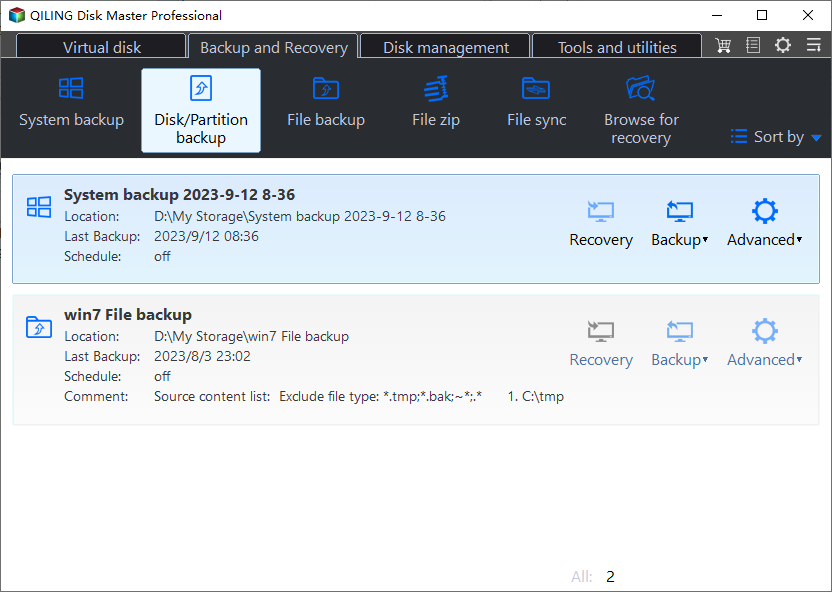
Step 2. Select the Windows disk with its required boot partitions. Review the source selection so that the image contains the installation you intend to protect.
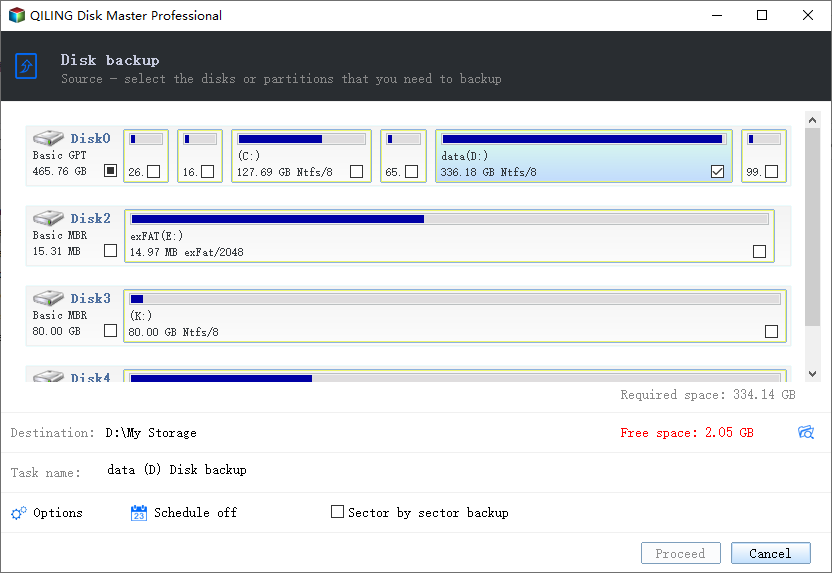
Step 3. Select a destination on the external disk, then click Proceed. Wait for completion and confirm that the image is accessible.
Step 4. Create and test rescue media. Confirm that it recognizes the backup drive and internal storage, especially on systems using special storage-controller drivers.
Understand the difference between upgrade and clean install
Use the supported version offered for the PC or an administrator-approved alternative. Launching Setup from within a compatible running Windows installation may offer to keep applications and personal files. Booting the same installation USB instead normally takes you into the clean-install workflow.
Check the edition, language, architecture, and final keep-options before continuing. Cancel if the choices do not match your intention. After upgrading, verify the installed version and test your daily applications before deleting the previous-installation files or backup.
Related Articles
- Windows 11 23H2 Support and Upgrade Options
Check edition-specific servicing dates and select an appropriate feature-update path. - Windows 11 Blue Screen After Updating
Diagnose crashes after an update without immediately wiping the installation. - Windows 11 Says Your Organization Manages Updates
Check whether an update restriction comes from a legitimate work policy or a setting left on a personal PC.
Products
Articles & Tutorials
- Data Recovery
- Data Backup
- File Recovery
- File Backup
- File synchronize
- System Backup and Restore
- Disk and Partition Clone
- Technical articles
- Disk Master Help
- Windows Deleted File and Disk Recovery Tutorials
- Windows File and Data Recovery Tutorials
- More Windows Tutorials for Install, Security, Files, and PC Tips
- Windows Boot, Repair, and Recovery Environment Tutorials
- Windows Backup Tutorials
- Windows Restore Tutorials
- Windows Clone and Migration Tutorials
- Windows Server Backup, Recovery, and Management Tutorials
- Windows Disk, Partition, and Storage Management Tutorials