Copy exFAT Partition to Another Drive in Windows
When to copy an exFAT partition
exFAT is common on external drives, SD cards, and USB storage that must work across Windows, macOS, cameras, and other devices. Copy the partition when upgrading storage, making a backup, or moving files to a more reliable drive.
Prepare the destination drive
- Make sure the destination has enough capacity.
- Use exFAT if the drive must stay compatible with non-Windows devices.
- Use NTFS if the copied partition will mainly be used on Windows with permissions or compression.
- Back up important destination files before overwriting anything.
Method 1. Copy exFAT files manually
Step 1. Connect both source and destination drives.
Step 2. Create a folder on the destination drive.
Step 3. Select all files on the exFAT partition and copy them to the new location.
Step 4. For large folders, use robocopy X:\ Y:\Backup /E /R:2 /W:5 to retry failed files and preserve folder structure.
Method 2. Clone the exFAT partition
 Qiling Disk Master
Qiling Disk Master can clone a whole exFAT partition to another disk, which is useful when you want to keep the partition structure instead of copying files only.
Step 1. Connect the source drive that contains the exFAT partition and the destination drive to the computer. Make sure the destination partition or unallocated space is large enough to hold all used space on the exFAT partition.
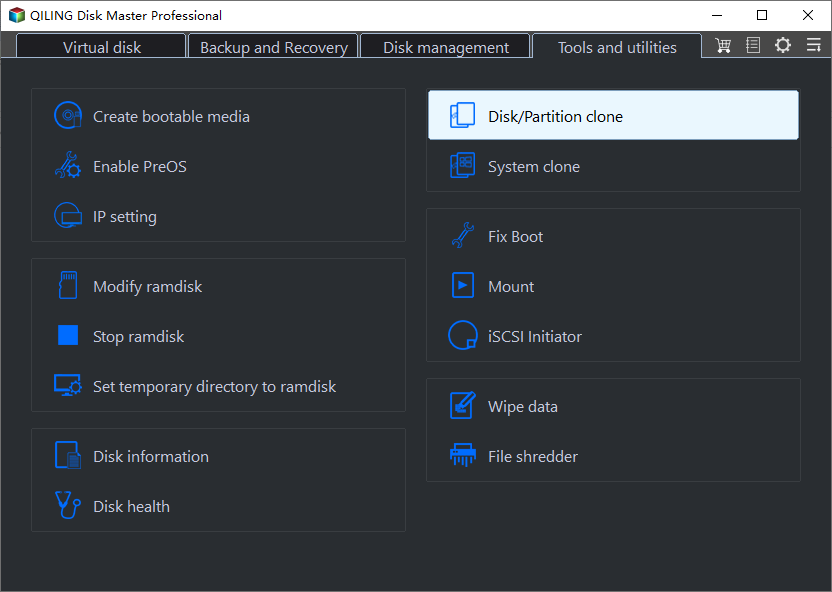
Step 2. Open Qiling Disk Master, go to Tools and utilities, and choose Disk/Partition clone.
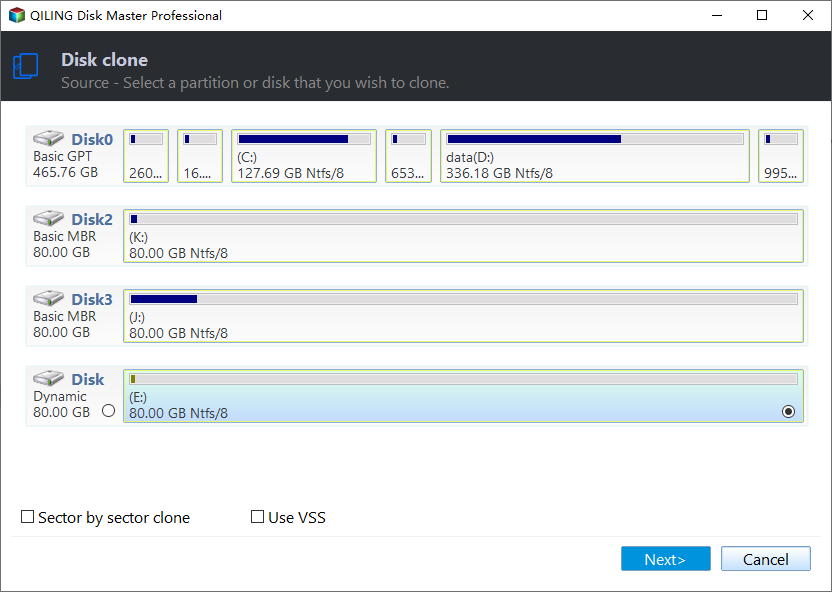
Step 3. Select the exFAT partition as the source partition. If several removable drives are connected, check the drive letter, capacity, and partition label carefully before clicking Next.
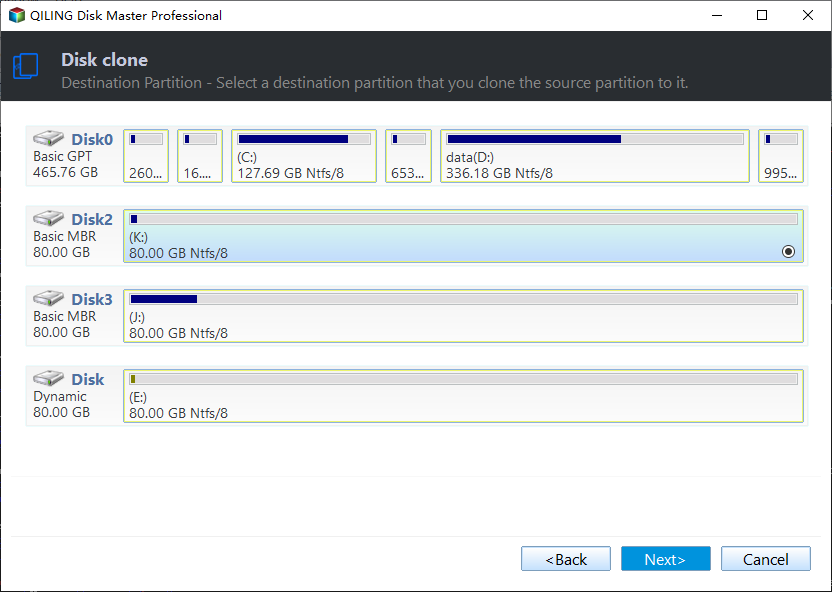
Step 4. Select unallocated space or a target partition on the destination drive. If you choose an existing partition, confirm that its files have already been backed up because the clone operation may overwrite it.
Step 5. Preview the source and destination layout. If the destination space is larger, adjust the partition size or keep the default layout according to your storage plan.
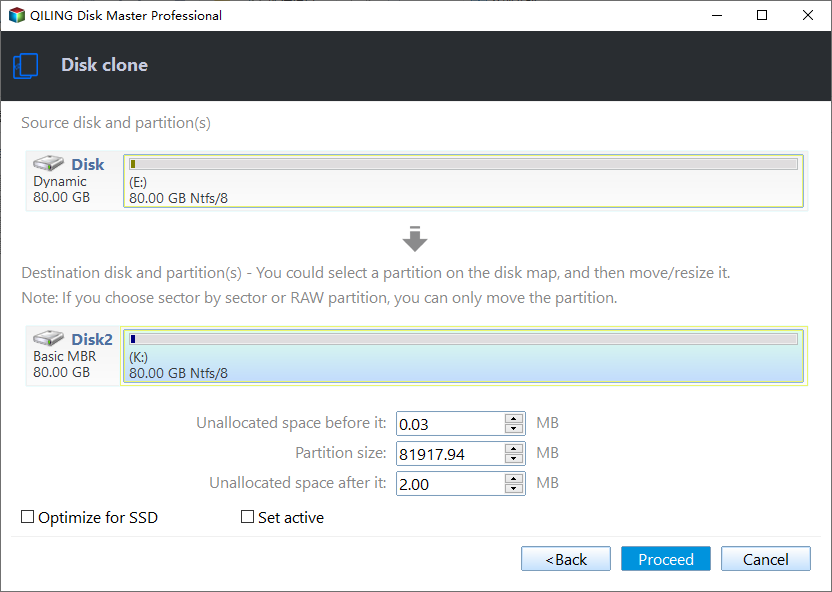
Step 6. Click Proceed to start cloning the exFAT partition. Keep both drives connected until the process finishes.
Step 7. After cloning, open Disk Management and File Explorer to confirm the copied partition has a drive letter and can be opened. If Windows does not assign a letter automatically, add one manually before checking files.
Verify the copied partition
Open several files from the copied partition, compare file counts or folder sizes, and safely eject removable drives. If the drive is used by a camera or console, test it on that device before deleting the original copy.
Conclusion
For ordinary files, manual copy or robocopy is enough. For full partition migration, clone the exFAT partition and verify the result before reusing the source drive.
Related Articles
-
How-To / Copy Partition to Another Drive on Windows 10, 11
Copy partition content to another disk with practical preparation steps. -
How to Recover Deleted Files from exFAT Drive
Recover deleted files from exFAT storage before formatting or replacing it. -
How to Convert FAT32 to NTFS Windows 10 without Data Loss?
Choose a Windows-friendly file system when moving data to new storage. -
Convert FAT32 to NTFS with Disk Management
Back up and convert a data partition when a different Windows file system is required.
Products
Articles & Tutorials
- Data Recovery
- Data Backup
- File Recovery
- File Backup
- File synchronize
- System Backup and Restore
- Disk and Partition Clone
- Technical articles
- Disk Master Help
- Windows Deleted File and Disk Recovery Tutorials
- Windows File and Data Recovery Tutorials
- More Windows Tutorials for Install, Security, Files, and PC Tips
- Windows Boot, Repair, and Recovery Environment Tutorials
- Windows Backup Tutorials
- Windows Restore Tutorials
- Windows Clone and Migration Tutorials
- Windows Server Backup, Recovery, and Management Tutorials
- Windows Disk, Partition, and Storage Management Tutorials