Error Code 4101: Failed to Create File
This article applies to: all versions of Qiling Disk Master.
If the backup service cannot start, see failed to enable backup service for related troubleshooting.
Overview
Introduction:
Error code 4101 may appear when Qiling Disk Master performs a full, incremental, or differential backup to a physical disk, NAS, shared folder, or mapped network drive.
- Backup is initializing...
- Backing up the information of storage device...
- The volume 0(C :) is backing up.
- Backing up data...
- Information Code: 10105
- Failed to create file.
Solution 1: Check permission, antivirus, and destination path
Solution 1:
First, check the following items:
- Check whether DmAgent.exe is blocked by your antivirus software. Run DmAgent.exe by start "Disk Master Agent" service from the service manager. If it is blocked, allow it in your antivirus prompt or security settings.
- If you are backing up to an external drive, check whether the drive is disconnected or whether its drive letter has changed. Reconnect the drive and make sure it uses the same drive letter as the destination path in the backup task.
- If the NAS connection fails, delete nas.dat from C:\ProgramData\Disk Master, and then reconnect the NAS by entering its IP address. This can fix connection issues caused by an unstable network or changed user account credentials.
- Make sure the destination location has enough free space to store the backup image file.
- If you are creating a full, incremental, or differential backup from an existing backup task, make sure the task is still valid. Use the "Check Image" option in the Advanced menu. If the task is invalid, reload it and try again.
Solution 2:
If the error occurs while backing up to a NAS or shared drive, confirm that the target location is connected successfully. The computer or NAS that hosts the shared folder may be shut down, disconnected, or unavailable on the network. Reconnect the destination before running the backup again.
For Qiling Disk Master v3.2 and earlier, you can also try the following method.
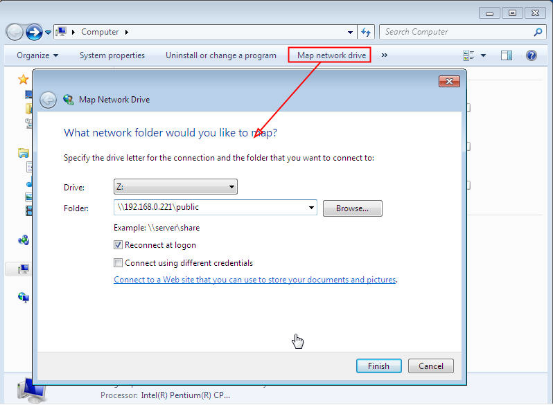
Map the NAS/Share (network drive) as a local drive in Windows
To map your network folder, refer to the screenshot below and follow the Windows mapping process.
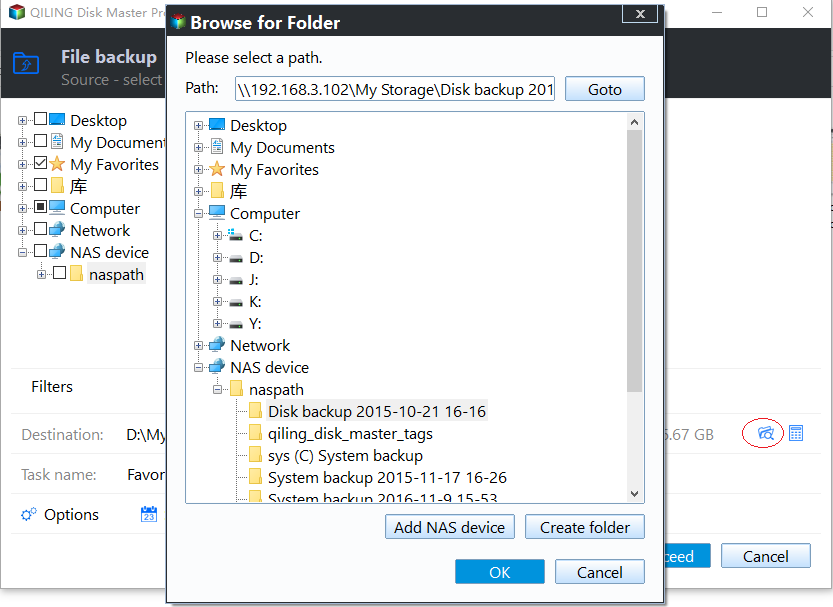
After the folder is mapped successfully, you can select it as a backup destination in the same way you select a local drive.
If error code 4101 still appears, please contact our Qiling Support Team for assistance.
Related Articles
- Best Way: Automatic System Backup for Windows Server
This page tells you the best way to set automatic backup system for Server 2012 (R2), 2016 (R2), 2019, 2022, etc. It largely ensures data security. - Disk Backup vs Clone: Which One to Choose and How to Do it
This article tells the differences between backup vs clone, help you to make the choice and offers a step-by-step guide to do disk backup or clone on Windows. - How to Fix C Drive is Full Easily (6 Ways)
Fix C drive is full in Windows with six practical methods, including cleanup, moving files, extending partitions, and managing disk space safely. - Best Carbon Copy Cloner Alternative for Windows 11, 10, 8, 7
This article is written for users who need Carbon Copy Cloner Windows alternative to backup or clone your computer. Keep reading to learn more. - (Solved) Outlook Not Showing Old Emails | 6 Ways
You will get all the possible reasons for Outlook 2016 or Windows 10 not showing old emails and 6 effective methods to fix it. To keep your emails safe, please back them up. - Top 2 Ways to Take an Outlook Personal Folders Backup
This article describes two ways to help users to take Outlook personal folders backup. You can choose the most suitable one according to your needs.
Products
Articles & Tutorials
- Data Recovery
- Data Backup
- File Recovery
- File Backup
- File synchronize
- System Backup and Restore
- Disk and Partition Clone
- Technical articles
- Disk Master Help
- Windows Deleted File and Disk Recovery Tutorials
- Windows File and Data Recovery Tutorials
- More Windows Tutorials for Install, Security, Files, and PC Tips
- Windows Boot, Repair, and Recovery Environment Tutorials
- Windows Backup Tutorials
- Windows Restore Tutorials
- Windows Clone and Migration Tutorials
- Windows Server Backup, Recovery, and Management Tutorials
- Windows Disk, Partition, and Storage Management Tutorials