Top 3 Backup Software Free for Windows, Mac and Linux
I hope you had a good day and are feeling joyful! If you're feeling down, I'd recommend checking out this page, which features the most popular free backup software. It's essential to develop a good habit of backing up, especially for important files like financial records and meeting summaries, to ensure disaster recovery.
When files or folders are lost or accidentally deleted, the lost time is gone forever. However, you can prevent this by backing them up in advance using free backup software.
Things to note before backing up
- Check the integrity of the files/folders.
- Connect an external hard drive to your computer to backup files to an external storage device, ensuring it has enough space and can be detected by your computer.
Best free backup software for Windows, Mac and Linux
Three backup utilities are available for practical use. Depending on your specific situation, you can choose one that suits your needs. If you have alternative suggestions, feel free to share them.
#1. Free Windows backup software – Qiling Disk Master Standard
Qiling Disk Master Standard is a free backup utility that offers various features, including system backup, disk backup, partition backup, file backup, and cloud backup. It's easy to use and allows users to backup files to internal/external hard drives, network, NAS devices, and cloud drives, making it a convenient and reliable option for data protection.
You can save time and energy by setting up an auto backup with this freeware, which also offers incremental and differential backup options to copy changes only, and runs smoothly on Windows operating systems.
Step 1. Install and launch this free Windows backup software.
Step 2. Click Backup and File Backup subsequently.

Step 3. The Task Name can be modified by your needs. Click Folder or Filesto chooseselect your folder or file.

Step 4. Select the destination path. Then click Proceed.

Tips:
- File sync is a more efficient and convenient option compared to file backup, as it does not create image files and allows users to access their contents at any time by syncing files.
- In the paid version, you can use the "Filter settings" to backup files with a specific file extension.
- To prevent unauthorized access, go to Options, then General, and enable encryption for backups in Step 4, creating a backup encryption. Upgrading to the advanced edition is required to access this feature.
- To create an automatic backup, you can check the Schedule in Step 4 and set it based on Daily, Weekly, Monthly, Event triggers, USB plug in, or File Sync. The last three options are supported by Qiling Disk Master Professional.
- To automatically delete older backups, enable Scheme in Step 4 of the process. This feature is only available in the paid version.
- Cobian Backup, a free backup software, can also be used to backup files in Windows.
#2. Free Mac backup software - SuperDuper!
SuperDuper! is a free data migration program for Mac users that offers an advanced yet easy-to-use interface, allowing users to transfer data from one computer to another or create backups.
Migration Assistant is a tool that can be used to transfer various user data, including permissions, user profiles, and private settings, among other things. Users have the flexibility to choose which files to copy and which to exclude during the migration process. This tool is compatible with macOS 10.10 and later versions. By using Migration Assistant, you can easily transfer your desired data to a new device.
Step 1. Install and start up SuperDuper!
Step 2. Select the source drive in the "Copy" dropdown and the target drive after "to". Leave the using dialogue set to "Backup - all files".
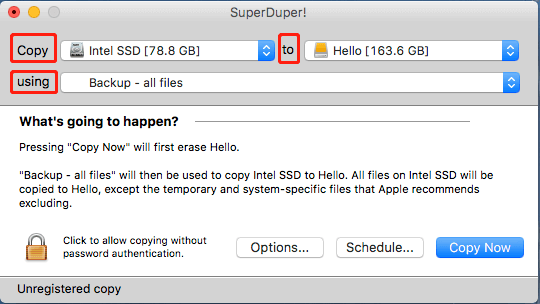
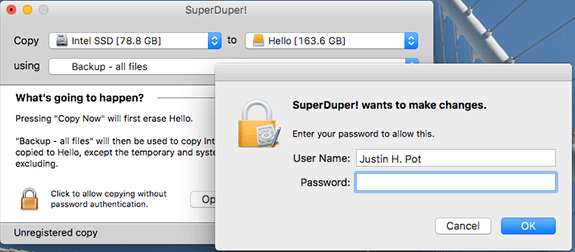
Step 3. Confirm your operations and then click Copy Now. You'll be asked for your password.
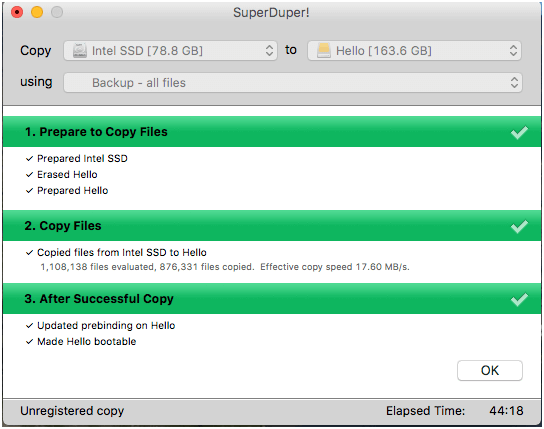
Step 4. When everything is completed, you'll be told so.
Tips:
- Before copying a file or folder, make sure to back up your target drive to prevent data loss. This will ensure that all files are safely copied without any issues.
- Disk Utility is a free built-in tool on Mac OS that can be used to backup files, among other functions. It's worth giving a try if you're interested.
#3. Free Linux backup software – fwbackups
To backup files in Linux, it's recommended to use the feature-rich backup program fwbackups, which allows you to backup files anytime, anywhere, and is completely free to use without any restrictions.
This Linux backup utility offers scheduled backup and remote backup, ensuring you never lose files again. It also features a simple yet powerful interface that makes backing up files a breeze, making it a convenient option for users. If you're interested in using it, a quick guide is available below.
Step 1. Install and open fwbackups.
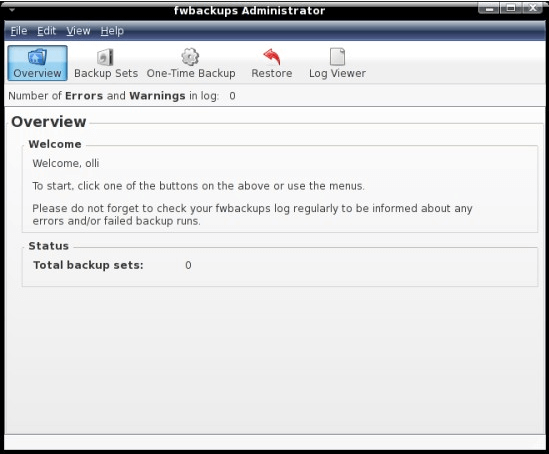
Step 2. Select One-Time Backup from the list.
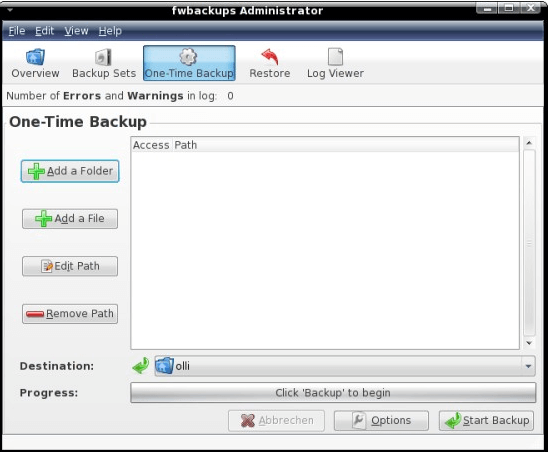
Step 3. Choose "Add a Folder" or "Add a File" to select the folders/files that shall be backed up, select a destination and adjust options, then click "Proceed".
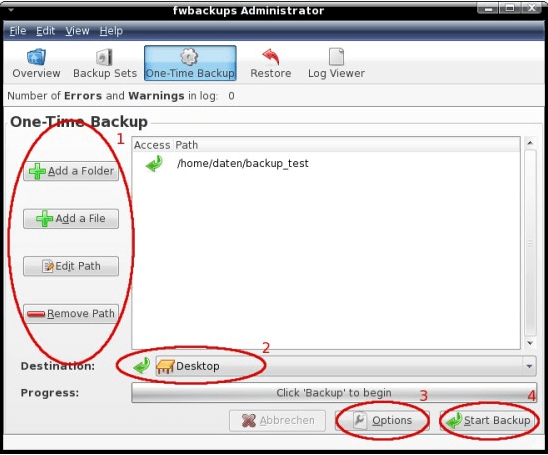
Tips:
- If you want to try other backup software free for Linux, Bacula can be an ideal choice.
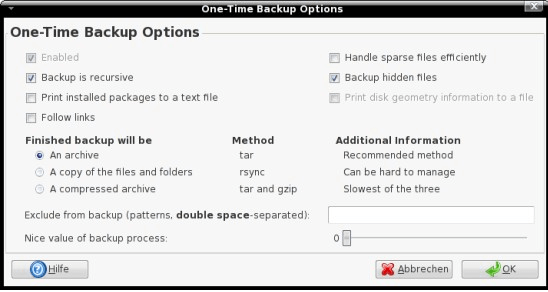
- If you click on the "Options" button in Step 3, it will display a list of customizable settings that can be tailored to your specific needs.
Final words
Your computer likely contains hundreds of files and folders, and losing them all could be devastating. Fortunately, there are backup software options available for free on Windows, Mac, and Linux that can help you protect them efficiently. With simple steps and user-friendly interfaces, these programs make backing up your data a breeze, allowing you to choose the one that works best for you.
Related Articles
- Top Two Ways to Backup Files on Seagate External Hard Drive
This guide explains Top Two Ways to Backup Files on Seagate External Hard Drive with clear steps, key checks, and practical tips. - How to Backup Files in Safe Mode Windows 7/8/10
You will learn how to backup files in Windows 7, 8, 10, 11 when safe mode is accessible or not. - How to Backup Files in Windows 7 to External Hard Drive
Learn how to Backup Files in Windows 7 to External Hard Drive with clear steps, key checks, and practical tips. - Backup Files and Folders for Windows 7/8/10 with Simple Steps
Learn how to Backup Files and Folders for Windows 7/8/10 with Simple Steps with clear steps, key checks, and practical tips. - Windows File History VS Backup: Which One to Choose?
This guide explains Windows File History VS Backup: Which One to Choose with clear steps, key checks, and practical tips. - Fix Windows Folder Size Too Large | 4 Methods
Here are 4 methods to fix Windows folder size too large, pick one or more of them and delete files you don't want. Hurry up and learn more below.
Products
Articles & Tutorials
- Data Recovery
- Data Backup
- File Recovery
- File Backup
- File synchronize
- System Backup and Restore
- Disk and Partition Clone
- Technical articles
- Disk Master Help
- Windows Deleted File and Disk Recovery Tutorials
- Windows File and Data Recovery Tutorials
- More Windows Tutorials for Install, Security, Files, and PC Tips
- Windows Boot, Repair, and Recovery Environment Tutorials
- Windows Backup Tutorials
- Windows Restore Tutorials
- Windows Clone and Migration Tutorials
- Windows Server Backup, Recovery, and Management Tutorials
- Windows Disk, Partition, and Storage Management Tutorials