Copy Files from Flash Drive to Flash Drive When USB Plugged In
Quick Navigation:
- Why need to copy flash drive to flash drive?
- Prime tool to copy files from flash drive to another
- How to copy files from flash drive to flash drive?
Why need to copy flash drive to flash drive
Flash drives can be used to transfer files between computers or store files outside of a computer for safekeeping. Sometimes, you may need to copy files from one flash drive to another, such as when your current drive is almost full and you need more space, prompting the need to upgrade to a larger flash drive.
Prime tool to copy files from flash drive to another
To copy files from one flash drive to another, using Ctrl C and Ctrl V is not the most efficient method, especially when dealing with large amounts of files. It's a time-consuming process that can be frustrating. A better approach would be to plug both flash drives into a computer and use the file explorer to drag and drop the files from one drive to the other, or use a file transfer software to automate the process. This way, you can copy multiple files at once and save time.
Therefore, you need third-party software to copy the contents of one flash drive to another. I highly recommend using Qiling Disk Master Professional, which makes this process easy and efficient.
● It offers a File Backup function that creates an image file of selected files or folders, allowing you to recover lost files from the image file at any time.
● The software includes the Disk Clone feature, which allows you to copy all files from one hard drive to another directly.
● It supports Windows Vista/XP/7/8/10.
This software supports automatic backup with a USB plug in feature, allowing for easy and automatic data protection. When the USB plug in option is selected, the software will automatically back up files every time the flash drive is connected to the computer.
How to copy files from flash drive to flash drive?
To copy files from one flash drive to another, connect both flash drives to your computer, ensuring they are detected. Then, navigate to the source flash drive, select the files you want to copy, and right-click to copy them. Next, navigate to the destination flash drive and right-click to paste the copied files.
Step 1. Download and install Qiling Disk Master Professional, then launch the software. From the left side, click on Backup and select File Backup to proceed.

Step 2. To distinguish the task, edit the task name. Then, browse to the desired location by clicking on either "Folders" or "Files" and select the files you'd like to backup from the flash drive.

Note:
- You can add more than one file or folder.
- When adding folders, you can also customize backup settings by opening the Filter settings, which allows you to back up files with specific extensions and exclude files you don't want to back up.
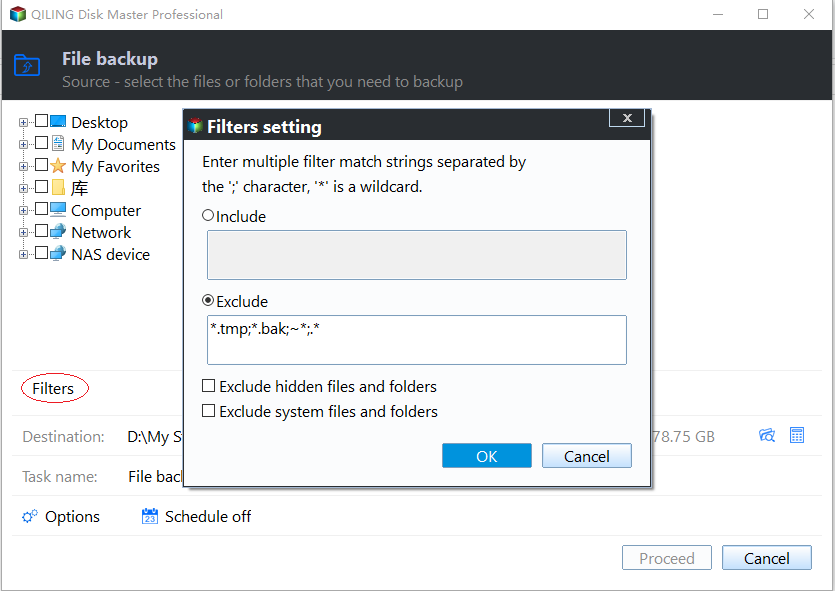
Step 3. Select the other flash drive as the destination path to store the backup image.

Step 4. To schedule a USB backup, click on the "Schedule" button at the bottom of the page, select "USB plug in" from the dropdown menu, and click "OK".

Step 5. If there are no issues, click Proceed to start the backup process. During the backup, you can continue using your computer and let the software run in the background.

Conclusion
Qiling Disk Master Professional makes file transfer between flash drives easy, offering a File Backup function and real-time sync feature for automatic folder synchronization, eliminating the need for constant copying and moving.
Related Articles
- How to Backup Files to An External Hard Drive in Windows 10/8/7?
- How to Automatically Backup Excel File in Different Location
- Backup an External Hard Drive to another External Hard Drive (Fast)
- Paragon Backup & Recovery Review in 2022: Pro, Cons and All-around Alternative for You
Learn the key steps, checks, and practical tips for this related guide. - Restore System to Factory Default Settings with Acer Recovery Management
You can easily restore your Acer system to its factory default setting using Acer Recovery Management, which also includes a lossless data recovery method. - Backup and Restore with Acer Recovery Management in Windows 10
This article will show you how to backup and restore with Acer Recovery Management in Windows 10. With a backup in hand, you can restore Acer to a good state.
Products
Articles & Tutorials
- Data Recovery
- Data Backup
- File Recovery
- File Backup
- File synchronize
- System Backup and Restore
- Disk and Partition Clone
- Technical articles
- Disk Master Help
- Windows Deleted File and Disk Recovery Tutorials
- Windows File and Data Recovery Tutorials
- More Windows Tutorials for Install, Security, Files, and PC Tips
- Windows Boot, Repair, and Recovery Environment Tutorials
- Windows Backup Tutorials
- Windows Restore Tutorials
- Windows Clone and Migration Tutorials
- Windows Server Backup, Recovery, and Management Tutorials
- Windows Disk, Partition, and Storage Management Tutorials