Solved: You Must Enable System Protection on This Drive
The issue: You must enable System Protection on this drive
Unfortunately, it's not possible to enable System Protection in Windows 7 from a non-Windows environment. You'll need to boot into Windows to enable System Protection. If you're unable to boot into Windows, you may want to try booting in Safe Mode or using a Linux live CD to access your files. Once you're in Windows, you can enable System Protection by going to System Properties > System Protection. If you're still having trouble, you might want to try using a Windows recovery disk to get into Windows and then enable System Protection.
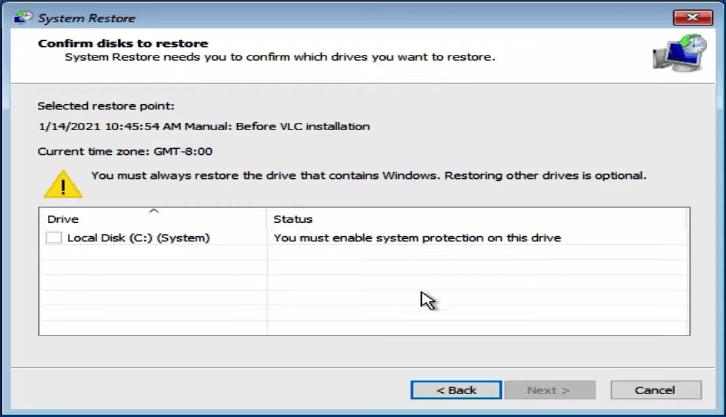
You may receive this message while performing system restore, that's why you came to this page. This error is not uncommon in restoring and can occur when trying to restore Windows 10 after upgrading from Windows 7, as a user experienced when trying to restore after upgrading and experiencing slow OS performance.
He installs some updates, but ends up in a Windows repair loop, where Windows says there are multiple restore points to restore, but restoring the C: drive gets the same message. This problem occurs due to a corrupted system file or a failed update process. To fix it, you can try booting in safe mode, running a System File Checker (SFC) scan, or using a Windows installation media to repair the system. You can also try disabling any recently installed updates or drivers to see if that resolves the issue.
You need to enable System Protection for system restore
System Protection is a feature that periodically saves information about computer system files and settings, as well as previous versions of modified files, in a restore point, typically before major system events such as software installations or device driver updates.
System Protection, a feature in Windows, is enabled by default on drives with Windows installed, but can be turned off manually or by other applications. However, it can only be turned on for drives formatted with the NTFS file system.
Generally, there are two uses of System Protection:
- If your computer is slow or not working properly, you can use System Restore and restore points to go back to a previous point in time and fix the issue.
- If you accidentally modify or delete a file or folder, you can restore it to a previous version that was saved as part of the restore point, which allows you to recover from mistakes and undo changes.
To use System Restore, System Protection must be enabled, otherwise you won't be able to access safe mode and restore Windows.
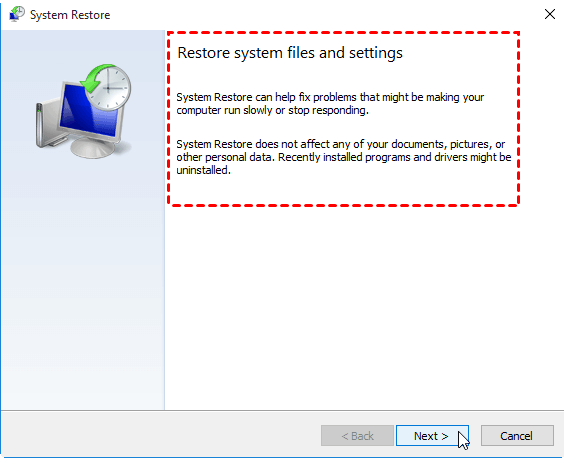
How to resolve “You must enable System Protection on this drive”
You can enable System Protection in two ways: either from within Windows itself or from the Windows boot menu.
To fix the "You must enable System Protection on this drive" error, open Command Prompt as an administrator and run the command "dism /online /enable-feature /featurename:NetFx3" to enable .NET Framework 3.5, then run "dism /online /enable-feature /featurename:NetFx3 /source:c:\path\to\sources\install".
Fix 1. Enable System Protection via CMD
1. Get into the Command Prompt from Advanced options when you cannot get into Windows.
2. Type this command: net start vss and press Enter.
3. Type this command: rstrui.exe /offline:C:\windows=active and press Enter.
4. To troubleshoot the issue, I recommend restarting your computer after restoring to see if you can revert back to your previous state. This will help determine if the problem is resolved or if further assistance is needed.
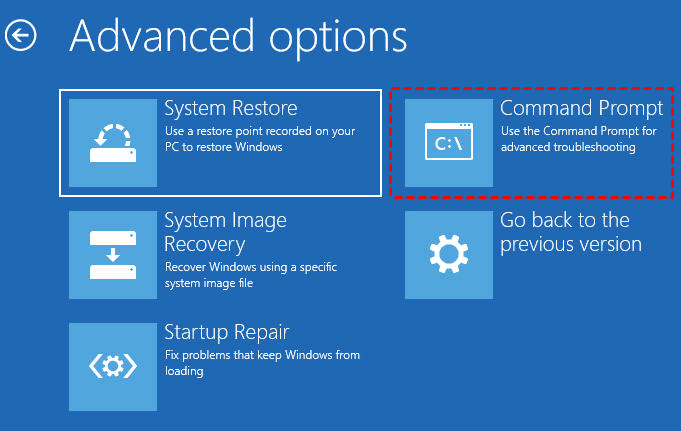
Fix 2. Enable System Protection from Control Panel
Windows also provides a way to turn on system protection under Windows environment.
1. To access System Protection in Windows, click on the Start button, then navigate to Control Panel > System & Security > System, and finally click on System Protection.
2. Select the drive you'd like to protect, usually the C: drive, and click on the "Configure" option.
3. To restore system settings and previous versions of files, go to System Protection in Windows 7 or System Properties in Windows 10, select the drive you want to restore from, choose Restore system settings and previous versions of files (Windows 7) or Turn on system protection (Windows 10), and click Apply and OK.
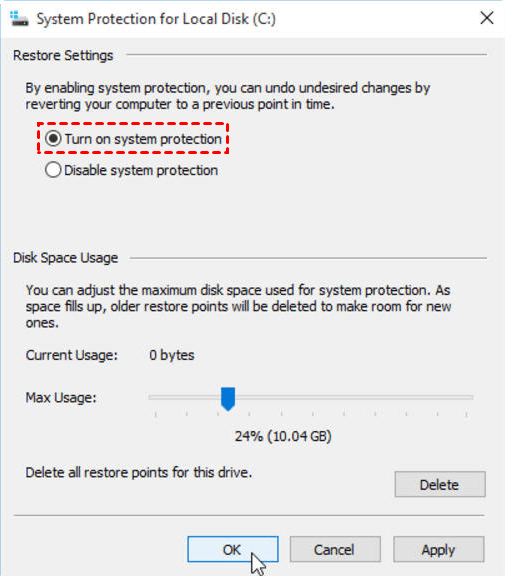
You can restore your system to a previous state by using the restore points you saved. This allows you to revert back to a point in time when your system was functioning properly, effectively undoing any changes or issues that may have occurred since then.
Better way to protect and restore system in Windows 11/10/8/7
Turning on system protection in Windows is relatively straightforward, but in some cases, the option may be grayed out or missing, and if a problem occurs, you may not be able to boot into the command prompt interface.
Even if you can start System Restore normally, the process itself is error-prone and time-consuming. To protect your system from accidents more securely and efficiently, it's also recommended to use free backup software like Qiling Disk Master Standard.
This software is designed specifically for Windows operating systems, offering automatic protection for the OS and other important files on Windows 11, 10, 8, 7, and more.
Qiling Disk Master offers system backup to create a system image and allows regular backups, as well as incremental and differential backup options to save disk space by backing up only changed files.

With the created system image, you can easily revert the operating system to an earlier state with just a few clicks. The Professional edition also allows for restoring the system to different hardware with its "Universal Restore" feature.

The utility also embeds a tool called "Create Bootable Media" that helps create a bootable USB drive or CD/DVD disc with a mini Windows operating environment, which can be crucial in case the system fails to boot in the future.

The software offers various features, including easy-to-use file backup, synchronization, disk cloning, and selective file restoration, among others. It can be downloaded for free to explore these capabilities further.
★ Easier way to protect system on your computer
You can use Qiling Disk Master, a one-key recovery software, to protect your computer OS. It allows you to backup your system to a custom recovery partition that's accessible from Windows PE, eliminating the need for bootable media.

Final words
When encountering the "You must enable system protection on this drive" error message during system restore, you can resolve the issue by enabling system protection using the command line, or, if you're able to access the Windows environment, you can also turn it on from the Control Panel.
Another reliable way to protect Windows is using Qiling Disk Master Standard, which provides a robust backup solution for your computer, from operating system to personal files, and also serves as a powerful free disk cloning software. Its technician edition allows you to create bootable media, enabling you to use the software on different computers without reinstalling it.
Related Articles
- Solved: System Restore Greyed Out in Windows 10
When you encounter System Restore greyed out in Windows 10, you can refer to this article and find solutions. Also, you will get an alternative way to protect your computer. - How to Make the Best Use of Windows 10 Previous Versions?
Windows 10 Previous Versions allows you to restore files like word documents easily to earlier versions. Learn to configure and restore previous versions. - How to Turn off System Restore in Windows 7/8/10?
Sometimes, due to different reasons, you need to turn off system restore in Windows 10/8/7, but you still need a way to protect your computer. All of them will be included below. - How to Use System Restore from Boot in Windows 10/8/7?
System Restore from boot in Windows 10, 8, 7 can save you from serious system failures. If you find the process too complicated, an easier alternative is available. - Bare Metal Restore in Windows Server 2008 (R2) | 2 Ways Inside
This guide explains Bare Metal Restore in Windows Server 2008 (R2) | 2 Ways Inside with clear steps, key checks, and practical tips. - How Do I Create System Image for Windows Server 2008(R2)?
Creating system image backup in Windows Server 2008 (R2) is essential to protect your system and data on it. With it, you can easily recover them without downtime in the event of a disaster.
Products
Articles & Tutorials
- Data Recovery
- Data Backup
- File Recovery
- File Backup
- File synchronize
- System Backup and Restore
- Disk and Partition Clone
- Technical articles
- Disk Master Help
- Windows Deleted File and Disk Recovery Tutorials
- Windows File and Data Recovery Tutorials
- More Windows Tutorials for Install, Security, Files, and PC Tips
- Windows Boot, Repair, and Recovery Environment Tutorials
- Windows Backup Tutorials
- Windows Restore Tutorials
- Windows Clone and Migration Tutorials
- Windows Server Backup, Recovery, and Management Tutorials
- Windows Disk, Partition, and Storage Management Tutorials