Turn off System Restore Windows 10 | Use Better Way
Content of this article:
- Can I stop system restore in Windows 10?
- How to turn off system restore in Windows 10 (2 methods)
- System restore turned off in Windows 10 | protect system with a powerful backup software
- Conclusion
Can I stop system restore in Windows 10?
System Restore is a feature in Windows that allows you to restore your computer to an earlier date when it was working fine, including installed programs, settings, and system files.
Windows automatically creates system restore points before installing new software, updating a driver, or installing Windows updates, and also creates one every 7 days if there are no other events.
When your computer is running slowly or freezes, you can restore from a system restore point, which won't affect your personal data like documents and pictures. However, any recently installed apps and drivers will be uninstalled, and the more system restore points you create, the more space they'll take up, potentially slowing down your computer over time.
You should turn off system restore in Windows 10/8/7 and schedule a complete system backup using backup and restore software, as system restore becomes useless when the system crashes or disk crashes, requiring a full system backup to boot Windows.
How to turn off system restore in Windows 10
You can stop system restore in Windows 10 using two common methods: System Protection and Group Policy Editor. Both methods are also applicable to disabling system restore in Windows 7 and Windows 8. To use System Protection, you can disable it by going to Control Panel > System and Security > System Protection, and then turning off the toggle switch.
Method 1: Turn off system restore via system protection
Whatever reason you want to stop system restore in Windows 11, 10, 8, 7, you can use the following steps. Just the interface in different system will have a little difference.
Step 1. Click the Start button >Control Panel >System >System Protection subsequently. If prompt, type your administrator password or click "Continue".
Step 2. Select the disk you want to turn off system restore and click the Configure button.
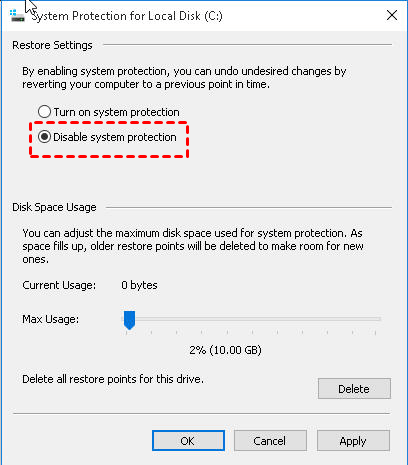
Step 3. In the System Protection for Local Disk (C:) window, click on "Configure" and then select the option to disable system protection, and click "OK" to save the changes. In Windows 7, select the option to turn off system protection instead.
Method 2: Disable system restore using Group Policy
Group policy is only available in certain operating systems, specifically Windows 7 Professional, Ultimate, and Enterprise, Windows 8 Professional and Enterprise, Windows 10 Professional, Enterprise, and Education.
If you're running Windows 10, Windows 8.1, or Windows 7, you can try this method. If you're not running one of these operating systems, you can go back to the first method.
Step 1. To open the Local Group Policy Editor, press the Windows key + R to open the Run dialog, type "gpedit.msc" and press Enter. This will open the Local Group Policy Editor, where you can view and edit local group policies.
Step 2. Go to the following location and select "System Restore" key at the left panel.
Computer Configuration\Administrative Templates\System\System Restore
Step 3. Double-click "Turn off System Restore" and then tick "Enabled" and hit "OK".

Disabling system restore in Windows will delete all existing system restore points, but you can always re-enable it if needed.
System restore turned off in Windows 10 | protect system with a powerful backup software
System backup is a better choice to protect system and data on your computer. A powerful backup software like Qiling Disk Master Professional is needed to make it happen, offering advantages such as.
- 4 backup solutions. It supports system backup, disk backup, partition backup, file backup, and corresponding restore feature.
- High compatibility. The software supports Windows 11, 10, 8, 7, XP, and Vista, and is compatible with all Windows-recognized storage devices, including internal and external hard drives, USB flash drives, cloud drives like OneDrive, network drives, and NAS devices.
- Multiple useful features. It supports schedule backup in daily/weekly/monthly or use Event trigger and USB plug in, and allows backup only changed data using incremental or differential backup, or delete old backup images with backup scheme to save time and disk space.
Let's create a system backup to protect your computer by backing up the system to an external hard drive or other storage device outside the computer, which won't take up local disk space and may improve computer performance.
Step 1. Connect an external hard drive to your computer and ensure it can be detected. Next, download and install Qiling Disk Master Professional on your computer.
Step 2. Open Qiling Disk Master Professional. Then, Select "System Backup" under the Backup tab.

To backup your entire computer, click on "Disk Backup" instead. This will include all the data on the disk, not just the system partition.
Step 3. You can see that there are three system partitions listed, all of which are necessary for starting Windows and are related to booting. To proceed, simply select the prepared external hard drive as the destination path.

Step 4. Click "Schedule" and select one or more settings under the Schedule Settings window. This will allow you to set incremental backup in the Backup Scheme.

Tips:
❤ If your target drive is a USB flash drive, it's recommended to use the "USB plug in" feature, which will automatically back up your system to the USB drive when it's plugged in.
❤ If you want to back up your system during off-peak hours, make sure to select the option to wake the computer to run scheduled tasks, which will start your computer 2 minutes before the scheduled task begins.
Step 5 (optional). If you want to save space on your disk or your target disk is small, you can use the Backup Scheme feature to delete old backup images regularly.
To set up a backup scheme in the Schedule window, click on "Backup Scheme", enable it, select a scheme, and choose how many backups to keep, then click "OK".
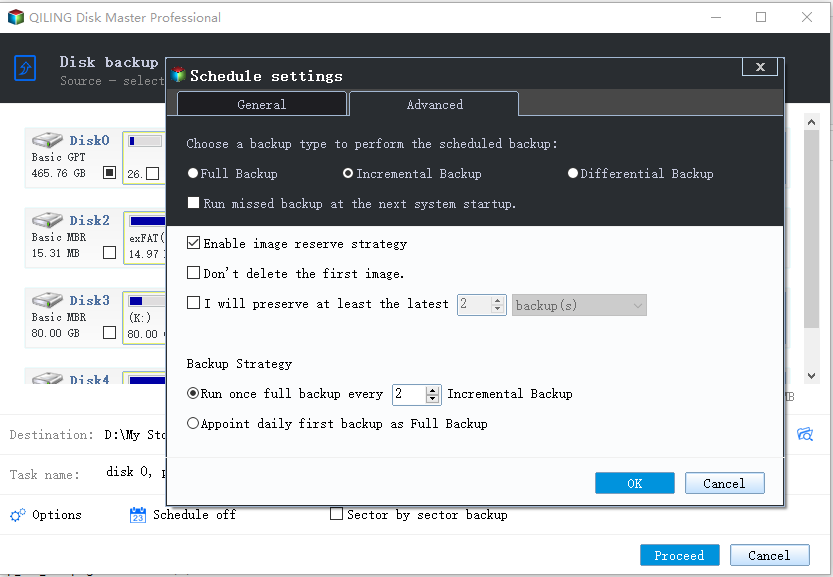
To set the scheme for a scheduled backup task, navigate to the "Home" tab and select the backup task. Click the three horizontal lines next to it, and then click on "Edit Backup".
Step 6. You are almost done. The last step is to click "Proceed", then it will start to backup system automatically.
Conclusion
System Restore can be helpful in certain situations, such as when a computer slows down or becomes unresponsive, but it requires significant disk space and may not be effective if the operating system or disk crashes.
The system restore points are stored on corresponding partitions, which can be damaged if the partition is compromised. Additionally, system restore points do not include the system and all boot-related partitions necessary to boot the system.
For these reasons, you can turn off system restore in Windows 10/8/7, and then create a system image with Qiling Disk Master Professional to replace the restore point, or use Qiling Disk Master Server for server users.
System Restore can be replaced by a scheduled backup system, which can recover your computer to a previous state, including personal data and installed programs, and can even serve as a last resort to recover an unbootable computer.
Related Articles
- How to Turn on System Restore in Windows 7
To protect your computer well, you can turn on System Restore in Windows 7. Besides, you can create an image backup to get supplementary protection for your computer. - Fixed Issue: You must enable System Protection on this drive
You may get the error "You must enable system protection on this drive" when performing system restore in Windows 10/8/7. This page tells why it emerges and how to fix the error via CMD. Better way to protect Windows is provided as well. - How to Enable/Disable Volume Shadow Copy for Windows 10/8/7
You will learn how to enable/restore/disable volume shadow copy in Windows 10/8/7 as well as all-round way to backup files and folders. Get details now! - Solved: Can't Create Restore Point in Windows 10
If you can't create restore point in Windows 10, refer to this article to realize how to fix this problem and find out a better way to protect your computer. - System Restore Did Not Complete Successfully - Fixed for Windows 10/8/7
This guide explains System Restore Did Not Complete Successfully - Fixed for Windows 10/8/7 with clear steps, key checks, and practical tips. - How to Create a NAS to NAS Backup for Synology/QNAP/Buffalo [2022 Tips]
There are two ways to create a NAS to NAS backup: using a manufacturer's appliance or running a NAS backup and recovery software. Qiling Backup is a tool that allows for a NAS to NAS backup with simple clicks, making it easy to back up your NAS data.
Products
Articles & Tutorials
- Data Recovery
- Data Backup
- File Recovery
- File Backup
- File synchronize
- System Backup and Restore
- Disk and Partition Clone
- Technical articles
- Disk Master Help
- Windows Deleted File and Disk Recovery Tutorials
- Windows File and Data Recovery Tutorials
- More Windows Tutorials for Install, Security, Files, and PC Tips
- Windows Boot, Repair, and Recovery Environment Tutorials
- Windows Backup Tutorials
- Windows Restore Tutorials
- Windows Clone and Migration Tutorials
- Windows Server Backup, Recovery, and Management Tutorials
- Windows Disk, Partition, and Storage Management Tutorials