Solved: Acronis True Image Hangs When Cloning
- Help! Acronis True Image Hangs When Cloning
- How to Fix Acronis True Image Cloning Problems
- 1. Create a Bootable Rescue Media When Acronis True Image Hangs
- 2. Turn off the Secure Boot Option When Acronis True Image Restart Is Required
- Clone Disks Smoothly with Acronis True Image Alternative
- FAQs on Hard Drive Cloning Hangs
- Conclusion
Help! Acronis True Image Hangs When Cloning
Acronis True Image Cloning - Stuck on Less than 1 Minute
You've been trying to clone a 1TB SATA drive to a 1TB SSD on Windows 10 x64 using True Image, but the process has been stuck on "less than 1 minute" for over 7 hours after a previous error and SSD wipe.
- Question from Acronis Forum
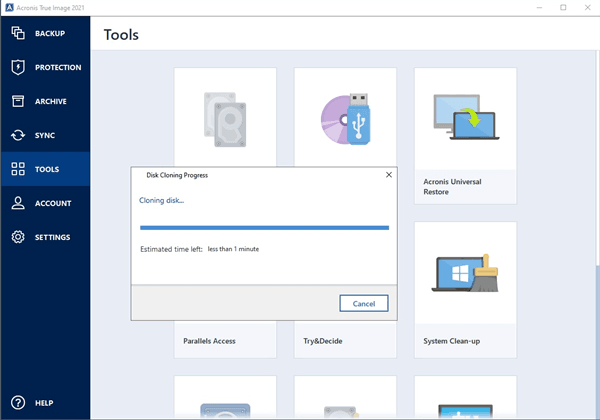
Acronis True Image Acronis True Image is a software product that offers data protection for personal users, featuring backup, archive, access, and recovery capabilities. It also serves as a powerful disk imaging tool, allowing users to clone drives to SSDs and other storage devices.
When using Acronis True Image, users may encounter issues such as the software hanging during cloning. This problem can be caused by various factors, and the solutions will be introduced in this article. If you are experiencing this issue, read on to find out the possible causes and corresponding fixes.
 Qiling Disk Master
To resolve Acronis cloning issues, consider using a different cloning software, such as the best Acronis True Image alternative, which can provide a more efficient and effective solution to the problem.
How to Fix Acronis True Image Cloning Problems
Users often encounter issues with Acronis cloning, with the process getting stuck. A collection of common problems and solutions from the forum reveals that users frequently experience difficulties with Acronis cloning, with the process becoming stuck. Professionals have provided solutions to these issues.
|
✍ Stuck on"Calculating time remaining", "Less than 1 minute", etc. It's recommended to put the new drive in the laptop first and connect the old drive via USB to clone the hard drive, rather than cloning to an externally connected drive. This approach avoids potential system issues. |
|
✍ Acronis True Image cloning process stops at 80%-95%. Acronis cannot clone some hidden partitions under normal conditions, so creating a bootable rescue media can help clone these partitions by booting the system outside of Windows. |
|
✍ When trying to clone an M.2 SSD, you're getting an error message saying "Locking drive C:" and the drive is stuck in the ready state. To avoid cloning data, it's recommended to use the backup and restore function instead. This involves creating a Windows PE version of Acronis Rescue Media, booting the PC from it, and performing the recovery in UEFI boot mode for NVMe M.2 drives. |
|
✍ Acronis in clone mode would repeatedly hang and loop, never progressing to the "Proceed" step. If you're experiencing issues with Acronis, such as freezing or losing control, the best solution is to use the rescue media to boot and then perform a clone, rather than trying to regain control through Windows Task Manager. |
1. Create a Bootable Rescue Media When Acronis True Image Hangs
To create a bootable rescue media with Acronis True Image 2020, follow these steps: Launch Acronis True Image 2020, go to the "Tools" menu, and select "Create Bootable Rescue Media". Choose the desired media type, such as a USB drive or CD/DVD, and select the destination drive.
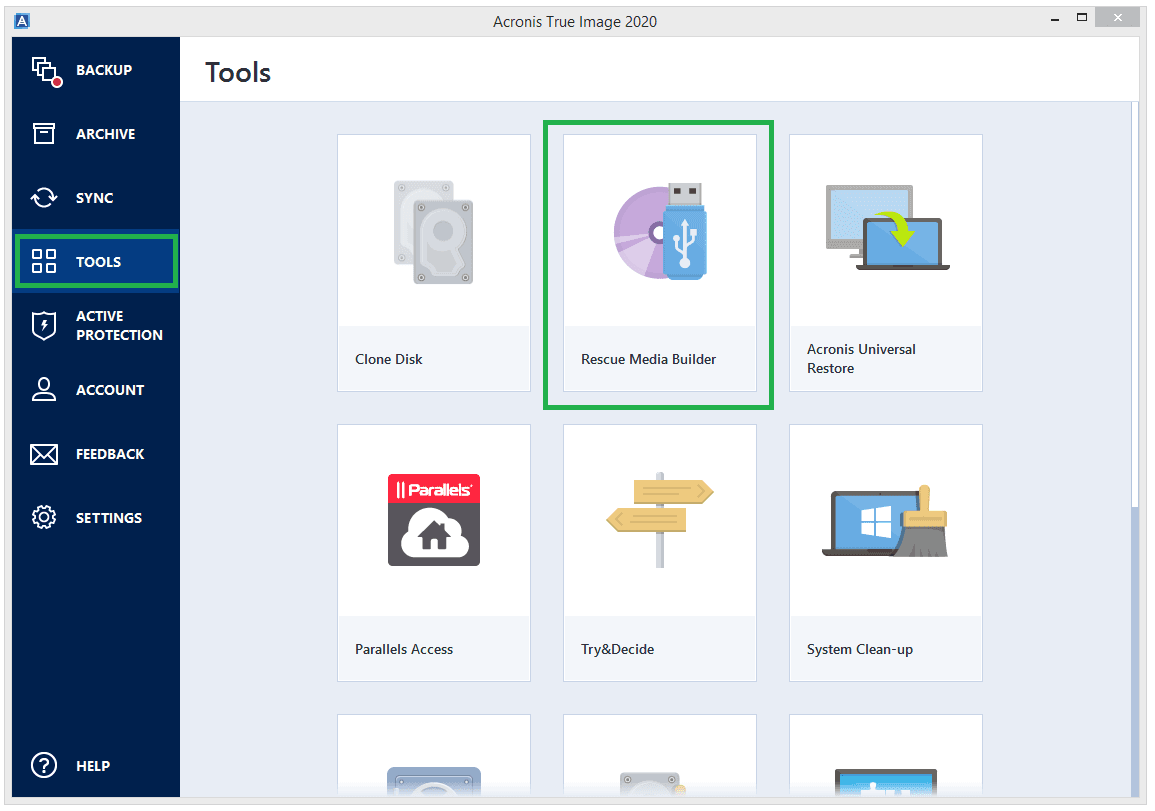
Step 1. In the Tools section, click Rescue Media Builder.
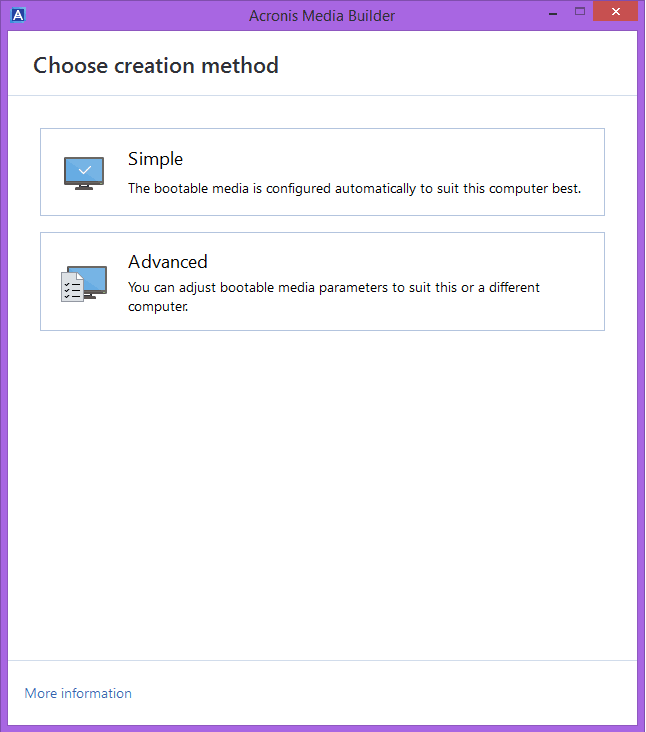
Step 2. Choose media creation method. Here I click Simple as an example. Click here if you choose Advanced.
Notes✍:
♨ SimpleAcronis True Image will automatically choose the optimal media type for your computer, creating either WinRE-based media for Windows 7 or later versions, or Linux-based media for earlier versions.
♨ AdvancedThis option lets you select a media type, allowing you to create rescue media for a Windows version different from your own computer's.
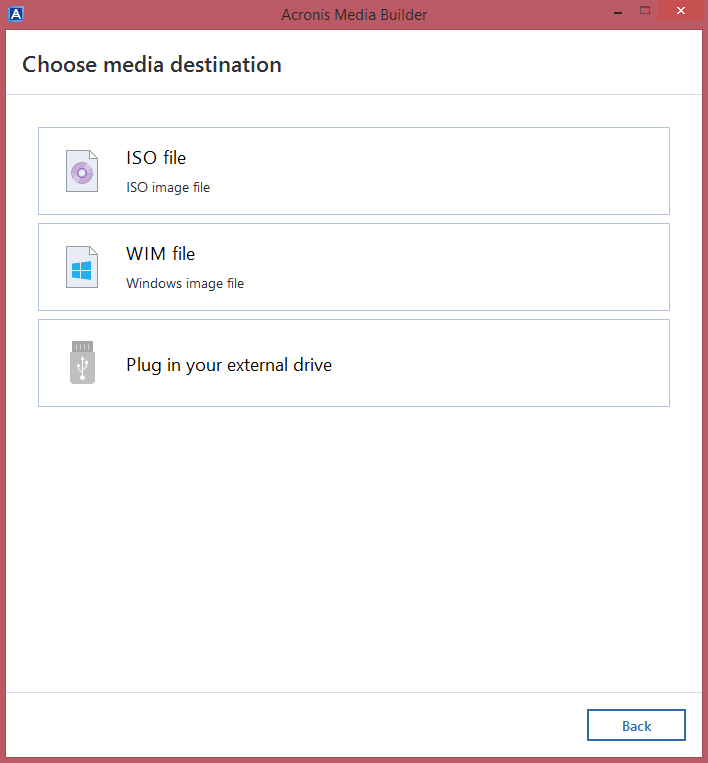
Step 3. Select a destination for the media, such as a CD/DVD, USB flash drive, ISO image file, or WIM image file, and then click "Proceed".
2. Turn off the Secure Boot Option When Acronis True Image Restart Is Required
When users want to clone to a WD SSD, they may encounter issues with Acronis True Image WD edition, which doesn't come with disk cloning software. To resolve the problem, users can disable the Secure Boot option, allowing them to replace their hard drive with the WD SSD. This solution enables the computer to restart and complete the cloning process.
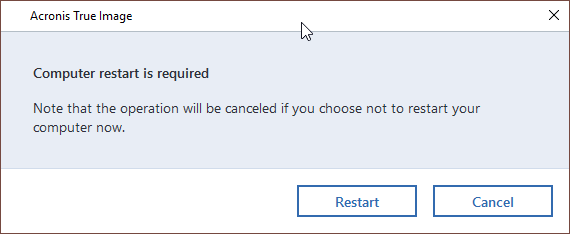
Step 1. When your computer starts up, you can press the Delete key to enter into BIOS, although some computers may require pressing F2 or F12 instead.
Step 2. To enable Secure Boot, go to your BIOS settings, which can usually be found by pressing a key like F2, F12, or Del during boot-up. Look for the "Secure Boot" option, often located under the "Security" or "Boot" tab.
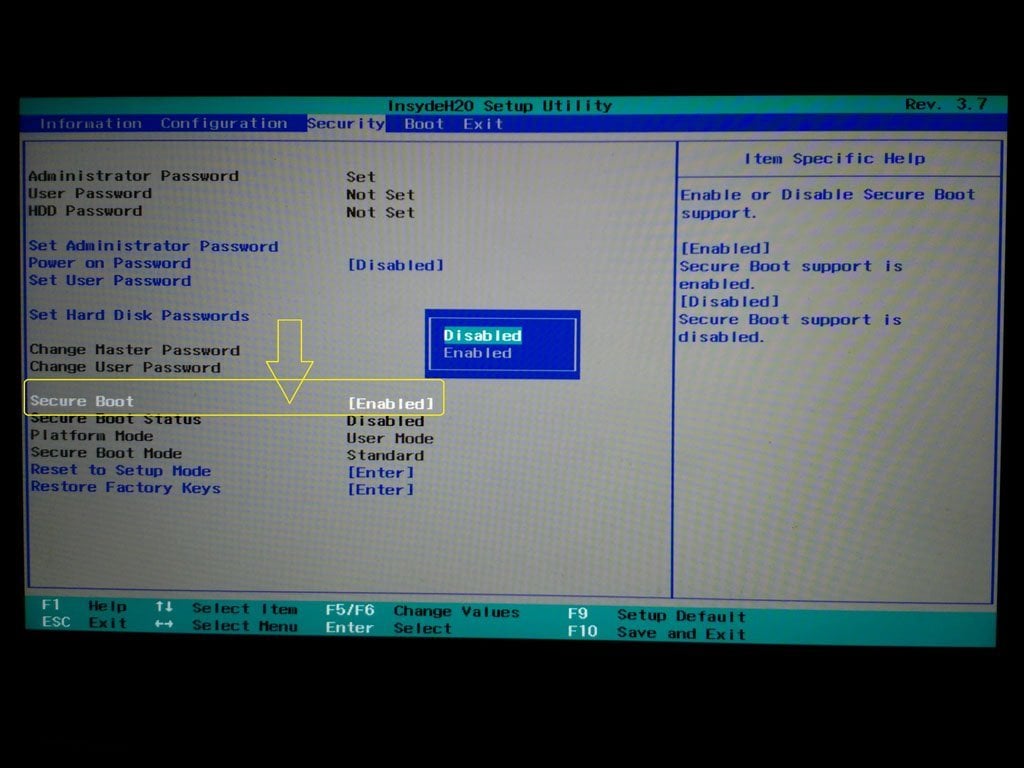
Step 3. After turning off "Secure Boot", press F10 to save the setting and exit BIOS.
The Acronis True Image cloning process is plagued by several issues, including Acronis not recognizing WD HD/SSD and installation restrictions on the WD edition. If you're tired of dealing with these problems, consider using a free alternative software instead.
Clone Disks Smoothly with Acronis True Image Alternative
Qiling Disk Master Standard Clonezilla is a free disk cloning software that offers a reliable alternative to Acronis True Image. It enables users to clone their disks without any issues and successfully boot from the cloned disks. Additionally, Clonezilla allows users to create a bootable media that can start their computer in case of unexpected events. This software is a top choice for cloning hard drives due to its ease of use and effectiveness.
◑ Intelligent Clone: Acronis True Image allows cloning a disk with bad sectors, but may hang during the process, whereas Clonezilla can clone only used sectors, skipping bad ones, making it suitable for cloning to smaller SSDs or disks with bad sectors.
◑ The Sector by Sector Clone feature allows you to clone all sectors on a hard drive, including blank or logically bad sectors. Additionally, the software supports SSD alignment, making full use of 4k technology to improve SSD performance. It also supports cloning to all brands and modes of SSDs, including Samsung, Kingston, Intel, and NVMe, as well as transferring operating systems such as Windows 11/10/8/7/XP/Vista.
If you want to clone a hard drive to another hard drive or SSD, you can follow a simple process.
✩ Note: The destination disk will be overwritten or deleted, so it's suggested to back up files ahead of time to avoid losing data.
Step 1. Download Qiling Disk Master Standard, install and launch it.
Step 2. To clone a hard drive to an SSD, select the "Disk Clone" option under the "Clone" tab.

Tips✍:
✾ Disk Clone doesn't support dynamic disks. Instead, use System Clone or Partition Clone to clone a dynamic disk.
✾ The Standard version only supports cloning data disks, while higher editions support cloning disks with a system installed.
Step 3. Select the source disk you want to clone, and then click Next.

Step 4. Select a drive or SSD as the destination disk where you want to clone the source disk, and then click "Next".

Step 5. Confirm the settings and click "Proceed". If it's an SSD disk, tick "SSD Alignment" to improve disk performance.

👉 Helpful features for cloning:
✬ Edit Partitions: This tool is used to utilize unallocated space on a target disk, making it ideal for cloning a disk to a larger one, whether it's a hard disk drive (HDD) or solid-state drive (SSD).
✬ This feature clones all sectors of the original disk to the target drive, which must have larger or same disk space. It's worth noting that using this feature may cause "Edit Partitions" to disappear.
👉 The last feature is suggested to be used in situations where you need to resolve specific issues completely, such as when you're dealing with a persistent problem or a complex situation that requires a thorough solution.
#1: The cloned drive not show full capacity.
Cloning software typically creates an exact copy of the source disk, resulting in a clone drive that doesn't show its full capacity. If the target disk is larger, you can try editing the partitions to make the most of the space. This feature is available in the edit partitions section, with the last two options being exclusive to the Professional version.
- Copy without resizing partitions: It will not resize the partition size.
- Add unused space to all partitions: It will reallocate the unallocated space to each partition of the target disk, appropriate for the disk size.
- Manually adjust partition size: It allows you to extend unallocated space to any partition on the destination disk you want.
#2: The cloned drive not bootable after cloning.
One of the main reasons for this issue is that the destination and source disks have different partition styles, and you haven't converted them to the same style before cloning. To resolve this, you can check the option to convert the destination disk from MBR to GPT or vice versa, depending on the disk partition styles.
MBR and GPT are two different disk types for data storage, and you can check their disk properties in Disk Management to determine which one your system is using. The overall steps to check are as follows:
- To open the Disk Management window, press the Windows key + R to open the Run window, then type "diskmgmt.msc" and click OK.
- Then, right-Click the disk you want to clone and select Properties in the pop-up window.
- In the Properties window, select the Volume tab and confirm the partition style, which can be either MBR (Master Boot Record) or GPT (GUID Partition Table).

- To clone a hard drive, it's essential to check the disk partition style of the destination disk. If it's still in the Master Boot Record (MBR) style, you can clone the hard drive for free using a bootable USB drive. However, if you're cloning from one style to another, such as from GPT to GPT, MBR to GPT, or GPT to MBR, you'll need to use a Pro version to complete the process.
FAQs on Hard Drive Cloning Hangs
1. Why does my hard drive cloning process hang with an error message like "Locking drive C:"?
The "Locking drive C:" error typically occurs during hard drive cloning due to issues with file permissions or processes running in the background, causing the cloning process to become stuck in a non-responsive state.
2. Can I resolve the "Locking drive C:" error while cloning an M.2 SSD?
The "Locking drive C:" error can be resolved by using the backup and restore function instead of cloning during M.2 SSD cloning, or by creating a Windows PE version of Rescue Media and booting from it, which can help perform the recovery without triggering the error.
3. What should I do if my hard drive cloning process gets stuck?
If you're having trouble with your computer, don't force it to continue. Try restarting it instead. If the issue persists, you can try using an alternative method like backing up and restoring your data, or creating a Windows PE version of Rescue Media to help recover your system.
4. Are there any specific settings I need to check before cloning my hard drive?
Before cloning your hard drive, make sure your computer's BIOS or UEFI settings are set to support NVMe M.2 drives, and use the UEFI boot mode when booting Windows from the new drive to prevent compatibility issues.
5. Is it recommended to use a specialized cloning tool to avoid hangs?
Using a reliable and specialized cloning tool like Qiling Disk Master can reduce the chances of hangs, and choosing a reputable software that supports your hardware and provides regular updates is recommended.
Conclusion
Acronis True Image may hang when cloning due to various reasons, requiring different solutions depending on the specific scenario, making it a troublesome issue to resolve.
If you're experiencing issues with cloning disks using Acronis True Image, consider switching to Qiling Disk Master, a free software that can clone different types of disks without any problems.
This software offers a range of functions beyond disk cloning, including backup, synchronization, and recovery. It can also be used to troubleshoot issues like WD Sync not working or OneDrive sync pending, specifically through its File Sync feature. Using this software can help protect your data.
Related Articles
- Solved: Acronis True Image WD Edition Will Not Clone
If you are experiencing the "Acronis True Image WD Edition will not clone" issue, continue to read this article and learn its 3 different situations. Here are 4 common solutions and one ultimate solution. - Solve Acronis True Image for Crucial Clone Failed Easily(2 Ways)
The article provides 2 easy ways to fix Acronis True Image for Crucial clone failed. You can use Acronis to create bootable rescue media or use professional disk cloning software - Qiling Disk Master. - Solved: Seagate DiscWizard Not Cloning [Causes and Fixes]
This guide explains Solved: Seagate DiscWizard Not Cloning with clear steps, key checks, and practical tips. - [5 Proven Ways] to Fix Macrium Reflect Clone Failed Error
This guide explains to Fix Macrium Reflect Clone Failed Error with clear steps, key checks, and practical tips. - Samsung Data Migration Cloning Failed | 7 Ways to Fix it!
Learn how to handle Samsung Data Migration Cloning Failed | 7 Ways to Fix it! with cloning or migration tips, boot checks, and ways to protect data during the move.
Products
Articles & Tutorials
- Data Recovery
- Data Backup
- File Recovery
- File Backup
- File synchronize
- System Backup and Restore
- Disk and Partition Clone
- Technical articles
- Disk Master Help
- Windows Deleted File and Disk Recovery Tutorials
- Windows File and Data Recovery Tutorials
- More Windows Tutorials for Install, Security, Files, and PC Tips
- Windows Boot, Repair, and Recovery Environment Tutorials
- Windows Backup Tutorials
- Windows Restore Tutorials
- Windows Clone and Migration Tutorials
- Windows Server Backup, Recovery, and Management Tutorials
- Windows Disk, Partition, and Storage Management Tutorials