Clone 1TB HDD to 500GB SSD in 4 Steps [Secure Boot]
Quick Navigation:
- Can I Clone a 1TB HDD to a 500GB SSD?
- Intelligent Cloning Software for Smaller SSD Migration
- How to Clone 1TB HDD to 500GB SSD without Reinstalling
- How to Boot from the Cloned SSD Successfully
- Conclusion
Can I Clone a 1TB HDD to a 500GB SSD?
You can clone your 1TB HDD to the 500GB SSD using software like Qiling Disk Master, which can handle the cloning process and preserve the Windows installation, activation, and installed programs, as well as your files. These tools will resize the cloned image to fit the 500GB SSD, so you won't lose any data. Just make sure to back up your important files first, as the cloning process will overwrite the SSD's contents. – Reddit
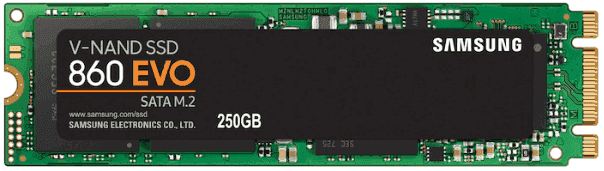
Many users are drawn to Solid-State Drives (SSDs) due to their high performance, including shorter boot times and faster reading and writing speeds, as well as their durability with no spinning parts. However, the high cost of SSDs, which can be more than twice that of a Hard Disk Drive (HDD) with the same capacity, may lead users to opt for a smaller SSD due to budget constraints.
Fortunately, it's possible to clone a large HDD to a smaller SSD, such as cloning a 1TB HDD to a 500GB SSD, as long as the used space on the large HDD is smaller than the SSD. This requires an intelligent SSD cloning software that can clone only the used sectors from the large HDD to the smaller SSD.
Intelligent Cloning Software for Smaller SSD Migration
One intelligent cloning software like Qiling Disk Master Professional will migrate everything including the operating system, system files, drivers, installed programs, personal data, etc. and make the cloned SSD bootable, even if it's smaller, such as cloning 1TB to 500GB SSD. This software can also clone the operating system, system files, drivers, installed programs, personal data, etc. and make the cloned SSD bootable, even if it's smaller.
- Disk Clone: Clone HDD/SSD and MBR/GPT disks, and boot successfully.
- Intelligent Clone: Qiling Disk Master's default clone mode clones only used sectors, making it possible to clone a 1TB HDD to a 500GB SSD or even a 250GB SSD, without requiring the entire 1TB storage capacity.
- Edit Partitions: To prevent cloned SSDs from failing to boot due to incorrect partition styles, it's essential to convert the disk type from MBR (Master Boot Record) or GPT (GUID Partition Table) to the correct one. This process involves identifying the current partition style, creating a backup of the existing data, and then converting the disk type using specialized software or the built-in disk management tools in the operating system.
- SSD Alignment: To align the sector size between an HDD and an SSD, and boost the SSD's performance, you can use a tool like `fdisk` or `parted` to resize and align the partitions on the SSD. This process involves identifying the sector size of the HDD and the SSD, then resizing the SSD's partitions to match the HDD's sector size.
This software is compatible with a wide range of SSD brands, including Samsung, Toshiba OCZ, SanDisk, WD, Kingston, and others, allowing for easy cloning of 1TB to 500GB SSDs, regardless of the brand.
To clone your large HDD, download this intelligent SSD clone software.
How to Clone 1TB HDD to 500GB SSD without Reinstalling
Before cloning, get the following prepared:
1️⃣ Your computer with the original 1TB HDD installed.
2️⃣ Smaller SSDs 500GB, 250GB, or 2TB SSD, and it should be enough to clone the 1TB HDD. The SSD should have enough capacity to hold the data from the 1TB HDD, so it won't fail to clone. A 1TB SSD would be the best option to clone the 1TB HDD.
3️⃣ SATA-to-USB cable You can connect your smaller SSD and clone SSD with only one slot by using a USB-C hub or a USB-C to two USB-A adapter. This will allow you to have two separate connections for your SSDs, effectively giving you two slots.
4️⃣ Initialize the smaller SSD in Disk Management. To initialize a disk, right-click it and select Initialize Disk, then choose either MBR or GPT as the partition style, making sure it matches the style of the large HDD.
Here are simple steps to check the disk partition style:
- To open the Run window, press the Windows key + R. Then, type "diskmgmt.msc" and press OK to open the Disk Management window.
- Then, right-Click the disk you want to clone and select Properties in the pop-up window.
- In the Properties window, select the Volume tab and confirm the partition style, which can be either MBR (Master Boot Record) or GPT (GUID Partition Table).

To clone a 1TB HDD to a 500GB SSD, follow these steps and use a reliable software to make the process effortless. This software can also be used for other cases, such as cloning a 1TB HDD to a 256GB SSD, a 500GB HDD to a 250GB SSD, and more.
Step 1. Install and launch Qiling Disk Master Professional. select Clone > Disk Clone subsequently.

Step 2. Select 1TB HDD as the source disk to clone and click Next.

Step 3. Choose a 500GB SSD drive to save everything on the 1TB HDD and press Next.

Step 4. To accelerate the reading and writing speed and lifespan of the SSD, tick the SSD Alignment option and then press Proceed to clone the 1TB HDD to the 500GB SSD safely.

- If your HDD and SSD have different partition styles, but you haven't converted them to the same, click "Edit Partitions" and select "Convert the destination disk from MBR to GPT" or vice versa.
- Don't select the sector by sector clone option, as it will clone all sectors, including empty and bad ones.
- This software supports cloning an SSD to a larger SSD, allowing users to upgrade their storage capacity while maintaining their existing data and operating system, such as cloning Windows 10 to an NVMe SSD for improved performance.
The time it takes to clone a 1TB HDD will depend on the size of your data, but it's likely to be around 30 minutes or more, so you might want to take a break and grab a cup of coffee while you wait.
How to Boot from the Cloned SSD Successfully
After cloning a 1TB HDD to a 500GB SSD, set up your BIOS to use the cloned SSD as the primary boot device. This typically involves entering the BIOS settings, navigating to the boot order, and selecting the SSD as the first boot device.
🖥 For desktop, To access the BIOS settings, restart your computer and repeatedly press the F2, F10, F12, or DEL key (depending on your computer manufacturer) to enter the BIOS setup. Once in the BIOS, navigate to the boot settings and set the cloned SSD as the first boot device.
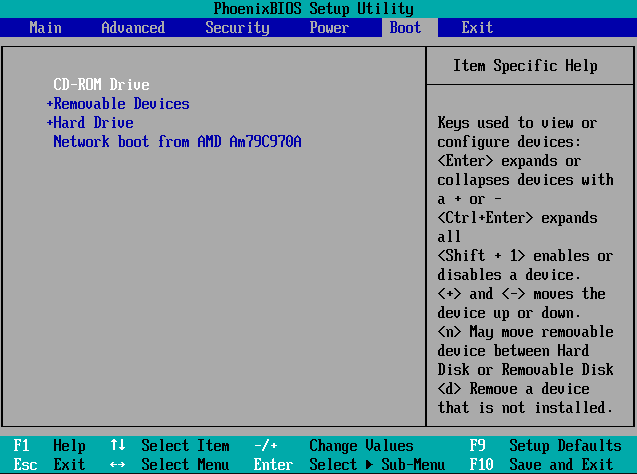
💻 For laptop, shut down your computer, take out the 1TB hard drive, put the 500GB SSD into the slot, restart your computer to boot from the cloned SSD drive normally.
Until now, everything is done.
Conclusion
You can easily clone a 1TB HDD to a 500GB SSD in Windows 11/10/8/7 using Qiling Disk Master Professional, as long as the target drive is larger than the data capacity on the source disk.
Qiling Disk Master provides advanced features such as System Clone to migrate the OS to an SSD, Dynamic Disk or Volume Clone, Real-Time Sync, Universal Restore, and more. It supports Windows Server operating systems, including 2003, 2008, 2012, 2016, 2019, and 2022, as well as SBS 2003, 2008, and 2011. For these systems, Qiling Disk Master Server is recommended.
Related Articles
- How to Clone Hard Drive with Different Size Accordingly
- An Easy Way to Clone 2TB HDD to 1TB SSD with Secure Boot
- Clone 500GB HDD to 250GB SSD with Secure Boot
- Clone Hard Drive to SSD with Windows 10 Installed
- How to Clone Hard Drive Using Command Prompt for Windows 11/10/8/7
Learn the key steps, checks, and practical tips for this related guide. - Do You Have to Reinstall Windows After Installing a New M2 SSD? [Check the Answer]
This guide explains Do You Have to Reinstall Windows After Installing a New M2 SSD with clear steps, key checks, and practical tips.
Products
Articles & Tutorials
- Data Recovery
- Data Backup
- File Recovery
- File Backup
- File synchronize
- System Backup and Restore
- Disk and Partition Clone
- Technical articles
- Disk Master Help
- Windows Deleted File and Disk Recovery Tutorials
- Windows File and Data Recovery Tutorials
- More Windows Tutorials for Install, Security, Files, and PC Tips
- Windows Boot, Repair, and Recovery Environment Tutorials
- Windows Backup Tutorials
- Windows Restore Tutorials
- Windows Clone and Migration Tutorials
- Windows Server Backup, Recovery, and Management Tutorials
- Windows Disk, Partition, and Storage Management Tutorials