Clone Disk Partition Wizard Guide
A clone disk partition wizard helps copy a disk or partition to another drive for migration, backup, upgrade, or replacement.
Understand the problem
Before cloning, decide whether you need a full disk clone, system clone, or single partition copy. The destination may be overwritten, so backup is required.
- Confirm the disk, partition, file system, Windows version, boot mode, or update state before making changes.
- Back up or recover important files before conversion, deletion, formatting, cleanup, reimage, or boot repair.
- For boot-related work, check BIOS or UEFI mode, boot order, system partition status, and recovery media first.
Use Windows built-in tools
Prepare the clone task first.
- Connect the destination disk or partition.
- Check used space on the source and available capacity on the destination.
- Back up destination files because cloning may overwrite them.
- Close running programs that may change source files.
- For system clones, plan the boot order after cloning.
Use Qiling tools for guided steps
 Qiling Disk Master
Clone a disk or partition with a guided source, destination, and preview process.
Function. Clone disk or partition with a guided wizard
Step 1. Connect the destination disk or partition and make sure it has enough capacity. Back up existing data on the destination first.
Step 2. Open Qiling Disk Master and choose the clone function. Select the disk or partition you want to copy as the source.
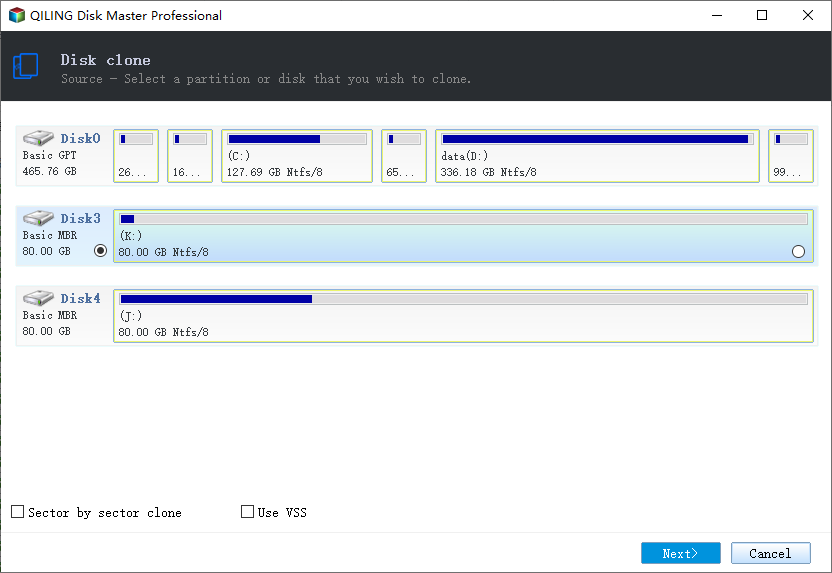
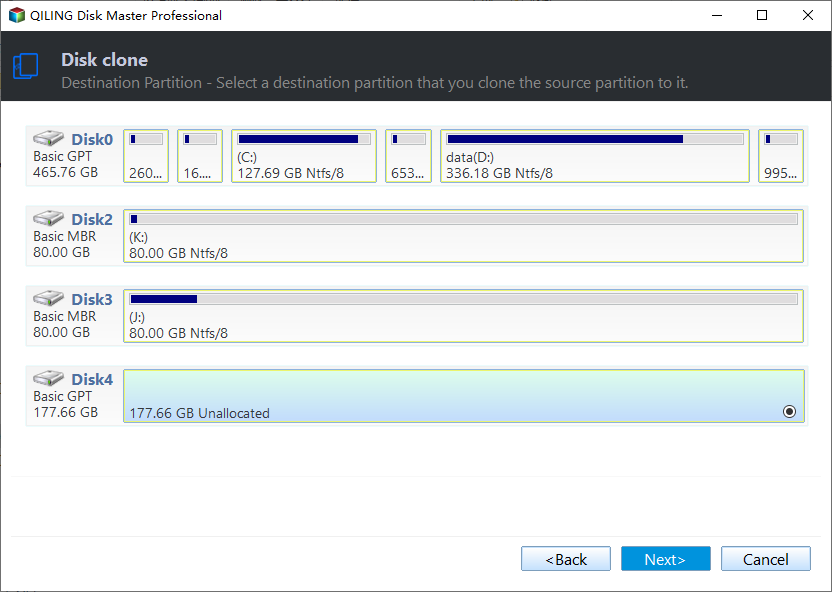
Step 3. Select the destination disk or partition as the destination and confirm that the correct disk or partition is selected.
Step 4. Review the clone preview. If the destination is an SSD, keep SSD alignment enabled.
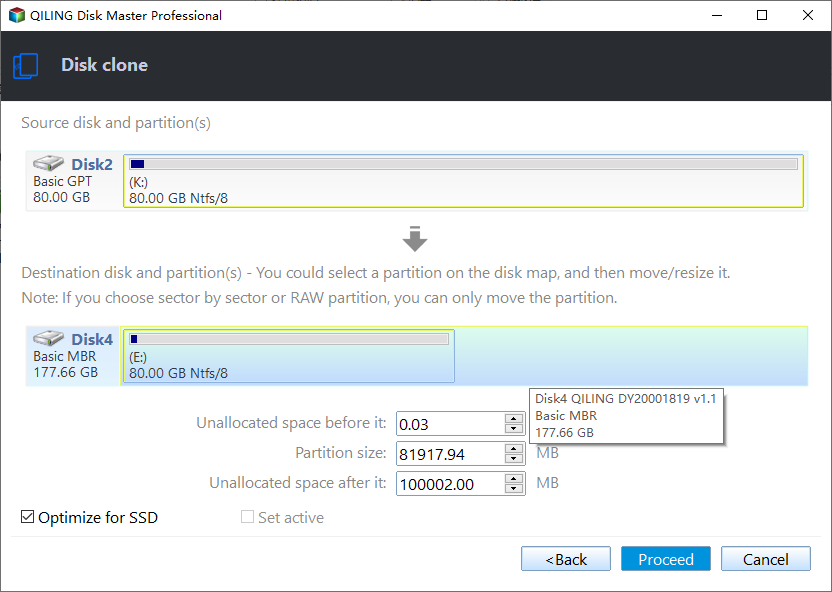
Step 5. Click Proceed and wait for the task to finish. Test boot or file access after cloning.
Check the result
After cloning, compare file access and capacity. For a boot clone, set the cloned disk first in BIOS or UEFI and test startup.
Related Articles
- C Drive Clone Software
Clone Windows system drive and boot partitions to a new disk. - Copy Disk Partition Wizard
Copy disks or partitions with clearer source and destination checks. - Clone a Windows Disk Without Rebooting
Check when a live clone can finish without an immediate restart and when a reboot is still required.
Products
Articles & Tutorials
- Data Recovery
- Data Backup
- File Recovery
- File Backup
- File synchronize
- System Backup and Restore
- Disk and Partition Clone
- Technical articles
- Disk Master Help
- Windows Deleted File and Disk Recovery Tutorials
- Windows File and Data Recovery Tutorials
- More Windows Tutorials for Install, Security, Files, and PC Tips
- Windows Boot, Repair, and Recovery Environment Tutorials
- Windows Backup Tutorials
- Windows Restore Tutorials
- Windows Clone and Migration Tutorials
- Windows Server Backup, Recovery, and Management Tutorials
- Windows Disk, Partition, and Storage Management Tutorials