How to Clone Hard Drive via Command Prompt (2 Easy Ways)
Why do we need to clone hard drive?
Cloning a hard drive involves copying all its contents, including files, partition tables, and the master boot record, to another drive, creating a direct duplicate. This process is useful for backing up the drive and upgrading to a faster one, with cloning to a smaller SSD being a popular application.
Cloning a hard drive can be done simply and safely by using a cloning software or a portable external drive, such as a USB drive, that can read and write data. This process creates an exact copy of the original drive, including all files, programs, and settings. To clone a hard drive, you can follow these general steps:
Why copy a disk using command?
Cloning a hard drive to an SSD or another HDD can be done in two ways: through the graphical user interface (GUI) or from the command prompt. The GUI method is more user-friendly and preferred by those with less computer experience, offering a clean and direct approach.
The command prompt method is more efficient and saves time and effort, especially for IT experts and advanced users, as it avoids the cumbersome clicking steps involved in the GUI method.
How to clone a disk via cmd in Windows 11/10/8/7 simply
Command Prompt is a Windows built-in tool favored by a lot of computer users. I'll show you how to clone a hard drive using cmd in two different ways. Note that Windows misses the feature of letting diskpart clone disk.
- Method 1: Clone hard drive using xcopy program
- Method 2: Clone hard drive with Qiling Disk Master.exe
- FAQs about using cmd to clone drive
Method 1: Clone hard drive using xcopy program (file/folder level copy)
xcopy To use xcopy to copy files from one location to another, follow these steps: Open Command Prompt and type `xcopy source destination /s /c /i` and press Enter. Replace "source" with the path of the files you want to copy, and "destination" with the path where you want to copy them. The `/s` option copies the entire directory tree, the `/c` option continues copying even if errors occur, and the `/i` option ignores any existing files at the destination. This allows you to clone an entire drive or directory with a single command.
1. To run the command prompt as an administrator, click the Start button and type "cmd" in the search bar. Right-click on the "cmd" result and select "Run as administrator" from the context menu. This will open the command prompt with elevated privileges.
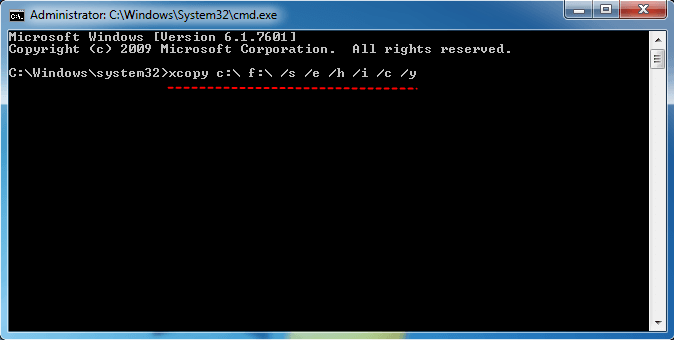
2. To copy all files and subdirectories from drive C to drive F, type `xcopy c:\ f:\ /s /e /h /i /c /y` and press Enter, replacing C and F with your desired drive letters. This command includes system and hidden files, and preserves directory structure.
Note:
The parameters mean:
● Xcopy copies files and/or directory trees from one location to another. If "/s" is specified, it copies directories and subdirectories, unless they are empty. If "/s" is omitted, xcopy will work within a single directory.
● /e: copy all subdirectories, even if they are empty.
● /h: copy files with hidden and system file attributes.
● If you're unsure whether a file path is pointing to a file or a folder, assume it's a folder. This approach helps prevent potential errors when working with file paths, especially in programming and scripting contexts.
● /c: continue copying even if an error occurs.
● /y: suppress prompt to confirm overwriting a file.
3. Wait for the process to be done. Exit Command Prompt.
To copy files to an external hard drive using the Command Prompt, you can use the xcopy command. This command allows you to copy entire folders and subfolders, as well as individual files, to the external drive.
Method 2: Clone hard drive with Qiling Disk Master.exe (partition/drive level copy)
You can copy files from one drive to another using the "xcopy" command in cmd, but it provides a file/folder level copy, not a partition/drive level copy. This means you can't use xcopy to clone multiple partitions on one disk simultaneously or copy the file system of the source partition, and the copy process can be time-consuming and error-prone.
Qiling Disk Master Professional is a simple and efficient way to clone a disk via Command Prompt. Unlike other software that requires cleaning the disk and creating a new partition before cloning, Qiling Disk Master allows you to skip this step, making the process even faster and more convenient. As a complete, reliable, and fast cloning software, it offers many beneficial functions.
✦ System Clone: clone only system-The system reserved partition and EFI system partition can be moved to another drive, but the C drive cannot be moved as it contains the operating system and essential files. Moving the system reserved partition and EFI system partition to another drive can be done by using the built-in Windows feature called "Move" or by using a third-party tool.
✦ Disk CloneYou can copy all data from one disk to another, regardless of the partition style and size differences, such as cloning an MBR disk to a GPT disk or vice versa, and also between disks of different sizes.clone an SSD to a larger SSD, etc.
✦ Partition CloneCopy a specific partition to another, supporting various file systems such as NTFS, FAT32, FAT16, Ext2, Ext3, and Ext4, among others.
To clone one hard drive to another using Qiling Disk Master's disk copy command, start by connecting both hard drives to your computer. Ensure that the source drive (the drive you want to copy) is set as the source drive in Qiling Disk Master.
Step 1. Open Command Prompt as mentioned above.
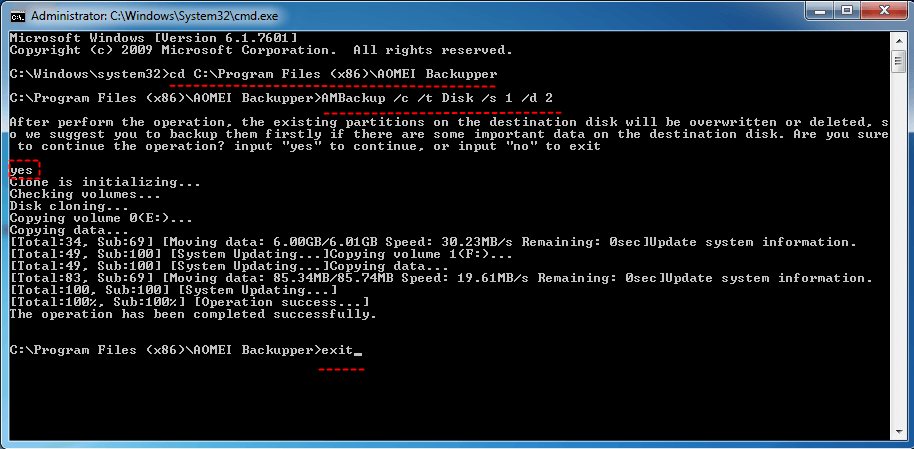
Step 2. Navigate to the Qiling Disk Master installation directory on your computer by typing `cd C:\Program Files (x86)\Qiling Disk Master` and pressing Enter, replacing `C:\Program Files (x86)\Qiling Disk Master` with the actual path where Qiling Disk Master is installed.
Step 3. To clone all contents from disk 1 to disk 2, type `DiskMasterUI /c /t Disk /s 1 /d 2` and press Enter, replacing the disks with your own.
Step 4. The prompt informs you that the destination disk will be completely overwritten before Qiling Disk Master starts cloning. To proceed, type "yes" and press Enter, confirming that you have backed up your essential data.
Step 5. Type exit and press Enter to exit Command Prompt.
Tips:
● To list disks and partitions on your computer, run DiskMasterUI with the /l command, which will provide the disk numbers of the source and destination disks.
● If the destination disk is an SSD, add "/a" after the command in Step 3, that is DiskMasterUI /c /t Disk /s 1 /d 2 /a, using partition alignment to optimize for SSD.
Qiling Disk Master allows you to clone hard drives in Windows 10, 8, 7, XP, and Vista using its graphical user interface (GUI) utility, making it easy to complete the process by simply clicking on the "Clone" and then "Disk Clone" options.

FAQs about using cmd to clone drive
1. Can you clone a drive without software?
You can clone a drive without using specialized software by using the xcopy command, but it has limited features and the copy process can be error-prone.
2. What is xcopy command used for?
xcopy is a command that allows users to copy files or groups of files from one directory to another, making it useful for transferring data to and from a fixed disk.
3. What is the difference between xcopy and copy?
Xcopy and copy are similar commands, but xcopy has additional switches that allow for precise source and destination specification during the copying process.
Summary
To clone a hard drive via Command Prompt, you can use either the xcopy program or Qiling Disk Master.exe. Both tools allow you to clone a hard drive or USB drive via command lines, but Qiling Disk Master offers a more advanced feature of cloning at the partition or drive level, whereas xcopy does not.
Apart from cloning hard drive, it enables you to back up Windows 10 to NAS. It also allows you to create portable backups on any computer, making it a convenient option.
Related Articles
- Easy Steps to Backup Hard Drive from Command Prompt
- Clone Windows 10 Partition to SSD in Two Ways
- How to Run System Restore via Command Prompt in Windows 10?
- How to Change Partition to Primary Using Diskpart
A primary partition is a partition on your hard drive or an SSD that contains Windows operating system and all the other important files and data. This article teaches you how to change partition to primary using Diskpart and provides a quick and easier way for you to change partition to primary. - How to Replace Your Hard Drive Without Losing Data?
Learn how to Replace Your Hard Drive Without Losing Data with clear steps, key checks, and practical tips. - How to Switch Windows 7, 8, 10 from HDD to SSD?
Learn how to Switch Windows 7, 8, 10 from HDD to SSD with clear steps, key checks, and practical tips.
Products
Articles & Tutorials
- Data Recovery
- Data Backup
- File Recovery
- File Backup
- File synchronize
- System Backup and Restore
- Disk and Partition Clone
- Technical articles
- Disk Master Help
- Windows Deleted File and Disk Recovery Tutorials
- Windows File and Data Recovery Tutorials
- More Windows Tutorials for Install, Security, Files, and PC Tips
- Windows Boot, Repair, and Recovery Environment Tutorials
- Windows Backup Tutorials
- Windows Restore Tutorials
- Windows Clone and Migration Tutorials
- Windows Server Backup, Recovery, and Management Tutorials
- Windows Disk, Partition, and Storage Management Tutorials