How to Clone HDD to mSATA SSD in Windows 11/10/8/7 Easily
Overview of mSATA SSD
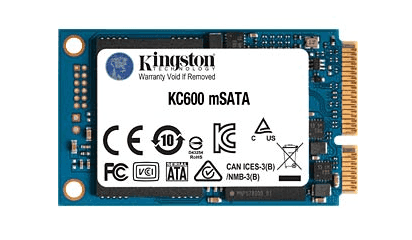
mSATA stands for "mini-mSATA SSDs" support data transfer rates of 1.5 GB/s and 3.0 GB/s, offering high performance while being compact and integrating with a physical connector different from standard SATA drives.
Several brands, including Toshiba, Samsung, HP, Intel, SanDisk, and Dell, offer mSATA SSDs, such as the Crucial MX200, Crucial M550/M4, and others.
If you want to replace your HDD with an mSATA SSD and keep all your OS and data files intact, the easiest method is to clone your HDD to the mSATA SSD using data migration software.
💡As technology advances, the mSATA form factor is being phased out in favor of the M.2 form factor, which offers smaller sizes and faster data transfer rates. You may consider cloning mSATA to M.2 SSD, or cloning SATA to NVMe.
Why clone HDD to mSATA SSD
Cloning a traditional hard drive (HDD) to a solid-state drive (SSD) offers several advantages, primarily due to the superior performance of SSDs compared to traditional hard drives. The key benefits of this process include improved system speed, increased storage capacity, and enhanced reliability. By transferring data from the HDD to the SSD, users can enjoy faster boot times, quicker application loading, and smoother overall system performance.
- Faster Performance: SSDs have much faster read and write speeds than traditional HDDs, resulting in quicker data access and transfer, and reduced load times for applications and faster file transfers.
- Reduced Boot Times: Solid-state drives (SSDs) can significantly reduce the time it takes for your operating system to boot up, making them a great upgrade option, especially from older hard disk drives (HDDs).
- Space and Form Factor: mSATA SSDs are compact storage devices designed for smaller form factors, ideal for laptops and devices with limited storage space.
Upgrading from a hard disk drive (HDD) to a solid-state drive (SSD), specifically an mSATA SSD, offers several advantages, including improved durability, reduced noise, and lower power consumption. A handy cloning tool is necessary for this upgrade, making the process efficient and minimizing downtime. This upgrade can enhance overall system performance and provide a more reliable computing experience.
How to clone disk to mSATA SSD
You can't clone a drive using built-in Windows tools, so you'll need to use a third-party software to clone a drive. However, before choosing one, consider a few factors.
- This software should support aligning partitions to optimize SSD performance, allowing users to maximize the use of their mSATA SSD.
- The software should allow you to choose whether to clone every sector on the HDD or not, especially if your mSATA SSD is smaller than the HDD. This is because you may only need to clone the used part of the HDD, rather than the entire disk, to save space on the smaller SSD.
Qiling Disk Master Professional, a powerful cloning software, takes care of all the complexities of cloning, making it easy to clone a disk.
The cloning process will only duplicate the used part of the drive by default, allowing you to clone a larger drive to a smaller one. If you want a complete, intact duplication of the HDD, you can check the sector-by-sector clone option at the end of the cloning process, which also enables aligning partitions for optimal SSD performance.
Download this software and follow steps below to clone disk to mSATA drive now.
Clone features in the free trial can only be demonstrated, not used for actual work. This means that you can see how the features work, but you can't use them to complete tasks or projects. This is a common practice in software trials to allow users to experience the capabilities of the product without giving away the full functionality.upgrade for full functionality.
Tutorial: Clone to mSATA with Qiling Disk Master
Backup important files in case of accidental deletion or loss, and consider connecting an mSATA SSD to your computer via a SATA to USB cable or a SATA case for added storage and security.
Step 1. Install and start SSD cloning software Qiling Disk Master, then click Tools and utilities and select Disk Clone.

✎Note: Qiling Disk Master allows cloning of data and system disks from any brand and partition style, including MBR to MBR/MBR to GPT, or GPT to GPT/GPT to MBR, but ensure the target disk's partition style matches your boot mode (MBR for legacy BIOS and GPT for UEFI).
Step 2. Select HDD as the source disk.

Step 3. Select mSATA SSD as the destination path.

Step 4. Check the box that says "Align partition to optimize for SSD" and then click the "Proceed" button.

📑Tips:
- If you need to clone every aspect of the old HDD, make sure to check the Sector By Sector Clone box.
- You can fit all partitions to the entire disk by clicking "Edit partitions on the destination disk".
- If you're unable to boot from the cloned SSD, try changing the boot sequence in your computer's BIOS settings or disconnecting the original HDD and attempting to boot again. This can help isolate the issue and determine if the problem lies with the cloned SSD or another factor.
Summary
Cloning a hard disk drive (HDD) to a mSATA solid-state drive (SSD) is a straightforward process, similar to cloning to another SSD brand. However, if the mSATA SSD is larger than the HDD, you may encounter unallocated space after the cloning process, which should be utilized effectively.
Qiling Disk Master can clone SSD to SSD, and also serves as a backup and restore software, allowing for system, disk, partition, and file backup and restore, as well as file synchronization, with the option for command line cloning that uses less PC RAM and enables unattended tasks.
For advanced users, Qiling Disk Master Professional and Qiling Disk Master Server are better choices, offering command line backup, restore, and clone capabilities, with the latter being a dedicated backup solution for server users.
Related Articles
- Clone mSATA SSD to mSATA SSD Safely in 5 Steps
In this article, you will learn the best way to clone mSATA SSD to mSATA SSD, and some useful tips to ensure successful cloning. - Clone M.2 NVMe SSD with M.2 NVMe SSD Duplicator (2 Ways)
Learn how to Clone M.2 NVMe SSD with M.2 NVMe SSD Duplicator (2 Ways) with clear steps, key checks, and practical tips. - Samsung M.2 SSD Migration Software for Windows 10/8/7
You will get the best Samsung M.2 SSD migration software for Windows 11, 10, 8, 7 and learn how to clone hard drive with it step by step. - How to Clone HDD to M.2 SSD Step by Step (Bootable)
If you want to upgrade hard drive (HDD) with an M.2 SSD, you can clone HDD to M.2 SSD along with system and all the programs installed.
Products
Articles & Tutorials
- Data Recovery
- Data Backup
- File Recovery
- File Backup
- File synchronize
- System Backup and Restore
- Disk and Partition Clone
- Technical articles
- Disk Master Help
- Windows Deleted File and Disk Recovery Tutorials
- Windows File and Data Recovery Tutorials
- More Windows Tutorials for Install, Security, Files, and PC Tips
- Windows Boot, Repair, and Recovery Environment Tutorials
- Windows Backup Tutorials
- Windows Restore Tutorials
- Windows Clone and Migration Tutorials
- Windows Server Backup, Recovery, and Management Tutorials
- Windows Disk, Partition, and Storage Management Tutorials