Safely Clone HDD to Seagate SSHD with Freeware
Quick navigation:
- Why clone HDD to Seagate SSHD?
- Does Seagate have cloning software?
- Disk cloning issues you need to know
- How do I clone HDD to Seagate SSHD successully?
- Written in the end
Why clone HDD to Seagate SSHD?
With the advancements in technology, various storage devices have emerged, including HDD, SSD, and SSHD. Choosing the right one can be confusing, but understanding their differences can help. HDDs (Hard Disk Drives) store data on physical disks and are relatively affordable but slower. SSDs (Solid-State Drives) use flash memory and offer faster speeds, but are often pricier.
1TB HDD costs £50, 1TB SSHD costs £70, and 1TB SSD costs £350, with the HDD offering the most storage, SSD the best performance, and SSHD a balance between the two.
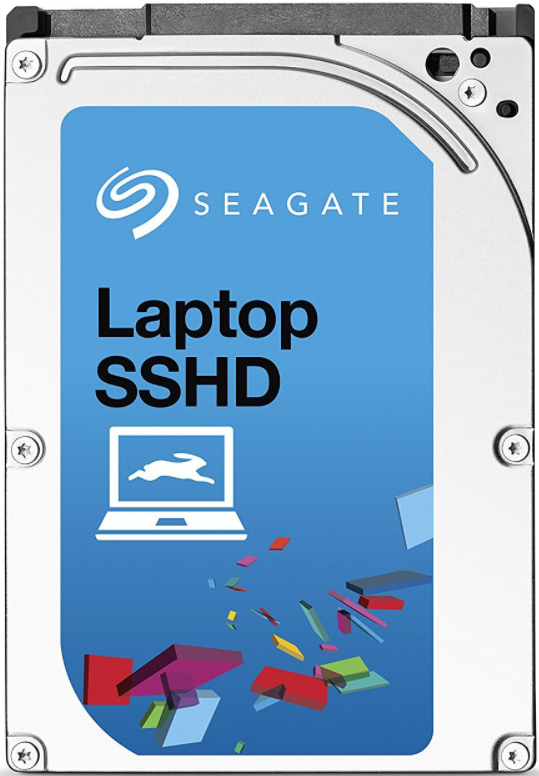
Upgrading to an SSHD (Solid-State Hybrid Drive) can be a compromise between the speed of an SSD (Solid-State Drive) and the storage capacity of an HDD (Hard Disk Drive). When upgrading, you don't have to decide where to store files and programs, as the SSHD's controller chip can intelligently manage storage, prioritizing frequently used software and data in the faster SSD portion for improved performance.
Does Seagate have cloning software?
Seagate offers a cloning software called DiscWizard that allows users to clone their hard drive to a Seagate SSHD.
However, you are only allowed to clone the entire disk including operating system, installed programs along with settings, but sometimes Seagate DiscWizard may not clone a Seagate hard drive or just a single partition in Windows 11/10/8.1.
The select cloning software may not be able to clone SSHD due to its unsupported feature, and even if it does, the cloned SSHD may not boot properly if an untrusted software is used.
To successfully clone a hard drive to a Seagate SSHD, it's crucial to choose a reliable disk cloning software. Qiling Disk Master Standard is a highly recommended option that can simplify the process and increase the success rate, allowing you to clone your HDD to the SSHD and achieve a successful boot.
Disk cloning issues you need to know
To ensure a smooth disk cloning process, it's recommended to stay and carefully check for any issues that may arise during the operation. This will help prevent potential problems and ensure that the cloned hard drive is an exact copy of the original.
- Cloning failed due to insufficient space The cloning process will fail if the target disk is smaller than the original disk, as the target disk won't have enough space to store all the items on the old drive.
- A cloned hard drive may not boot due to issues with the BIOS or UEFI settings, which can be caused by a mismatch between the cloned drive's firmware and the original drive's firmware, or by the cloned drive not being recognized as a boot device by the BIOS or UEFI. This can be resolved by reconfiguring the BIOS or UEFI settings to recognize the cloned drive as a boot device, or by updating the cloned drive's firmware to match the original drive's firmware.Cloned hard drive won't bootWhen cloning a hard drive, it's essential to consider the boot mode, specifically whether the system uses BIOS or UEFI. BIOS is typically used for older systems with MBR disks, while UEFI is used for newer systems with GPT disks, such as Windows 10. Misusing the boot mode can result in the cloned hard drive failing to boot.
- Cloned hard drive not show full capacity When cloning a disk to a larger one, the cloned disk is identical to the original, but the larger disk only shows available space, requiring a partition size adjustment to utilize the full capacity.
How do I clone HDD to Seagate SSHD successully?
Here you will use a reliable Seagate cloning software - Qiling Disk Master Standard to clone hard drive to Seagate SSHD with its "Disk clone" feature, allowing you to clone disk to larger disk with secure boot or clone larger drive to smaller drive successfully.
This software uses an "Intelligent clone" method as its default, which only clones used sectors from the old hard drive, making it easy to clone a larger HDD to a smaller SSHD or SSD as long as the used space on the source disk is smaller than or equal to the destination disk.
This software supports partition and system cloning, allowing users to clone either data or system partitions as needed, with the advanced feature of system cloning only available in the Professional or advanced version of Qiling Disk Master.
To clone a hard drive to a Seagate SSHD using Qiling Disk Master Standard, start by downloading and installing the software on your computer, which is compatible with all operating systems including Windows 11/10/8.1/8/7/XP/Vista.
Step 1. Connect the SSHD drive via USB cable and ensure it's detected. Then, download and install Qiling Disk Master Standard, and launch it. Click Clone -> Disk Clone to initiate the cloning process.

This software only supports cloning system disks with the same partition style, such as cloning a GPT disk to another GPT disk. It does not support cloning a GPT disk to an MBR disk or vice versa, and is only suitable for cloning disks with the same partition style. Upgrading to Qiling Disk Master Professional may be necessary for more complex disk migration tasks.
Step 2. Select the original disk on your computer as Source Disk, then click Next.

Step 3. To select the new Seagate SSHD drive as the destination disk, click "Next" after choosing it. Be aware that the destination disk will be overwritten, so it's recommended to back up your files before proceeding.

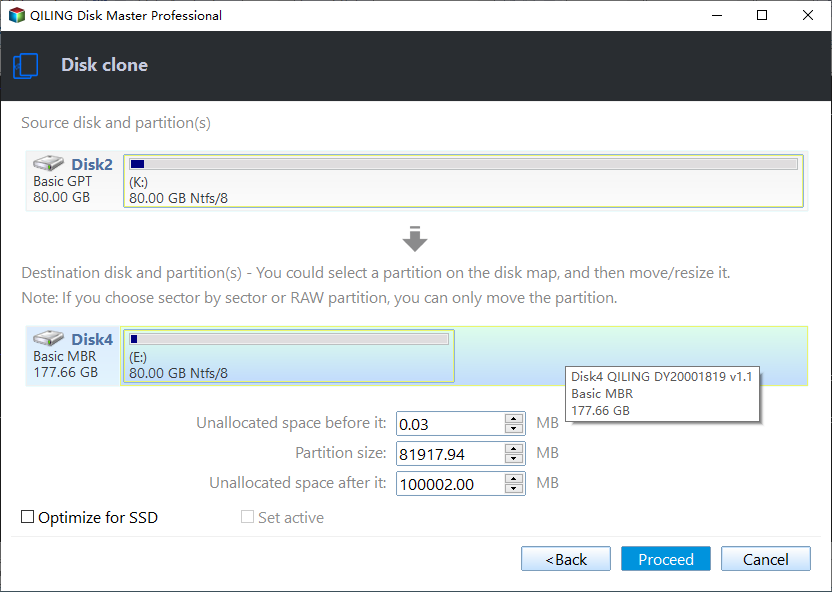
Step 4. In the Operation Summary window, confirm all the information and click Proceed.
Notes ✎...
Edit Partitions: The feature allows you to resize partition size with three options: "Copy without resizing partitions", "Add unused space to all partitions", and "Manually adjust partition size", making the cloned hard drive show its full capacity. This feature is available on Qiling Disk Master Professional.
SSD Alignment: This feature is designed to boost the reading and writing speed of SSD drives, particularly during the process of cloning a hard drive to an SSD or cloning an SSD to a larger one.
Sector by sector clone: This feature allows you to clone all sectors of the original hard drive to a new drive, including used sectors, but it's not recommended if the original disk has bad sectors, as it will be cloned to the new disk.
Step 5. Wait until the cloning process completes, then click "Finish" to exit the window. Once done, try booting your computer from the cloned hard drive and verify that all your data are intact.
Written in the end
With Qiling Disk Master, you can easily and quickly clone a HDD to a Seagate SSHD without boot issues. Additionally, this software allows you to clone a Seagate HDD to an SSD, clone a larger HDD to a smaller SSD, or convert a MBR disk to a GPT disk, among other options. Whether you need to clone a HDD, SSD, MBR disk, or GPT disk, Qiling Disk Master is a great choice.
Qiling Disk Master allows you to move system reserved partition to another drive, transfer recovery partition to a new hard drive, and migrate OS to an SSD, among other features. It may be necessary to upgrade to the Professional version for some features, but starting with the Standard version is recommended.
Related Articles
- Solved: Seagate Discwizard Does Not Detect Drive
This guide explains Solved: Seagate Discwizard Does Not Detect Drive with clear steps, key checks, and practical tips. - Clone Large HDD to Smaller SSD Successfully (Free)
Effortlessly clone large HDD to smaller SSD to upgrade Windows 11 or 10 system disk, and maximize performance. Check this step-by-step guide here. - Clone HDD to SSD in Lenovo Laptop for Better Performance
Learn how to Clone HDD to SSD in Lenovo Laptop for Better Performance with clear steps, key checks, and practical tips. - Tutorials: Clone Hard Drive to Samsung SSD (Secure Boot) in Windows
This guide explains Tutorials: Clone Hard Drive to Samsung SSD (Secure Boot) in Windows with clear steps, key checks, and practical tips. - Best Western Digital SSD Migration Tool to Clone OS or Disk
This guide explains Best Western Digital SSD Migration Tool to Clone OS or Disk with clear steps, key checks, and practical tips.
Products
Articles & Tutorials
- Data Recovery
- Data Backup
- File Recovery
- File Backup
- File synchronize
- System Backup and Restore
- Disk and Partition Clone
- Technical articles
- Disk Master Help
- Windows Deleted File and Disk Recovery Tutorials
- Windows File and Data Recovery Tutorials
- More Windows Tutorials for Install, Security, Files, and PC Tips
- Windows Boot, Repair, and Recovery Environment Tutorials
- Windows Backup Tutorials
- Windows Restore Tutorials
- Windows Clone and Migration Tutorials
- Windows Server Backup, Recovery, and Management Tutorials
- Windows Disk, Partition, and Storage Management Tutorials