How to Clone MBR Disk to GPT SSD Drive without Reinstalling
Quick Navigation:
- What should you know before cloning?
- What do you need to clone HDD to SSD with MBR?
- How to clone MBR to GPT SSD step by step in Windows 11/10/8/7
- Conclusion
What should you know before cloning?
Installing a solid state drive (SSD) to replace the original drive is the best upgrade for an old computer, which can be easily done. For old computers, they should use Master Boot Record (MBR). To ensure the SSD boots successfully, you need to clone the MBR to the SSD along with the original drive. This simple upgrade can significantly improve the computer's performance.
If you have a system reserved partition on your hard drive, you'll need to clone it along with the system partition (C: drive) when cloning your hard drive, as it's essential for Windows to function properly. However, if you've previously partitioned your hard drive, the system reserved partition won't be present, making it unnecessary to clone.
A brand new SSD typically hasn't been initialized, and cloning a hard drive will also replicate the partition style, so initialization isn't necessary. If the SSD has been initialized, it should be in MBR partition style; otherwise, ensure your computer supports UEFI boot mode before attempting to clone to a GPT SSD.
What do you need to clone HDD to SSD with MBR?
To clone MBR to SSD, you need:
- A computer with Windows 11/10/8/7 installed on an MBR disk.
- If your original hard drive has a used space of 500GB, a 1TB SSD would be a good replacement, as it is larger than the used space on your original hard drive. This means you'll have extra storage space available for future use.
- Cables or SATA-to-USB adapter to connect the SSD.
- Professional software that can clone a hard disk drive (HDD) to a solid-state drive (SSD) while preserving the Master Boot Record (MBR) is available.
For the cloning software, you can use Qiling Disk Master Professional, which effectively copies the MBR from one disk to another.
✦ It allows you to clone OS only, clone the entire disk or a particular partition.
✦ Qiling Disk Master supports cloning MBR and GPT disks, allowing for seamless cloning between the two disk formats.
✦ The cloning process will run in the background, allowing you to use other programs simultaneously.
✦ All Windows PC systems like Windows 11/10/8.1/8/7/Vista/XP are supported.
How to clone MBR to GPT SSD step by step in Windows 11/10/8/7
With Qiling Disk Master, you can clone the entire hard drive, and the cloned SSD will be bootable. If the SSD is smaller, the program will automatically adjust the partition size to fit the entire drive.
Make sure your system is 64-To enable UEFI boot mode on your computer, follow these steps:
1. Download, install and run Qiling Disk Master.
2. To clone the entire MBR drive, select the "Disk Clone" option under the "Clone" tab.

3. At the next screen, select the original disk as the source disk.
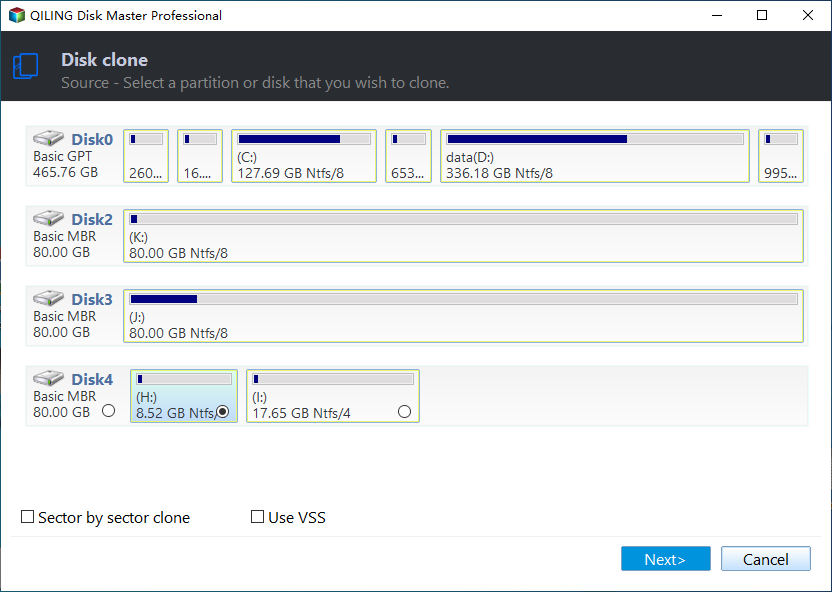
4. Select the SSD as destination disk.
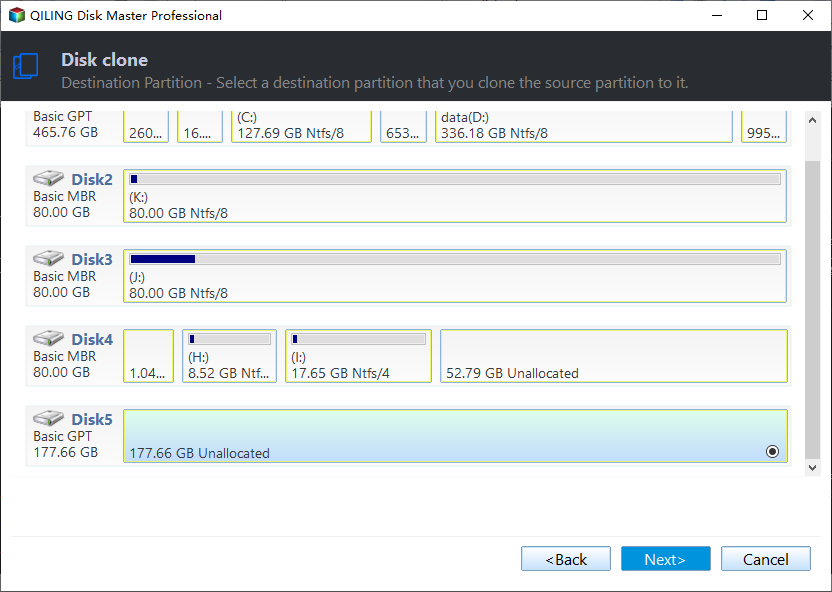
5. To enhance SSD performance, select the "SSD Alignment" option and then click "Proceed" to initiate the cloning process.

Notes:
- The "Edit partitions" option allows you to resize partitions, with the choice of "Copy without resizing partitions", "Add unused space to all partitions", or "Manually adjust partition size".
- Select "Sector by sector clone" if you want to clone every sector on the source drive, whether used or not, including blank or logically bad sectors.
- Check "SSD Alignment" to improve the speed and lifespan of your SSD by optimizing its internal structure.
Qiling Disk Master will clone the MBR to the SSD in the background, allowing you to continue using your computer while the cloning process takes place. You can also create a bootable media to clone the hard drive without loading Windows.
After cloning, remove the original drive and boot from the SSD. If it boots fine, you can then wipe the original hard drive.
Conclusion
Qiling Disk Master makes it easy to clone an MBR disk to a GPT SSD with minimal effort. Besides cloning, it also offers various backup options, including backing up the entire SSD, individual partitions, or selected files, allowing you to tailor your backup needs. Just give it a try by yourself now!
Related Articles
- Copy MBR from One Disk to another (SSD/USB) with Secure Boot in Windows
- Migrate Windows 7/8/10 OS to SanDisk SSD
- Best Windows 10 Migration Tool (Two Ways Included)
- Best Way to Copy Disk to SSD in Windows 10 (Secure Boot)
Learn the key steps, checks, and practical tips for this related guide. - Freeware: SSD to SSD Clone in Windows 11, 10, 8, 7
With the Qiling Disk Master, you can perform SSD to SSD clone for free in Windows 11, 10, 8, 7. Only several clicks can make it done. - SSD vs HDD: Which One is Better for You to Select?
This guide explains SSD vs HDD: Which One is Better for You to Select with clear steps, key checks, and practical tips.
Products
Articles & Tutorials
- Data Recovery
- Data Backup
- File Recovery
- File Backup
- File synchronize
- System Backup and Restore
- Disk and Partition Clone
- Technical articles
- Disk Master Help
- Windows Deleted File and Disk Recovery Tutorials
- Windows File and Data Recovery Tutorials
- More Windows Tutorials for Install, Security, Files, and PC Tips
- Windows Boot, Repair, and Recovery Environment Tutorials
- Windows Backup Tutorials
- Windows Restore Tutorials
- Windows Clone and Migration Tutorials
- Windows Server Backup, Recovery, and Management Tutorials
- Windows Disk, Partition, and Storage Management Tutorials