Migrate OS from SSD to PCIe or NVMe (Bootable)
Quick Navigation:
- Can I Move OS from SSD to NVMe?
- What Is NVMe?
- The Powerful SATA to NVMe Cloner
- How to Migrate OS to NVMe SSD Successfully
- How to Boot from Cloned NVMe SSD
- Possible Reasons and Solutions to Cloned SATA to NVMe wont Boot
- More about SATA & NVMe
- Summary
Can I Move OS from SSD to NVMe?
"I change my old computer (I5-You're upgrading your PC from an i5-3470 to an i7-8700k and keeping your old SSDs (a 248GB Kingston and a 512GB Toshiba NVMe) in the process. The new motherboard has two slots for NVMe SSDs, so you can likely keep both of your existing SSDs and take advantage of their storage capacity."
To switch to legacy boot in Windows 10, you can try the following steps: Go to the Start menu, type "msconfig" and open the System Configuration utility. In the Boot tab, select the "Legacy Boot" option from the dropdown menu. Save the changes and restart your computer. This should allow your SSD to be recognized. Alternatively, you can also try checking the BIOS settings to ensure that the SSD is properly configured.
What Is NVMe?
NVMe, short for Non-NVM Express, also known as Volatile Memory express, is a new transfer protocol developed for SSDs like SanDisk, Samsung, Crucial, WD, etc, which utilizes the PCIe interface to work with flash memory.
NVMe SSDs, which are connected directly to the motherboard with a PCIe x4 bus, can transfer data at speeds over 3000MB/s, whereas SATA SSDs, using an older interface, are limited to speeds of 550 MB/s.
The NVMe SSD has lower latency, higher IOPS (input/output operations per second), and lower consumption, making it a significant improvement over traditional SSDs. This is especially important for boot times, as IOPS have a notable impact on how quickly a system can start up.
The Powerful SATA to NVMe Cloner
Picking up a powerful SATA to NVMe cloner, such as Qiling Disk Master Professional, can save you a lot of time and effort when migrating your OS from an HDD or SATA SSD to an NVMe. This tool's excellent features make the cloning process smooth and ensure the NVMe SSD disk performance.
- Bit uses both "Disk Clone" and "System Clone" to help you migrate OS to NVMe without reinstalling Windows. To clone OS only, select "System Clone".
- It's able to migrate the OS from a traditional MBR disk to a newer GPT disk, ensuring the cloned SSD is bootable. This means you don't have to worry about the cloned SSD not booting due to boot mode issues.
- The device supports various brands of NVMe SSDs, including Samsung, Crucial, WD, and Kingston, among others.
How to Migrate OS to NVMe SSD Successfully
To use an NVMe SSD as a boot drive, ensure your computer has a compatible setup, including new hardware, an M.2 PCIe x4 slot, and UEFI firmware. If it's currently using Legacy boot mode, you'll need to switch to UEFI mode in the BIOS settings after migrating the system.
You still need to prepare or check the following items:
- To ensure a smooth transition from an old SSD to a new NVMe drive, it's essential to check the used space on the old SSD. The used space of the old SSD should be smaller than or equal to the capacity of the NVMe drive.
- To clone SATA to NVMe, you'll need to install the necessary drivers for NVMe or PCIe SSD. This will ensure that your system can recognize and utilize the new drive.
- To avoid data loss, please back up files to an external hard drive before cloning the process.
- To clone an NVMe SSD with only one slot available, you can connect it externally using a M.2 SSD to USB adapter or an M.2 NVMe SSD enclosure. This allows you to access the drive externally and perform the cloning process.
To clone data between SATA and NVMe or NVMe to NVMe, download and install Qiling Disk Master Professional, a highly effective NVMe SSD cloning software. For server users, Qiling Disk Master Server is also available. Once installed, launch the software to initiate the data transfer process.
1. Connect the new NVMe SSD to the M.2 PCI-E x4 slot and boot your computer. Then, click on "Tools and utilities" and select "System Clone" in Qiling Disk Master Professional.

2. This software will automatically select the system partition and boot partition(s), but you need to manually select the NVMe SSD to transfer data from the old SSD.

3. On the Operation Summary window, check SSD Alignment to improve NVMe SSD disk performance and ensure Make full of disk space is checked if your NVMe is larger, then click Start Clone to transfer OS to NVMe SSD.
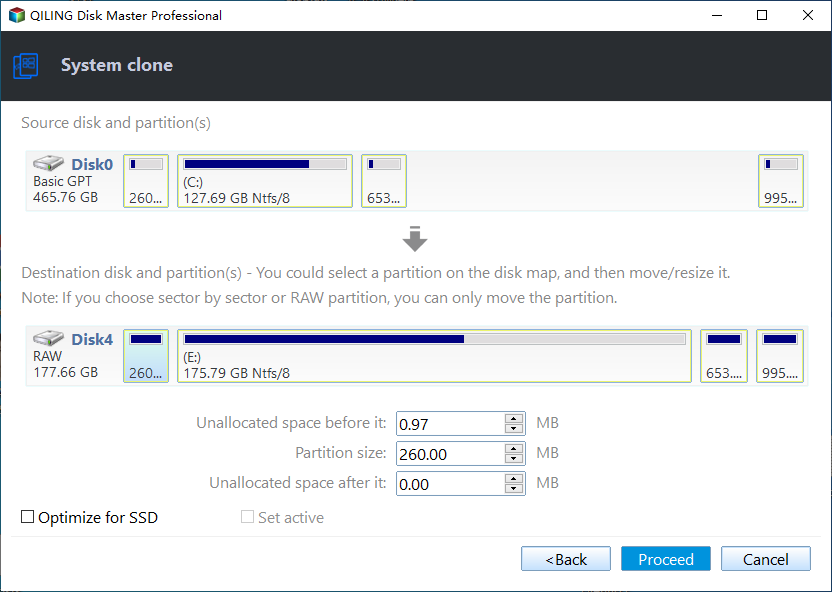
The cloning process is running in the background, you will still be able to use your computer as normal. Just wait patiently until the process finishes.
Tips:
- To clone NVMe to a larger NVMe, you can choose "Disk Clone" in Step 1.
- To clone an OS to an NVMe drive without loading Windows, you can use the "Create Bootable Media" feature, which also helps in repairing a problematic machine.
How to Boot from Cloned NVMe SSD
You may have heard that cloned SATA to NVMe drives can't boot, but you can avoid this issue by booting from the cloned drive and checking if it's bootable. If it's not, don't worry, you can still fix it in the next part.
Step 1. Press and hold the power button to shut down your machine. Then, restart it and press the key that says "Press ESC to enter BIOS" or similar, which is usually ESC, F2, F10, etc. to enter the BIOS settings.
Step 2. Switch to the Boot tab and move the cloned NVMe SSD as the first boot option.
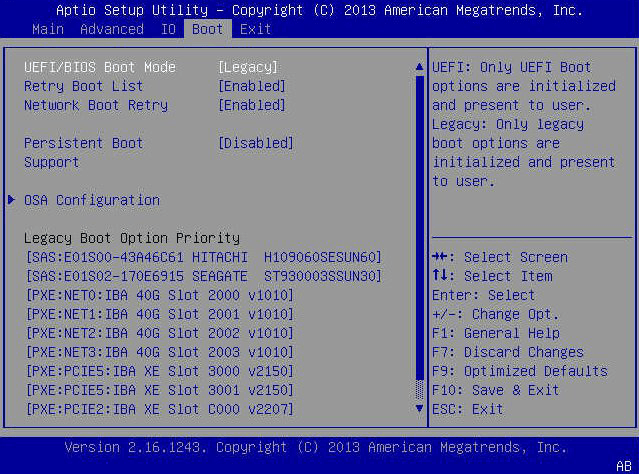
Step 3. If your NVMe SSD is a GPT disk, you need to switch the boot mode to UEFI mode to ensure the cloned SSD boots properly. This is a necessary step to avoid boot issues. Once you've made the change, you can keep the changes and boot from the NVMe SSD.
Possible Reasons and Solutions to Cloned SATA to NVMe wont Boot
If you're encountering the "clone SATA to NVMe won't boot" issue, there are several possible reasons and solutions to consider. The problem may arise due to various factors, and understanding these can help you resolve the issue.
1. You don't need to install NVMe drivers before cloning a hard drive. Simply download the drivers from the SSD manufacturer's website, and you're good to go. If you're using a P-series NVMe SSD, you can even clone it in safe mode. Just download the drivers and you're ready to clone.
- Boot your P-Install a new NVMe SSD and then your Windows will run into the recovery environment. Click Advanced options afterward.
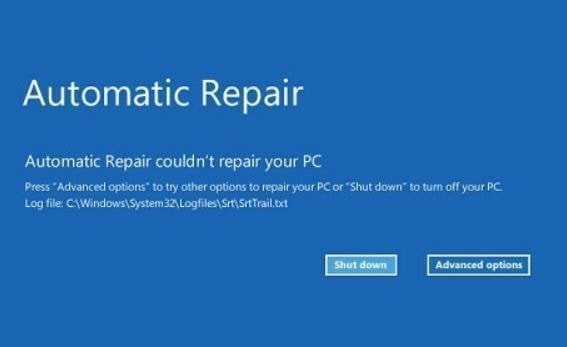
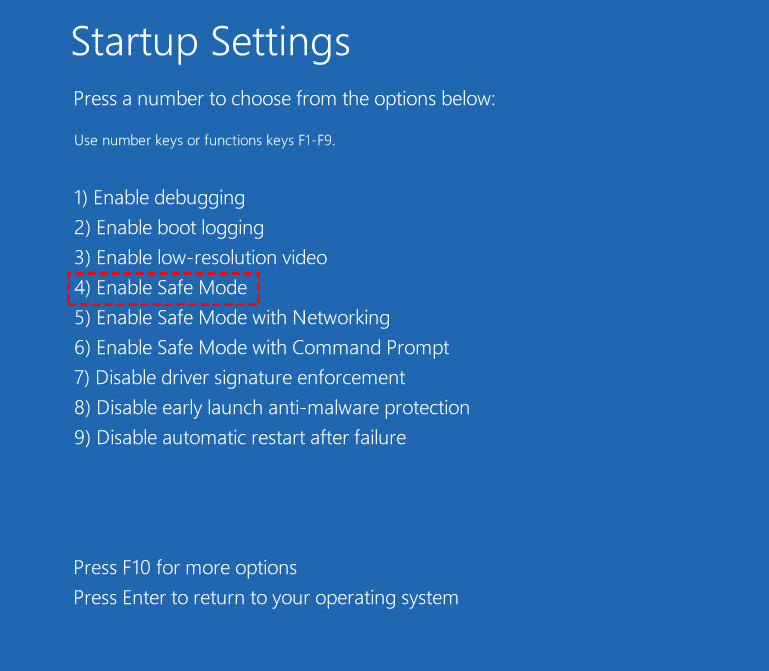
- On the Choose an option window, select Troubleshoot, then pick Advanced options, See More recovery options, Startup Settings, and click Restart.
- To resolve the issue, press F4 to boot the system into safe mode. This allows the system to load the minimum required drivers, and then restart it. The system will then use the correct drivers, resolving the problem.
2. The EFI partition is on the second drive, and the cloned NVMe lacks a boot partition. You can either disconnect all extra drives, leaving only SATA and NVMe, and clone again, or manually create a bootloader partition (formatted with FAT32) using diskpart and run the bcdboot command.
In addition to the initial steps, it's also important to verify the disk space and compatibility between SATA and NVMe SSDs, as well as ensure the computer is set to boot in the correct mode. For more information, refer to the article "cloned SSD won't boot".
More about SATA & NVMe
✍What are the differences between NVMe and SATA SSD?
SATA SSDs use AHCI drivers for disks with spinning technology, while NVMe drivers are used for SSDs with flash technology. This allows NVMe SSDs to take advantage of the PCIe bus to communicate between the storage interface and the system's CPU, resulting in greater performance.
✍ What is the biggest advantage of NVMe SSD?
The NVMe SSD was created to take advantage of the parallel nature of SSD disks, complementing the parallel structure of CPUs, platforms, and applications, and issuing commands and completing input/output with an optimized path, up to 64,000 commands with a single I/O queue and 64,000 possible queues.
Summary
You can easily migrate your operating system to an NVMe SSD by installing the necessary NVMe drivers and using a cloning software like Qiling Disk Master Professional. This process will transfer your entire operating system, including the EFI partition, installed programs, and data, to the new SSD.
Cloneit allows you to clone a disk or partition to another disk, including NVMe, PCIe, and M.2 SSDs. It can also clone an entire disk or specific partition using the "Disk Clone" or "Partition Clone" feature. The cloned drive will remain bootable if it was originally a Windows disk. Cloneit supports cloning from one type of SSD to another, such as cloning an NVMe drive to another NVMe drive, or cloning a PCIe SSD to another PCIe SSD.
Related Articles
- 4 Steps to Create Windows 7 Bootable Clone Disk
You will learn how to create Windows 7 bootable clone of hard drive and make it bootable with best disk cloning software - Qiling Disk Master. - How to Migrate Windows 8/8.1 to SSD with Secure Boot
Learn how to Migrate Windows 8/8.1 to SSD with Secure Boot with clear steps, key checks, and practical tips. - How to Transfer Windows 8/8.1 Installation from HDD to SSD?
Learn how to Transfer Windows 8/8.1 Installation from HDD to SSD with clear steps, key checks, and practical tips. - How to Clone C Drive in Windows Server 2019 Effortlessly?
Use this guide for How to Clone C Drive in Windows Server 2019 Effortlessly?, with cloning or migration steps, boot checks, and tips to keep data safe during the move.
Products
Articles & Tutorials
- Data Recovery
- Data Backup
- File Recovery
- File Backup
- File synchronize
- System Backup and Restore
- Disk and Partition Clone
- Technical articles
- Disk Master Help
- Windows Deleted File and Disk Recovery Tutorials
- Windows File and Data Recovery Tutorials
- More Windows Tutorials for Install, Security, Files, and PC Tips
- Windows Boot, Repair, and Recovery Environment Tutorials
- Windows Backup Tutorials
- Windows Restore Tutorials
- Windows Clone and Migration Tutorials
- Windows Server Backup, Recovery, and Management Tutorials
- Windows Disk, Partition, and Storage Management Tutorials