How to Replace C Drive with SSD/Larger Drive in Windows
Need of replacing C drive in Windows 11/10/8/7
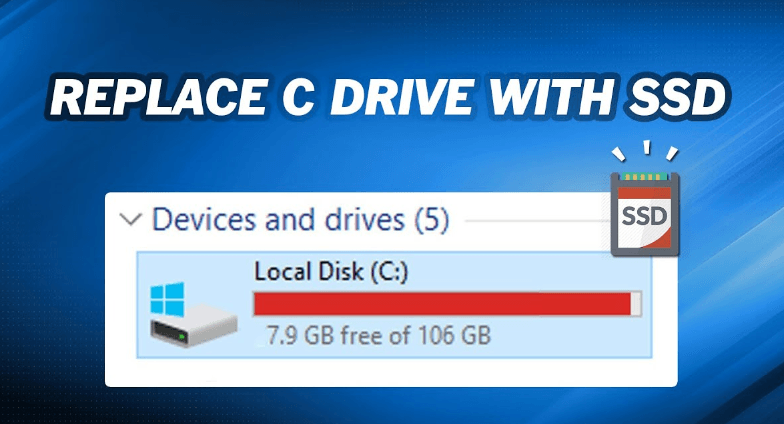
C drive is the primary partition of a computer's hard disk, containing the operating system and system files. It's also used for storing applications and their related files. C drive is crucial and may need to be replaced in situations like running out of disk space, corrupted system files, or upgrading to a new operating system, where a fresh installation is required.
- Your current drive has experienced a hardware failure and you can't fix it.
- You're looking to upgrade your C drive from a traditional hard disk drive (HDD) to a solid-state drive (SSD) to significantly boost your computer's performance and speed.
- To resolve the issue, you can replace the C drive with a larger drive to increase its capacity. This will allow you to free up space and avoid running out of storage.
Then, how to replace C drive efficiently? Please read on.
Best disk cloning software for C drive replacement
You can replace the current drive with a new one and do a clean Windows installation, but it's a time-consuming process that requires reinstalling apps and transferring data from the old drive to the new one.
To avoid reinstalling the system and applications and transfer data simultaneously, you need Qiling Disk Master Professional, the best disk cloning software for Windows, which offers powerful functions to benefit from.
✦ It supports all Windows PC operating systems including Windows 11/10/8.1/8/7/Vista/XP.
✦ It offers a feature called Disk Clone that allows you to transfer the operating system, applications, and personal files from an old hard drive to a new one, such as a hard disk drive (HDD) or solid-state drive (SSD).
✦ The System Clone feature is embedded in the software to allow users to transfer only the operating system to another drive, making it easier to clone the system to a new drive.
✦ It provides the Partition Clone feature, which allows you to copy a specific partition to another drive.
✦ The cloning process will run in the background, allowing you to work on your computer while it runs.
For more and more people choose SSDs as their main hard drives, I'll show you how to change C drive to another drive using Qiling Disk Master in the coming parts.
👉 Preparations for upgrading C drive in Windows 7/8/10/11
👉 How to upgrade C drive to SSD (5 steps)
👉 FAQs about replacing C drive
Preparations for upgrading C drive in Windows 7/8/10/11
Upgrading the C drive to an SSD requires several essential steps, including backing up all data, disabling System Protection, disconnecting the power cord, and using a cloning software to transfer the operating system and data to the new SSD. This process ensures a smooth transition to the faster storage solution.
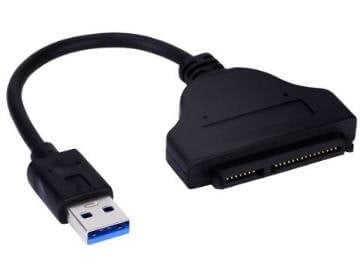
● Connect your target SSD to your computer, either internally or externally via a SATA-to-USB cable, ensuring it is detected by your computer.
● Before starting the cloning process, make sure to back up files on the destination SSD, as they will be overwritten during the cloning.
● Download Qiling Disk Master using the download button below and install it.
How to upgrade C drive to SSD (5 steps)
Step 1. Choose Disk Clone in Qiling Disk Master.
Run Qiling Disk Master. Click "Clone" on the left pane and select "Disk Clone".

Step 2. Choose system disk (C drive).
Select the current system disk as the source disk and click "Next".

Step 3. Choose destination disk.
Connect the destination SSD to your PC and select it in the software, then click "Next".

Step 4. Launch the cloning process.
To improve the target SSD's performance, enable SSD Alignment by ticking the box, confirm the operation, and then click Proceed.

Step 5. Boot from the cloned drive.
After cloning is complete, you can either change the boot order in the BIOS to boot from the target SSD, or replace the current drive with the target SSD to boot from it.
✍ Notes:
- If you're replacing the C drive with a larger drive, you can automatically extend partitions on the target drive by clicking "Edit Partitions" > "Add unused space to all partitions" in Step 4.
- If you're replacing the C drive with a smaller SSD, you can clone just the C partition and system-related partitions to the target drive using System Clone.
- If you're cloning hard drives with different partition types (such as MBR to GPT or GPT to MBR), you'll need to switch the boot mode in your BIOS to boot from the cloned drive afterwards.
FAQs about replacing C drive
1. Will replacing the C drive erase all my data?
2. How long does it take to replace the C drive?
3. How do I know if my C drive is bad?
Conclusion
Qiling Disk Master allows you to replace your C drive with an SSD or larger HDD, supporting all types of HDDs and SSDs. You can use it to clone Windows 10 to a new hard drive, clone an Intel SSD to another, migrate Windows 10 to an M.2 SSD, clone an NVMe SSD, and more.
Qiling Disk Master offers a range of features, including cloning, backup, and restore functions. You can use it to create image backups for your system, disk, partition, or even specific files, and restore them whenever needed. If you need to back up files in Windows Server 2019, Qiling Disk Master Server is a suitable option.
Related Articles
- How to Transfer C Drive to SSD in Windows 10/8/7 Easily?
You may want to transfer or copy C drive to new solid-state drive (SSD) for system or personal data migration. Here's a guide to show you how to do it efficiently. - Clone Hard Drive in Windows 10 to New HDD or SSD Freely
Learn how to Clone Hard Drive in Windows 10 to New HDD or SSD Freely with clear steps, key checks, and practical tips. - How to Replace Your Hard Drive Without Losing Data?
Learn how to Replace Your Hard Drive Without Losing Data with clear steps, key checks, and practical tips. - Step-by-Step Guide for Dell XPS 8910 SSD Upgrade
This tutorial presents how to perform Dell XPS 8910 SSD upgrade step by step and provides the best disk cloning software to help you. - Create Image of SSD Drive with Free SSD Image Software
Be aware of how to create an image of SSD can prevent data loss when your SSD fails. Qiling Disk Master can be the best tool for your manipulation. - Network Path Not Found or PXE Error, How to Solve it?
This guide explains Network Path Not Found or PXE Error, How to Solve it with clear steps, key checks, and practical tips.
Products
Articles & Tutorials
- Data Recovery
- Data Backup
- File Recovery
- File Backup
- File synchronize
- System Backup and Restore
- Disk and Partition Clone
- Technical articles
- Disk Master Help
- Windows Deleted File and Disk Recovery Tutorials
- Windows File and Data Recovery Tutorials
- More Windows Tutorials for Install, Security, Files, and PC Tips
- Windows Boot, Repair, and Recovery Environment Tutorials
- Windows Backup Tutorials
- Windows Restore Tutorials
- Windows Clone and Migration Tutorials
- Windows Server Backup, Recovery, and Management Tutorials
- Windows Disk, Partition, and Storage Management Tutorials