How to Replace or Upgrade Sony VAIO Hard Drive with SSD
Quick Navigation:
- Why replace Sony VAIO hard drive with SSD?
- Best hard drive transfer software you need
- How to replace Sony VAIO hard drive with SSD
Why replace Sony VAIO hard drive with SSD?
To determine if you need to replace your Sony VAIO's hard drive with an SSD, it's essential to understand the fundamental difference between a traditional hard disk drive (HDD) and a solid-state drive (SSD). HDDs use physical disks and mechanical heads to store and retrieve data, making them prone to wear and tear, slower performance, and increased power consumption.
HDD, A hard disk drive (HDD) is a data storage device that uses magnetic storage to store and retrieve digital information. It consists of one or more rigid platters coated with magnetic material that spin rapidly, paired with magnetic heads on a moving arm that read and write data to the platters. This design makes HDDs relatively loud.
SSD, A Solid-State Drive (SSD) is a type of storage device that uses integrated circuit assemblies to store data persistently, with no moving mechanical components. This makes SSDs more resistant to physical shock, quieter, and faster than traditional Hard Disk Drives (HDDs) in terms of read and write speed.
If you're experiencing a slowdown with your Sony VAIO, upgrading to a Solid-State Drive (SSD) can be a great solution. By replacing the traditional hard drive with an SSD, you can significantly improve your computer's performance and speed. This can help your Sony VAIO run more efficiently and effectively, making it a worthwhile upgrade to consider.
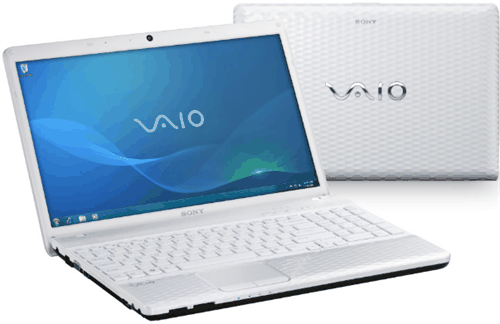
Best hard drive transfer software you need
Replacing the Sony VAIO hard drive with an SSD can significantly improve your PC's performance, but many users want to keep their old data intact. Fortunately, Qiling Disk Master Professional allows you to upgrade your Sony VAIO hard drive to an SSD without losing any data.
- Qiling Disk Master offers disk clone, system clone, and partition clone features to help transfer various types of data.
- There are two cloning methods available: Intelligent Clone and Sector By Sector Clone, with the first being selected by default for faster cloning and disk space savings.
- It runs well on all Windows PC systems, including Windows 11/10/8/7/Vista/XP.
Download Qiling Disk Master now and follow the detailed steps below to replace the Sony VAIO HDD with an SSD. The next contents will show you how to do it.
How to replace Sony VAIO hard drive with SSD
To replace a hard drive with a solid state drive (SSD) without losing data, start by preparing an SSD that is large enough to store all data on the hard drive. Then, use Qiling Disk Master to clone the HDD to the SSD, ensuring a seamless transition.
Step 1. To upgrade your Sony VAIO's hard drive with an SSD, first connect the new SSD to your PC and ensure it's detected. Then, install and launch Qiling Disk Master. Once launched, click on "Clone" and select "Disk Clone" to proceed with the upgrade.

Step 2. To begin the process, select the original Sony VAIO hard drive as the source disk and click Next.

Step 3. To upgrade your computer's storage, select the new SSD as the destination disk, then click "Next".

Step 4. Here you can preview the whole operation, and click Proceed to launch the progress, which will allow you to see the steps being taken and the status of the operation in real-time. This way, you can ensure that everything is being done correctly and that the operation is completed successfully.

Notes: You can set up more for your hard drive by clicking on the "Proceed" button, which allows you to configure additional settings and options for your hard drive before it is formatted. This is a good opportunity to make any necessary changes or selections to ensure your hard drive is properly set up and ready for use.
- Edit partitions: You can edit the partitions on your destination hard drive to ensure it remains in the best possible state after cloning.
- Sector by sector clone: This option clones every byte on the source disk, regardless of whether it's used or not, and requires the destination disk to be larger than the source disk.
- SSD Alignment: If you're cloning to an SSD, checking this box can enhance the performance of the destination disk.
After cloning, you can boot your computer directly from the new SSD. Qiling Disk Master is a great software that can help replace the Sony VAIO hard drive with an SSD while keeping the old data. This software also offers other features, such as creating a bootable media to ensure successful boot-ups, and creating a system image backup that can be used to restore the computer to an earlier date.
It is worth using. If you are a Windows Server user, you can use Qiling Disk Master Server to do it.
Related Articles
- How to Clone Hard Drive to SSD in Windows 10?
- Freeware to Clone Hard Drives with Bad Sectors (Bootable)
- How to Upgrade Sony VAIO Laptop Hard Drive to SSD (Easy and Safe)
- How to Solve Hard Disk Error 301 Efficiently? (4+1 Fixes)
Learn the key steps, checks, and practical tips for this related guide. - How to Clone Windows Server 2012 (R2) to SSD?
To clone Windows Server 2012 (R2) to SSD without losing data, you can turn to disk cloning software, Qiling Disk Master Server. - Easily Move Windows Server 2012 to New Hard Drive without Boot Issues (Two Ways)
No matter you want to move entire Windows Server 2012 hard drive, or just migrate Windows Server 2012 operating system partition to a new disk, Qiling Disk Master Server can make it easy to move Windows Server 2012 to new hard drive.
Products
Articles & Tutorials
- Data Recovery
- Data Backup
- File Recovery
- File Backup
- File synchronize
- System Backup and Restore
- Disk and Partition Clone
- Technical articles
- Disk Master Help
- Windows Deleted File and Disk Recovery Tutorials
- Windows File and Data Recovery Tutorials
- More Windows Tutorials for Install, Security, Files, and PC Tips
- Windows Boot, Repair, and Recovery Environment Tutorials
- Windows Backup Tutorials
- Windows Restore Tutorials
- Windows Clone and Migration Tutorials
- Windows Server Backup, Recovery, and Management Tutorials
- Windows Disk, Partition, and Storage Management Tutorials