Samsung Data Migration Access Violation - Fixed
Quick Navigation:
- An error occurs: Samsung Data Migration access violation
- Possible causes for access violation and how to resolve it?
- Free Samsung Data Migration alternative
- Wrap things up
An error occurs: Samsung Data Migration access violation
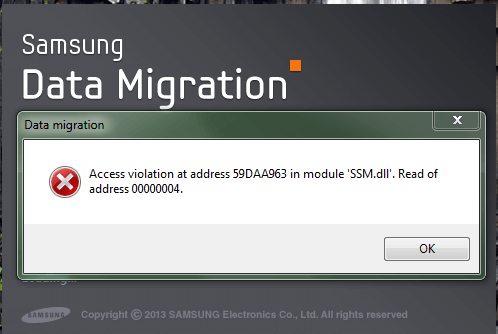
Many Samsung users are frustrated by errors when using Samsung Data Migration, such as Samsung SSD cloning failed, SSD not recognized, and Samsung Data Migration access violation. These issues often occur when attempting to transfer data from an HDD to an SSD, and can be caused by a variety of factors, including software conflicts, hardware incompatibilities, and improper setup. In these situations, users may encounter an access violation at a specific address, which can prevent the data migration process from completing successfully.
"Access violation at address 59DAA963 in module 'SSM.dll'. Read of address 00000004."
"Access violation at address 578BA963 in module 'SSM.dll'. Read of address 00000004."
"Access violation at address 7071cc63 in module 'restore.dll'. Read of address 00000000."
Don't worry, this article is aimed to show you how to fix the Samsung Data Migration access violation.
Possible causes for access violation and how to resolve it?
Here are some possible causes for an access violation:
◖ Windows system files damage can occur due to an incomplete installation or uninstallation of applications or hardware, leading to system instability and potential crashes.
◖ Recovery of the computer from a virus or adware/spyware attack.
◖ An improper shutdown of the computer.
◖Invalid or corrupt ssm.dll registry entry.
◖Data Viz Inc. hardware failure, such as a bad hard drive, has caused a corrupted ssm.dll file.
Access violations can occur due to various situations. To fix the error, consider the following methods:
✎ Use Windows built-in system tools to restore your computer.
✎ Repair invalid ssm.dll registry entries with a trusted registry cleaner such as WinThruster.
Samsung Data Migration access violation can be resolved by contacting Samsung Clonix Customer Support, which provides assistance from the Samsung customer service team.
Free Samsung Data Migration alternative
Data migration can be a lengthy and error-prone process, making it essential to select a reliable data migration tool to minimize risks and ensure a smooth transition.
Qiling Disk Master Standard is a free alternative to Samsung Data Migration that helps migrate data from HDD to SSD, safely and easily, and also optimizes SSD performance for improved speed and efficiency.
If you need to migrate your Windows system from a hard drive (HDD) to a solid state drive (SSD), you can try using the Migrate OS to SSD feature. To do this, download the necessary freeware and follow the instructions to fix the Samsung Data Migration access violation issue that may arise. This will allow you to successfully transfer your operating system and data to the new SSD.
Waning: If you plan to transfer a Windows system from one disk type to another (MBR to MBR, MBR to GPT, GPT to MBR, GPT to GPT), please switch to the Professional Version.
1. To connect a Samsung SSD to your computer, you may need a SATA to USB adapter, and ensure it can be recognized by your computer.
2. Install and run Qiling Disk Master, then click on the original hard drive from the disk list and select "Clone Disk".

3. Choose a disk copy method that suits your needs, such as copying the entire disk or selecting specific files and folders. Then, select the source disk that contains the data you want to copy.

4. Choose your Samsung SSD as the destination disk, and select the option to optimize its performance.

5. You can now edit disk partitions or do it at any other time after cloning.

6. Click "Proceed" to execute the operation after confirmation. If something goes wrong, you can click "Undo" and redo the steps.

7. Shut down your computer and swap hard drive with cloned Samsung SSD. Then, boot from that drive.
Tips:
• Reboot is required when it comes to cloning system disk.
• Once you've confirmed everything is working properly on the new SSD, you can safely wipe the HDD to use it as a data disk.
Wrap things up
Qiling Disk Master is the ideal solution to avoid Samsung Data Migration errors, including access violations. For Server users, Qiling Disk Master Server is specifically designed for Windows Server 2022, 2019, 2016, 2012(R2), and 2008(R2) to fix these errors.
Related Articles
- Windows 11 error 0xc0000005
Investigate access violations by application, driver, and memory symptoms. - How to Format Write Protected SD Card and Repair It to Usable Again [2023 Newest Guide]
You can easily remove the protection and format write-protected SD cards. This guide will teach you two easy solutions to format write protected SD Cards: #1. Use Write Protected Format Software; #2. Format Write Protected SD Card Using CMD. - How to Format M.2 SSD? [Easy Instructions]
Learn how to Format M.2 SSD with clear steps, key checks, and practical tips. - How to Install and Format SD Card for Steam Deck [Step-by-Step Guide]
To install the SD card on Steam Deck, you need to do some preparations first to make it boot properly. This article will give detailed steps to help you successfully install and format the SD card for Steam Deck. - Fix MBR2GPT Cannot Find OS Partition Error Like an Expert
Read this article to efficiently fix MBR2GPT cannot find OS partition errors like an expert. - 2 Methods to Install Windows 10 on M.2 SSD Drive Step by Step
If you want to install Windows 10 on M.2 SSD drive, you can refer to this article, which not only shows how to clean install Windows on M.2 SSD, but also introduces how to directly transfer Windows 10 on M.2 SSD drive. - Tutorial: Install Windows 10 on SSD from USB or HDD (Video Attached)
This guide explains Tutorial: Install Windows 10 on SSD from USB or HDD (Video Attached) with clear steps, key checks, and practical tips.
Products
Articles & Tutorials
- Data Recovery
- Data Backup
- File Recovery
- File Backup
- File synchronize
- System Backup and Restore
- Disk and Partition Clone
- Technical articles
- Disk Master Help
- Windows Deleted File and Disk Recovery Tutorials
- Windows File and Data Recovery Tutorials
- More Windows Tutorials for Install, Security, Files, and PC Tips
- Windows Boot, Repair, and Recovery Environment Tutorials
- Windows Backup Tutorials
- Windows Restore Tutorials
- Windows Clone and Migration Tutorials
- Windows Server Backup, Recovery, and Management Tutorials
- Windows Disk, Partition, and Storage Management Tutorials