System Reserved Partition on a Wrong Drive – How to Move It?
Quick Navigation:
- The issue: System Reserved partition on a wrong drive
- How to resolve System Reserved partition is on another drive?
- Method 1: move the System Reserved partition using Disk Management
- Method 2: move the System Reserved partition via a handy utility
- Summary
The issue: System Reserved partition on a wrong drive
When you install Windows 7/8/10 on a clean disk, a special partition named "System Reserved" is created, containing the Boot Configuration Database, Boot Manager Code, Windows Recovery Environment, and space for startup files required by BitLocker.
The System Reserved partition can only be seen in Disk Management or similar programs because it has no drive letter, and is usually located before the system partition (e.g. the C: drive). However, some users may find it on the wrong drive, typically when installing Windows with multiple hard drives attached, causing confusion. To resolve this issue, simply continue reading.
How to resolve System Reserved partition is on another drive?
If you encounter the System Reserved partition on a different drive, you can relocate it to the desired drive using one of two methods. The first method involves using the built-in Windows feature to move the System Reserved partition to the target drive.
Method 1: move the System Reserved partition using Disk Management
To move the System Reserved partition and delete the old one, you'll need to create a new System Reserved partition and then delete the old one. However, this process can result in boot failure due to the boot files being stored on the System Reserved partition. To prepare for potential boot errors, create a system repair disc in advance. Once you've done this, you can proceed with the instructions to move the System Reserved partition.
- To open Disk Management, press the Windows key + R to open the Run dialog box, type diskmgmt.msc, and click OK. This will open the Disk Management window.
- To create a System Reserved partition on a specific disk, locate the disk where you want the partition to be. Right-click on the unallocated space on that disk and select the option to create a new simple volume. If there is no unallocated space, you can either delete an existing partition or shrink it to free up space for the new partition.
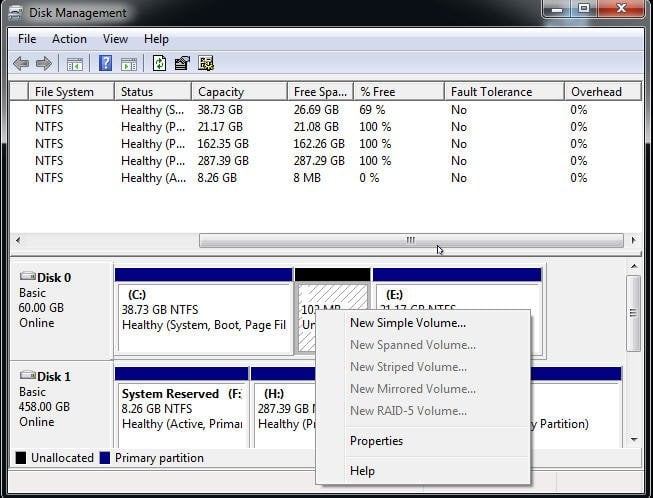
- To create a new simple volume, follow the steps in the New Simple Volume Wizard, which guides you through specifying the volume size, assigning a drive letter or path, and formatting the partition step by step.
Tips:
● The System Reserved partition size varies across different Windows versions, with Windows 7 having a 100 MB partition, Windows 8 a 350 MB partition, and Windows 10 a 500 MB partition.
● When formatting the new partition, label it as "System Reserved".
- To make the original System Reserved partition visible in File Explorer and copy its contents to the newly created partition, assign a drive letter to the original System Reserved partition. This will allow you to access its contents and copy everything, including the Boot folder, bootmgr, and BOOTSECT.BAK, to the new partition.
- Remove the drive letter from the new System Reserved partition and then make the partition bootable.
- To troubleshoot a computer that won't boot, try restarting it to see if it can boot successfully. If it does, you can safely remove the old System Reserved partition. If it doesn't, use the Windows system repair disc to perform Startup Repair.
To move the System Reserved partition to the desired drive, you can use the built-in Disk Management tool, but it requires some technical knowledge. Alternatively, you can use a third-party tool like Qiling Partition Master, which can resize partitions and move the System Reserved partition to the desired drive with a few clicks. This can save you time and effort compared to using Disk Management.
Method 2: move the System Reserved partition via a handy utility
To create a System Reserved partition on the drive you want, you can copy the original System Reserved partition to that drive instead. This can be achieved using the best disk cloning software, Qiling Disk Master Professional, which allows you to clone the original System Reserved partition to the desired drive.
✭ Clone the entire disk or copy partition to another drive, or clone OS only via System Clone.
✭ This tool enables creating image backups of the system, disk, partition, or files, and even allows for the restoration of the system to a different computer with varying hardware via the dissimilar hardware restore feature.
✭ All Windows PC operating systems like Windows 11/10/8.1/8/7/Vista/XP are supported.
Follow the steps below to copy the old System Reserved partition to another drive via Qiling Disk Master:
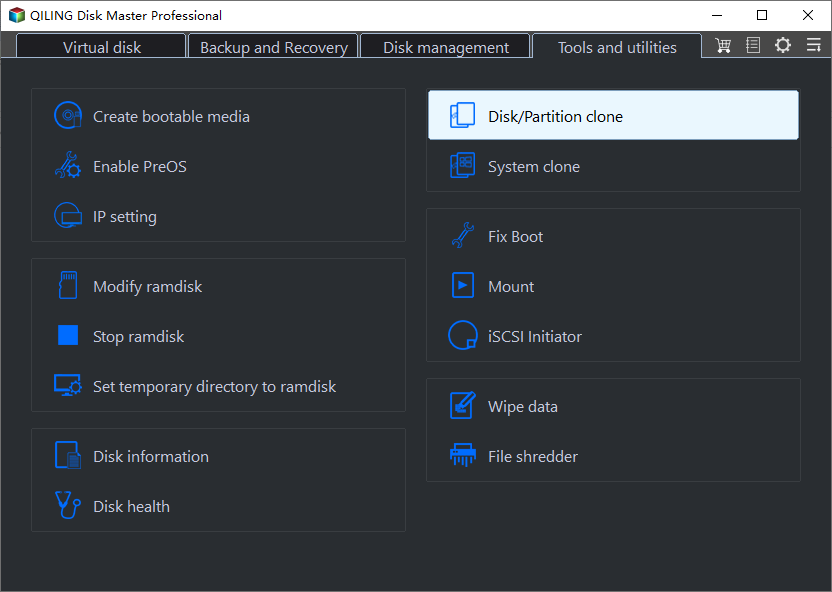
Step 1. To start the cloning process, install and launch Qiling Disk Master. Then, click on the "Clone" option on the left pane and select "Partition Clone" to proceed.
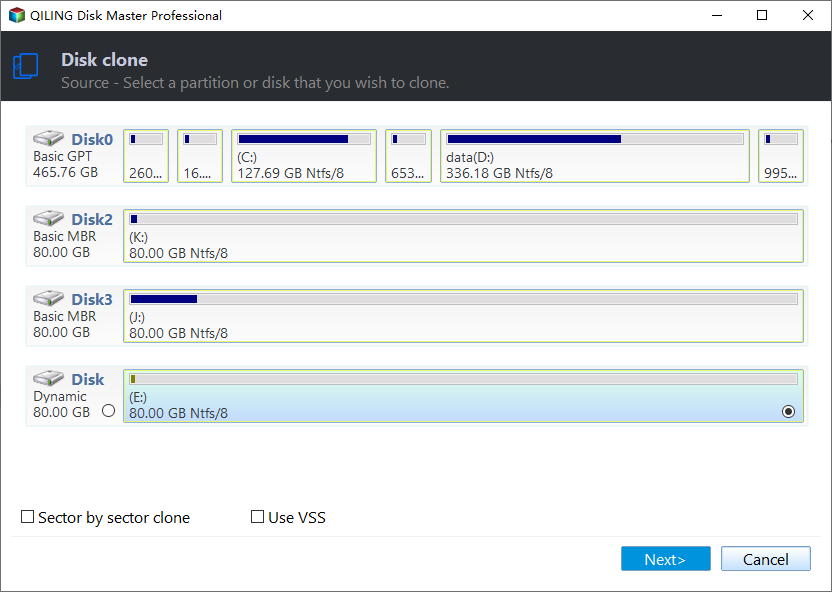
Step 2. Select the old System Reserved partition as the source partition and click "Next".
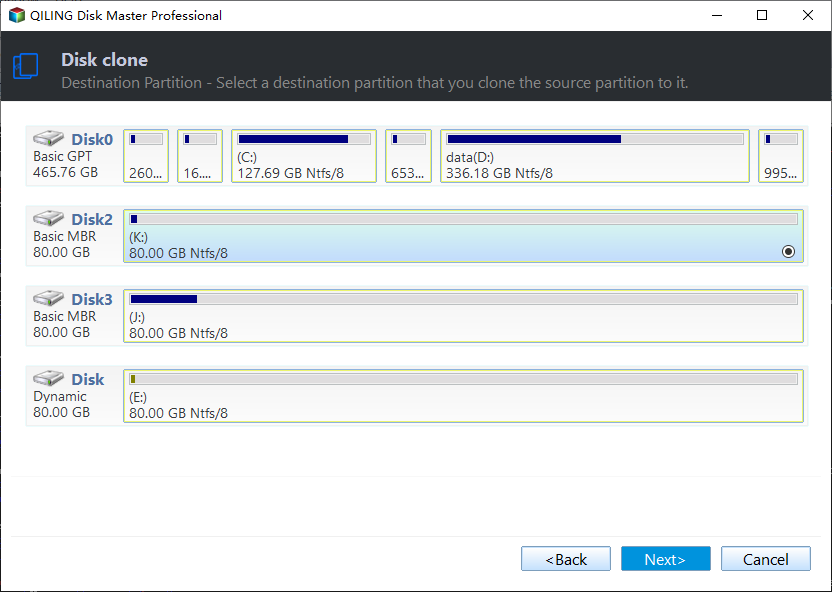
Step 3. Select the unallocated space on this disk which you want to move the System Reserved partition to and click "Next".
Step 4. To edit the partition settings, go to the Operation Summary page and click on "Edit Partition". In the pop-up window, select "Primary Partition" to make it bootable later. Set the drive letter to "None" and adjust the partition size as needed. Finally, click "OK" to save your changes.
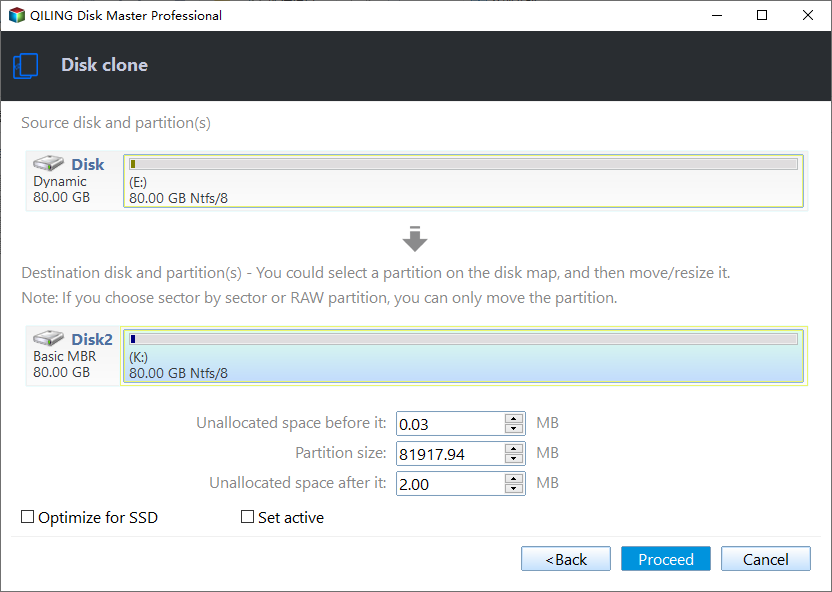
Step 5. Confirm the operation and click "Proceed".
Notes:
● The sector-by-sector clone method involves copying every sector on the source partition, regardless of whether it's used or not, which can be time-consuming. This approach requires the destination partition to be at least as large as the source partition.
● SSD Alignment: If you're moving the System Reserved partition to an SSD, checking this option will improve the performance of the destination SSD.
Step 6. After the cloning process is complete, open Disk Management and right-click on the new System Reserved partition. Select Properties and under the General tab, rename it to "System Reserved".
Step 7. Set the new System Reserved partition as active, restart the computer, and if it boots successfully, delete the old System Reserved partition.
This software is used for various SSD migration tasks, including moving the system reserved partition, migrating Windows 10 to an M.2 SSD, cloning an M.2 SSD to another M.2 SSD, and cloning an SSD to a larger SSD.
Summary
If the System Reserved partition is on the wrong drive, you can move it to the desired drive using two methods outlined in this article. In addition to the Partition Clone function, Qiling Disk Master also offers the ability to clone a hard drive from the Command Prompt and perform a DoD hard drive wipe. This tool is a useful resource for managing your system's partitions and can be a helpful solution for those looking to relocate the System Reserved partition.
Related Articles
- Move System Reserved Partition to Another Drive Effortlessly
- Cloned SSD Won’t Boot in Windows 10/8/7 - How to Solve?
- Samsung Data Migration Cannot Change Source Disk: Why and How to Fix?
- Deep Data Recovery vs Disk Drill: Which Is Better for You
Learn the key steps, checks, and practical tips for this related guide. - How to Clone Hard Drive with Different Size | 2024 New🥇🥇
This is a step-To clone a hard drive of different sizes using Qiling Disk Copy, follow these steps: First, download and install Qiling Disk Copy on your computer. Next, connect the target hard drive with a larger capacity to your computer. - How to Clone Windows OS from HDD/SSD to M.2 SSD
To clone your HDD to an M.2 SSD, follow the steps outlined in this tutorial, which utilizes Qiling Disk Copy to transfer data from your existing HDD or SSD to a new M.2 SSD or NVMe M.2 SSD.
Products
Articles & Tutorials
- Data Recovery
- Data Backup
- File Recovery
- File Backup
- File synchronize
- System Backup and Restore
- Disk and Partition Clone
- Technical articles
- Disk Master Help
- Windows Deleted File and Disk Recovery Tutorials
- Windows File and Data Recovery Tutorials
- More Windows Tutorials for Install, Security, Files, and PC Tips
- Windows Boot, Repair, and Recovery Environment Tutorials
- Windows Backup Tutorials
- Windows Restore Tutorials
- Windows Clone and Migration Tutorials
- Windows Server Backup, Recovery, and Management Tutorials
- Windows Disk, Partition, and Storage Management Tutorials