Easily Transfer OS from SSD to New SSD in Windows (3 Steps)
Why need to transfer OS from SSD to new SSD?
Solid State Drives (SSDs) are faster, more durable, and quieter than Hard Disk Drives (HDDs), making them ideal for storing operating systems, while HDDs are better suited for data storage.
If your SSD is running low on space or experiencing performance issues, you may need to consider migrating your OS to a new SSD for more capacity, or replacing the SSD altogether.
Among SSD disks, the NVMe SSD that operates across the PCle bus has a fast reading and writing speed, making it a top choice. If budget allows, searching online for the best NVMe SSD can lead to a great option. The NVMe SSD with an M.2 PCI-E x4 slot is particularly recommended.
Best OS migration software for Windows 7/8/10/11🏆
Migrating an operating system from one SSD to another, regardless of the brand (Samsung, WD, Toshiba, Crucial, etc) and interface (SATA or NVMe), can be done simply by cloning, as long as a reliable OS migration software is used. One such software is Qiling Disk Master Professional, which can handle secure boot issues.
You have two options for cloning: System Clone or Disk Clone. The choice depends on what you want to clone and the disk space available on the target disk.
✦ System CloneIt clones the operating system, system settings, installed apps, and personal files on the system partition(s), and supports cloning between two MBR or GPT disks.cloning MBR disk to GPT and vice versa.
✦ Disk CloneThe cloning process copies the entire system disk, including system partitions and other data partitions, which can be time-consuming and requires additional disk space due to the large amount of data.
This software clones only used sectors of a partition or disk by default, allowing for easy migration of an OS to a smaller SSD. Additionally, if the target disk is large, it can clone all sectors of the system partition or disk using the "Sector by Sector Clone" option.
How to transfer OS from SSD to SSD step by step
Before moving OS to SSD:
- Install the SSD into your computer and ensure it can be detected. For laptops, you may need an external enclosure or adapter to connect the SSD to your laptop.
- Download and install the OS migration software - Qiling Disk Master Professional, which supports all Windows PC editions (32 bit and 64 bit of Windows 11/10/8.1/8/7/Vista/XP) and Qiling Disk Master Server for server users.
To transfer an operating system to an SSD (Solid-State Drive), follow these steps. First, back up all your important files and data to an external drive or cloud storage.
- Launch this software, select "System Clone" under "Clone" tab.

Tip: If you want to clone all contents on the system disk, select "Disk Clone" instead. This feature can help clone hard drive to SSD or clone SSD to larger SSD, etc.
- Select the new SSD disk Select the destination path, click "Next", and the program will automatically choose the source drives that need to be migrated.

Tip: If the new SSD is not empty, the program will prompt you that all partitions on the SSD will be deleted. Click "OK" to continue if you have already backed up important files beforehand.
- To migrate your OS to a new SSD, click on the operation preview which shows the OS drives being transferred to the SSD, and at the lower-left corner, it is highly recommended to select "SSD Alignment" to accelerate the new SSD's write/read speed. Then, click "Proceed" to start the migration process in Windows 10 or other systems.

Tip: If the new SSD is larger than the old one, the software will automatically add unallocated space to the system partition, making full use of the new disk space. Additionally, the "Sector by sector clone" option is available to clone every byte, including the unallocated space, for a more thorough clone.
The System Clone or Disk Clone feature can only be demonstrated in the trial version of Qiling Disk Master Professional. To launch the cloning process, you will need to upgrade to the full version with a discount, which can be done by clicking the "Upgrade with Discount Now" option.
To move your operating system to a solid-state drive (SSD) using Qiling Disk Master, follow these steps: First, download and install Qiling Disk Master on your computer. Next, launch the software and select the target SSD as the destination drive.
Boot from the cloned SSD
One last thing, please shut down your computer after finishing.
For a laptop, swap your old SSD with the new one and boot from the new SSD.
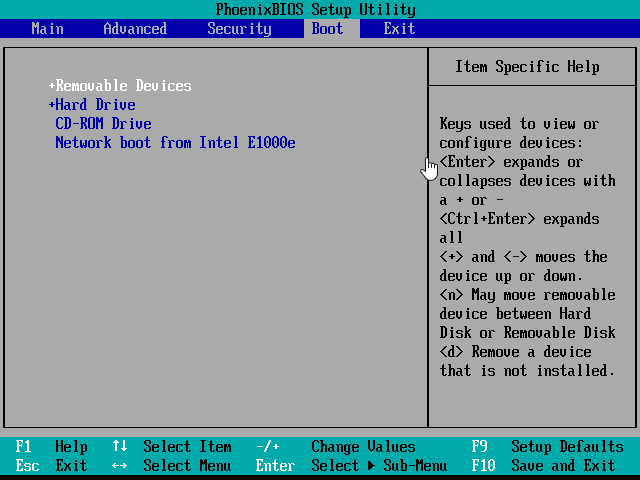
For a desktop, you can reuse the old SSD as a secondary drive for storage and backup, and simply change the boot order in the BIOS to boot from the new SSD.
FAQs about moving OS to new SSD
1. Can I move just my OS to an SSD?
You can move only the operating system to an SSD using a professional cloning tool such as Qiling Disk Master.
2. How long does SSD migration take?
The time it takes to clone a hard drive depends on various factors, including data volume, cloning program speed, read and write speeds of the drives, and computer system specifications, typically taking around 20 minutes to 1 hour on average.
3. How do I move my OS to SSD without cloning?
If you don't want to clone your old Windows installation to the new SSD, you can instead do a clean install of Windows 11/10 on the new drive. This will require reinstalling all your previous apps, but it's a more straightforward process than cloning.
Summary
You can easily transfer an operating system from an SSD to a new SSD using OS migration software, specifically Qiling Disk Master Professional. This tool supports all SSD brands, interfaces (SATA, NVMe), and disk types (MBR, GPT), and allows you to clone an SSD to either a larger or smaller SSD.
This software can backup and restore a system to a new SSD, except for cloning. It can also backup a system to a temporary device, making it useful for unbootable computers. To use it, a repair boot USB needs to be created first. However, for unlimited PCs, Qiling Disk Master Technician is recommended.
Related Articles
- Transfer Windows 7/8/10 OS from One Computer to Another
- How Do I Transfer OS from Laptop to Desktop without Reinstalling?
- How to Copy Windows 10/8/7 Operating System to An External Hard Drive
- The Best Photo Recovery App/Software for Any Device
Keep calm if you lose photos from an Android phone, iPhone, Windows PC, Mac laptop, or a camera. This post provides you with the best photo recovery software for iPhone, Android, Windows, and Mac. Free download the best photo recovery software to recover deleted photos from any device. - Super Easy | How to Transfer Data from One SD Card to Another
Learn how to transfer data from one SD card to another safely. Copy files, clone SD cards, and move data to a larger card without losing files. - How to Transfer Data/Files from One SSD to Another Without Losing Data
Transferring data from one SSD to another on Windows 11/10/8/7 can be easily done with the help of Qiling Disk Copy, a user-friendly SSD cloning software that makes the process a breeze.
Products
Articles & Tutorials
- Data Recovery
- Data Backup
- File Recovery
- File Backup
- File synchronize
- System Backup and Restore
- Disk and Partition Clone
- Technical articles
- Disk Master Help
- Windows Deleted File and Disk Recovery Tutorials
- Windows File and Data Recovery Tutorials
- More Windows Tutorials for Install, Security, Files, and PC Tips
- Windows Boot, Repair, and Recovery Environment Tutorials
- Windows Backup Tutorials
- Windows Restore Tutorials
- Windows Clone and Migration Tutorials
- Windows Server Backup, Recovery, and Management Tutorials
- Windows Disk, Partition, and Storage Management Tutorials