How to Fix Windows 11/10 Photos App Not Working
If the Photos app is not working on your Windows 11/10 device, you can try updating the app, resetting or repairing it, or even reinstalling it to resolve the issue. For detailed solutions, you can refer to the steps provided. If you've accidentally lost or deleted photos, consider using Qiling phone recovery software to quickly recover them.
If the Photos app also cannot detect iPhone pictures, see Windows Photos app not seeing iPhone fixes.
The Windows photo app offers a cool interface and nice image filtering options, allowing users to organize, edit, and view photos and videos on their device. However, some users may experience issues with the app not working properly, which can be caused by corrupted photo apps on their PC or system-related problems.
- Quick Navigation
- Part 1. Solutions to Photo App for Windows 11/10 Not Working
- Part 2. How to Solve Photo App Not Showing in Windows 11/10
- Part 3. How to Recover Photos Deleted in Windows 11/10
Part 1. Solutions to Photo App for Windows 11/10 Not Working
You can fix the issue with the photo app not working on Windows 11/10 by following some steps. These steps include checking for updates, resetting the app, and ensuring that the app is not blocked by the system, among other troubleshooting tips. By trying out these solutions, you can resolve any issues that are preventing the photo app from working properly on your Windows device.
Solution #1: Update Photo App in Windows 11/10
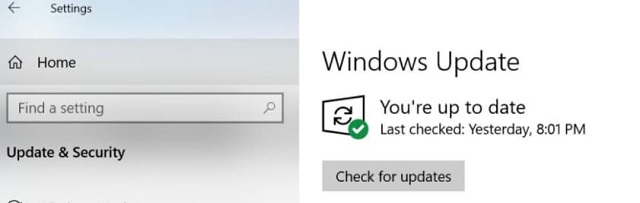
If the photo app is not working on your Windows 11 or 10 PC, try updating the Windows OS and the Photo App to resolve the issue. To do this, follow these steps: update the Windows OS and the Photo App on your PC. This should fix the problem.
- To access the Settings on Windows, click on the Windows key located at the bottom left corner of the screen, and then click on the Settings icon, which is usually represented by a gear or a cogwheel. This will open the Settings window, where you can customize various aspects of your Windows experience.
- To check for any available updates, select 'Update & Security' and then 'Windows Update'.
- If there are the latest updates available, install them on the PC.
- After installing the Windows 11 update, go to the Microsoft Store, search for Microsoft Photos, and install any available update.
Solution #2: How to Reset and Repair Photo App in Windows 11/10
If the reason why 'Windows 11/10 photo viewer not working the app didn't start' is not system-related, you can proceed to use the second fix, which involves resetting and repairing the photo app in Windows 11/10. This approach is very effective in solving issues with photo apps in Windows 11/10, and can be done by following simple steps to reset and repair the photo app on your device.
- Click on the 'Windows' key and select 'Settings'.
- To access the list of installed apps on a Windows system, follow these steps: navigate to the 'System' menu, then select 'Apps & Features'. If 'Apps & Features' is not visible on the 'System' menu, go to the 'Settings' menu and click on 'Apps' instead. This will display a list of all installed apps, allowing you to view, update, or uninstall them as needed.
- Search for the 'Microsift Photos' menu and click on it.
- Select 'Advanced Options' and click on the 'Reset' button.
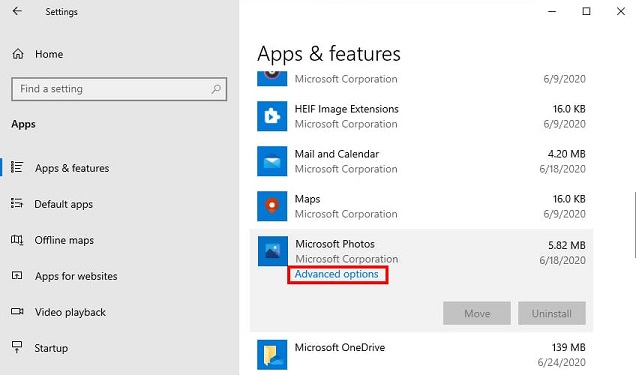
This should resolve the issue with the for Windows 11/10 photoS app not working. If the issue persists, move on to the next solution.
Solution #3: How to Reinstall Photo App in Windows 11/10
The most common reason for the Windows 11/10 Photo app not working is a corrupted Photos App. To resolve this issue, you need to remove the Photos App from your PC and reinstall it, which can be done by following a few easy steps.
- Right-To open Windows PowerShell with administrator privileges, click on the 'Windows' icon on your PC's taskbar and select 'Windows PowerShell (Admin)'.
- Type in 'get-To remove the Microsoft Windows Photos app package, open the Command Prompt as an administrator, type the command 'winget uninstall Microsoft.Windows.
- Wait for a few minutes for the process to complete. Then, reboot your Windows PC.
- You can find Microsoft Photos in the Microsoft Store on your PC by searching for it.
- Download the Photos App and install it on your Windows PC computer.

The Windows 11/10 photo app not working properly is often due to app corruption. This issue can be resolved by implementing the solution provided.
Part 2. How to Solve Photo App Not Showing in Windows 11/10
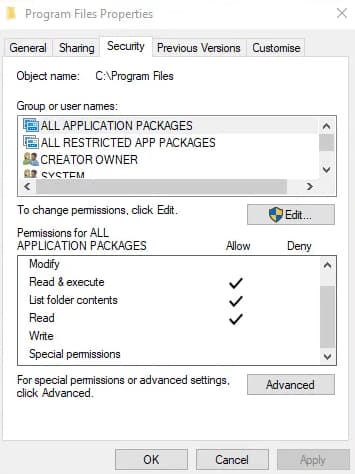
If the photo app isn't showing in Windows 11/10, it might be due to modified permissions for the file system, preventing you from using the app. To troubleshoot, check if this is the cause by following the necessary steps.
- Navigate to the three folders (e.g.
- Click on each folder and right-click on them.
- To check if the required permissions are allowed, click on the 'Security' tab and verify that the necessary permissions are enabled.
- Program Files: Read, Read, & Execute; List folder contents
- Windows: Read, Read, & Execute: List folder contents
- <The path is: C:\Users\username\AppData\Local\Microsoft\Windows\WER, with special permissions that allow Read & Execute, List folder contents.
- If the permissions are not granted, click 'Edit' in the 'Security' tab to grant the permission.
Part 3. How to Recover Photos Deleted in Windows 11/10
If you accidentally delete photos from the Photo App on your Windows 11/10 PC, don't panic - you can recover them with data recovery software. There are many options available online, but we recommend using the Deep Data Recovery tool, specifically designed for Windows 11/10 to recover deleted or lost photos.
Deep Data Recovery can help recover deleted photos and other files from laptops, desktops, and storage devices when the original data has not been overwritten.
Your Safe & Powerful Picture Recovery Software
- Recover various types of photos and images from your Windows 11/10 PC, memory card, digital camera, USB drive, and more.
- The software has two scan modes to guarantee complete recovery of deleted photos from Windows 11/10.
- The software is user-friendly and doesn't require any technical knowledge to operate, making it accessible to a wide range of users.
Guide for How to Recover Deleted Photos in Windows 11/10
To recover deleted photos, download and install a reliable photo recovery software compatible with Windows 11/10. This app is highly secure, doesn't store your data, and only scans your PC to retrieve all deleted photos. After installation, launch the app and follow the steps to recover your deleted photos.
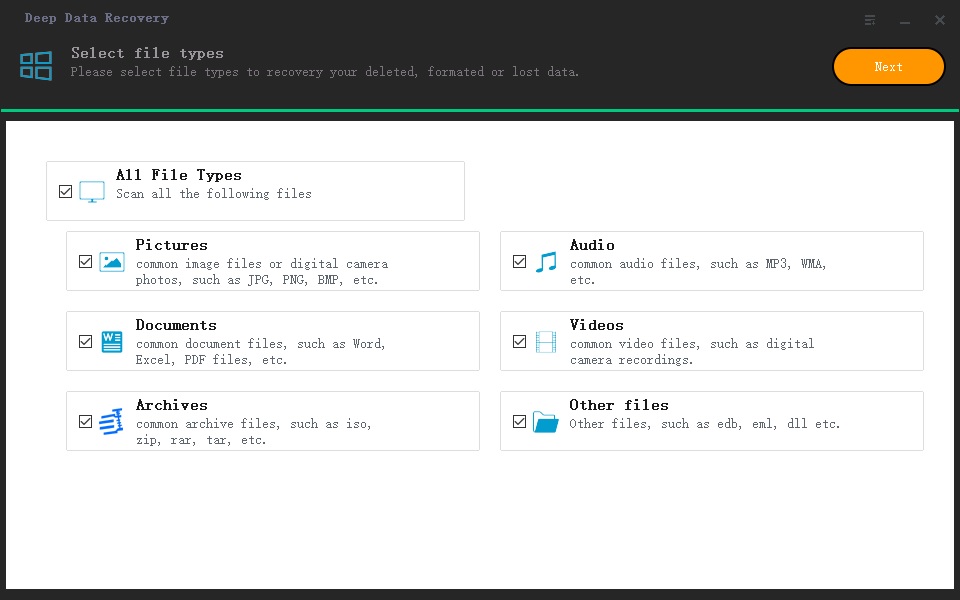
- Step 1. Deselect all files that have been selected by default, then navigate to the 'Pictures' menu from the main window, click 'Next' to recover deleted pictures from Windows 10 or 11.
- Step 2. Select the specific drive/partition where the deleted photos were stored and click 'Scan' to initiate the recovery process.
- Step 3. The scanning process may take a few minutes, depending on the size of the storage space. Once complete, preview the scanned photos and click 'Recover' to save them on your computer. If you want to scan and recover more photos, use the 'Deep Scan' menu to continue the process.
We've resolved the issue with the photo app not showing in Windows 11/10 and explored why it's not working. Additionally, we've used Deep Data Recovery software to recover deleted photos in Windows 11/10, ensuring you never have to worry about photo app problems or lost photos again.
Related Articles
- Fix Windows 10 Photo App Not Seeing/Recognizing/Finding iPhone
- Where Can I Find Deleted Files on Windows 10
- Fix 'Windows Could Not Complete the Installation' in Windows 10
- Fix Windows 10 Keeps Freezing Up Randomly [2020]
- How to Fix 'There was a problem resetting your PC' Error in Windows 10
- Fix Kernel Security Check Failure in Windows 10/8/7
- Fix Win 10 PC Won't Shut Down – ShutDown Computer via CMD
Products
Articles & Tutorials
- Data Recovery
- Data Backup
- File Recovery
- File Backup
- File synchronize
- System Backup and Restore
- Disk and Partition Clone
- Technical articles
- Disk Master Help
- Windows Deleted File and Disk Recovery Tutorials
- Windows File and Data Recovery Tutorials
- More Windows Tutorials for Install, Security, Files, and PC Tips
- Windows Boot, Repair, and Recovery Environment Tutorials
- Windows Backup Tutorials
- Windows Restore Tutorials
- Windows Clone and Migration Tutorials
- Windows Server Backup, Recovery, and Management Tutorials
- Windows Disk, Partition, and Storage Management Tutorials