How to Fix 'There was a problem resetting your PC' Error in Windows 10
Quick Navigation:
- PART I: Possible Causes for the Error "There was a problem resetting your PC"
- PART II: 3 Ways to Fix the Problem of "There was a problem resetting your PC"
- 1. Run System File Checker to Repair corrupted system Files
- 2. Rename system and Software Registry with Command Prompt
- 3. Revert to previous windows version with window restore points
- PART III: Preventing Data loss while fixing "There was a problem resetting your PC"
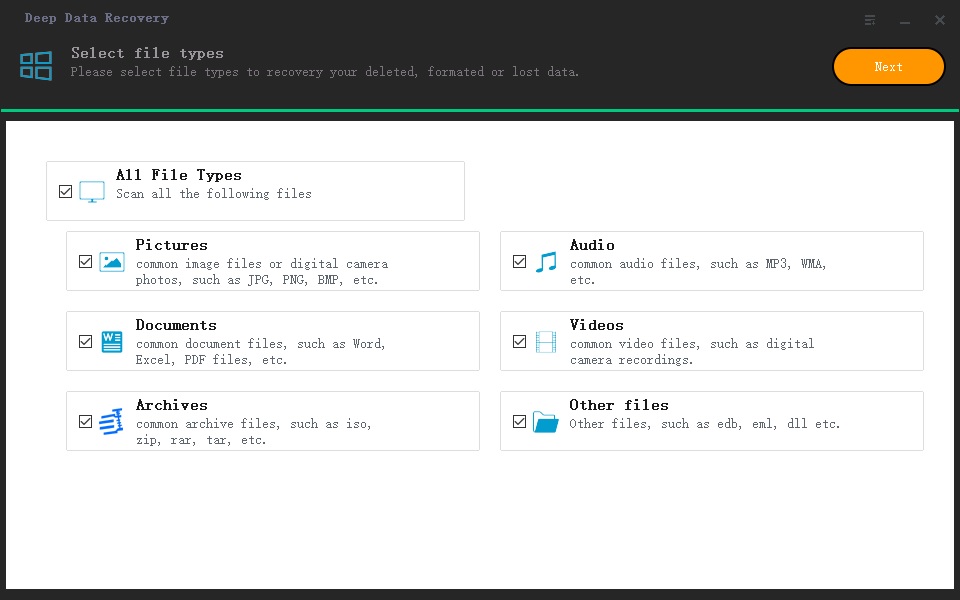
- Step 1. Select the file type you want to restore
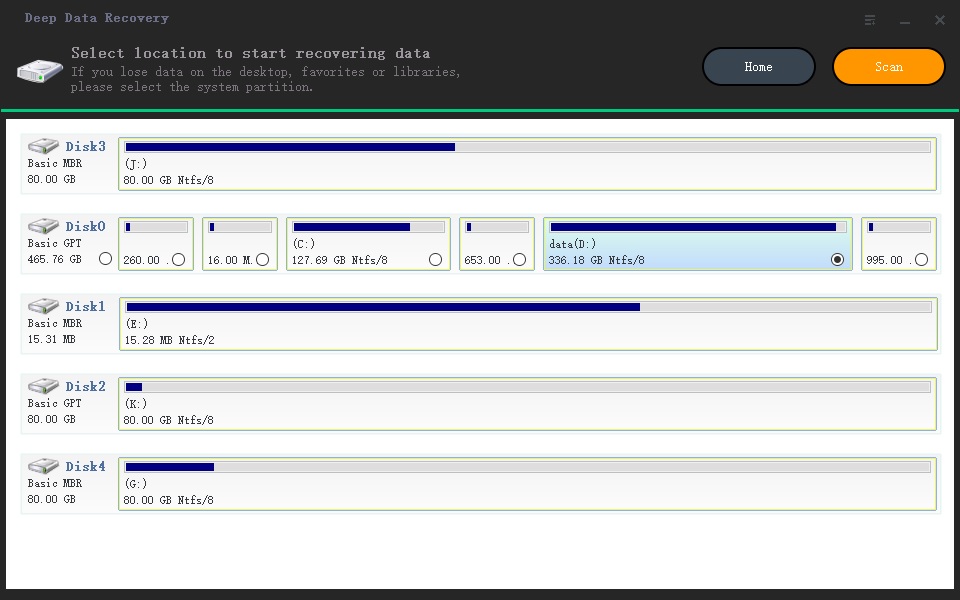
- Step 2. Select a location to scan or find data
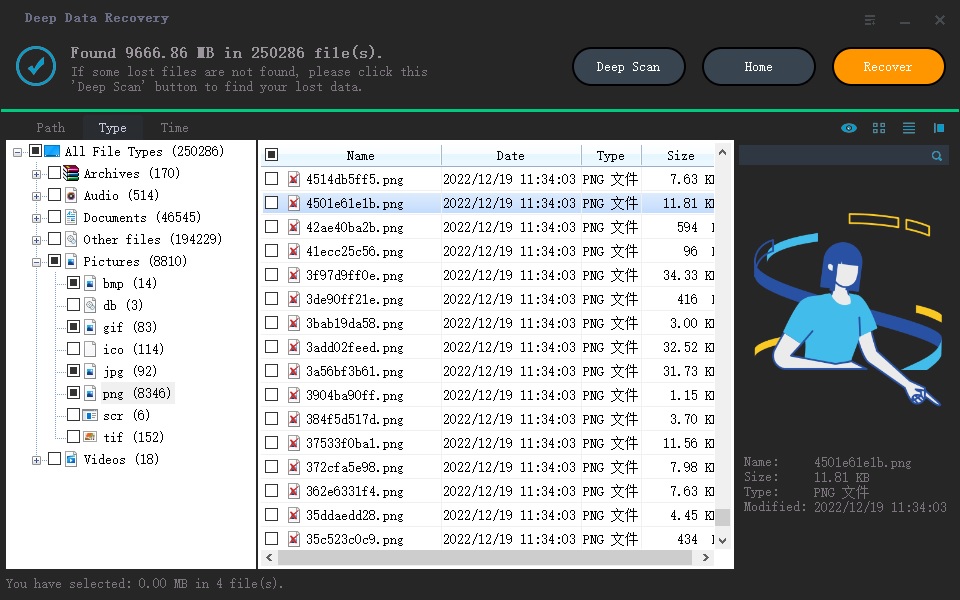
- Step 3. Recover the Lost file
Resetting a Windows 10 PC can be a crucial step in removing malware and system bugs, but sometimes this process fails, resulting in an error message that reads "There was a problem resetting your PC". This issue can occur on various devices, including the Surface Pro, and may be displayed with slight variations, but the underlying problem remains the same. This article aims to provide a solution to help you overcome this issue and successfully reset your Windows 10 PC.
If reset fails because recovery files are unavailable, compare this issue with Windows recovery drive creation fixes.
PART I: Possible Causes for the Error "There was a problem resetting your PC"
The "There was a problem resetting this PC" error can be caused by various issues, including corrupted system files, malware or viruses, issues with the Windows Update process, problems with the Windows registry, or conflicts with hardware drivers, among others. This error message can also occur due to a faulty or corrupted Windows installation, or when the system is unable to complete the reset process due to insufficient disk space or other system resources. Understanding the possible causes of this error can help you troubleshoot and identify the root cause, making it easier to find a solution and resolve the issue.
- You have the pre-The user installed a fresh copy of Windows 10 on their PC, opting for a clean installation rather than upgrading from an existing version such as Windows 7 or Windows 8.
- To create a recovery drive in Windows 10, you can use the built-in "Create a recovery drive" feature. This feature allows you to create a USB recovery drive that contains the necessary tools to recover your computer in case of a problem or system failure.
- To boot the PC, go through the steps of Troubleshooting, then select Reset this PC, and finally choose the option to Remove everything.
- The manufacturer enabled compression to reduce the disk space required for pre-installed programs.
- A system disk with bad sectors can cause a computer to fail to work normally, leading to errors and crashes. This is because the bad sectors can cause data corruption and make it difficult for the computer to access important files and programs.
- The Windows Recovery Environment (WinRE) is not functioning correctly or has been corrupted, which can prevent it from being used to troubleshoot and repair the operating system. This can lead to difficulties in accessing important system files, settings, and tools.
PART II: 3 Ways to Fix the Problem of "There was a problem resetting your PC"
To fix the "There is a problem resetting your PC" error on Windows 10, follow these steps. Firstly, you should try booting your PC in Safe Mode and see if the issue persists.
1. Run System File Checker to Repair corrupted system Files
The System File Checker (SFC) is a built-in Windows utility that checks for problems with files on your computer, including corrupted system files. It can also help solve problems by repairing them, which can be particularly useful if the error is caused by a corrupted Windows recovery environment. To use the SFC to fix the error, follow the procedure below.
To access the Command Prompt as an administrator, first locate it using the search function on your PC. Once found, right-click on the result to open it as an administrator. If prompted for a password, enter your local password to proceed.
To start the System File Checker, open the Command Prompt and type `sfc /scannow` and press Enter to initiate the scan.
Once the scanning is completed at 100%, files associated with "There was a problem resetting your PC Windows 10 no changes were made" will be fixed and you can restart your PC and try resetting again.
2. Rename system and Software Registry with Command Prompt
The registry is a crucial part of a PC, containing settings for hardware, system software, and applications, making it a powerful tool. It can be edited directly, which is why a registry editor can be used to resolve issues like the "There was a problem resetting your PC surface pro 6" error. By using this method, you can potentially solve the error and get your PC up and running again.
To run a command in Command Prompt as an administrator, first locate the Command Prompt app in your PC using the search function. Once found, right-click on it and select "Run as administrator" from the context menu. This will open a new Command Prompt window with administrator privileges, allowing you to execute commands with elevated permissions.
b. Enter the command below.
- Type in cd %windir%\system32\config and press enter key,
- Then ren system system.001 and press enter key,
- And finally ren software software.001 then press enter key.
c. Then close the Command prompt which would take you to the Windows Recovery Environment Screen.
To resolve the issue of "There was a problem resetting your PC" on a Surface Pro 6, you can try running the Windows Update Troubleshooter, resetting the PC, and then choosing the "Continue" option to boot your PC after the reset. This should resolve the issue and allow your PC to boot normally after the reboot.
3. Revert to previous windows version with window restore points
Windows Restore points is a Windows program and registry setting that allows you to revert your PC to a previous version of the system when it was working perfectly, without deleting any files. This method is safe and only works for PCs that did not have the error in their previous version of Windows, effectively returning your system to a previous point in time.
To create a System Restore point, use the search function to locate System Restore and select the "Create a restore point" option from the results. This will allow you to set a restore point at the current state of your system. You can also schedule System Restore to create a restore point at regular intervals, such as daily or weekly, to ensure that your system is backed up in case of any issues.
To access System Properties, go to Control Panel, then click on System and Security, followed by System. In the System window, click on the "Advanced" tab and then click on "Settings" in the Performance section. This will open the System Properties window, where you can switch to the System Protection tab.
Click on the System restore button, then click on Next in the System restore window.
d. Choose a point you want to revert to, and click on Next.
e. On-screen instructions should simply be followed to complete the process. Upon completion, try resetting your PC.
If you're experiencing the "There was a problem resetting your PC, Windows 10, no changes were made" issue, you can try one of the three methods above to resolve it. These methods have been verified and are proven to produce results, making it likely that you'll be able to solve the problem using one of them.
PART III: Preventing Data loss while fixing "There was a problem resetting your PC"
Losing data in the process of fixing an error can be a frustrating experience, especially if the lost data is vital. However, this issue is fixable, and you can recover your data using Deep Data Recovery. If you find yourself in such a situation, don't panic and instead take steps to retrieve your lost data.
Deep Data Recovery is software that can help recover data lost during the resetting of a PC, supporting various file types and file systems. It allows previewing files before recovery and can recover data from external storage devices like SD cards, making the process easy and straightforward, with a free trial version available for download.
Step 1. Select the file type you want to restore
When launching the app, all file types are selected by default, but you can unselect specific types, such as photos, if needed. If you want to recover a particular file type not listed among the 5 common types, you can select "All file types" to recover deleted files in Windows 10.
Step 2. Select a location to scan or find data
The program allows you to select a location to scan, such as a hard drive, system partition, or external storage like a USB key. Once selected, it scans the location thoroughly, searches for lost data, and lists out what it finds.
Step 3. Recover the Lost file
After a quick scan, the scan result and guide to deep scan are displayed. If some files are still not found, a deep scan can be performed, which scans every sector and takes more time. This can be done to find all lost data.
The process is simple and straightforward, eliminating the need to search for data recovery software. This tool can handle any data recovery issue on a PC, and it also offers a free trial plan, allowing you to experience its capabilities before committing to it.
Related Articles
- Fix 'You Don't Currently Have Permission to Access This Folder in Windows'
- 9 Ways for How to Fix Windows 10 Preparing Automatic Repair Loop
- How to Fix 0x80240fff Windows 10 Update Error
- [Solved] Photos Cannot Open in Windows 11/10
- Fix 'Windows Could Not Complete the Installation' in Windows 10
- Fix Windows 10 Keeps Freezing Up Randomly
- Your PC Ran into a Problem and Needs to Restart Windows 8
Products
Articles & Tutorials
- Data Recovery
- Data Backup
- File Recovery
- File Backup
- File synchronize
- System Backup and Restore
- Disk and Partition Clone
- Technical articles
- Disk Master Help
- Windows Deleted File and Disk Recovery Tutorials
- Windows File and Data Recovery Tutorials
- More Windows Tutorials for Install, Security, Files, and PC Tips
- Windows Boot, Repair, and Recovery Environment Tutorials
- Windows Backup Tutorials
- Windows Restore Tutorials
- Windows Clone and Migration Tutorials
- Windows Server Backup, Recovery, and Management Tutorials
- Windows Disk, Partition, and Storage Management Tutorials