How to Merge Partition in Windows 11/10 without Losing Data
Quick Navigation:
- Part 1: Why Need to Merge Partition in Windows 11/10
- Part 2. Back up Important Files from Partition before Merging Partitions
- How to Back up Important Files from Partition by using Qiling Disk Master
- Part 3: How to Merge Partitions using Disk Management
- Part 4: How to Merge 2 Partitions Using Diskpart
- Part 5: How to Merge Partition to C Drive in Windows PC
- Part 6: Tips for How to Extend Partition for Drive C
Merging partitions in Windows 11/10 can be a straightforward process that doesn't require reinstalling the operating system, allowing you to extend the volume of a drive or partition without losing personal data. There are various methods to achieve this, and we will outline a step-by-step guide to help you merge partitions in your Windows PC.
If unallocated space cannot be used directly, compare this with repartitioning a hard drive without losing data.
Part 1: Why Need to Merge Partition in Windows 11/10
Partition merging is a process of combining two disk partitions to create a larger one, often for decluttering and saving space. This is commonly done when a new PC is purchased, resulting in a single partition on the drive.
You can combine two partitions to create a larger one, which can help if you're running low on storage space, especially if you're a student with a lot of data. This process can avoid the issues that come with running out of space on a partition, such as being unable to store more data. by merging two partitions, you can free up space and have a bigger partition to store your files. This can be a useful solution for students who need to store a lot of data, but don't want to deal with the hassle and potential errors of using a distributed drive.
Part 2. Back up Important Files from Partition before Merging Partitions
Backup involves saving files so that backups can then be used during a data loss occurrence to recover original data. For data management, backups are incredibly necessary. It is not a case of losing data at any point. It's a matter of when this will arise. When it happens, without all your data backed up, you don't want to be stuck in the wrong spot. So before merging partitions, you need to back up all the important files or the whole source partition before the merging. We want to recommend Qiling Disk Master as the best backup software that will help you with your data backup process and make it a lot easier for you.
How to Back up Important Files from Partition by using Qiling Disk Master
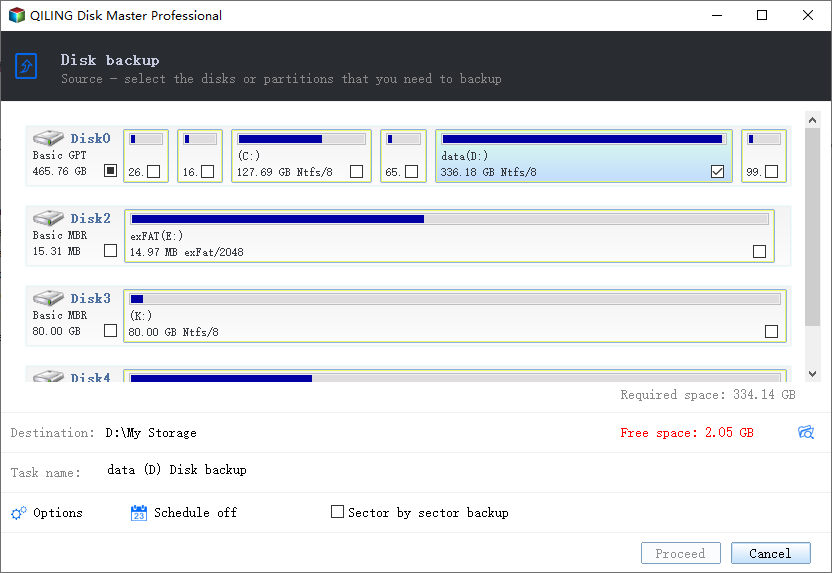
Step 1: To use Qiling Disk Master, first download and install the software on your computer. Once installed, start the software and click the "Backup Drive" option on the main page. Then select the partition you want to back up.

Step 2: You can set the path to another partition where you want to back up all the data, and choose automatic backup and sector by sector backup. Once set up, click the "Start" button to begin backing up the selected partition, then wait until the process is finished, which takes time depending on the amount of files and file size.
Part 3: How to Merge Partitions using Disk Management
Disk Management is an important aspect of the Windows operating system, allowing users to perform simple tasks such as deleting, formatting, and generating volume for their PC's storage structure. However, partitions on the PC, including the C drive, cannot be affected, and all partitions can be removed. To minimize partition size, the Shrink Volume method is used, while Extending the volume maximizes capacity by merging with an adjacent volume. Note that there is no fusion volume feature in Disk Management, but partition fusion can be achieved by shrinking one volume to expand into an adjacent volume. It's recommended to exercise caution when making changes to avoid potential issues, and users who are not tech-savvy should be careful not to over-partition their PC. To merge partitions, users can follow these steps in Disk Management.
Step 1: Search to open the disk management on your window 10 by clicking "Window + S" on the search bar.
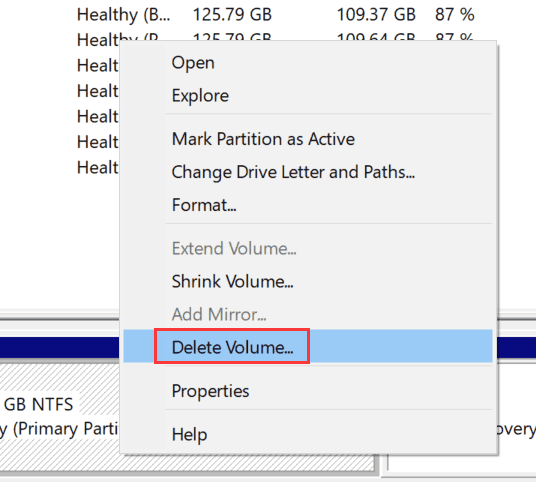
Step 1: Right-click the partition to be merged and select the "Delete Volume" option, however, if this option is unavailable, follow an alternative method to resolve the issue.
- To access the System Properties window, navigate to the Control Panel, then click on "System security" and select "System". In the left panel of the window, click on "Advanced System Settings".
- b. Click the Settings in Performance option.
- c. After then, click Advanced label in the new window. Click "Change".
- d. In the pop-To merge partitions, select the partition you want to merge and then click "no paging file", next click "Settings".
- To delete a system reserved partition on Windows 11/10, restart your PC, and then you'll see the option to "Delete Volume" after restarting.
Step 3: Just click on the "Extended Volume".
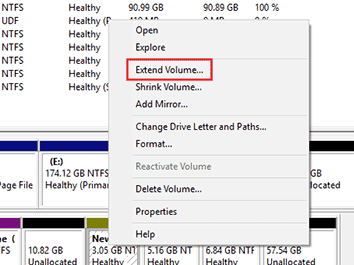
Step 4: Drive A combined with drive B. Successful in merging the drives.
Part 4: How to Merge 2 Partitions Using Diskpart
You can merge a partition in Windows PC by using Disk Management or the Command Prompt (CMD). This process allows you to create unallocated space and then partition that space into a new, larger drive. To do this, you can use Disk Management or run commands in CMD to merge the partition, creating a bigger drive.
Step 1: When opening the "Start" menu in Windows 11/10, type "diskpart.exe".
Step 2: When the CMD panel starts in windows, type in "list volume".
Step 3: Then select the volume by typing in "select volume X". "X" is you want to merge drive.
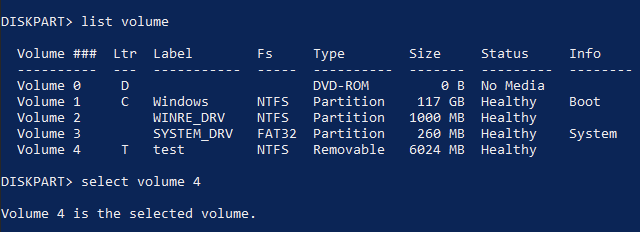
Step 4: Now you need to type in "delete volume" for making the space unallocated and ready for partitioning.
Step 5: Finally type in "extend" to merge the partitions.
Part 5: How to Merge Partition to C Drive in Windows PC
To merge a partition to C drive in Windows 11/10, you can use the Disk Management menu, a technical method that's still easy to follow with a step-by-step process.
Step 1: Right-click from the mouse on PC and select "manage".
Step 2: To merge the partition, right-click on the partition you want to merge in "C" and select "Delete Volume". In the prompt window, select "yes".
Step 3: Now again right-click on the source partition and select "Extended Volume" when the wizard shows for "Extended Volume", click "next".
Step 4: Set the amount of space you want to merge in the "C Drive", then click next and wait for the finishing process.
Part 6: Tips for How to Extend Partition for Drive C
There are multiple ways to extend the partition for Drive C. Here are some tips for you that you can use if you want to merge the system reserved partition with the C drive.
- Partition resize by using disk management.
- Extend C drive by using the command prompt (CMD).
- Merging partition to C drive.
- To speed up your slow computer, use professional partition manager software that has a clean up and system optimization feature. This will help you clean junk files and repair the Windows system, making your computer run faster and more efficiently.
- To keep your computer's C drive free from clutter, make sure to empty the Recycle Bin regularly. This is because anything you delete in your computer initially goes to the Recycle Bin, taking up space on the C drive until you empty it.
After learning multiple ways to merge two partitions or drives without losing data, choose the method that matches your disk layout. To merge unallocated space in Windows 10, try the suitable method above, but back up important data first. Qiling Disk Master can help you create a backup before changing partitions.
If you forget to back up your data before merging partitions in Windows, you can try using data recovery software to retrieve it.
Related Articles
- [Solved] Files Missing from My Documents Folder in Windows
- How to Migrate Windows 10 to an SSD without Data Loss
- Best Free Data Migration Software for Windows 7/10
- Fix Windows 10 Do not Show Hidden Files and Folders
- [Solved] Deleted File/Folder Not in Recycle Bin
- How to Reset GoPro Hero 3/4 to Factory Settings Without Data Loss
- Easily Schedule Automatic Backup Windows Server 2022 (3 Ways)
You can learn how to easily schedule automatic backup Windows Server 2022 in 3 ways, both built-in tool and the third-party backup software can help you. Please read on.
Products
Articles & Tutorials
- Data Recovery
- Data Backup
- File Recovery
- File Backup
- File synchronize
- System Backup and Restore
- Disk and Partition Clone
- Technical articles
- Disk Master Help
- Windows Deleted File and Disk Recovery Tutorials
- Windows File and Data Recovery Tutorials
- More Windows Tutorials for Install, Security, Files, and PC Tips
- Windows Boot, Repair, and Recovery Environment Tutorials
- Windows Backup Tutorials
- Windows Restore Tutorials
- Windows Clone and Migration Tutorials
- Windows Server Backup, Recovery, and Management Tutorials
- Windows Disk, Partition, and Storage Management Tutorials