How to Fix iTunes/Software/Computer Can't Recognize iPhone
Quick Navigation:
- Part 1. What is Apple Mobile Device USB Driver?
- Part 2. Fix iTunes/Computer Can't recognize iPhone or Recovery Software Requires the Latest iTunes
- Solution #1. If you have downloaded iTunes from Microsoft Store, reinstall it with the following steps
- Solution #2. If you have downloaded iTunes from Apple.com, follow the steps below.
You're having trouble getting your iPhone recognized by your computer. To fix this, you can try downloading and installing the Apple Mobile Device USB Driver, which is a software that helps your computer communicate with your iPhone. This driver is usually available for download on Apple's official website, and it's a straightforward process that can help resolve the issue. Just head to the website, search for the driver, and follow the prompts to download and install it on your computer. This should help your iPhone be recognized and allow you to sync it with your computer.
If the main problem is photo import, review Windows Photos app not seeing iPhone.
Since the release of the first iPhone in 2007, Apple has launched numerous iOS devices, including various generations of iPhones, iPads, and iPod touches, with cumulative sales exceeding 2 billion, solidifying the company's position as one of the leading smartphone providers.
People are spending an average of 3 hours and 15 minutes on their iOS devices every day, taking advantage of the convenience they offer, while also generating various types of files in the process.
When trying to connect an iOS device to a computer using iTunes, some users may experience the issue where the computer fails to recognize the iPhone. Despite trying methods such as updating iTunes, clicking "trust this computer" on the PC, unplugging and replugging the USB cable, restarting the iPhone and computer, and more, the problem persists for many. It's often only after installing the Apple Mobile Device USB Driver that the issue is resolved, allowing iTunes to successfully recognize and interact with the iOS device.
Part 1. What is Apple Mobile Device USB Driver?
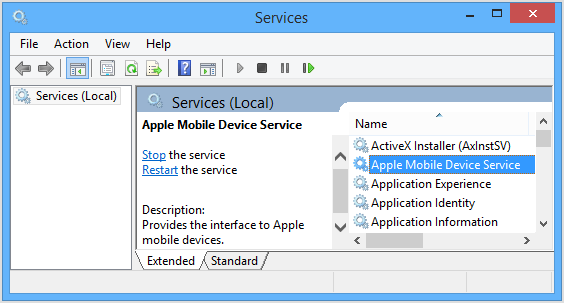
The Apple Mobile Device USB drive is a component of iTunes that detects iPhone, iPad, and iPod touch when connected to a computer. It is not typically used as a standalone tool, but rather as part of the iTunes software. To recognize an iOS device, the Apple Mobile Device USB Driver must be properly installed on a Windows PC, allowing iTunes to detect and interact with the device.
The Apple Mobile Device USB driver is a crucial component that often goes unnoticed, typically installed alongside iTunes. However, issues can arise when it's not updated or installed properly, leading to a computer failing to recognize iPhones, iPads, and iPods. Fortunately, there are two officially recommended ways to download and install the Apple Mobile Device USB driver for free.
Part 2. Fix iTunes/Computer Can't recognize iPhone or Recovery Software Requires the Latest iTunes
Sometimes, we may lose important data due to wrong operations, but fortunately, there are iOS data recovery software tools to help retrieve lost files. However, due to Apple's restrictions, these software can't directly access the iPhone, iPad, or iPod touch, and instead rely on iTunes components, such as the Apple Mobile Device USB driver, to recognize and connect the device before scanning it. As a result, the Apple Mobile Device USB driver is crucial for data recovery software to work, and in this article, we'll cover how to fix the problem of iTunes not recognizing the iPhone and data recovery software not recognizing the iPhone.
Solution #1. If you have downloaded iTunes from Microsoft Store, reinstall it with the following steps
1. Disconnect your iPhone, iPad, or iPod from your computer
2. Reconnect your iOS device to your computer, ensuring it's unlocked, and close any open iTunes sessions.
3. Right-click the "Start" button at the bottom left side of your computer, then choose "Device Manager".
4. Go to the "Portable Devices" section, click to view the list, and select the iOS device that is connected to your computer.
5. Right-click on the device name and click "Update driver".
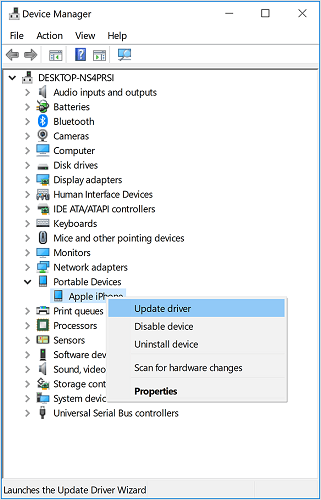
6. Select Search automatically for updated driver software.
7. Relaunch iTunes again, trying to reconnect your iOS device with your computer.
Solution #2. If you have downloaded iTunes from Apple.com, follow the steps below.
1. Disconnect your iOS Device from your PC.
2. To reconnect your iPhone to your computer, start by going to the Home screen and unlocking your device. Ensure it's unlocked and connected to your computer. If iTunes is already open on your computer, close it to begin the reconnection process.
3. To open the Command Prompt, press and hold the Windows key and the R key at the same time on your keyboard. This will open the Run dialog box, where you can type the command you want to execute.
4. Press the Windows key + R to open the Run dialog box. Type in the command: "%ProgramFiles%\Common Files\Apple\Mobile Device Support\Drivers" and click Enter.
5. Next, right-click on usbaapl64 or usbaapl.inf and choose Install.
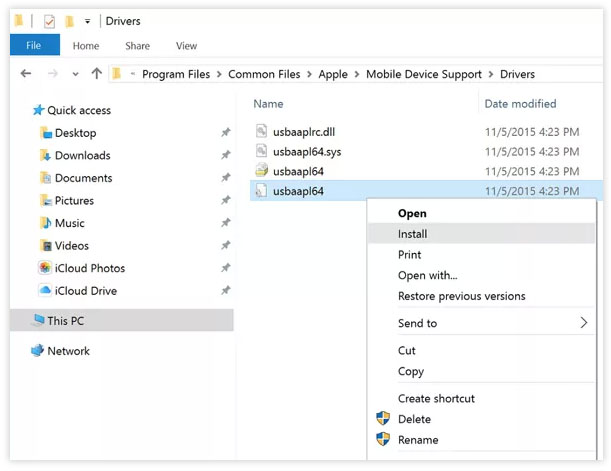
6. After installing the file, restart your computer and reconnect your iOS device to your computer to resolve the issue.
If your iPhone, iPad or iPod can't be recognized by your computer while using Qiling iPhone Data Recovery, you can contact the support team for assistance.
Related Articles
- How to Fix the Sony PlayStation 4 (PS4) Error Code
- How to Repair Corrupted/Damaged MP4 Video Files
- External Hard Drive Not Showing Up
- How to Migrate OS to HDD or SSD in Windows 11/10/8/7?
This article tells how to migrate OS to HDD or SSD step by step via using Qiling Disk Master Professional. - Top 2 Server Backup Solutions to Backup Server 2019 Safely
Try the following 2 server backup solutions to less downtime and recovery faster. Perform disaster recovery if something bad happened to your Windows Server. - Professional Clone Software for Windows Server 2003/2008/2012/2016/2019
Pick the most reliable and professional Windows Server clone software to clone hard drive to new drive or SSD in Server 2003, 2008, 2012, 2016 and 2019 with simple clicks.
Products
Articles & Tutorials
- Data Recovery
- Data Backup
- File Recovery
- File Backup
- File synchronize
- System Backup and Restore
- Disk and Partition Clone
- Technical articles
- Disk Master Help
- Windows Deleted File and Disk Recovery Tutorials
- Windows File and Data Recovery Tutorials
- More Windows Tutorials for Install, Security, Files, and PC Tips
- Windows Boot, Repair, and Recovery Environment Tutorials
- Windows Backup Tutorials
- Windows Restore Tutorials
- Windows Clone and Migration Tutorials
- Windows Server Backup, Recovery, and Management Tutorials
- Windows Disk, Partition, and Storage Management Tutorials