How to Fix the Sony PlayStation 4 (PS4) Error Code
Quick Navigation:
- Method #1: Install the Latest PS4 System Software and Game Updates
- How to Back Up PS4 Data with USB
- Method #2: Back up your Saved Data and Initialize PS4
- Method #3: Re-Install the Original Hard Drive
- Tips: How to Keep Data Safe in PS4
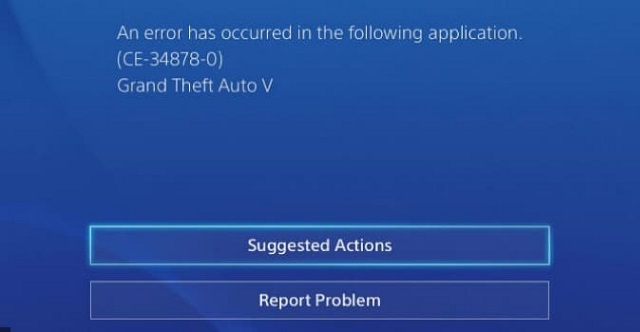
If you're experiencing the PS4 error code CE-34878-0, you're not alone - many users encounter this common issue when playing games on their console. The error can be caused by various reasons such as game or app crashes, system software problems, or corrupted data on the PS4. Fortunately, fixing this error code is relatively easy and can be done with minimal technical skills. In this guide, you'll learn three effective ways to resolve the battlefield 5 PS4 error code CE-34878-0.
If game data or saved files were deleted, see PS4 deleted file recovery before rebuilding storage.
Method #1: Install the Latest PS4 System Software and Game Updates
The PlayStation 4 error code CE-34878-0 can occur due to system crashes or unknown bugs in games, and can be resolved by updating the game and system software. To fix this issue, follow the steps to update and install the latest games update on your PS 4.
Step 1: Navigate to the home screen of your PlayStation.
Step 2: To update a specific game on your console, browse through the game list and highlight the game that needs an update. Then, click on the 'Options' button on your controller and select 'Check for Update'. This will initiate the download and installation of the latest update for that game.
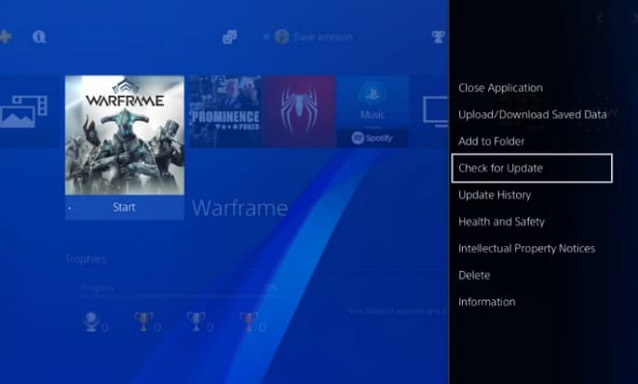
Step 3: When the installation process completes, restart the PlayStation 4 and you will see that the error code has been resolved.
To update your PS4 system software, open Settings, go to System Software Update, and install the latest available version. If the console cannot update normally, download the update file from the official PlayStation website and install it through Safe Mode with a USB drive.
Step 1: To upgrade the system, first, check if the internet connection is strong enough, as a stable connection is required for the process. If the connection is fine, navigate to the PlayStation's home screen, select the 'Settings' option, and then choose 'System Software Update' to proceed.
Step 2: To check for an update, go to the PS4 settings, select System, then select System Software Update. If an update is available, select the 'Update' option and wait for the update to complete the download. If your PS4 already has the latest version, you can skip this method and try other ways to resolve the error code CE-34878-0.
Step 3: After the download, select 'Downloads' from the pop-up window to start the installation of the update.
Step 4: Wait for the installation process to complete, then restart your PlayStation 4 and try opening the game again to see if the error has been resolved.
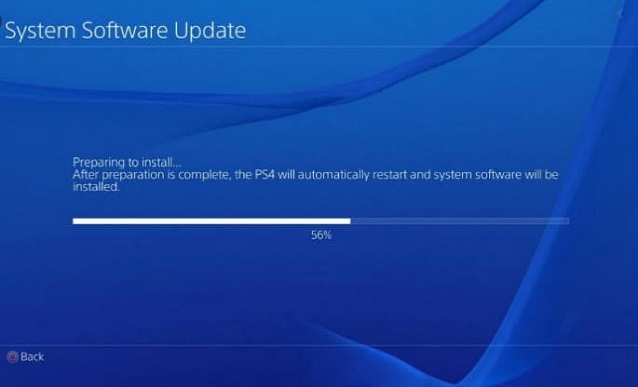
If the error code is due to software and game updates, this method should resolve the issue. If not, you can try the second or third method. Before attempting these, back up your PS4 data using an external USB to prevent data loss.
How to Back Up PS4 Data with USB
To back up your data from your PlayStation 4, you'll need a USB storage device formatted as FAT32 or exFAT, with at least double the storage space of your PS4's hard drive. Simply follow the steps to transfer your data to the USB device.
Step 1: Insert the USB device into one of the PS4 USB ports.
Step 2: To back up your data, go to Settings, then System, and select Back Up and Restore. From there, choose the Back Up option and confirm the specific data you want to save.
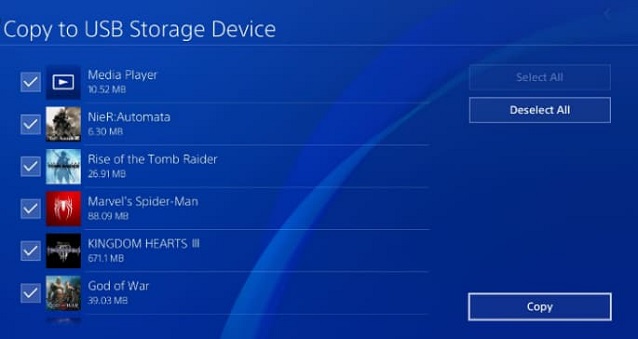
Step 3: The backup process will display a progress bar and allow you to customize the backup name. Once the backup is complete, click the 'X' button to close the 'Back Up' window.
Step 4: To back up data on your PS4 to a USB storage device, go to Settings, then System, then Backup and Reset, and select "Back up now" and choose the USB device. Select the data you want to backup, then select "Next" and confirm the backup. Once the backup is complete, remove the USB device from your PS4 system.
Method #2: Back up your Saved Data and Initialize PS4
To initialize your PlayStation 4, follow these steps: power on your PS4, go to Settings, select Initialization, and confirm your choice. This will erase all data, including games, apps, and settings. It's recommended to back up your saved data before initializing your PS4 to avoid losing your progress. You can restore the backup data after initialization.
Step 1: Navigate to PS4 'Settings' and then to 'Initialization' and then 'Initialize PS4' and then 'Full'.
Step 2: A list of on-screen instructions will popup.
Step 3: Follow the instructions carefully to complete the initialization process.
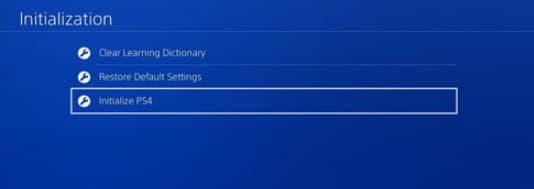
Step 4: When this is complete, you can restore your backup data.
Method #3: Re-Install the Original Hard Drive
One of the common reasons for Sony PlayStation 4 error code CE-34878-0 is a hard drive upgrade, which can be resolved by reinstalling the original HDD. To troubleshoot, try reinstalling the original hard drive, backing up your data first to avoid loss. If this resolves the issue, it confirms that the hard drive upgrade was the problem. Follow these steps to reinstall the original HDD.
Step 1: Deactivate the PSN accoun.
Step 2: Follow the on-screen prompting to install the original HDD.
Step 3: Install the firmware update and follow the prompting. This should resolve the issue.
Tips: How to Keep Data Safe in PS4
To prevent data loss, you can backup important files on your PlayStation 4 using the built-in backup feature or a professional third-party tool like Qiling Disk Master. This allows you to access your data in separate files, preview them, and easily restore everything in case of a disaster.
If you're seeing the PS4 error code CE-34878-0 message, you can try restarting your console, checking for corrupted data, or reinstalling the game to resolve the issue. It's a good idea to back up your PS data before troubleshooting to prevent data loss.
Related Articles
- How to Fix a Windows 11 Installation Error 0x8007007f
- How to Fix SD Card Is Blank or Has Unsupported File System
- How to Fix Windows 10 Update Error Code 0x80070002
- How to Fix USB Drives not showing up in Windows 10
- How to Fix 0x80240fff Windows 10 Update Error
- Fix Windows 10 Preparing Automatic Repair Loop
- Fix/Repair CHKDSK Is Not Available from RAW Drives
Products
Articles & Tutorials
- Data Recovery
- Data Backup
- File Recovery
- File Backup
- File synchronize
- System Backup and Restore
- Disk and Partition Clone
- Technical articles
- Disk Master Help
- Windows Deleted File and Disk Recovery Tutorials
- Windows File and Data Recovery Tutorials
- More Windows Tutorials for Install, Security, Files, and PC Tips
- Windows Boot, Repair, and Recovery Environment Tutorials
- Windows Backup Tutorials
- Windows Restore Tutorials
- Windows Clone and Migration Tutorials
- Windows Server Backup, Recovery, and Management Tutorials
- Windows Disk, Partition, and Storage Management Tutorials