How to Fix Desktop Files Missing after Windows 10 Update
- Why desktop files may disappear after a Windows 10 update
- Method 1. Check whether Windows signed in with a temporary profile
- Method 2. Search the computer for missing desktop files
- Method 3. Look in Windows.old after the update
- Method 4. Restore desktop files from File History
- Method 5. Recover missing desktop files with Deep Data Recovery
- How to prevent this issue next time
Why desktop files may disappear after a Windows 10 update
After a Windows 10 update, desktop files may seem to vanish because Windows signs you into a temporary profile, changes the Desktop path, hides icons, moves files to Windows.old, or resets folder view settings. In many cases, the files are not deleted immediately.
Before using recovery software, check common locations first. Avoid saving new files to the Desktop because new data may overwrite deleted files.
Method 1. Check whether Windows signed in with a temporary profile
Step 1. Press Win + I and open Accounts.
Step 2. Look for a message saying you are signed in with a temporary profile.
Step 3. Restart the computer once. If Windows loads the normal account, the desktop files may reappear.
Step 4. If not, open C:\Users, check old user folders, open each Desktop folder, and copy missing files back.
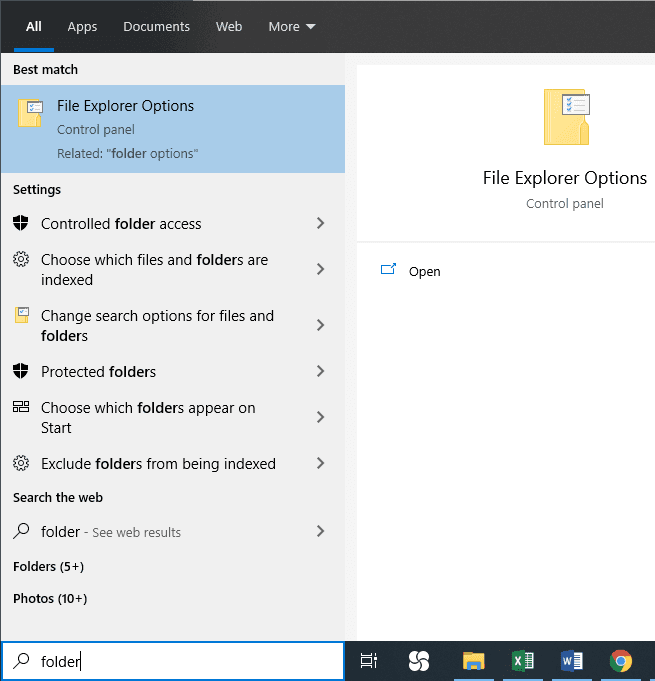
Method 2. Search the computer for missing desktop files
Step 1. Press Win + E to open File Explorer.
Step 2. Select This PC.
Step 3. Search for part of the file name or file types such as *.docx, *.jpg, or *.xlsx.
Step 4. Right-click a found file and choose Open file location. Copy needed files to a safe folder.
Method 3. Look in Windows.old after the update
Step 1. Open C:\Windows.old\Users.
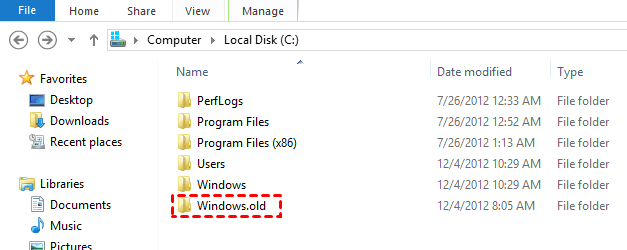
Step 2. Open your previous user folder.
Step 3. Go to Desktop and copy files to the new Desktop or another drive.
Step 4. Do not delete Windows.old until all important files are restored.
Method 4. Restore desktop files from File History
Step 1. Open Control Panel and choose File History.
Step 2. Click Restore personal files.
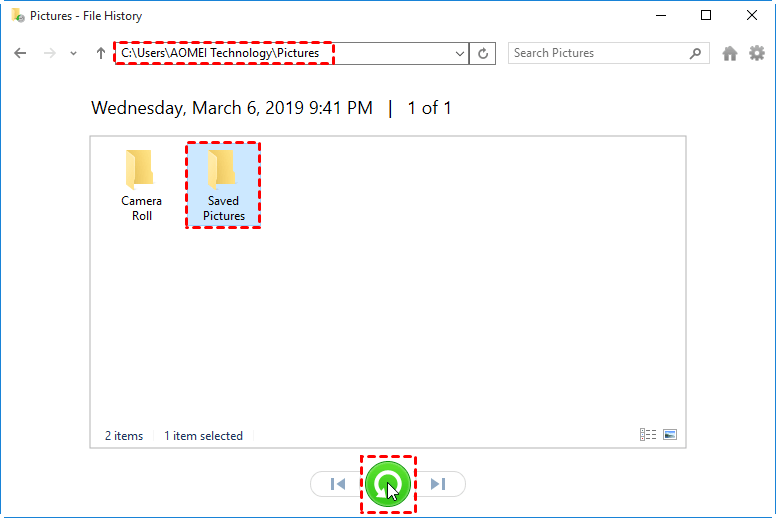
Step 3. Browse to the Desktop folder and choose a version before the update.
Step 4. Restore files to another location first to avoid overwriting newer files.
Method 5. Recover missing desktop files with Deep Data Recovery
If the files were deleted during the update and no backup exists, scan the original drive as soon as possible.
 Deep Data Recovery
Deep Data Recovery can scan Windows drives for deleted documents, photos, archives, and other files after update failure, profile damage, or accidental deletion.
Step 1. Install the program on a different partition if possible.
Step 2. Select the system drive or original Desktop location and start a scan.

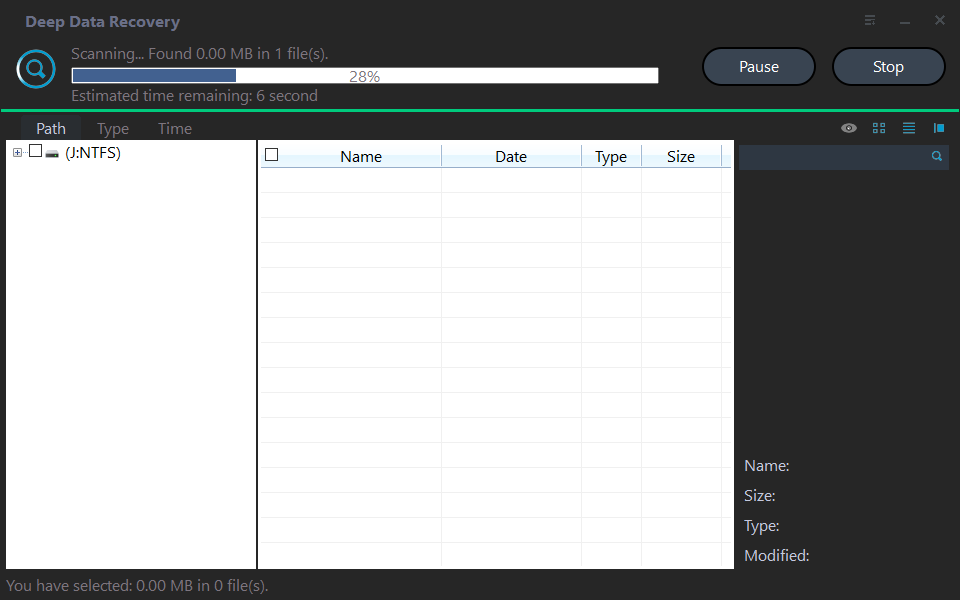
Step 3. Filter by file type or search file names.

Step 4. Recover files to another drive, not to the original Desktop folder.
How to prevent this issue next time
- Back up Desktop and Documents before major Windows updates.
- Do not keep the only copy of important files on the Desktop.
- Enable File History or scheduled file backup.
- Check the user profile before deleting Windows.old.
Related Articles
-
Deleted File Not in Recycle Bin | Proven Fixes
Learn why deleted files may bypass Recycle Bin and how to restore them with File History, Backup and Restore, or recovery software. -
BitLocker Data Recovery: Recover Data from BitLocker Encrypted Drives
Find practical ways to unlock BitLocker drives, locate a recovery key, and protect encrypted data before formatting. -
How to Reset Windows 11 without Losing Data and Apps
See when to use Reset this PC, backup images, and other Windows 11 recovery options while keeping personal files safer.
Products
Articles & Tutorials
- Data Recovery
- Data Backup
- File Recovery
- File Backup
- File synchronize
- System Backup and Restore
- Disk and Partition Clone
- Technical articles
- Disk Master Help
- Windows Deleted File and Disk Recovery Tutorials
- Windows File and Data Recovery Tutorials
- More Windows Tutorials for Install, Security, Files, and PC Tips
- Windows Boot, Repair, and Recovery Environment Tutorials
- Windows Backup Tutorials
- Windows Restore Tutorials
- Windows Clone and Migration Tutorials
- Windows Server Backup, Recovery, and Management Tutorials
- Windows Disk, Partition, and Storage Management Tutorials